

Suggestions and predictive modeling
When you are not sure what to model next, Studio can propose it. It looks at what is already on the board and suggests slices, features or modules. A slice is one unit of behavior. A suggested slice comes complete: its command, its event and its read model with their properties, the projection that builds the read model from events, and its screen.
Before you start
Section titled “Before you start”AI must be set up, and the application must have Enable AI on. See Work with AI.
See a suggestion before you take it
Section titled “See a suggestion before you take it”- Find a suggested slice in a feature’s header.
- Select Preview.
The slice appears at the end of the feature, faded and outlined, exactly as it would be added. Nothing is saved while you look at it, and you can preview several suggestions at once.
On the previewed slice’s header, select the checkmark to add it, or × to stop previewing it. If the slice needs an event the board does not have yet, its header warns you before you add it.
Add a suggestion
Section titled “Add a suggestion”Select the checkmark beside a suggestion to add it straight away, or the checkmark on its preview. Either way the whole slice is added, with its properties, projection and screen.
When a part of a suggestion cannot be added, Studio says which part it left out, for example “Added Cancel Order, without its screen.”. A slice whose read model or trigger depends on an event that is not on the board is not added at all, and Studio tells you which event is missing.
Use the chat bar
Section titled “Use the chat bar”You can also work with suggestions from the chat bar, typed or spoken.
| Say | What happens |
|---|---|
| “Apply the Cancel Order suggestion” | The suggestion is added. |
| “Preview the Cancel Order suggestion” | The suggested slice is shown on the board as a preview. |
| “Tell me about the Cancel Order suggestion”, or “Why did you suggest Cancel Order?” | The modeling agent discusses it with you. |
| “Apply it”, after discussing one | The suggestion you discussed is added. |
You do not need the exact name. When the name could mean more than one suggestion, Studio asks which one you mean, and you answer with the name or “the first one”. When it is not sure, it asks “Do you mean Cancel Order?” before adding anything.
Predictive modeling
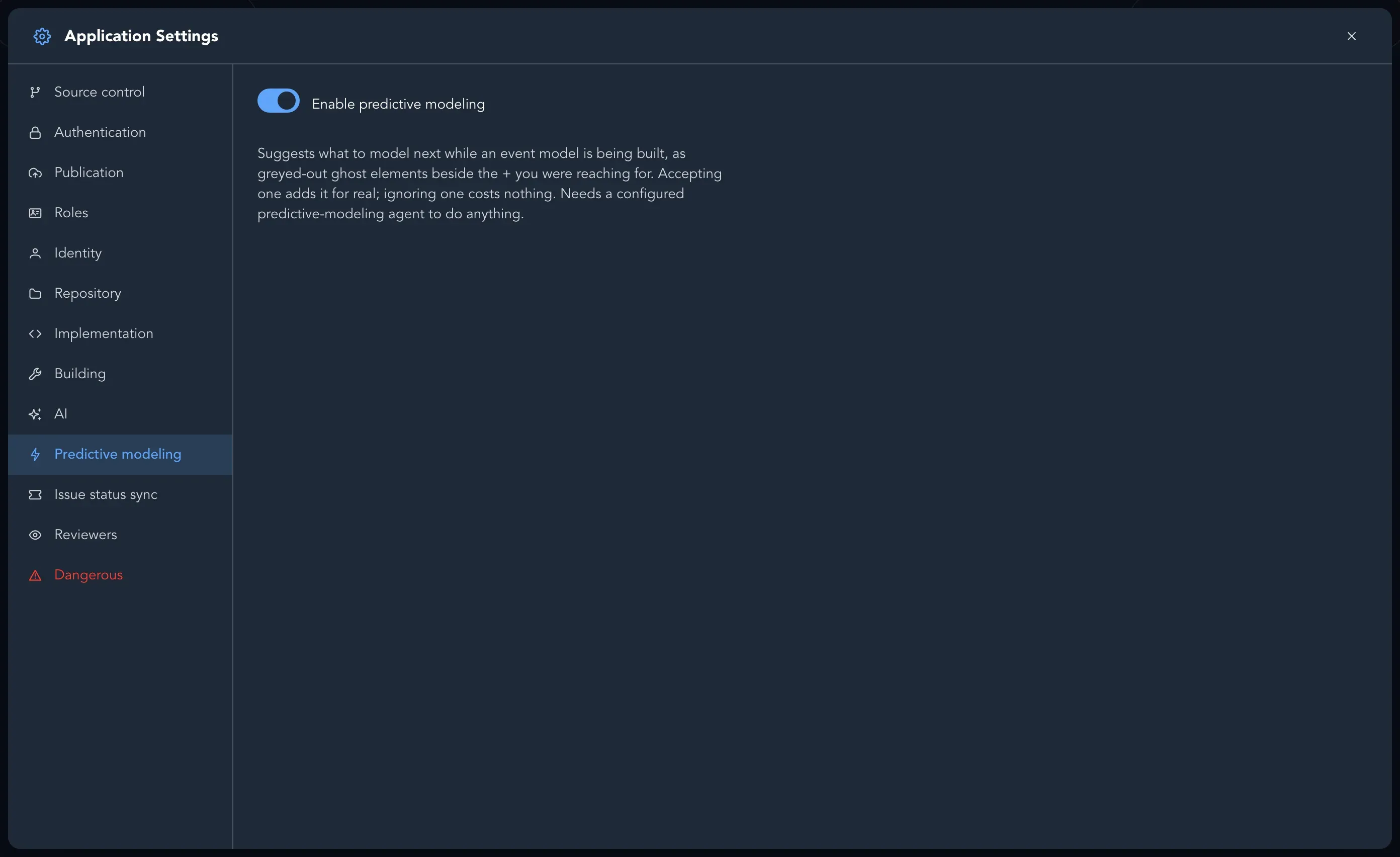
Section titled “Predictive modeling”Predictive modeling goes one step further: as you reach for the + to add something, Studio shows ghost elements beside it, and accepting them adds them.
To turn it on, open the application’s settings, select the Predictive modeling tab and switch on Enable predictive modeling.
Check that it worked
Section titled “Check that it worked”The added slice is on the board like any slice you built yourself. Read it, change what does not fit, and run your specification checks.
What leaves Studio
Section titled “What leaves Studio”Suggestions, and a discussion about one, are produced by the agent on your organization’s AI provider, from the part of the model it needs.