

Brainstorm events
A brainstorming board is a place to get what happens in your domain out of your head, before you decide where any of it belongs. There are no columns and no rules about where things go. When a cluster of events is ready, you hand it over to an event model and Studio turns it into slices.
Before you start
Section titled “Before you start”Your domain needs to exist. To hand events over, it also needs an event model to receive them. You do not need a model to start brainstorming.
Start a brainstorming board
Section titled “Start a brainstorming board”- In the project drawer, expand your domain and select Brainstormings.
- Select Add Brainstorming, enter a name such as
How we got to Sales, and confirm. - The new board opens empty, with a toolbar on the left edge.
The toolbar has four tools. From top to bottom:
| Tool | What it adds |
|---|---|
| Add Event (the bolt) | An orange event card: one fact, named in the past tense. |
| Add Sticky Note | A yellow note for a half-formed thought. |
| Add Region (the grid) | A named frame to group cards. |
| Add Chat Bubble (the speech bubble) | A conversation pinned to the board. |
Once the board has something on it, two whole-board actions appear at the bottom of the toolbar: Arrange the board: a column per region, the items in a grid, and Create slices from all events on the board.
Capture facts
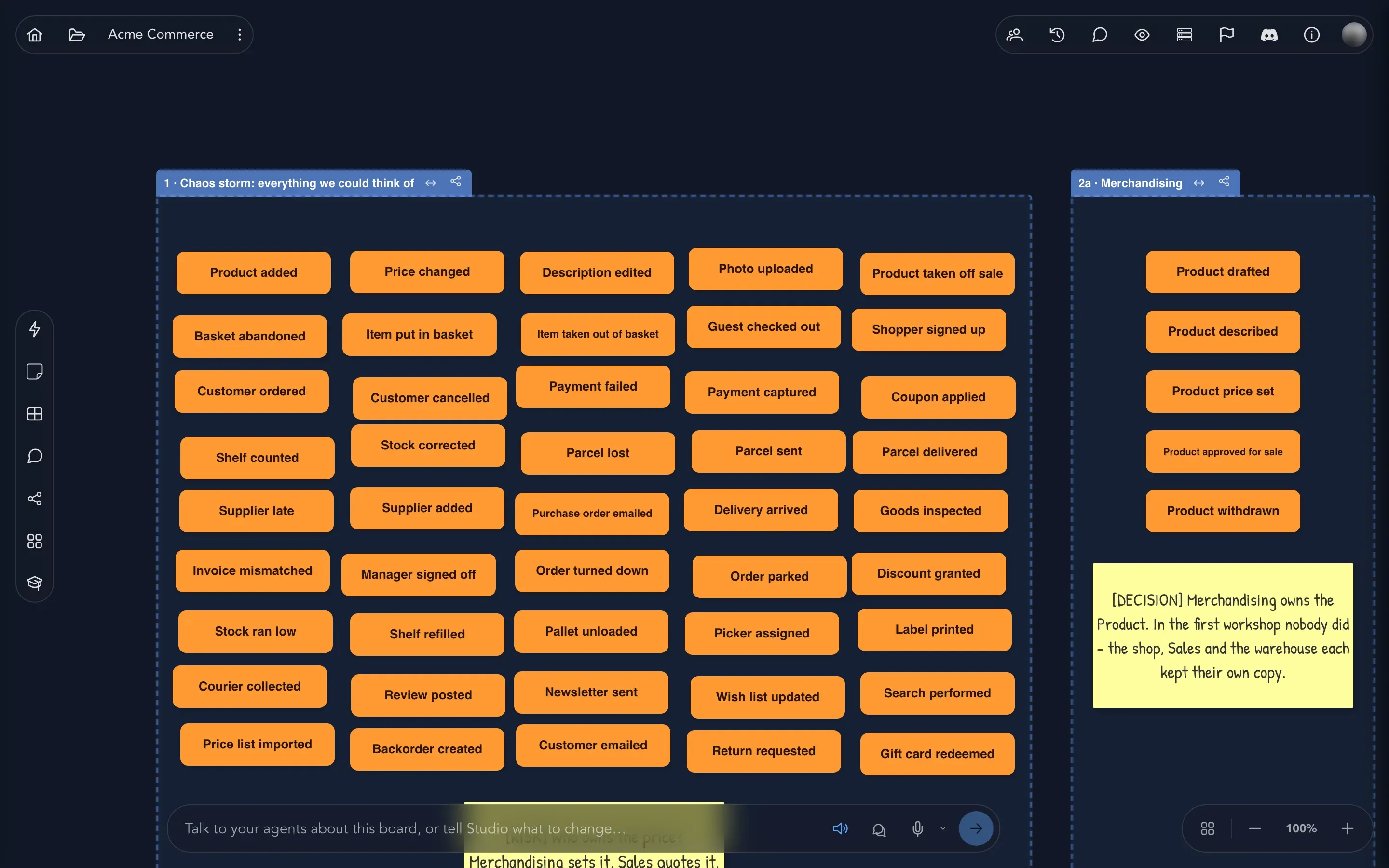
Section titled “Capture facts”Write down the facts of the business. Each one has already happened somewhere, so name it in the past tense: Product added, Customer ordered, Parcel lost.
- Select Add Event. A new card appears in the middle of the view, named New Event.
- Double-click the card and type the name of the fact.
- Keep going as they come to mind. The order does not matter yet, and capturing them is what counts.
- Drag a card anywhere you like. The board is loose on purpose.
Use Add Sticky Note for anything that is not a fact yet: Do we charge before shipping? Double-click a note to rewrite it. Select it to choose a color. The colors mean the same on every board: yellow is a question, pink a risk, green a decision, blue an assumption. Orange and purple are free for your team’s own use.
Use Add Chat Bubble to pin a conversation to the board, so a question and its answers stay next to the cards they are about. A message can be written as one of the domain’s personas.
Group facts in regions
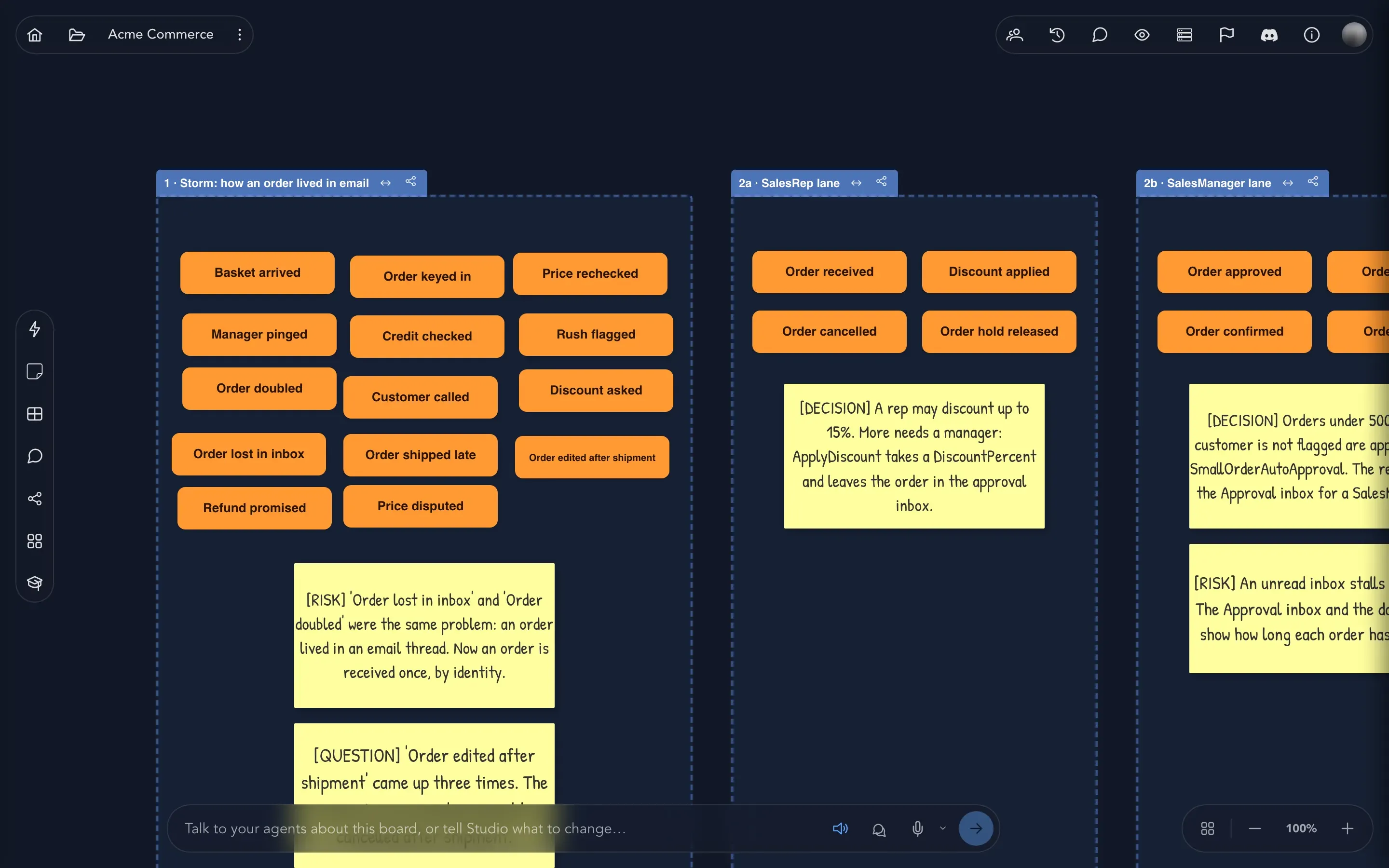
Section titled “Group facts in regions”A region is a frame with a name. Select Add Region, then drag it over the events that belong together, or drag the events into it. Everything inside a region moves with it when you drag its title bar, and you can resize it from its edges. Double-click the name to rename it.
On the sample board for the Sales domain, each region is a step of the story: a storm of how an order lived in email, then a lane for the SalesRep, then one for the SalesManager.
Line events up as a timeline
Section titled “Line events up as a timeline”An event model reads left to right as time passes, so put the events in order too. Drag the events roughly into the order things happen, then select Arrange events as a timeline in the region’s title bar. Studio spaces the events evenly on one line and keeps their left-to-right order.
Turn events into slices
Section titled “Turn events into slices”- Select the events that are ready. Click a card, hold Shift to add more, or drag a rubber band around them. A selection toolbar appears above them.
- Select Transfer selected events to an event model. If the domain has more than one event model, choose which one.
- Studio creates a module named after the region (or the board) the events came from. It puts a feature inside it and adds one state change slice for each event: the event itself, with its properties if you defined any, and a command named after it, so Product added gets a command called Add product.
- Select Open in the confirmation to go to the event model.
To hand over everything a region frames without selecting it, use Create slices from the events in this region in its title bar. To hand over the whole board, use Create slices from all events on the board. That button only appears when the domain has an event model to receive the events.
The selection toolbar also has Distribute and align selected events, Duplicate selection and Delete selection.
What happens next
Section titled “What happens next”You continue on the event model board with the same facts, now as slices ready for their commands, read models and rules. The brainstorming board stays where it is, so you can keep it as a record of how you got there.