

Event sources and streams
An event source is one kind of thing your domain keeps a history of, such as a basket or an order. Every single basket has its own sequence of events. The event source is the description of what a basket is: what identifies it, and the streams its history is divided into.
It is also where concurrency is decided, so that two commands racing to change the same history cannot both win.
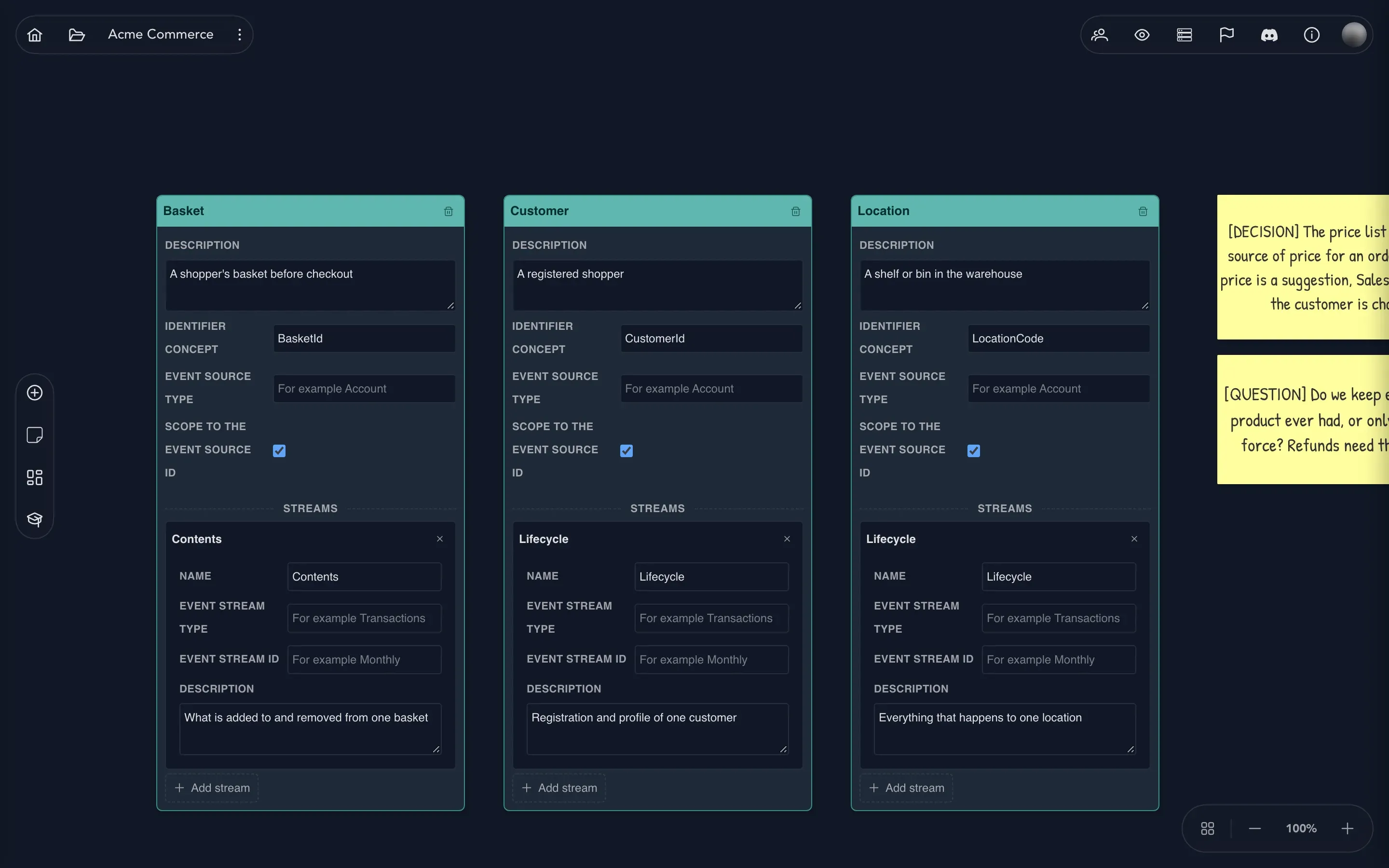
Add an event source
Section titled “Add an event source”- In the project drawer, expand your domain and select Event Sources.
- Select Add Event Source. A card named New Event Source appears with a first stream already on it.
- Double-click the name and type what the domain calls it, for example
Basket. - Under Description, write what it covers: A shopper’s basket before checkout.
Fields on a card are saved when you leave them. There is no save button.
Say what identifies it
Section titled “Say what identifies it”Three fields on the card say what a basket is.
- Identifier concept names what tells one basket from another. Type the name of the concept, here
BasketId. The field is free text and does not check the name against your concepts, so spell it the way the concept is spelled. - Event source type is the name of this kind of thing as the concurrency rule sees it, for example
Basket. - Scope to the event source id decides whether each individual basket gets a scope of its own. Ticked, two shoppers never get in each other’s way: only two things happening to the same basket can collide. Unticked, every basket shares one scope, so only one change at a time can win across all baskets. Leave it ticked unless the rule you want really is “one at a time, for the whole kind of thing”.
Divide the history into streams
Section titled “Divide the history into streams”A stream is a named part of the history that commands append to. A new event source opens with one.
- Select Add stream at the foot of the card. Another stream opens with four fields.
- Fill in Name (what the domain calls it, such as
Checkout), Event stream type, Event stream id and Description.
The event stream type and id make a stream a place of its own. You can leave both empty when the event source’s own settings are all the scope you need. To remove a stream, select the cross in its header. There is no confirmation, and commands that already used it keep what they had.
See which commands use a stream
Section titled “See which commands use a stream”Once the model uses a stream, the commands that append to it are listed under it, each with the events its slice records and the event model it belongs to. These lines are links the model makes. A command shows up under a stream when its concurrency rule names that stream. A stream with no commands listed is one the model does not use yet.
Choose a concurrency scope on a command
Section titled “Choose a concurrency scope on a command”A command can carry a concurrency rule: a scope within which only one change wins at a time. The scope is built from up to four parts.
| Part | Where it comes from |
|---|---|
| Event source id | The individual basket or order, when Scope to the event source id is ticked |
| Event source type | The card’s Event source type |
| Event stream type | The stream’s Event stream type |
| Event stream id | The stream’s Event stream id |
On a command on the event model board, select Define concurrency rule to open the Concurrency dialog. The command editor’s Concurrency step is described in commands.
- Pick the Event source and the Stream. Every part is then taken from them. With no stream picked, the event source’s defaults apply.
- For any part, you can instead choose a Fixed value, or From command property to scope the rule to a value the command carries, such as the order number in its own request.
- Select Save.
The rule stores the values it worked out. Editing a card later does not change what a command that was already modeled does. For the same reason, removing a stream or an event source leaves the commands that used it alone.
Arrange and remove
Section titled “Arrange and remove”Drag a card by its header to place it. Arrange tidies every card and note into a grid. Add Sticky Note keeps unsettled questions beside the cards, such as Should a returned order get a stream of its own? To remove an event source and all its streams, use the bin in its header and confirm.