

Constraints
A constraint is a rule that the event store holds at the moment an event is recorded: an order number that can only be taken once, an order that can only be confirmed once. Because the rule is held there, rather than checked beforehand, two people racing for the same order number cannot both win. The second one is refused.
Constraints belong to the domain. You define each one once on the Constraints canvas, and events from any of the domain’s event models can take part in it.
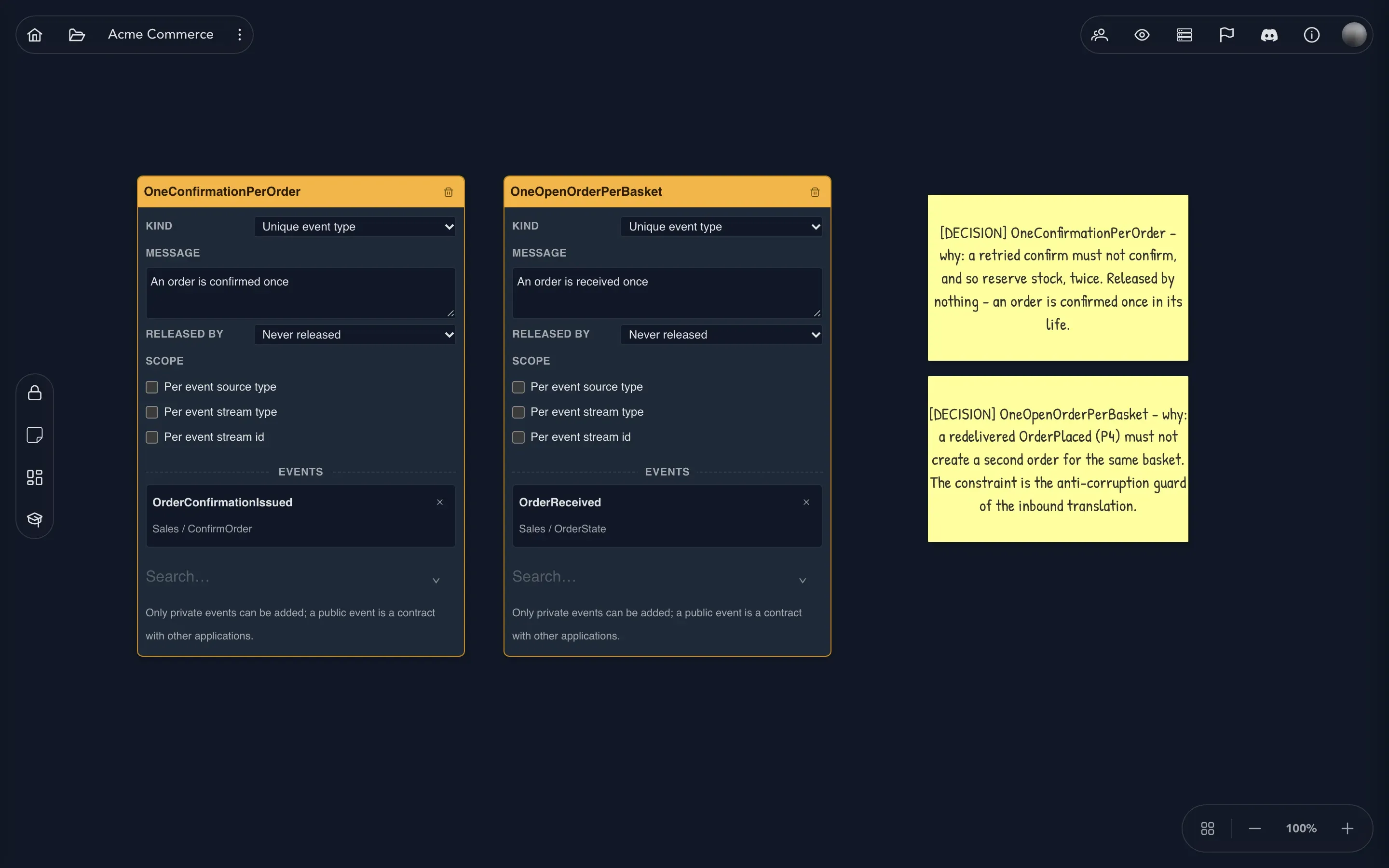
Add a constraint
Section titled “Add a constraint”- In the project drawer, expand your domain and select Constraints.
- Select Add Constraint (the padlock at the top of the toolbar). A card named NewConstraint appears, set to Unique by properties.
- Double-click the name and state the rule as a promise, for example
OrderNumberIsUnique. A constraint’s name is unique within its domain, however it is capitalized. - Under Message, write what the person who runs into the rule should read: An order with this number already exists.
Choose the kind
Section titled “Choose the kind”The Kind row says what is unique.
- Unique by properties: no two events may carry the same values for the properties you chose. It can span several events. A
CustomerEmailIsUniqueconstraint can take the email of both a registration event and an email-changed event, so an address claimed through either cannot be claimed again. Tick Ignore casing to treat Ada@Example.com and ada@example.com as the same address. - Unique event type: an event of that type may happen only once for an event source. A basket can be checked out only once, so a one-checkout constraint takes the checkout event. This kind takes exactly one event and has no properties to choose.
Property checkboxes only appear for Unique by properties, so check the constraint’s events if you change its kind.
Add events to the constraint
Section titled “Add events to the constraint”A constraint holds nothing until events take part in it.
- In the Events section of the card, open the search box and choose from the events of all the domain’s event models. Each option shows the event with its model and slice.
- For Unique by properties, tick the properties that make up the key. Tick several and it is the combination of their values that must be unique.
- To take an event out, select the cross beside its name. The event stays on its event model.
You can also start from the event. On an event model, open an event and select Open Constraint Editor. The Constraints dialog lists the domain’s constraints. Choose the ones the event takes part in and, for each, the properties it contributes. The dialog does not define constraints; its Open the constraint board button takes you back to this canvas.
Release and scope
Section titled “Release and scope”Two more rows shape how long a claim is held and where the rule applies.
- Released by names an event that gives back what the constraint holds. When a customer closes their account, their email address may be used again, so a
CustomerAccountClosedevent releases it. The list has the events of the domain’s event models, plus Never released, which holds a claim for good. - Scope says what the rule is evaluated per. Tick any of Per event source type, Per event stream type and Per event stream id to hold the rule per that part instead of everywhere at once. Leave all three clear for a constraint with no scope. Event sources and streams explains those words.
Every change on the card is saved as you make it.
Remove a constraint
Section titled “Remove a constraint”Use the trash can in the card’s header. You are asked to confirm. The events that took part stay on their event models.