

Import a model
You may already have a model somewhere else: a Screenplay file in a repository, an export from another event modeling tool, or a board on Miro. Import reads it into a board in Studio so that you carry on from there instead of redrawing it.
Before you start
Section titled “Before you start”- Open an event model on the board. The Import menu only appears when an event model is open, and what you import is added to that event model.
- Importing a Miro board by its link needs your organization to be connected to Miro. Importing from a saved file does not.
Open the Import menu
Section titled “Open the Import menu”Select Project options at the top left of the board, then Import.
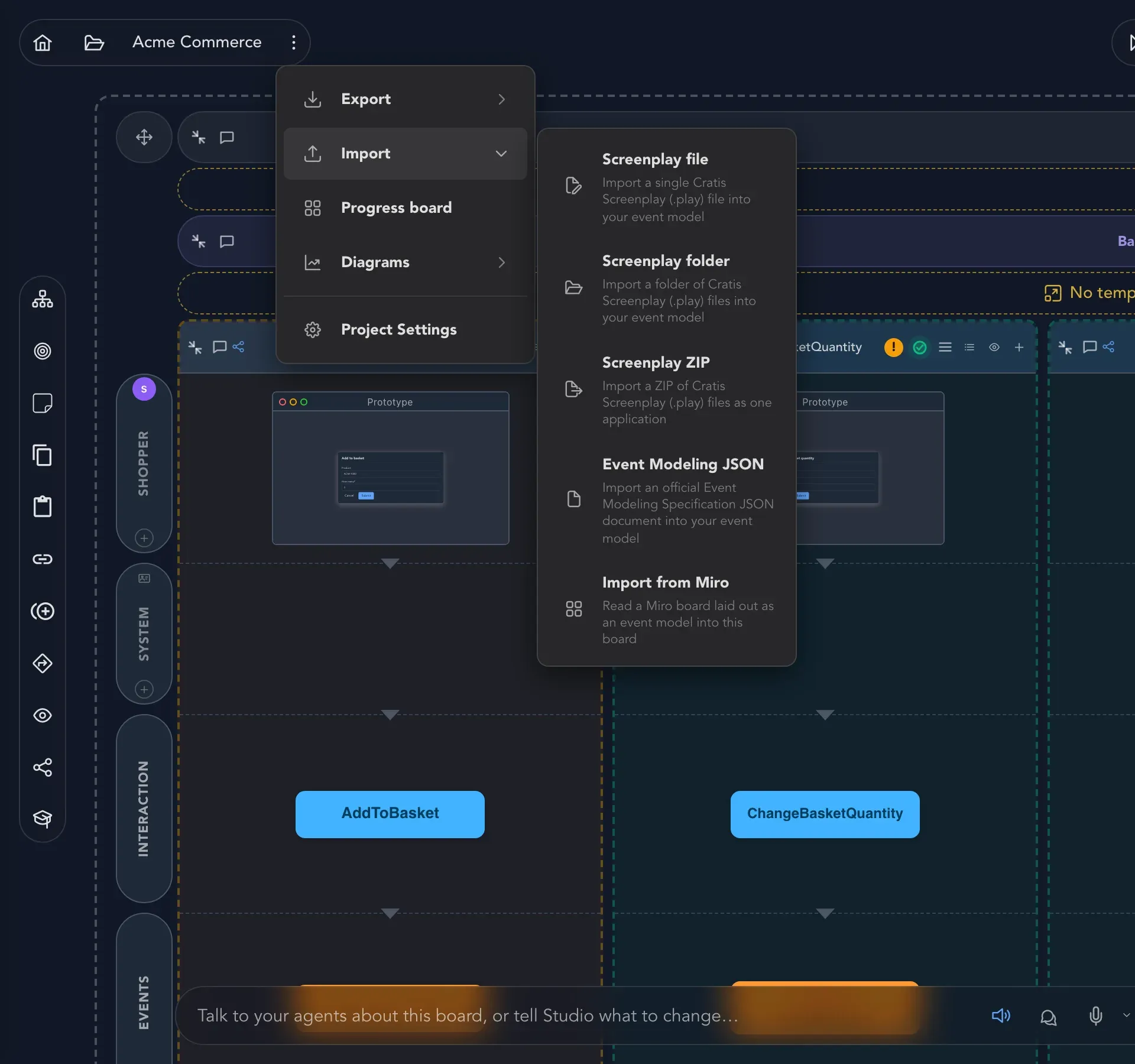
| Choice | Use it for |
|---|---|
| Screenplay file | A single Cratis Screenplay (.play) file. |
| Screenplay folder | A folder of Screenplay files, merged and read together. |
| Screenplay ZIP | A ZIP of Screenplay files as one application. Up to 8 MiB. |
| Event Modeling JSON | An official Event Modeling Specification JSON document. |
| Import from Miro | A Miro board laid out as an event model. |
Import a Screenplay file, folder or ZIP
Section titled “Import a Screenplay file, folder or ZIP”Screenplay is the text format Studio exports a model to. Studio shows you what it found before anything changes.
- Choose Screenplay file, Screenplay folder or Screenplay ZIP.
- Pick the file, folder or ZIP on your computer. A folder is read as one Screenplay application.
- The Preview import dialog compiles the document and shows what would be added. If the compiler found problems, What the compiler reported lists them with their line and column.
- If Some of the document will not be added appears, read it. Those parts are left out.
- Select Accept & Import, or Cancel to change nothing.
When it is done, the dialog says Import complete. Sketches, mockups, images and issue links that came with the model are kept too. If they could not be, the dialog says so. A folder with no .play files, a folder that cannot be read as one application and a ZIP over the size limit are each refused with a message.
Import Event Modeling JSON
Section titled “Import Event Modeling JSON”Event Modeling JSON is the official Event Modeling Specification format. To learn the method behind it, see event modeling.
- Choose Event Modeling JSON and pick the
.jsonfile. - Studio starts the import and shows Import started. The slices appear on the board as they are added.
- If the document is not valid, Studio shows Import failed with the reasons.
Unlike a Screenplay import, JSON has no preview step. Studio checks the document and imports it straight away.
Import from Miro
Section titled “Import from Miro”Import from Miro reads a Miro board laid out as an event model into the board you have open. Studio reads the sticky notes by color:
| Miro sticky note | Becomes |
|---|---|
| Orange | An event |
| Blue | A command |
| Green | A read model |
| Purple | An automation |
| Grey | A screen |
You can also say it outright. Text that starts with Event:, Command:, Read model:, Automation: or Screen: is read as that kind, whatever its color.
Each Miro frame becomes a slice, ordered left to right as the timeline. Notes outside any frame are grouped by the column they stand in.
- Choose Import from Miro.
- Paste the Miro board link and select Read the board. If your organization has no Miro connection, choose Read a saved file… and pick a file of the board’s items saved from Miro’s REST API instead.
- Studio reports what it found, such as how many slices and elements, and lists everything Not imported with a reason. When everything was read, it says so.
- Select Import into this board.
The slices appear on the board as they are added. Nothing is imported until you select Import into this board.
Check that it worked
Section titled “Check that it worked”Look at the board. Each imported slice is there with its commands, events and read models, or the preview told you why something was left out. Open a few slices and check that the names and fields are the ones you expect.