

Generate and review code
When a slice or feature is ready to implement, Studio can write the code for it from the model, and write it again after the model changes. You see the plan first, follow the run while it works, and review the result before it lands. This page is for the whole team: a product owner can start a run and read the review, and a developer can look closer at the files and the diff.
Before you start
Section titled “Before you start”- Choose a code-generating implementation mode for the application: Static code, Static code + AI or AI only. In Screenplay only, Studio generates no code and Generation runs tells you so.
- The two AI modes need AI to be enabled and a code-generation agent to be configured.
- Check the model first: findings and storylines catch the problems that would otherwise stop a run.
- You do not need a GitHub connection. Without one, Studio commits to the project’s local repository. See Connect a repository.
Generating needs no assignee and no particular status, so you can look at the output before you hand the work to anyone.
Preview a slice
Section titled “Preview a slice”Preview shows what a run would write. It starts no job and writes nothing.
-
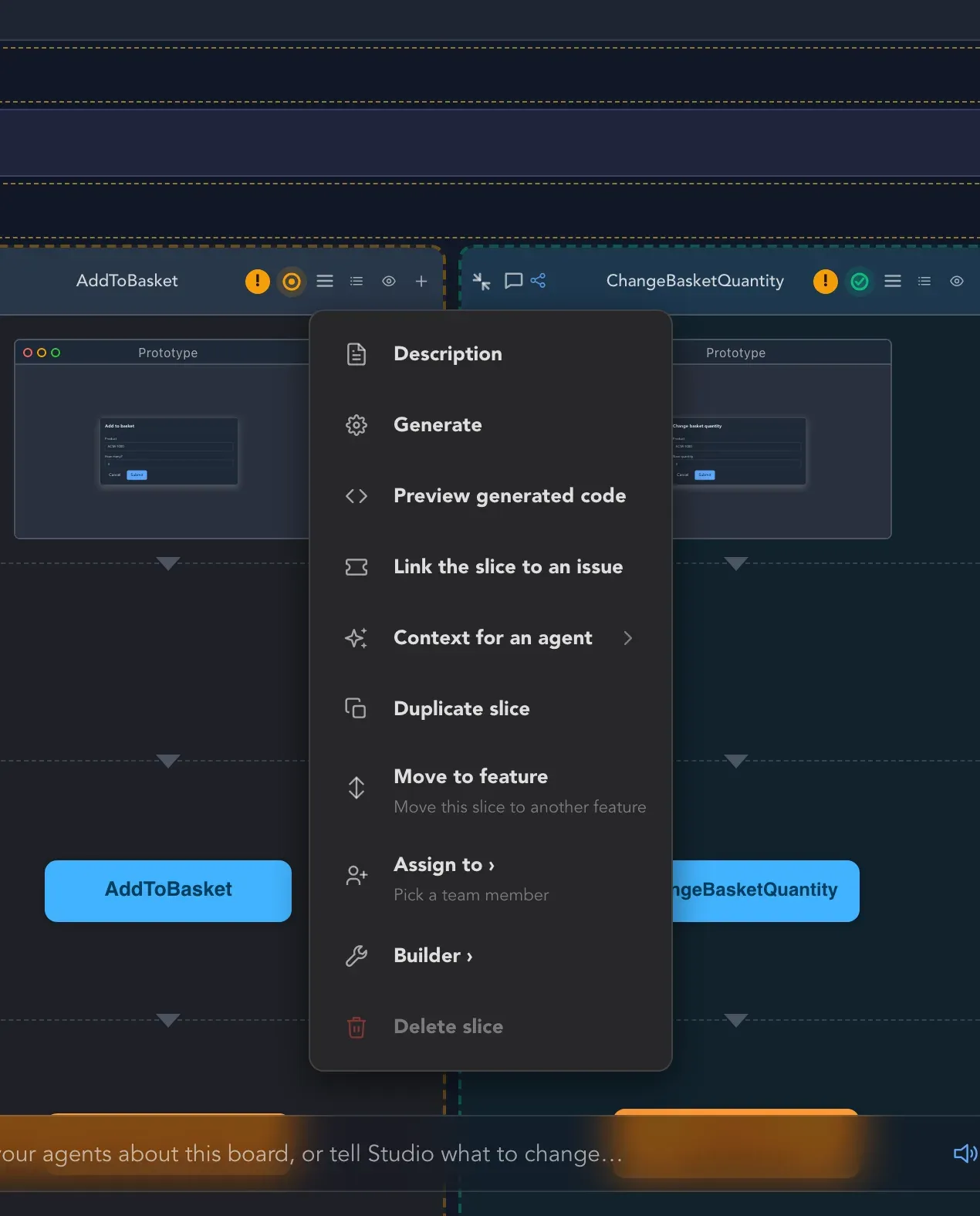
Open the slice’s menu with Slice options.
-
Choose Preview generated code. Studio opens Generated code for the slice and says Read-only preview. Nothing is written.
-
Select a file in the list to open it in a read-only tab. You can keep several tabs open and switch between them.
The preview lists the files a run would commit for the current version of the model: the Screenplay baseline, metadata and deletions included. The Base commit is the commit on the default branch that a new run would start from. Changes you have not committed are not part of it, so open the preview again after you change the model or the repository.
If the application has no scaffold yet, the preview also lists the files labeled Created by scaffolding the application first. A separate job creates the scaffold before the feature’s run starts.
What you can inspect depends on the mode:
- Static code: the Screenplay baseline and the planned code files.
- Static code + AI: the static plan. What the AI step adds is produced when it runs, so it cannot be listed file by file.
- AI only: the Screenplay baseline. The code is written by an agent, so it cannot be predicted.
- Screenplay only: the baseline only.
When the model cannot be rendered, the preview says why: it names the slice, concept or file that prevents it, under headings such as The model does not compile, Diagnostics and Gaps. A render marked Degraded has placeholders, so review every gap before you rely on it.
The feature’s menu has Preview generated code too, for all its slices at once.
Generate code for a slice or feature
Section titled “Generate code for a slice or feature”-
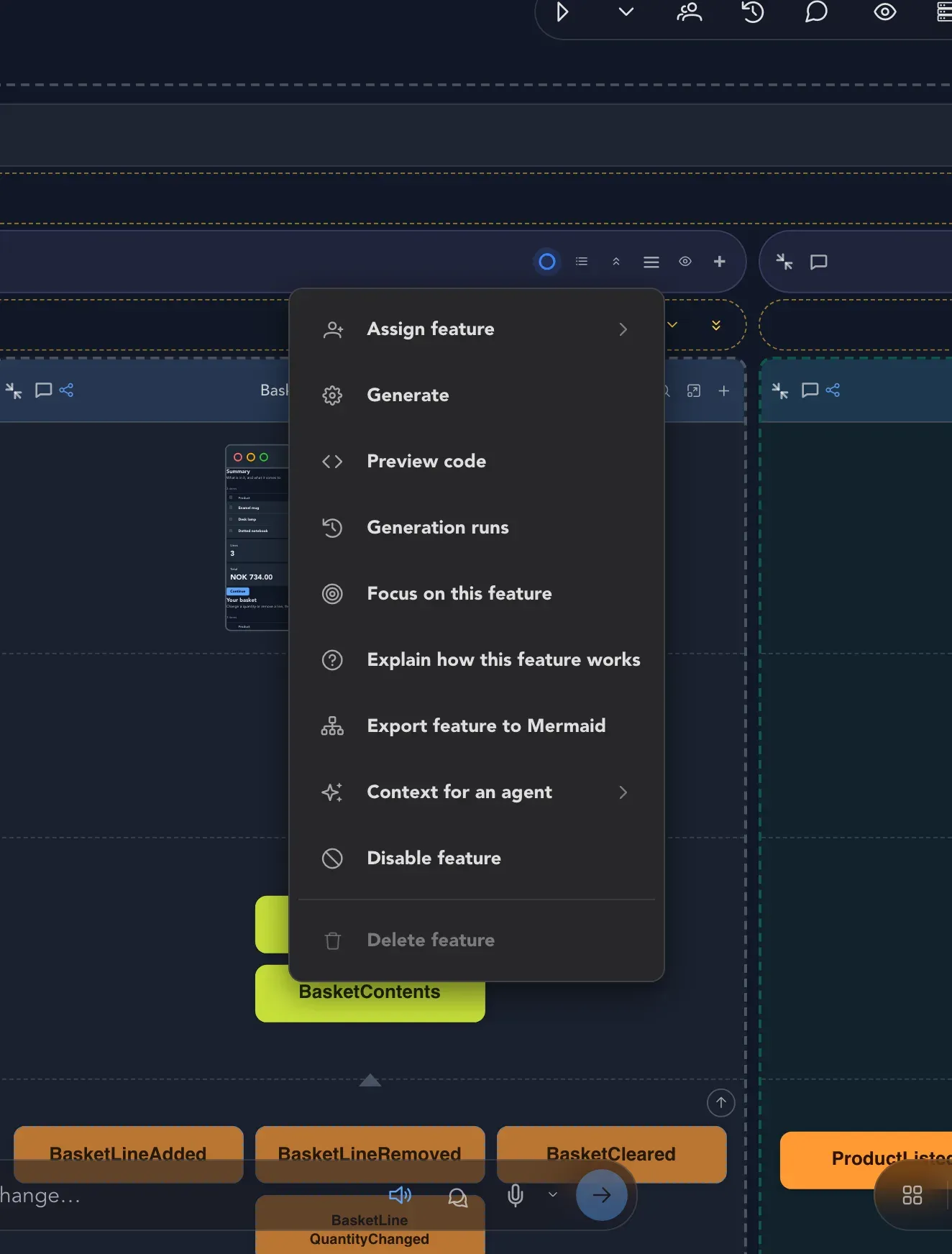
Open the slice’s or the feature’s menu and choose Generate. A slice generates only itself. A feature generates all its slices, including those in sub-features.
-
Read Generate code? and confirm. If a selected slice is Done or Ready for review, Studio warns that it will move to Ready for review when the generated code is committed.
-
Studio says Generation requested. Follow the run, as described next.
If Studio refuses, it says Code generation was refused and gives the reason. Slices that already have a generation claim or are In progress cannot start another run.
You can also let Studio start the run. Assigning a slice that is ready for implementation to the System member starts static code generation. Assigning it to a code-generation agent starts AI implementation. A person as assignee starts nothing, and slices that someone already claimed are not started again. With Run autonomously turned on in the project’s AI settings, Studio runs the whole flow by itself: a slice whose analysis comes back sound is assigned to the code-generation agent and made ready for implementation.
Status changes during a run
Section titled “Status changes during a run”During generation, the requested slices move to In progress. When the generated code is committed, they move to Ready for review, even if they were Done before. If the run fails or changes nothing, Studio puts each slice back to the status it had, Not started included. While a slice is being generated, its status cannot be changed by hand.
Follow a run
Section titled “Follow a run”Open Generation runs from the feature’s menu. It lists the runs of the feature, and for each one its status, when it started, how long it took, the outcome, the pull request if there is one, and the reason when it failed.
A run goes through four stages: Prepare, Generate, Verify and Publish. Verification builds the result and runs its checks, listed under Verification gates. A run can end as Published, Failed, Cancelled, Nothing to generate or Waiting for application scaffold.
On the slice itself, Show implementation output opens the Implementation panel with the live output of the agent while it works. A slice that depends on another slice waits until that one is generated and merged, and starts by itself afterwards.
When a file you edited and the new render both claim the same path, Studio lists it under File conflicts with the three versions (Mine, Generated and Baseline). Choose Keep mine or Take generated. The choice is recorded for the next run. It does not change the repository now.
Review the work
Section titled “Review the work”When a run has produced code, the slice is Ready for review and shows a Review button in its header. Select it to open the review of the work session that generated the slice.
-
Read the Description tab. It holds the Release notes Studio wrote for this work. They become the pull request description, and any edit is published to the pull request before it is merged.
-
Open the Review tab. Changes lists the changed files as added, modified, deleted or renamed. Select a file to see what changed, Inline or Side by side.
-
Read the Independent review. When the work contains code written by AI, a different AI provider reviews it. The review says either The independent review found nothing to change., how many things it found, or that it has not concluded yet.
-
Select Publish to put the work on the pull request, or Accept and merge to merge it. When the merge succeeds, the slices are Done.
With a connected repository the work lands as a pull request on a branch Studio created. Without one, the release notes stay with Studio and nothing is published; accepting merges the work into the project’s local default branch.
Which files can change
Section titled “Which files can change”Static modes write only files that belong to the requested slices, and can create missing files that the whole application shares. A shared file that differs from what Studio would render is not overwritten: the run refuses instead.
When you generate again, Studio also looks at files the model no longer produces, for example after you delete a command. It removes such a file only when it recorded that it rendered the file, the file is still exactly as rendered, and nothing else in the application owns it. A file you edited, a file an agent wrote and a file from before Studio recorded provenance are kept and reported under Generation runs. Delete them yourself when you no longer need them.
In Static code + AI, Studio commits the static output first and then asks the agent to add implementation from the slice descriptions. The agent cannot edit or delete files that the static render plans, nor model or scaffold files. If the AI step fails, times out or is refused, the static result is kept and the failure is shown in Generation runs. The static result must pass verification before it is published.
Regenerating a feature that already has an accepted AI patch does not replay the patch. Studio carries accepted work forward, and reports a conflict instead of silently recreating a file the patch deleted. In AI only mode, Studio refuses to regenerate such a feature; Static code + AI skips the AI step and says why in Generation runs.
Prepare the model for generation
Section titled “Prepare the model for generation”Give state-change commands a key
Section titled “Give state-change commands a key”A command that changes state needs a key for static code: the property that identifies what the command acts on. On the board, open the command’s property editor and turn on Key for exactly one scalar property. A Screenplay import keeps the command’s identifier as its key, so you do not mark it again.
Resolve required event value warnings
Section titled “Resolve required event value warnings”A slice’s header shows warnings when an event has a required value that nothing supplies. Expand the indicator, or open the command’s property editor, to see the command, the event and the property. Supply a required command property with the same name, rename one to match, or make the event property optional if the value really is optional. The warnings update as you edit.
Application merge policy
Section titled “Application merge policy”On the Implementation tab of Application Settings, Merge policy says who merges a generation’s pull request:
- Studio merges verified pull requests automatically is the default.
- A person merges every pull request keeps merging in your hands, even when verification and the independent review pass.
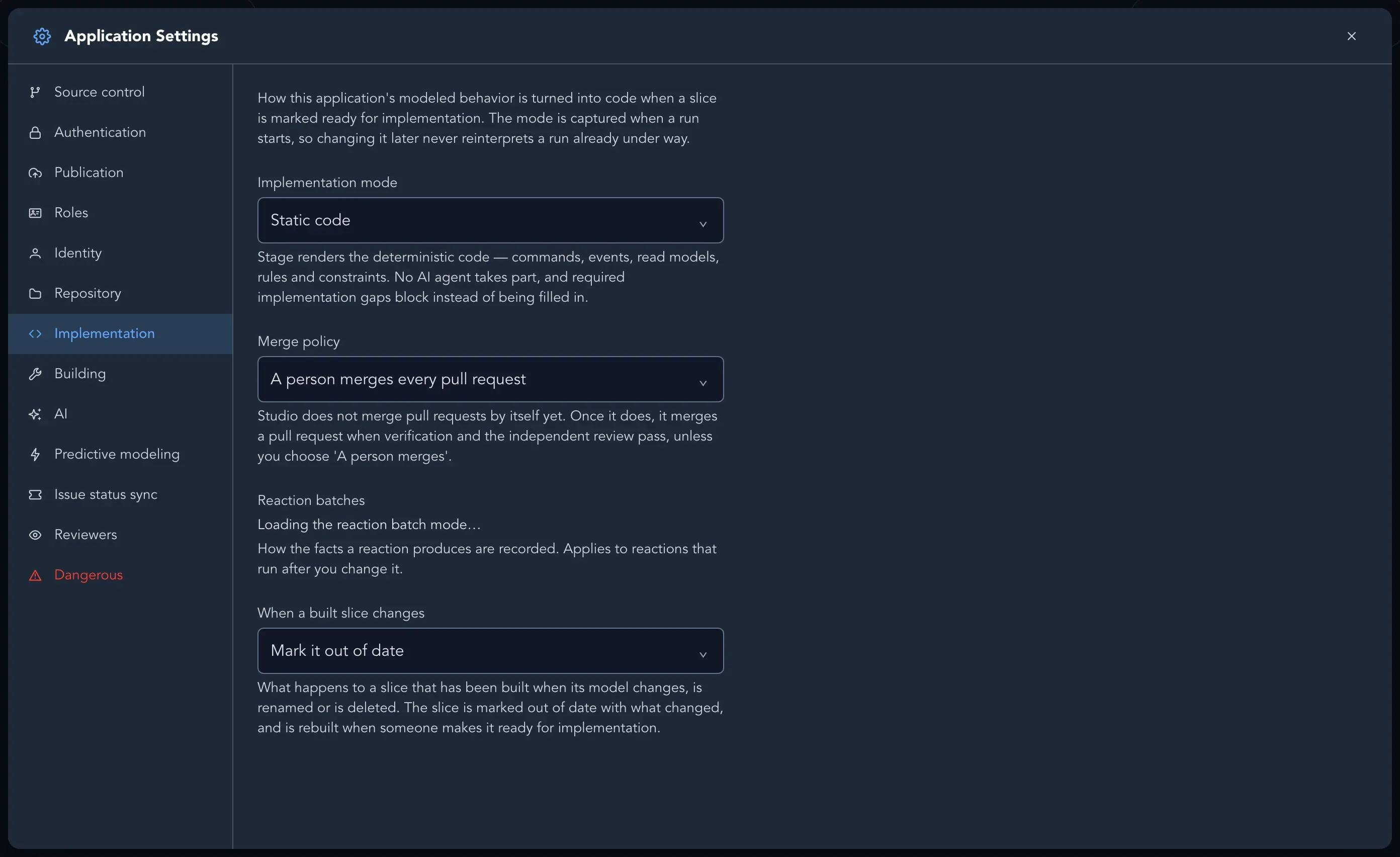
Studio does not merge pull requests by itself yet. Until it does, a person merges with Accept and merge, whichever policy is chosen. Choosing the automatic policy is recorded and shows as suspended.
Local work sessions
Section titled “Local work sessions”Without a remote repository, completing a work session merges its files into the project’s default branch and saves a durable copy before the session is marked completed. New sessions and the Files page use that saved history, even after a restart. If saving fails, the session stays finished and keeps its working copy so you can try completing it again. A local default branch that has diverged or has uncommitted changes is refused rather than overwritten.
Abandoning a generation session
Section titled “Abandoning a generation session”A feature’s generation session stays open until its pull request is merged or you abandon it. If it is stuck, or you no longer want its result, open Generation runs from the feature’s menu and choose Abandon session. The button shows only while the feature has an open session.
Studio asks Abandon this generation session? and shows what happens:
- The uncommitted work in the session’s working copy is deleted.
- The pull request on the source control host is closed, and Studio comments on it that the session was abandoned. If the comment cannot be posted, the session is still abandoned.
- The branch itself stays on the host. Delete it there when you no longer need it.
Choose Abandon to confirm, or Keep session. Abandoning is refused when the session is no longer the feature’s open one, for example because it was completed elsewhere. Generate again to start a new session.
Related pages
Section titled “Related pages”- Choose how slices are built
- Track progress
- Connect a repository
- Builders, for builders and coding agents