

Choose who builds
Approving a builder does not change who builds. Choose it for an application, for the backend or the screens of an application, or for a single slice. You also decide who handles the repository work and what happens when a built slice changes.
Before you start
Section titled “Before you start”- The builder is approved for the organization. See Connect a builder and approve it.
- You can change the application. Anyone who can change it can choose among the approved builders.
Everything below is under Settings > Building inside the application, except the choice for one slice, which is on the slice, and the per-builder override, which a maintainer sets under Organization settings > Builders.
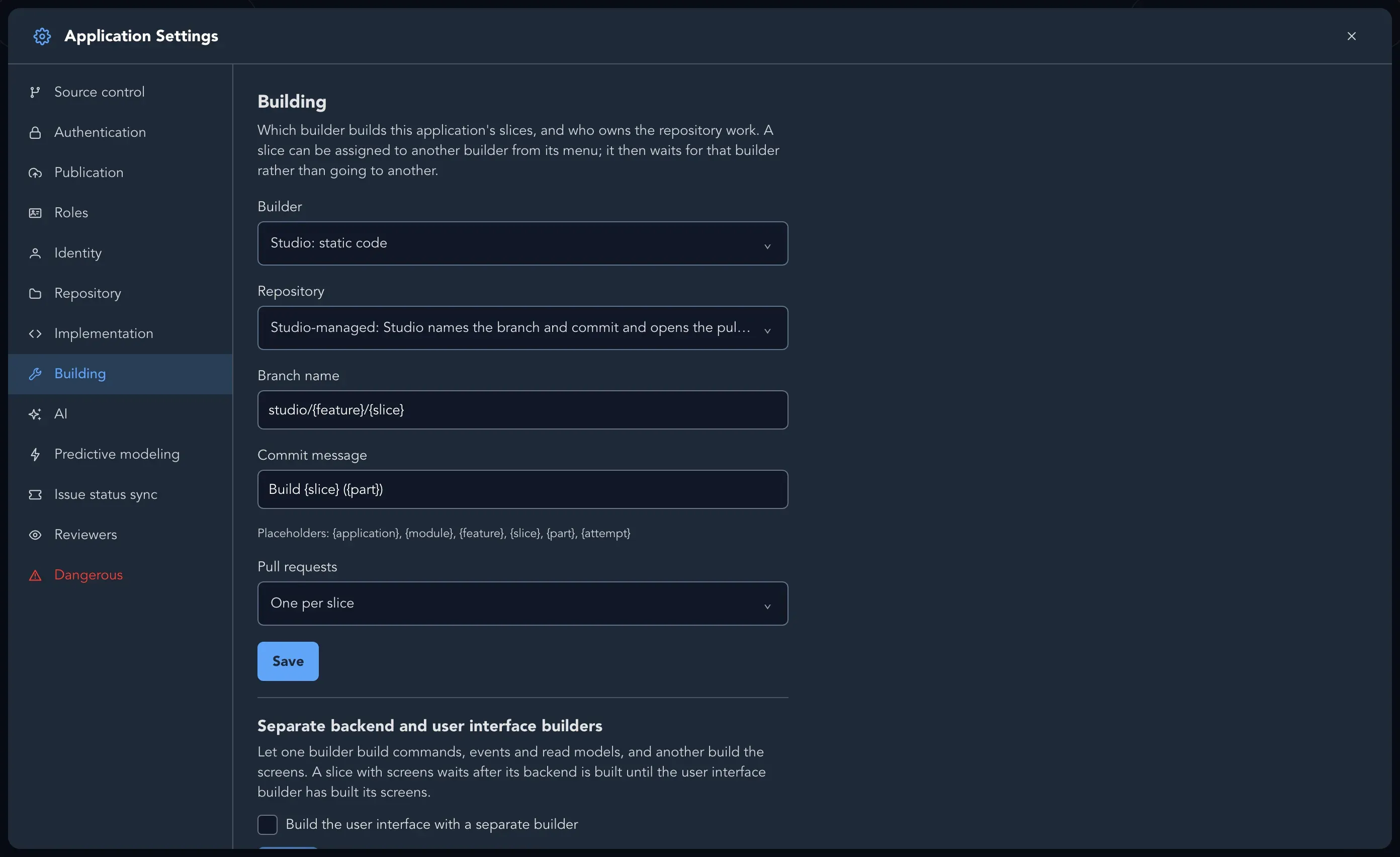
Choose the builder for an application
Section titled “Choose the builder for an application”- Open the application, then Settings > Building.
- Set Builder. To run Studio’s own generation on your machine instead, connect a packaged builder and choose it here. The list holds Studio’s own generation, as Studio: static code, Studio: static code refined by AI or Studio: AI only (the two that involve AI need an AI provider configured), and every approved builder of the organization. A builder that is offline can still be chosen, and its slices wait for it.
- Select Save.
From then on, a slice that becomes Ready for implementation is offered to that builder.
Build the backend and the screens with different builders
Section titled “Build the backend and the screens with different builders”To build the backend (commands, events and read models) with one builder and the screens with another:
- Under Separate backend and user interface builders, turn on Build the user interface with a separate builder.
- Choose the Backend builder and the User interface builder. They must be two different builders, so the organization needs at least two approved builders.
A slice with screens then waits after its backend is built until the user interface builder has built the screens.
Choose the builder for one slice
Section titled “Choose the builder for one slice”- Open the slice’s menu and select Builder ›.
- Choose another builder. The menu says why a builder cannot build the slice, and which builder the slice follows when it uses its application’s builder.
The slice’s choice wins over the application’s. Choose Application’s builder to return the slice to its application’s builder. A slice whose builder is offline says it waits for that builder, and no other builder takes it.
Decide who handles the repository
Section titled “Decide who handles the repository”Someone has to make the branch, the commits and the pull request. Set Repository:
| Choice | What happens |
|---|---|
| Studio-managed | Studio names the branch and the commit message from the templates you set, and opens the pull request, one per slice or one per feature. The builder hands over its commit |
| Builder-managed | The builder works in its own checkout and reports the commit, branch or pull request it produced. The slice links to it |
With Studio-managed you also set:
- Branch name and Commit message, as templates with the placeholders
{application},{module},{feature},{slice},{part}and{attempt}. The defaults arestudio/{feature}/{slice}andBuild {slice} ({part}). - Pull requests: One per slice, or One per feature. With one per feature, the branch name is the same for every slice of the feature, so it cannot use
{slice},{part}or{attempt}.
A single builder can override the application’s choice for everything it builds. A maintainer sets that under Organization settings > Builders, in the builder’s Repository: As each application says, Always Studio-managed or Always builder-managed.
Studio never puts a repository credential in a build order, a prompt or a log. A builder that pushes uses credentials of its own.
Decide what happens when a built slice changes
Section titled “Decide what happens when a built slice changes”Under When a built slice changes, choose:
- Mark it out of date: the slice is marked out of date with what changed, and is rebuilt when someone makes it ready for implementation again.
- Rebuild it automatically: the slice is made ready for implementation again, so its builder updates what it built.
Deleting a built slice offers the removal of what was built for it to its builder.