

Connect GitLab and Azure DevOps
Studio connects your organization to GitLab and Azure DevOps through its own apps. Nobody pastes a personal access token. Today they serve issues; Studio’s repository work, such as generated pull requests, runs against GitHub only.
What works today
Section titled “What works today”| GitLab | Azure DevOps | |
|---|---|---|
| Connect from Settings > Integrations | Yes | Yes |
| Issues: link, create, read the state, close and reopen | GitLab issues | Azure Boards work items |
| A project names its repository | Projects you can push to | Git repositories in every Azure DevOps organization you belong to |
| Generated code, merge requests, webhooks, Git sync and builds | Not yet | Not yet |
Connect
Section titled “Connect”You need to be a maintainer.
-
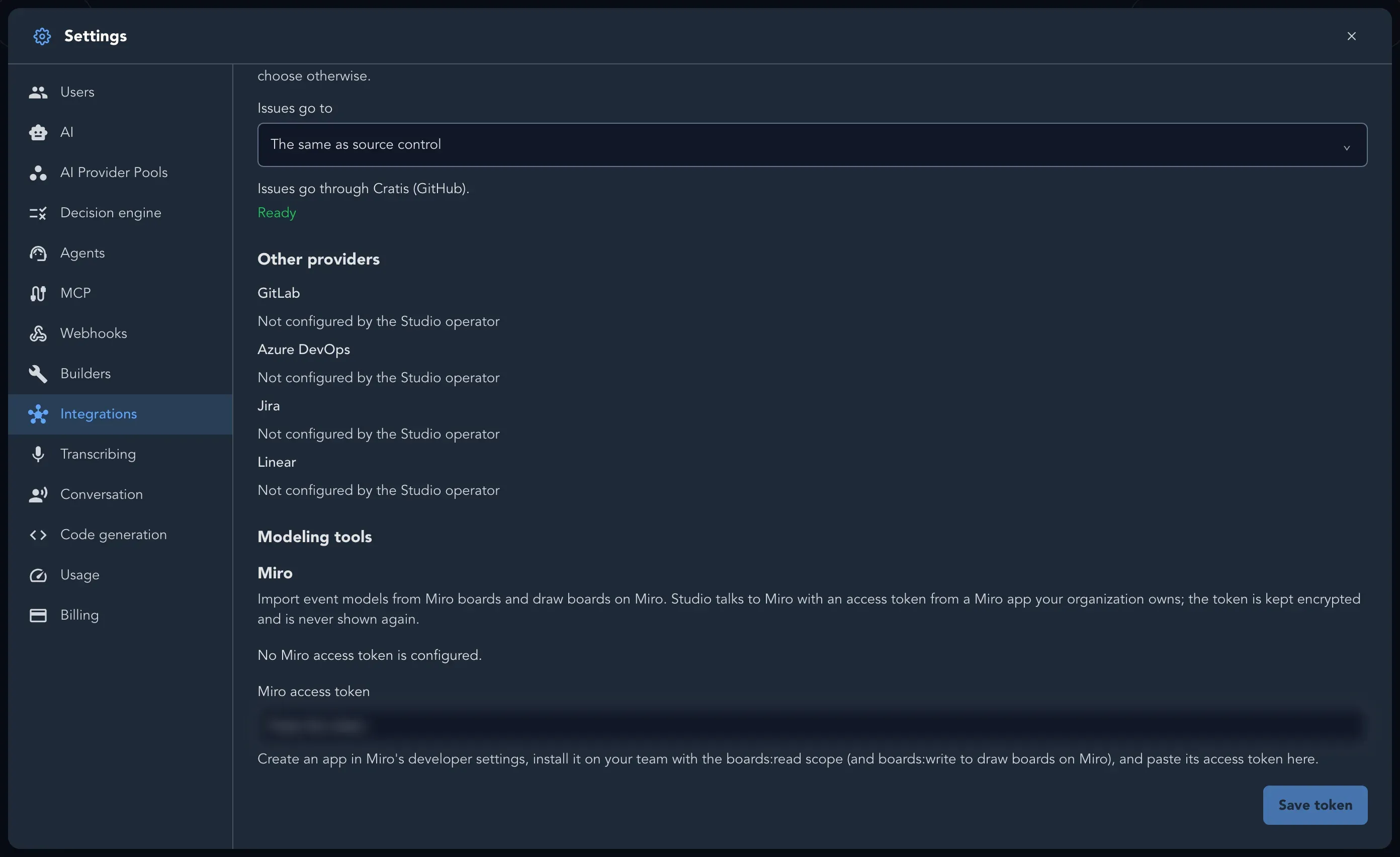
Open Organization settings and select Integrations.
-
Under Other providers, select Connect GitLab or Connect Azure DevOps.
-
The provider asks you to sign in and allow Studio’s app.
-
The browser comes back to the Integrations page with the outcome.
The connection is named after the person who allowed the app (their GitLab username, or their Azure DevOps display name), and Studio acts as that person. When your organization has not chosen where issues go, the first connection you make becomes the place. You can remove a connection once nothing uses it.
If a provider shows Not configured by the Studio operator, its app is not set up for this Studio yet, and there is no Connect button for it. Contact support (see Get help).
Write issue references
Section titled “Write issue references”- GitLab: an issue is written
group/project#17. Subgroups are allowed (group/subgroup/project#17). A project’s issue destination is a GitLab project,group/project. - Azure DevOps: a work item is written
organization/project#42. A project’s issue destination isorganization/project. Studio creates the first of User Story, Product Backlog Item, Requirement, Issue or Task that the project’s process offers, and closes or reopens a work item by moving it to its type’s first Completed or Proposed state.
Pasting the address of a GitLab issue or an Azure DevOps work item into an issue link reads it as such. See Link slices to issues.
When a connection stops working
Section titled “When a connection stops working”Tokens are encrypted and renewed by Studio. When one cannot be renewed (the person left, or revoked Studio’s access), the connection shows Unavailable and asks you to connect it again. An Azure DevOps organization whose policy does not allow third-party applications is left out of the repository list.