

Keep a board in sync with Git
A board can be connected to a branch and a folder of its repository. Studio then commits the board’s Screenplay files there. The model lives next to the code it describes, and every change to it has a history.
Before you start
Section titled “Before you start”- The project has a repository connected. See Connect a repository.
- Git sync works through the GitHub App installation of your organization (see Connect GitHub). Studio stores no Git credentials for it.
Connect a board
Section titled “Connect a board”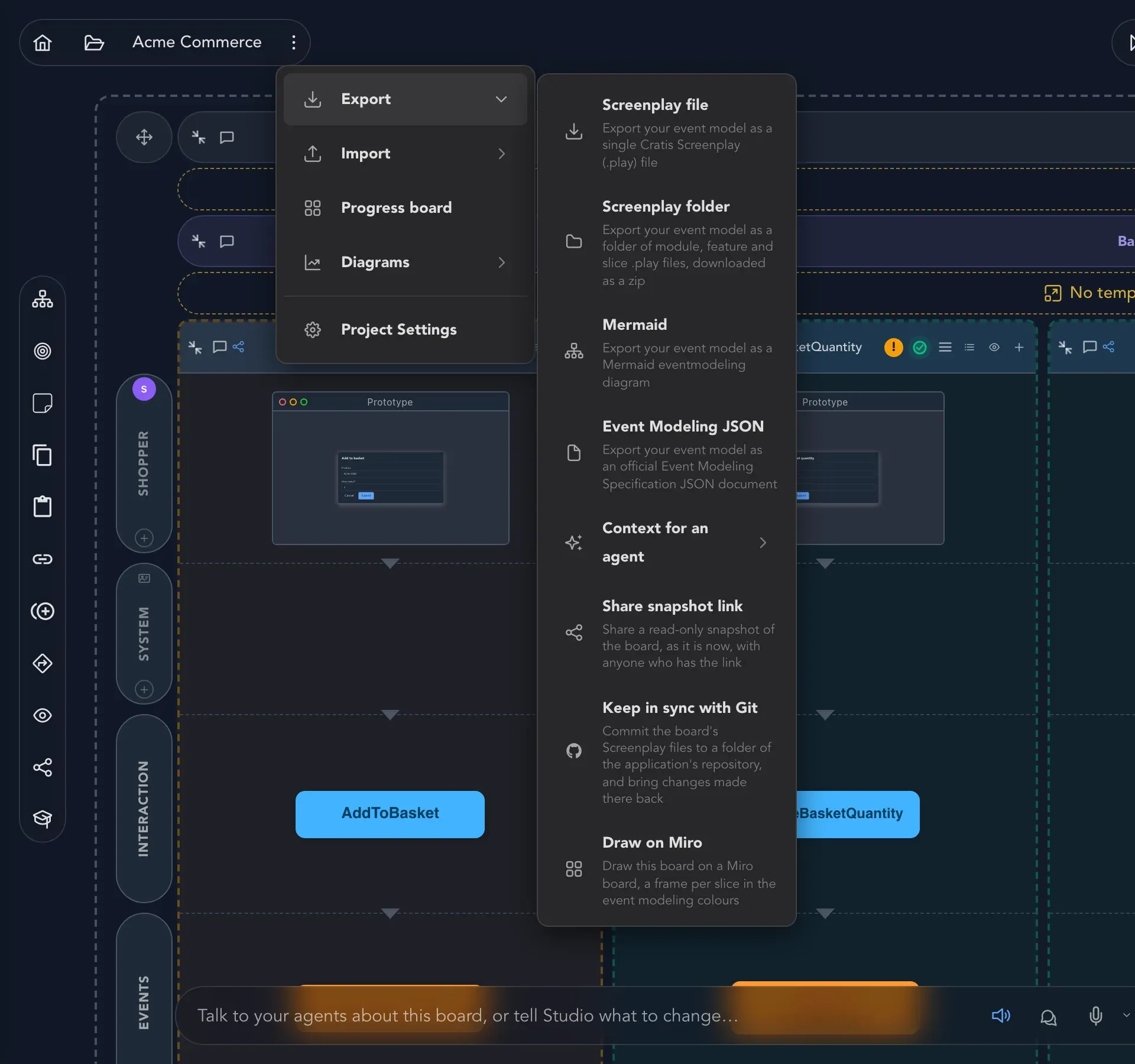
-
On the event model board, open Project options, then Export, and choose Keep in sync with Git.
-
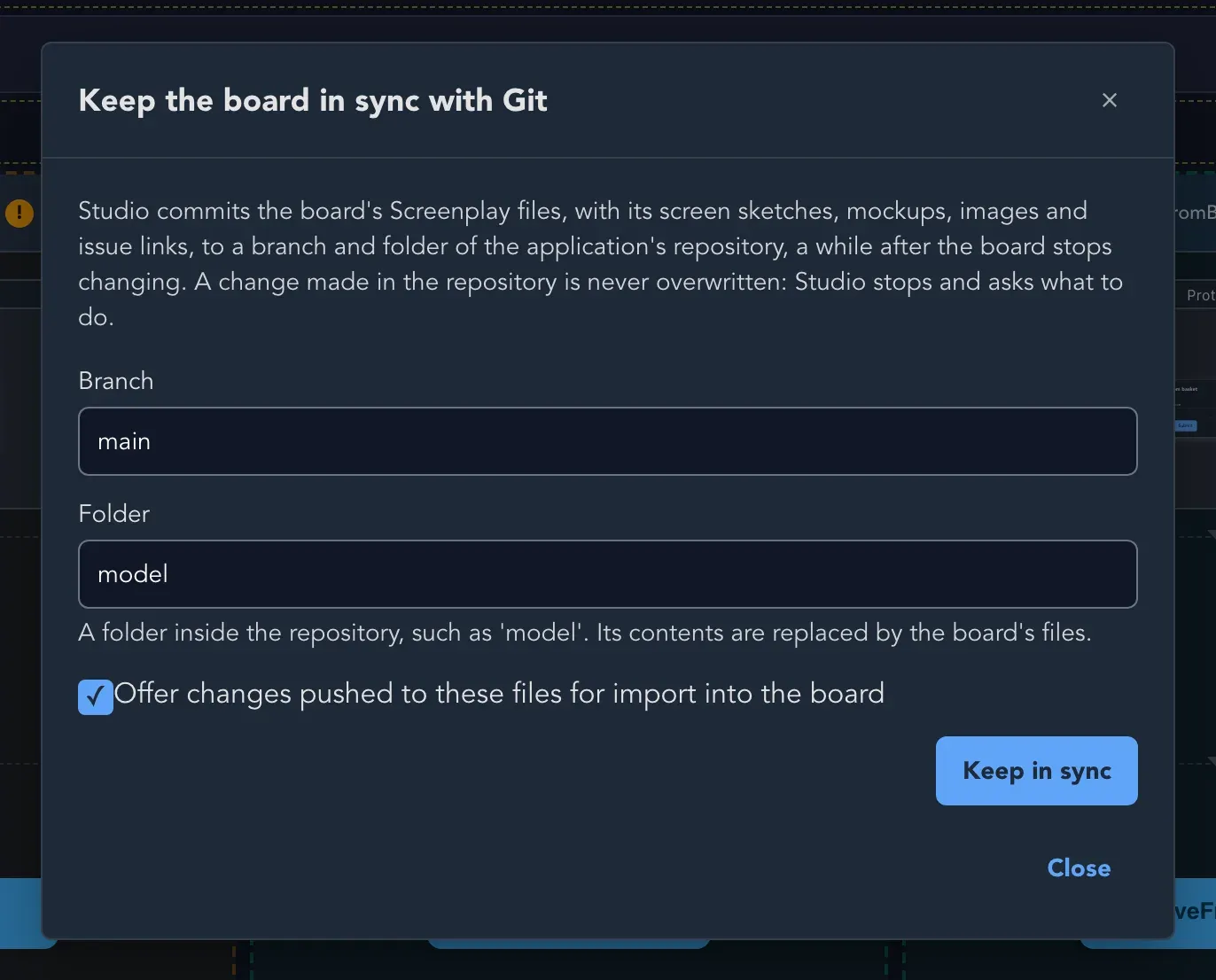
In Keep the board in sync with Git, choose the Branch.
-
Enter the Folder inside the repository, such as
model. The contents of the folder are replaced by the board’s files, so use a folder that holds nothing else. -
Turn on Offer changes pushed to these files for import into the board if people may also edit the files in the repository and you want those edits offered back to the board.
-
Select Keep in sync.
The dialog then shows Synced to the folder and branch, whether repository changes are offered for import, and the time and commit of the last sync.
What is committed
Section titled “What is committed”The folder holds what the Screenplay export gives you: the .play documents, the screens’ sketches, mockups and images, and a .screenplay/notes.json file with the slices’ issue links. Images are committed byte for byte. Each commit message names the board and lists the files added, changed and removed.
When it is committed
Section titled “When it is committed”Studio waits until the board has been quiet for a while before it commits, so a modeling session becomes a few commits instead of one per change. By default that is about a minute without changes. A board that keeps changing is committed anyway after at most ten minutes.
Read the status
Section titled “Read the status”The dialog says where the sync stands:
| Status | What it means |
|---|---|
| In sync with the repository at a commit | The repository holds the board as it is. |
| Waiting for the board to settle before the next commit. | The board changed recently. Studio commits when it goes quiet. |
| Someone changed the board’s files in the repository. | Studio has not committed since. See the next section. |
| Both the board and its files in the repository changed. | Studio has not overwritten either. |
| The last sync failed with a reason | Fix what the reason says, and Studio tries again. |
When the repository changed
Section titled “When the repository changed”Studio never overwrites a change it has not seen. When the folder changed in the repository since Studio’s last commit, Studio stops committing and the dialog lists Files that differ. Choose one of two ways forward:
- Import the repository’s version. It goes through the usual import preview, and brings the sketches, mockups, images and issue links in the folder back with it.
- Commit Studio’s version on top. The repository’s change stays in the history, but the files in the folder become the board’s. Studio asks you to confirm first.
When Offer changes pushed to these files for import into the board is on, a repository change that has no matching board change is offered for import. When both changed, the conflict is reported and neither side is overwritten.
Stop syncing
Section titled “Stop syncing”Select Stop syncing in the dialog and confirm. Studio stops committing the board. Nothing already committed is removed.
Related
Section titled “Related”- Connect a repository
- Link slices to issues, whose links travel with the files
- Export the model