

Design all screens on the design canvas
The design canvas is a big board for the screens of one application. Where the screen editor shows you a single screen of a slice, the canvas shows the screens of the whole application side by side, so you can see how they fit together and design them as one.
Open the canvas
Section titled “Open the canvas”In the project drawer, open the application and select Design.
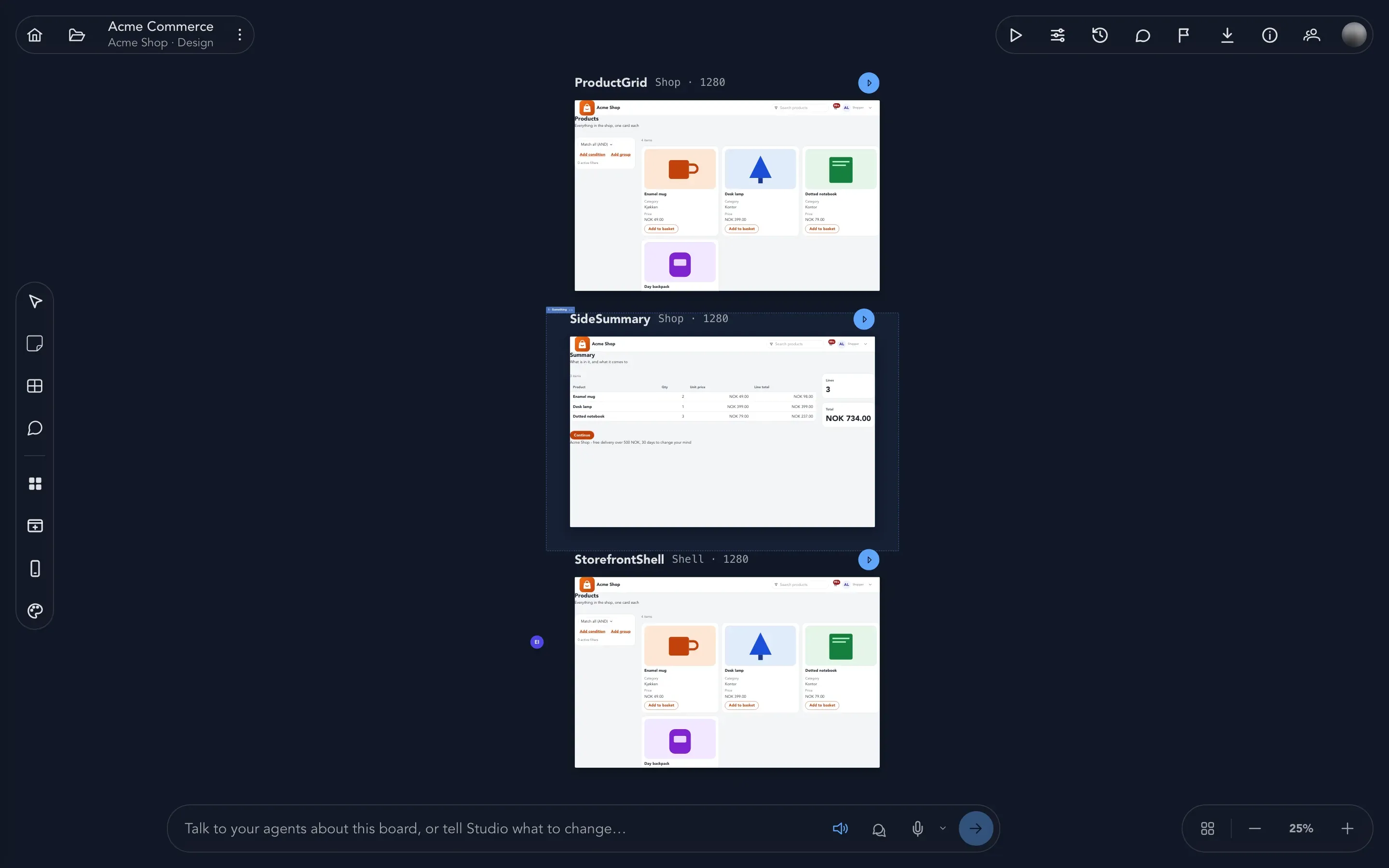
Every screen is an artboard. Everything is drawn from the application’s UI profile: its blueprint templates, the components they accept, and the theme, accent, font and menu. The screens of single slices are still designed on the board, in the screen editor.
Ask the agents to design
Section titled “Ask the agents to design”The chat bar at the bottom talks to the agents of your organization that design screens. Say what you want, such as “show the orders in a list with the customer and the total”, and the agent places the screens for you.
- When the agent cannot do something, it says so and offers the nearest thing that works as a button.
- When you ask for different layouts, the agent offers variations. Choose the one you like and it replaces the current layout.
- Ask for sliders (“give me sliders for this screen”) and the tweaks panel shows controls tied to settings of the profile. Dragging applies the change live.
- When the design system lacks something the screens need, the agent proposes it. You decide whether to send the proposal to the design system.
Agents are set up under Settings. If none can design screens, the chat bar says so instead of offering a prompt; see Work with AI.
Edit the design system
Section titled “Edit the design system”The application’s design system has its own page under Design system. There you change colors, fonts, spacing, components and the words the agents write in, and see the result on screens before anything is kept.
- Choose Start a draft. The draft begins as the design system the application has now.
- Change what you want. Every change is checked, and refused with a reason when it does not fit the design system.
- Choose Submit draft for review.
- Someone else on your team reviews the draft and chooses Activate. You cannot activate a draft you started or changed, and neither can the person who asked the assistant to change it.
If the draft changes after it was reviewed, activation is refused until it has been looked at again.
Draw it from your brand
Section titled “Draw it from your brand”Open Sources and assistant on the design system page. Upload the files that say what your brand looks like, such as a style guide, a token export or a stylesheet. You can upload up to five text files. The assistant reads them together with the application’s own files, tells you where they disagree and writes a draft. Nothing changes until a person activates the draft.
Change a screen yourself
Section titled “Change a screen yourself”Select a screen to open it in the screen editor. What you change is recorded as a step of the screen’s history, the same as the agents’ changes.
Step back
Section titled “Step back”- Every screen has a history: each change is a named step, whether you made it or an agent did. Go back to any step, or undo the whole turn an agent took.
- Comments pin a thread to a screen or to an element of it. A thread can be resolved and opened again.
Where the design is kept
Section titled “Where the design is kept”The design is a part of the application. Everyone who works on the application sees the same screens and the same history, and a change one person makes appears for the others as it happens.
What happens next
Section titled “What happens next”- Set the look of every screen in UI profile, blueprints and themes.
- Share layouts with screen templates.
- Try the result with Preview screens.