

Shape a read model and its queries
A read model is what someone looks at after things have happened: the basket as it stands right now. It is built from events by a projection, and read through queries. Here you design all three on a State View slice.
A read model is derived state, never a second source of truth. You can change how it is built, rebuild it from the same events, and no facts are lost.
Open the read model editor
Section titled “Open the read model editor”Select the read model card on a State View slice. The sidebar lists Definition & projection with the number of properties, and below it the queries of the read model.
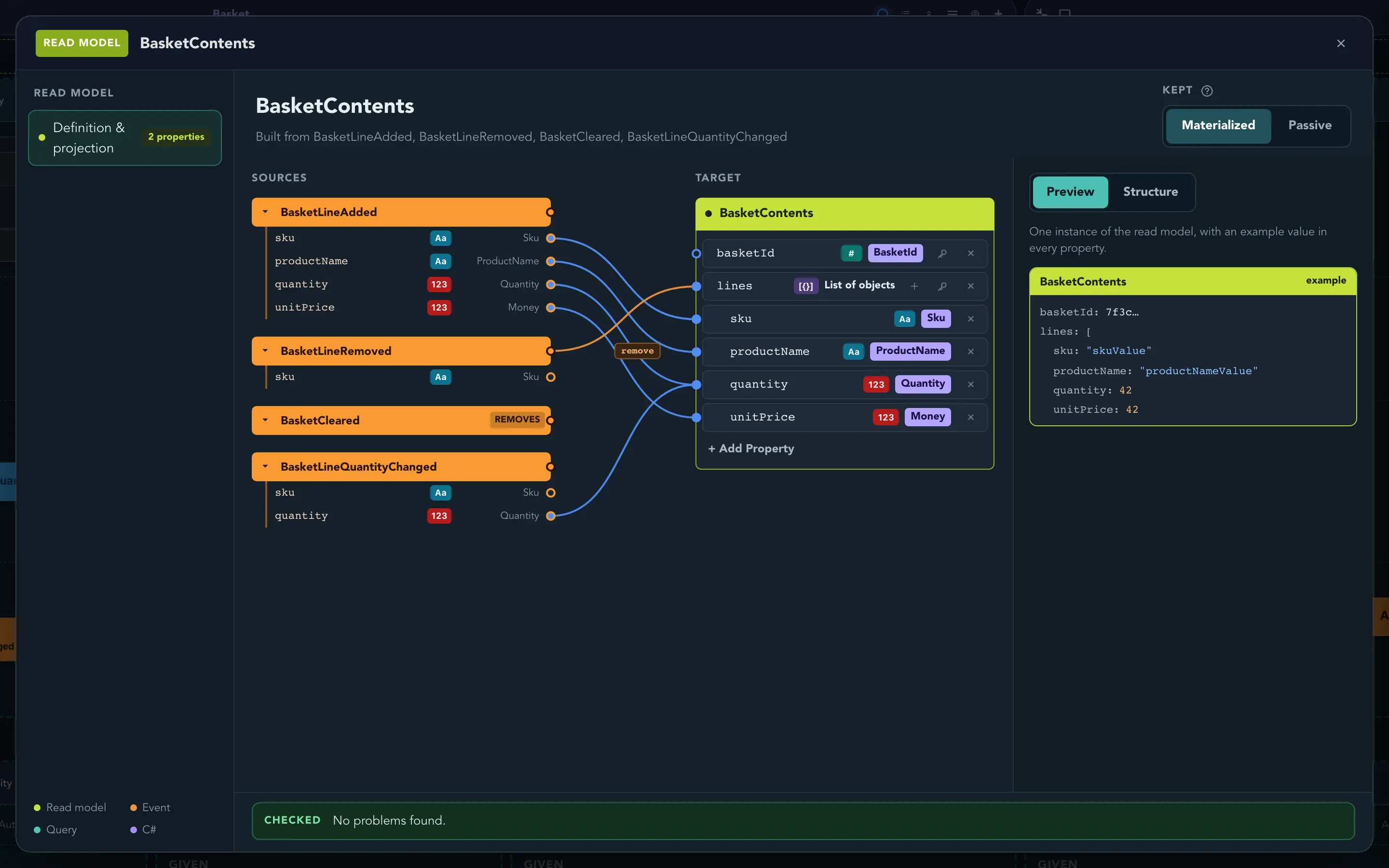
Choose the events a read model is built from
Section titled “Choose the events a read model is built from”A read model starts by choosing its events. Add the events the slice should listen to, for example BasketLineAdded, BasketLineRemoved, BasketCleared and BasketLineQuantityChanged for BasketContents. They appear as cards on the slice, each a reference to the slice that records it. See Events.
In the editor, Other events lists the events that are not sources yet. Drag one onto the read model header to add it as a source.
Map events onto the read model
Section titled “Map events onto the read model”-
In Definition & projection, find the event on the left and the read model card on the right.
-
Drag from a property of the event onto a property of the read model. That property is now set from the event whenever it happens.
-
To say which instance an event updates, click the event. Finds its BasketContents by is the event’s own event source by default. Choose one of its properties to look the instance up by that instead.
-
To count, add or record something, select the line. Under Operation choose what happens each time the event does, such as Counts it, Adds one, Takes one away, Adds the amount, Subtracts the amount, Takes when it happened or Takes who caused it.
-
To remove an instance when an event happens, such as BasketCleared, click that event and turn on Removes the BasketContents when it happens.
-
To take a line out, select it and press Delete or Backspace.
Properties whose names match are mapped for you (“By convention”). Select that line and choose Pin it as an explicit mapping to keep it whatever else changes. Select + Add Property to add a property to the read model and Change the type to retype it.
Use Preview to see one instance with an example value in every property, and Structure to see the projection written out as text.
Choose how it is kept
Section titled “Choose how it is kept”Under Kept, choose:
- Materialized: the read model is stored and kept up to date as events happen, so asking for it is quick.
- Passive: it is not stored. It is built from its events each time it is asked for, so it is always exact but costs more.
The help next to Kept explains the choice.
Add a query
Section titled “Add a query”A query is how the read model is asked for. A read model can have several. In the sidebar, select + Add query. A query is marked live when it updates while you look at it.
-
Name the query. Under Gives back, choose One item or A list. Turn on May find nothing when an empty answer is fine.
-
Under Find by, choose the property that identifies the item. For a list, Narrow by adds filters that keep only items whose property equals the value given; several filters must all match.
-
Under Whose data, choose the scope: Everyone in the current tenant, Only the person asking or All tenants. Under Who can ask, choose the policies. Any one of them is enough.
-
Turn on Reactive if screens should receive changes on their own, without a refresh.
Visual design covers finding one item by a key, narrowing a list by matching values and reactive delivery. A query that needs sorting, comparisons, text search or totals needs code. The Describe tab can propose a query from a sentence, and the Screenplay tab shows the query as an export would write it. Both need nothing more from you than reading: nothing changes until you apply the proposal.
Read the checks bar
Section titled “Read the checks bar”The bar at the bottom of the editor says what cannot work as drawn, such as a read model property set from an event property of another type, or a count kept in something that is not a number. When all is well it says No problems found.
Check that it worked
Section titled “Check that it worked”The checks bar says No problems found., the preview shows the shape you expect, and the screen on the slice shows the data.
Related pages
Section titled “Related pages”- Commands and rules: the state a command checks uses the same designer.
- Slices: the State View type.
- Screens on slices: what people see of a read model.
- Events: the facts a read model is built from.