

Connect Miro
Before anyone on your team can import a Miro board or draw a board on Miro, a maintainer connects the organization to Miro once. The token is encrypted with the organization’s own key, is only decrypted at the moment it is handed to Miro, and is never shown again.
Connect with Studio’s Miro app
Section titled “Connect with Studio’s Miro app”-
Open Organization settings and select Integrations.
-
Under Modeling tools, select Connect to Miro.
-
In Miro, choose the team and allow the app.
-
You come back to the Integrations page. It says Connected to Miro with Studio’s Miro app, with the date.
If Miro’s app hands out expiring tokens, Studio renews the access token when it next uses Miro. If renewal fails, you are asked to connect again with Connect to Miro again.
If Connect to Miro is not offered, Studio’s Miro app is not set up for this Studio. Use a token of your own, below, or contact support (see Get help).
Connect with a token of your own
Section titled “Connect with a token of your own”Use this when Studio’s app is not available, or you prefer it.
-
In Miro’s developer settings, create an app and install it on your team with the
boards:readscope. Addboards:writeif you want to draw boards on Miro. -
In Studio, open Settings > Integrations and, under Modeling tools, paste the access token into Miro access token.
-
Select Save token.
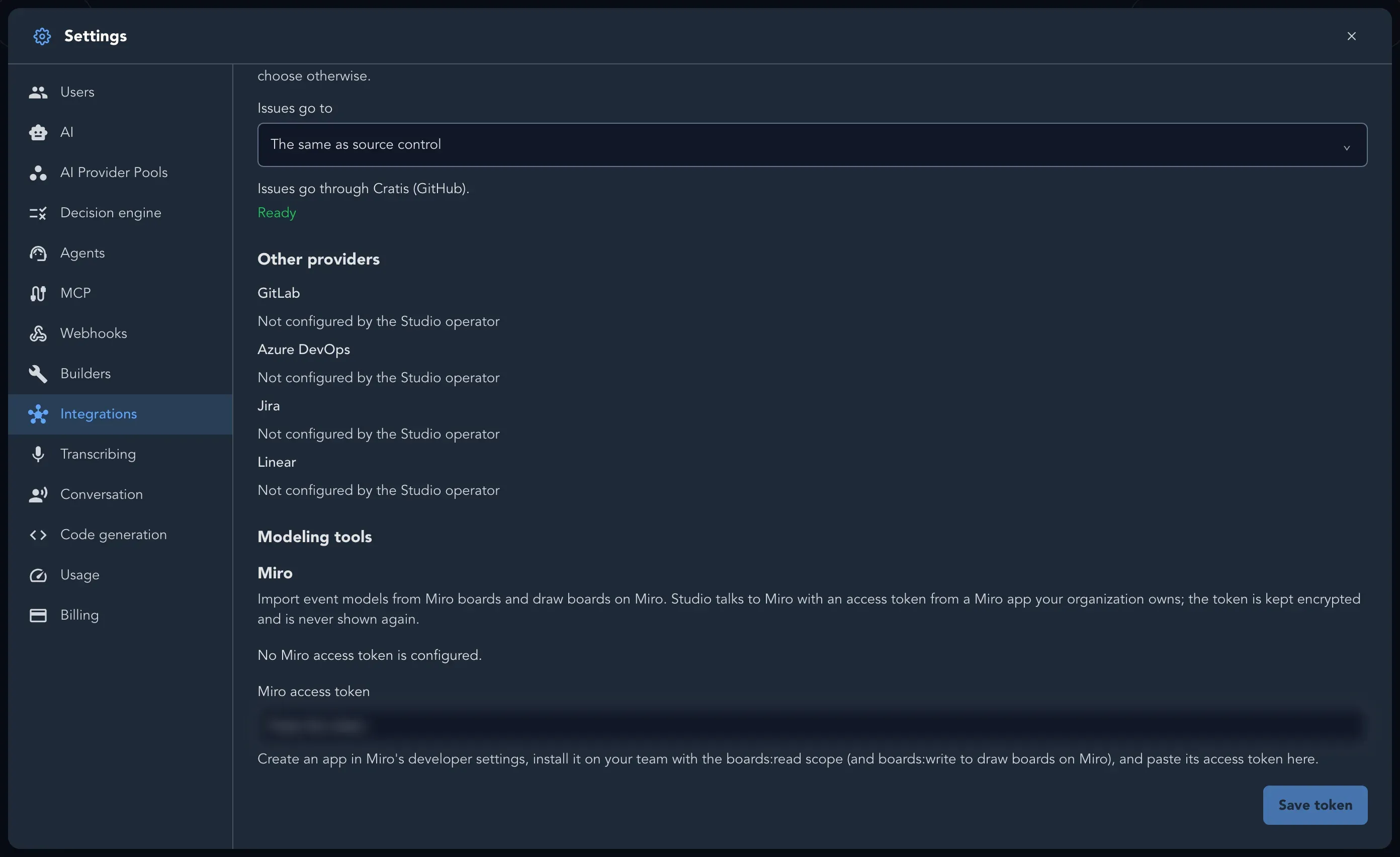
The page then says A Miro access token is configured. Replace the Miro access token changes it, and Remove token disconnects. Boards already imported stay as they are.
What your team can do now
Section titled “What your team can do now”- Import from Miro brings a board into Studio as an event model: see Import a model.
- Draw on Miro puts a board on Miro, a frame per slice: see Draw a board on Miro.
Import and draw are one-off. Studio does not keep a Miro board and a Studio board in sync as either changes.