

Share a read-only snapshot link
Sometimes the person who needs to see the model is not in your organization: a customer, a manager, a reviewer. A snapshot link shows them your board as it is now, read-only, with no account.
Before you start
Section titled “Before you start”Open the event model you want to share. A snapshot is of one event model.
Create a link
Section titled “Create a link”-
Select Project options at the top left, then Export, then Share snapshot link.
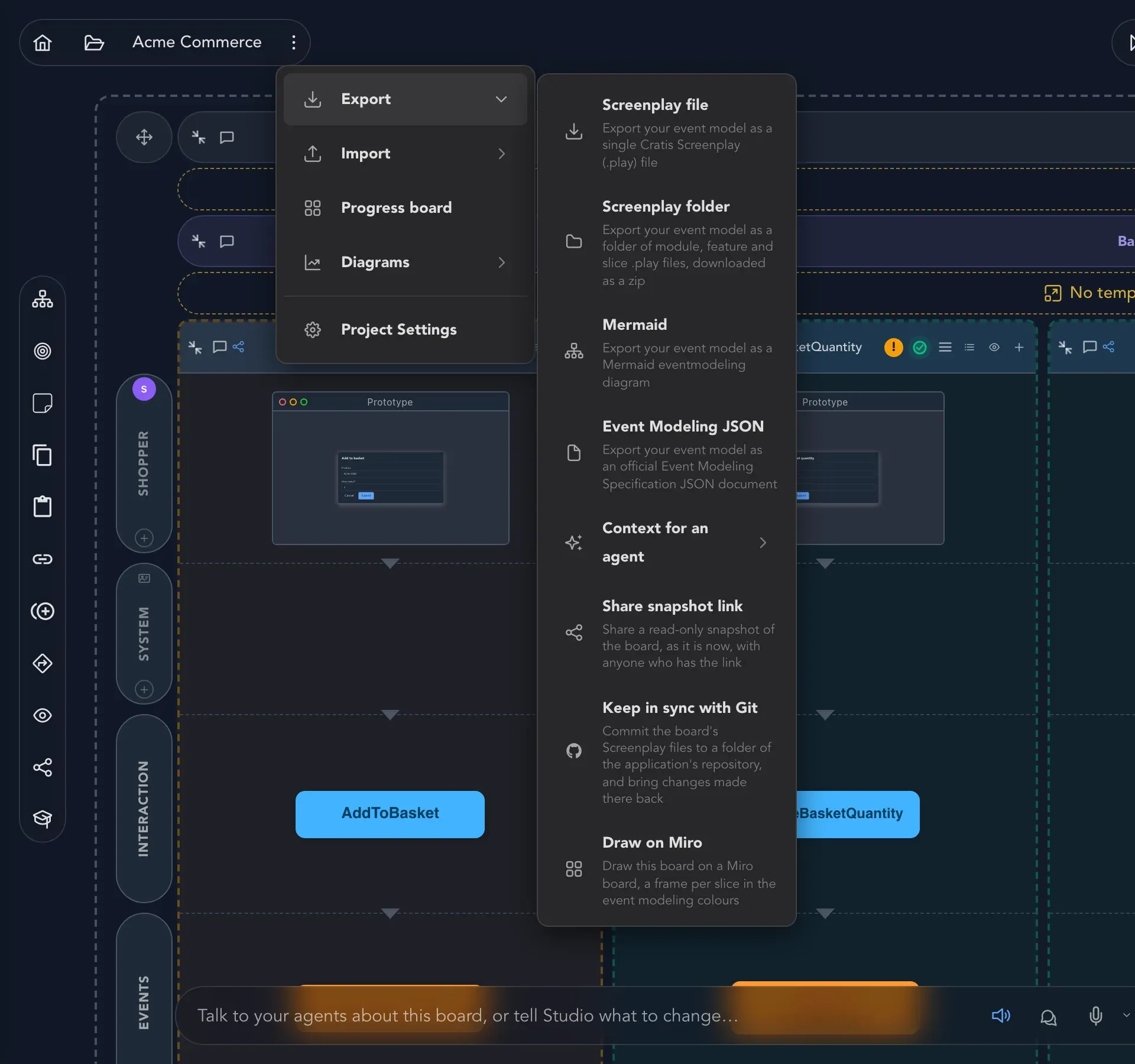
Share snapshot link is in the Export submenu. -
In the Share a snapshot dialog, under What to share, choose The whole board or one feature.
-
Under Link works for, choose Until revoked, or 1, 7, 30 or 90 days. New links start at 30 days.
-
Select Create link.
-
Select Copy and send the link to the person. Copy the link now - it is shown only this once.
Anyone with the link sees the board as it is right now, read-only, without signing in. Later changes to your board do not show up in a link you have already made. To share newer work, create a new link.
If the board is too large to share, Studio says so and asks you to share one of its features instead.
What the person sees
Section titled “What the person sees”The link opens the snapshot in the Viewer: the same board, with pan and zoom, and nothing to edit.
See and revoke links
Section titled “See and revoke links”The same dialog lists Shared snapshots for this board, each with when it was shared and when it expires, or that it does not expire. A link that was revoked or has expired is marked Revoked or Expired.
To take a link back, select Revoke next to it and confirm Revoke this link? Anyone who opens it afterwards sees that it no longer works. This cannot be undone: share again to get a new link.
Check that it worked
Section titled “Check that it worked”Open the copied link in a private browser window where you are not signed in. You should see the board. Then revoke it and reload: the page says the link no longer works.