

Billing and your subscription
Seats are paid for under Settings > Billing. Only maintainers can buy or change them. Plans and prices are on the pricing page; this page does not repeat them, so they cannot go out of date.
What the page shows
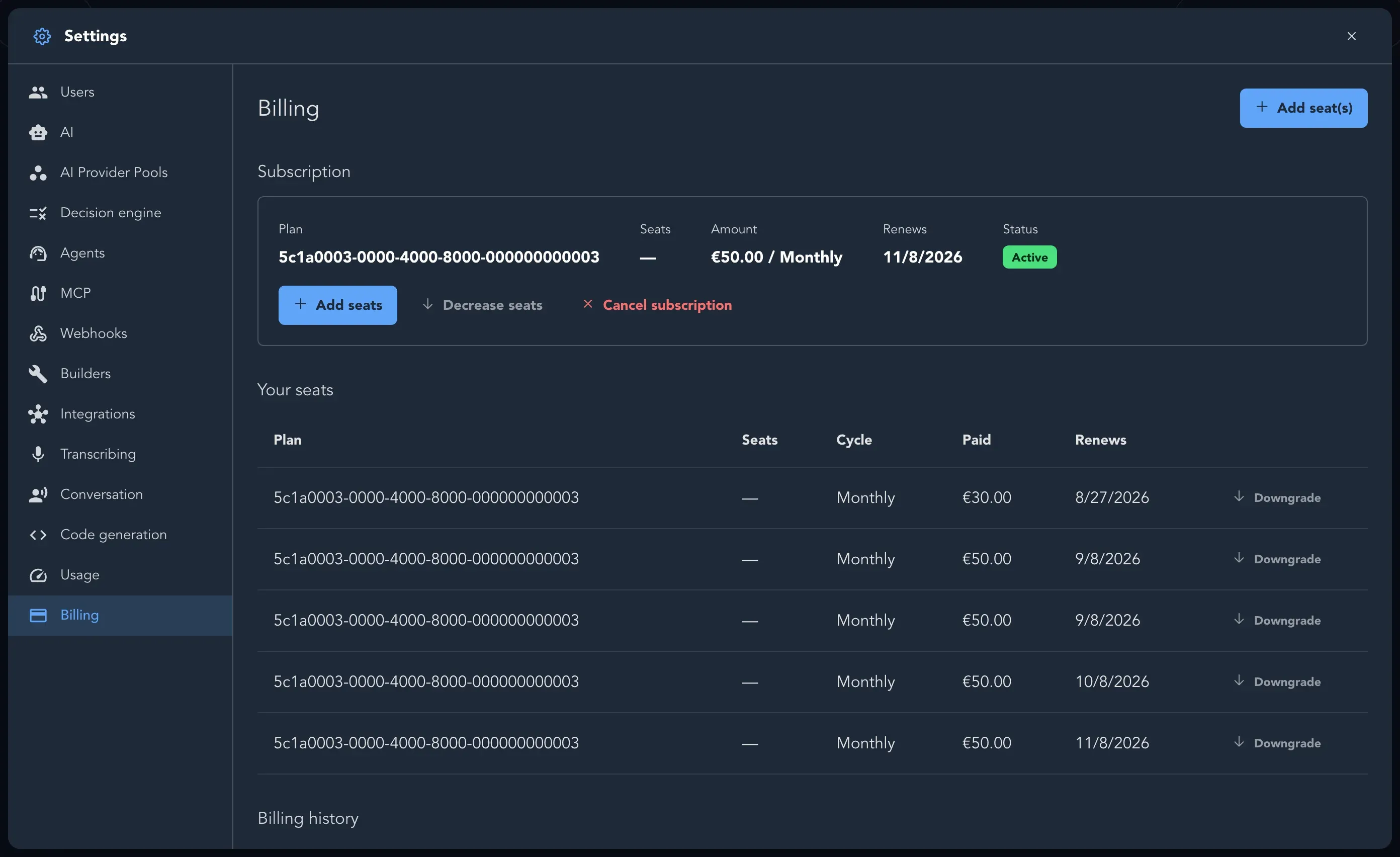
Section titled “What the page shows”- Your seats: Plan, Seats, Cycle, Paid, Purchased and Renews for each purchase.
- Subscription: Plan, Seats, Amount, Renews and a Status: Awaiting payment, Active, Past due or Cancelled.
- Billing history: every order, with its plan, seats, cycle, total and date.
- Company details: Company name and VAT number for your invoices.
Buy seats
Section titled “Buy seats”-
Open Organization settings and select Billing.
-
Select Add seat(s). The Add seats dialog opens on the plans.
-
Choose a plan card. Some cards say Contact sales or Unlimited seats.
-
Choose Monthly or Yearly (save more), and set the Quantity.
-
Select Continue and read your order under Review your order.
-
Tick I have read and accept the Terms and Conditions and the Privacy Policy. You must accept them to continue.
-
Select Complete purchase. Studio sends you to its payment provider to pay securely.
When you come back, the subscription shows Active and the seats are in your pool. Assign them to people next.
Add seats to a running subscription
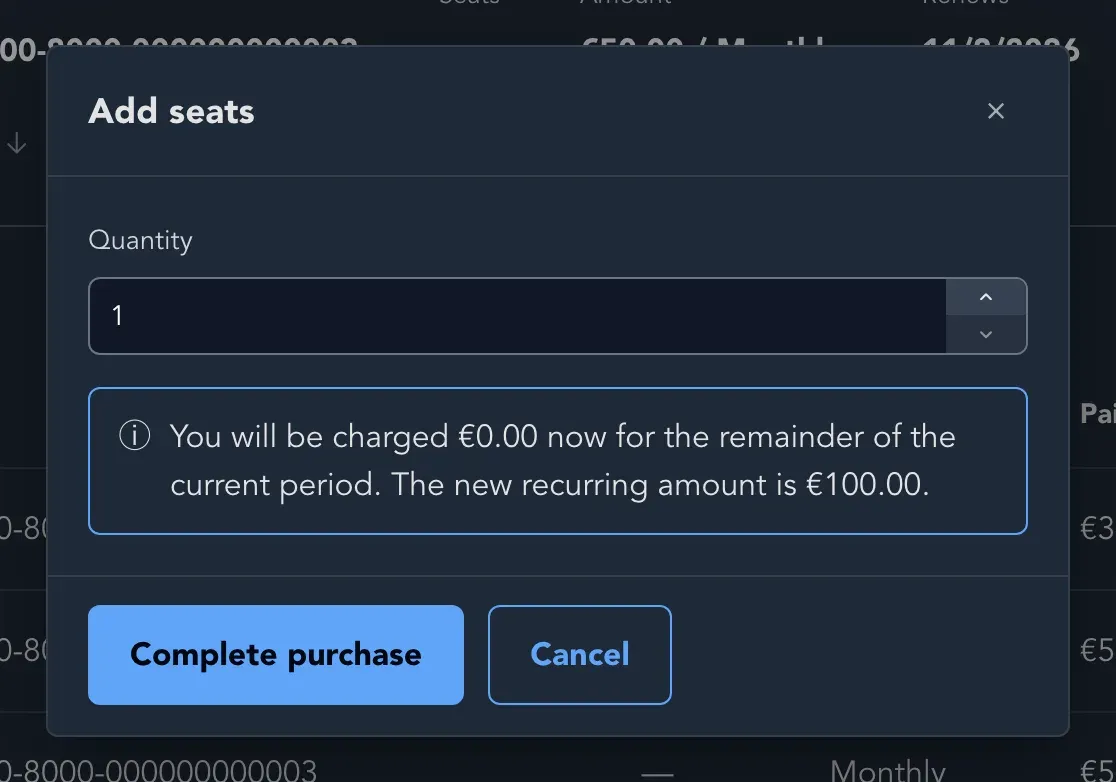
Section titled “Add seats to a running subscription”Under Subscription, select Add seats, or select Add seat(s) at the top of the page. The Add seats dialog asks for a Quantity. Studio tells you what you are charged now for the rest of the current period and what the new recurring amount is. Select Complete purchase to buy them, or Cancel to leave things as they are.
Reduce the number of seats
Section titled “Reduce the number of seats”Select Decrease seats under Subscription, or Downgrade under Your seats, and enter the New number of seats. Select Schedule downgrade. The change takes effect at your next renewal, and the page shows Decreases to N seats on that date until then.
Keep your company details
Section titled “Keep your company details”Under Company details, select Add company details (or Edit) and enter your Company name and VAT number, then Save, so invoices carry your legal entity.
Cancel the subscription
Section titled “Cancel the subscription”-
Under Subscription, select Cancel subscription.
-
Under Why are you cancelling?, choose a reason: It is too expensive, It is missing features I need, We do not use it enough, We switched to another tool, It is too difficult to use, It was temporary, or the project ended or Other.
-
Add a comment if you like. It is optional.
-
Select Cancel subscription. Select Keep subscription instead to change your mind.
The subscription stops charging and does not renew. You keep full access to your seats until the end of the period you have already paid for, and the page tells you the date.