

Explore the Acme Commerce sample
The quickest way to learn what an event model is, is to read a good one. Acme Commerce is a model of a mid-size online shop, and every example in this documentation comes from it. This page walks you through it in the order a newcomer would read it, and tells you what to notice.
What the sample contains
Section titled “What the sample contains”Acme Commerce is one project with five applications, one for each area of the shop. They never share a database. They talk to each other only through a few public facts, such as a product being published. That is how real systems with several teams stay manageable.
| Application | Domain | What it covers |
|---|---|---|
| Acme Catalog | Catalog | Products, the price list and the product lifecycle |
| Acme Shop | Storefront | Browsing, the basket, checkout and my orders |
| Acme Sales | Sales | Order intake, approval, confirmation and order status |
| Acme Purchasing | Purchasing | Suppliers, offers, replenishment and purchase orders |
| Acme Warehouse | Warehouse | Reservation, receiving, picking and dispatch |
Six personas, the people the system is for, appear on its boards: Shopper, Merchandiser, SalesRep, SalesManager, Buyer and WarehouseClerk.
Read the Storefront board
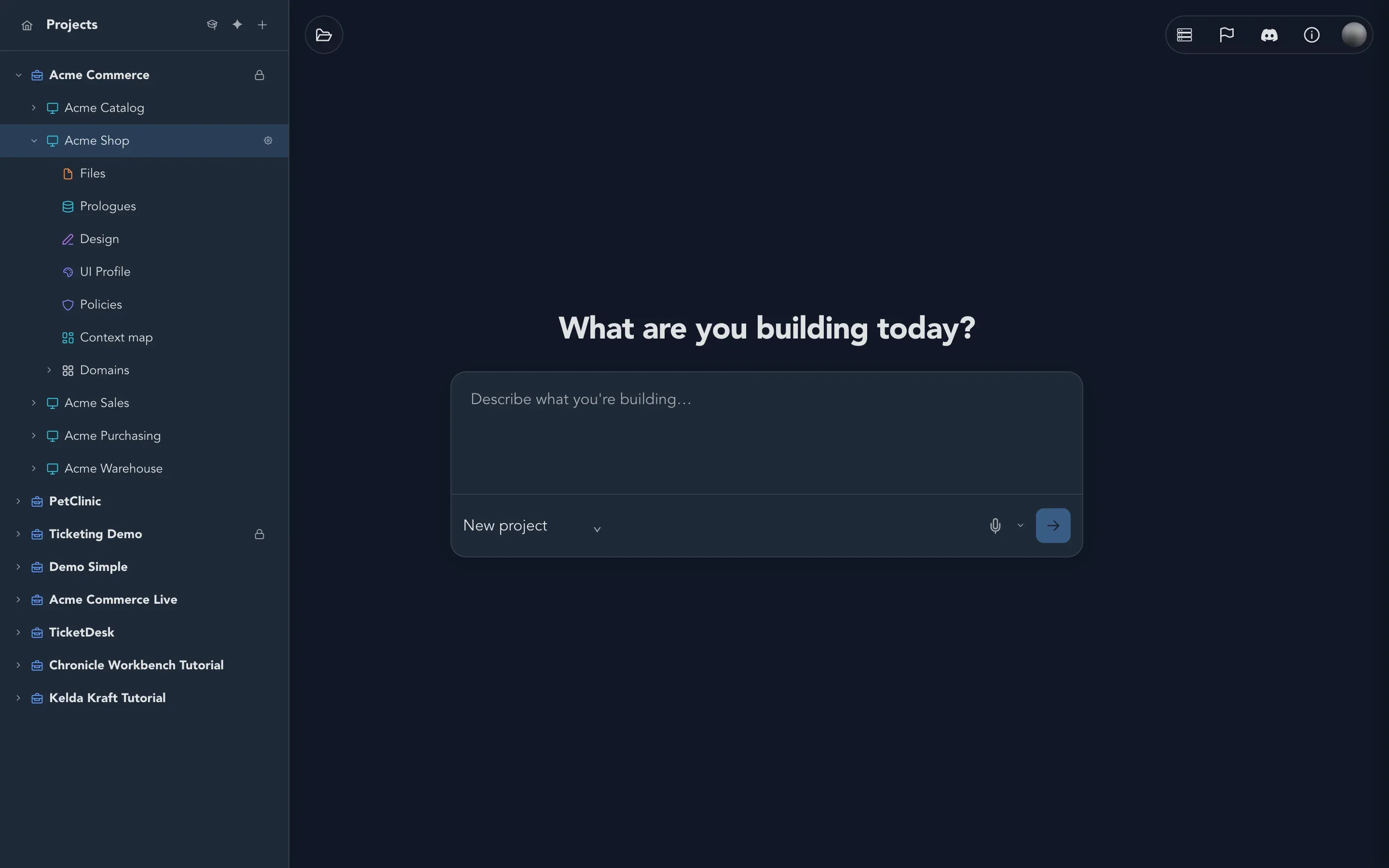
Section titled “Read the Storefront board”Start where a customer starts. In the drawer, open Acme Shop > Domains > Storefront > Event Models > Storefront.
-
Stand back. The board opens zoomed out so you can see its shape. Each column is a slice: one behavior. Blue cards are commands, orange are events, green are read models.
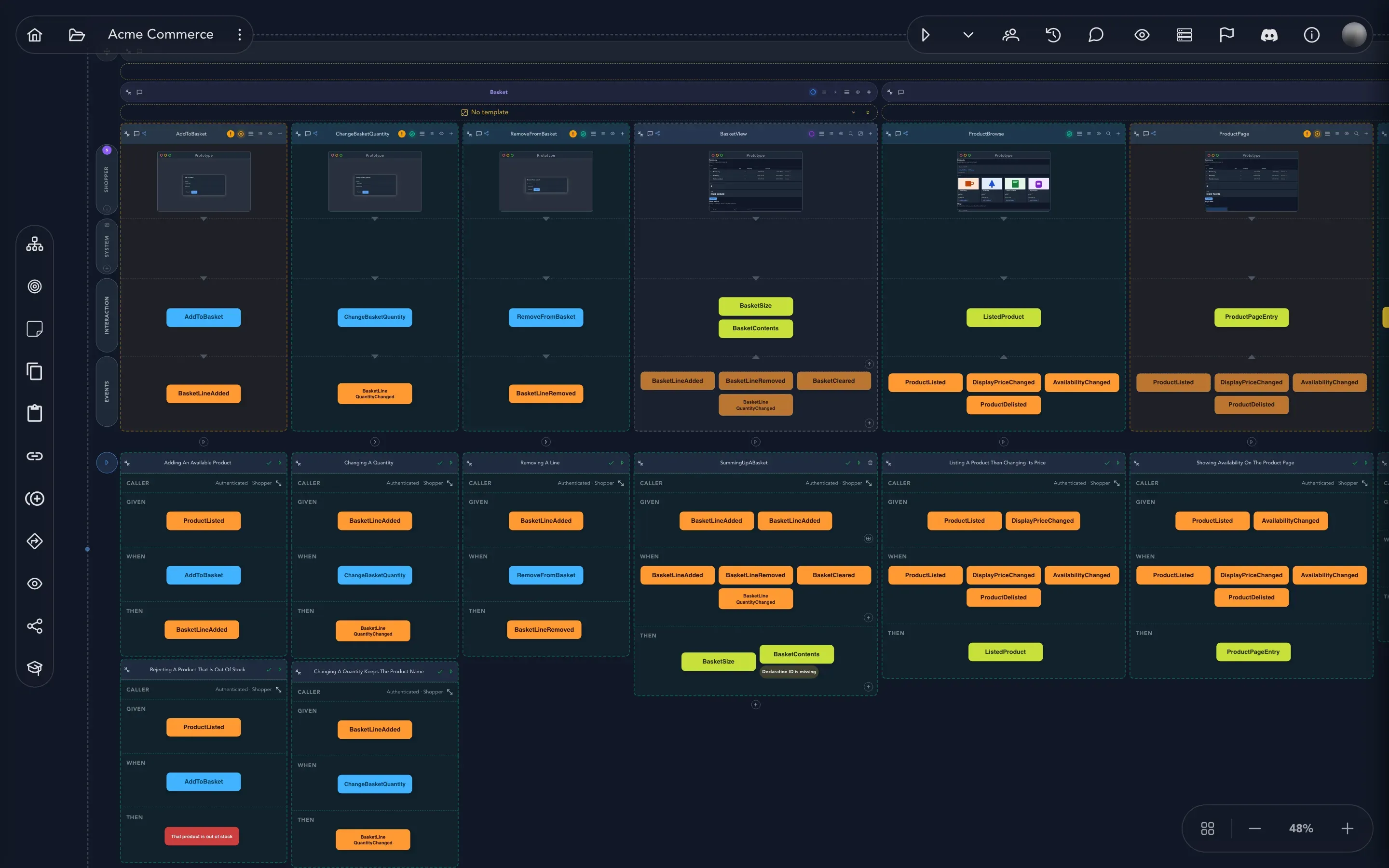
The Storefront board zoomed out. The Basket feature is on the left; its slices run left to right. -
Zoom in on one slice. Zoom in on the first slice of the Basket feature, AddToBasket. Read it from the top down: first the screen the Shopper sees, then the command AddToBasket, then the event BasketLineAdded. A person asks, a fact is recorded.
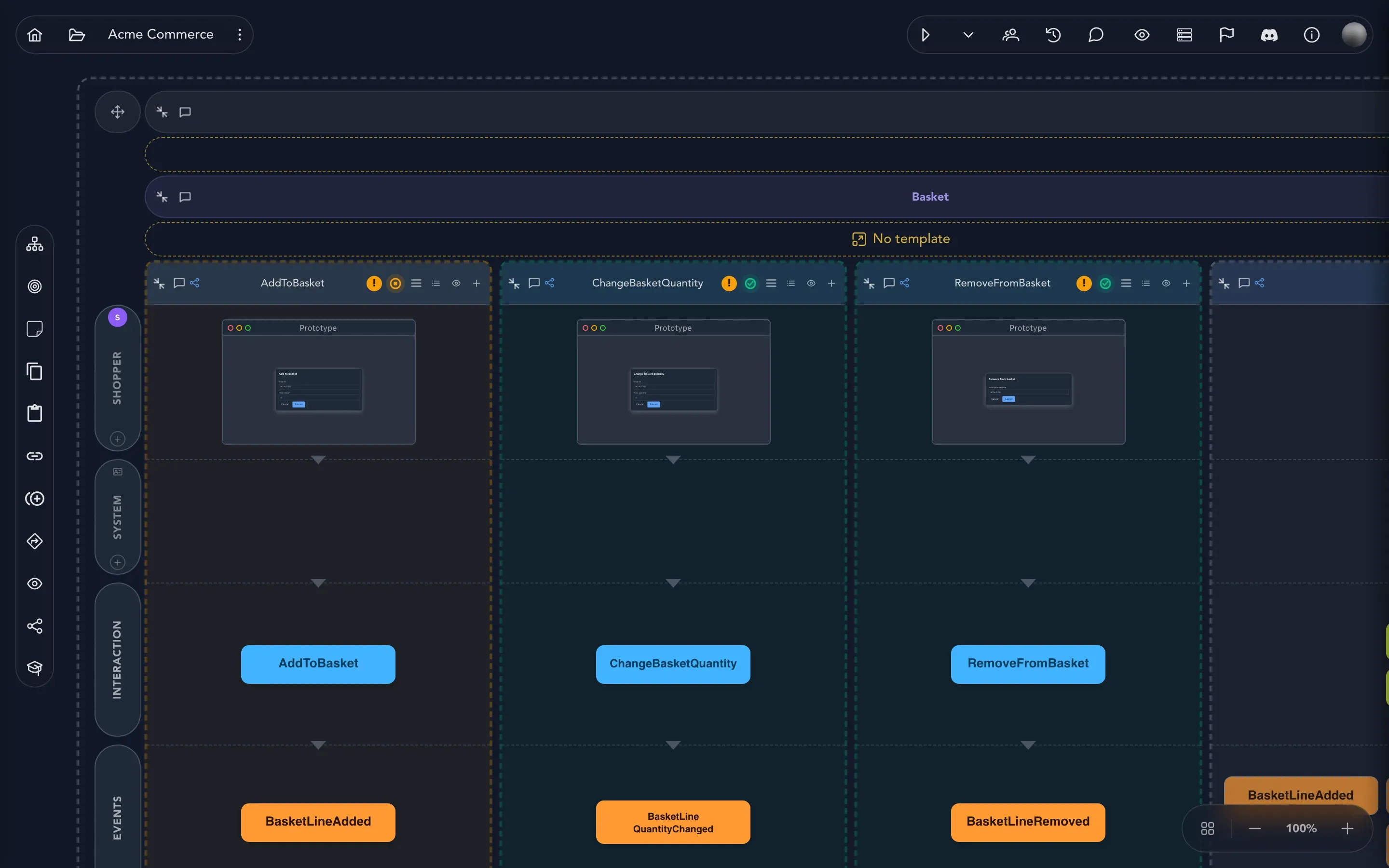
AddToBasket, ChangeBasketQuantity and RemoveFromBasket. Notice the row labels on the left: who does it, and what kind of thing it is. -
Read across. Move right. ChangeBasketQuantity records BasketLineQuantityChanged, and RemoveFromBasket records BasketLineRemoved. Every event is in the past tense, because it is a fact.
-
Find the view. Keep going to the BasketView slice. It has no command. It shows the read models BasketSize and BasketContents, built from the events to its left. Select the BasketContents card to open its editor.
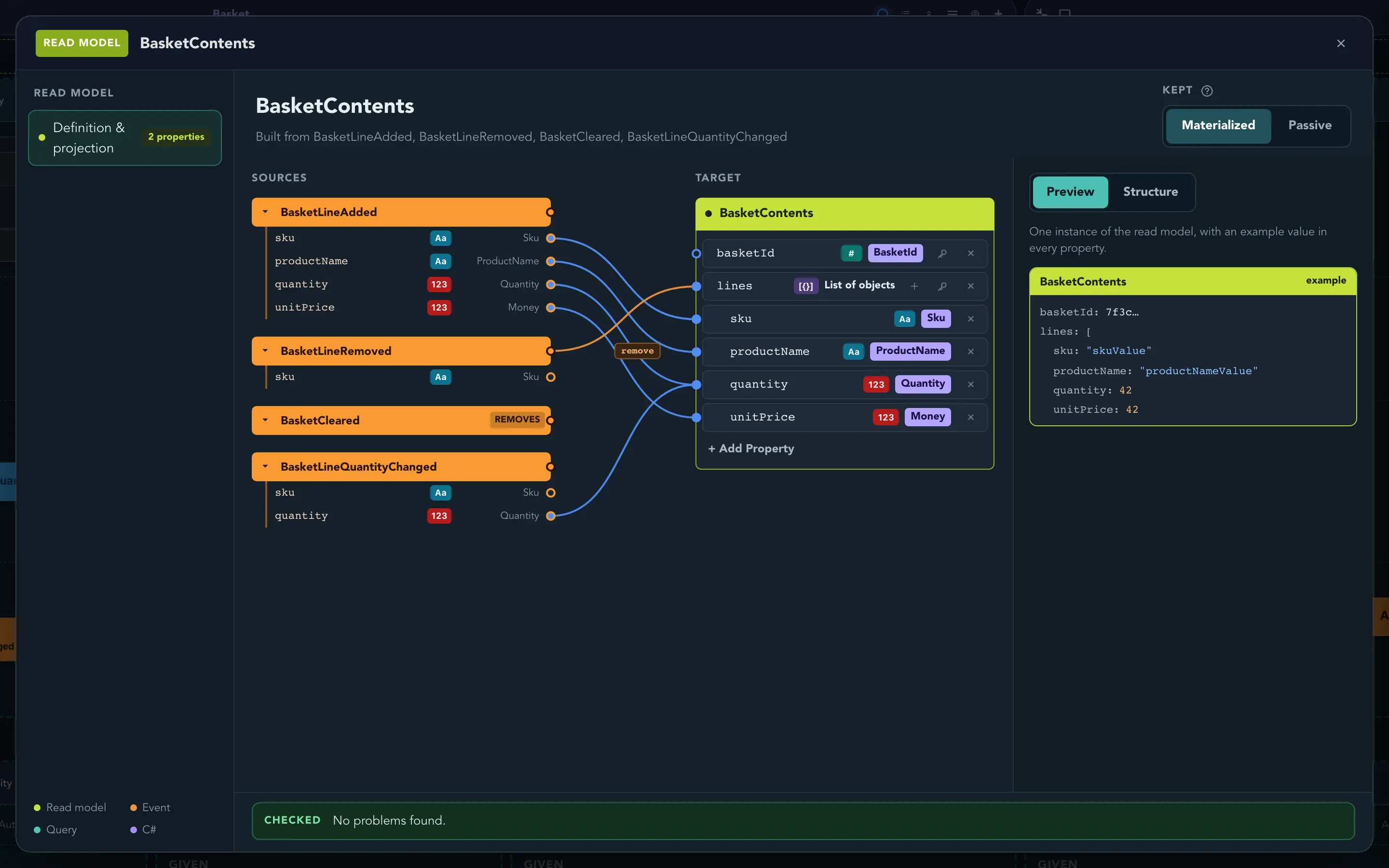
BasketContents is built from four events. The lines show which event property fills which read model property. -
Read the examples. Underneath each slice are its examples, each in the form given, when, then. Below AddToBasket you will find one where a listed product is added and BasketLineAdded follows, and one where the product is out of stock and the answer is That product is out of stock. These examples are how the model proves it does what it says.
Notice three things as you read. The names are the business’s own words, not technical ones. The events tell the whole story, so nothing is hidden. And a column never reaches into another’s data: a view only shows what the events to its left said.
See how the areas talk to each other
Section titled “See how the areas talk to each other”The Storefront does not look inside Catalog’s data. When a product is published for sale, Catalog says so by publishing a public event. The Storefront receives that fact and translates it into its own words, so a change in Catalog’s vocabulary never leaks into the shop. Look for a slice of the Translator type in the Storefront’s browsing feature to see where this happens.
To see the whole picture at once, open Acme Shop > Context map. It draws how the application’s domains relate through the events they publish and consume. Compare it with the same map for Acme Sales.
Read an automation and its examples
Section titled “Read an automation and its examples”Now open Acme Sales > Domains > Sales > Event Models > Sales. This board has people in more than one row: a SalesManager, a SalesRep and the System.
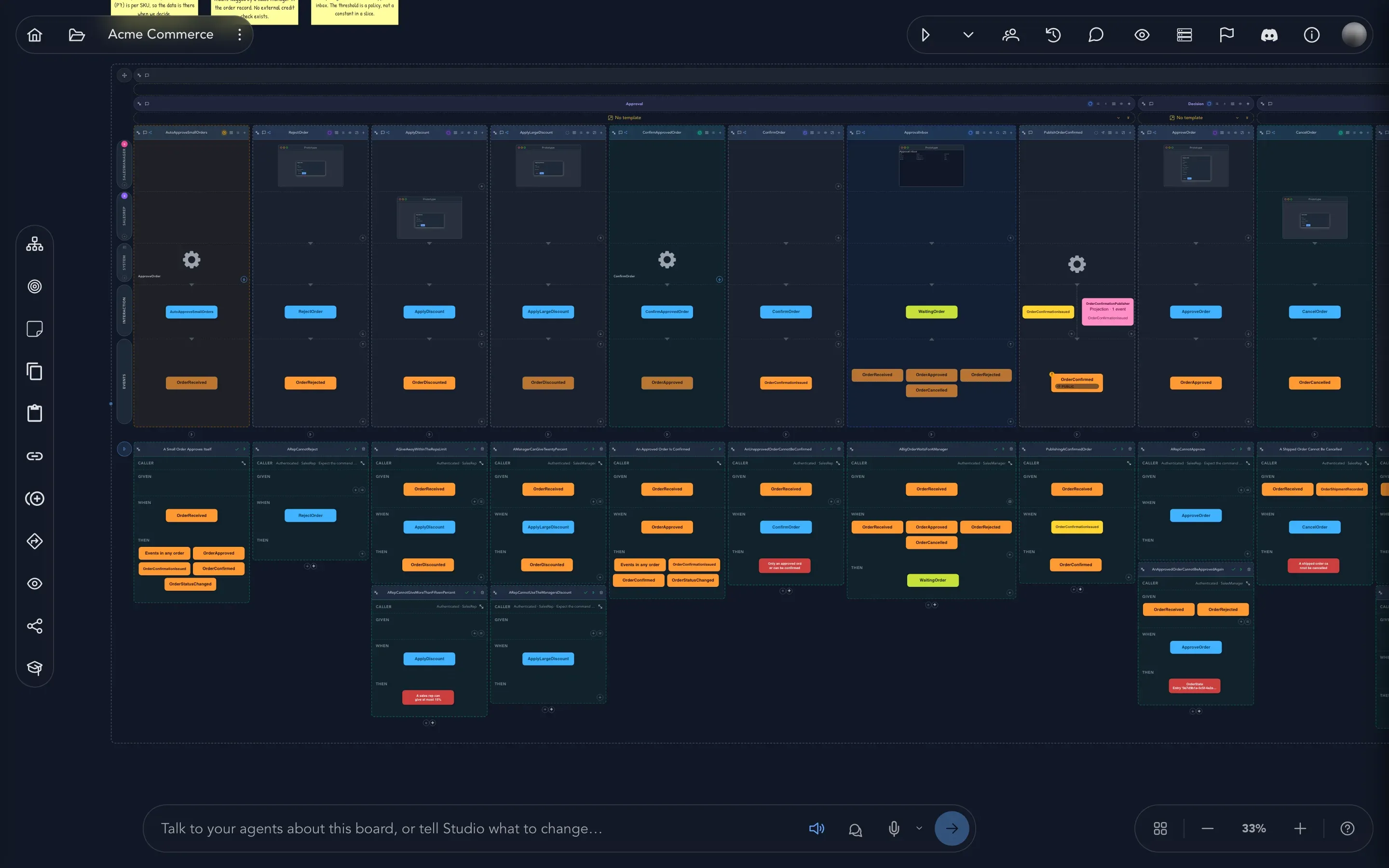
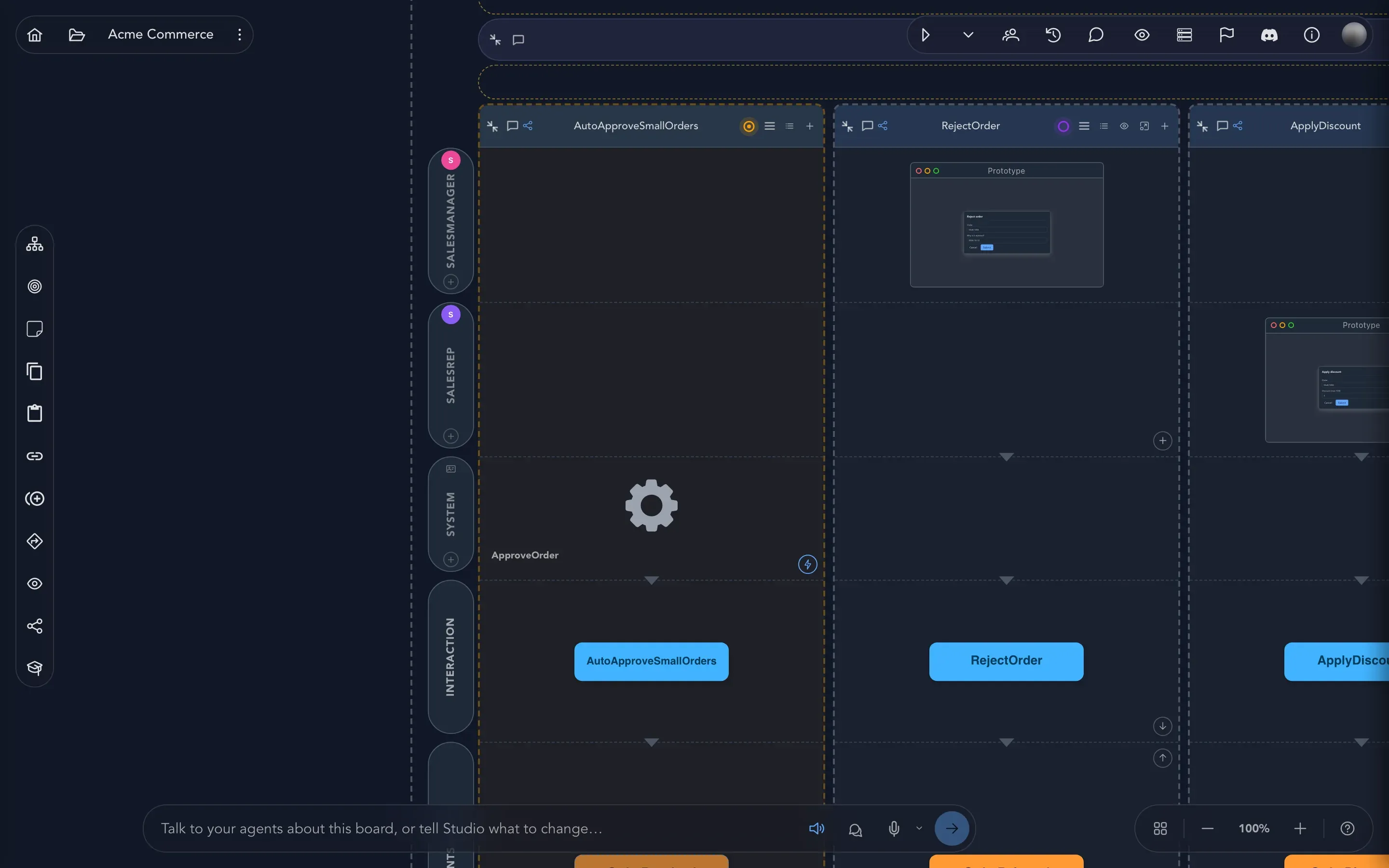
Find the slice AutoApproveSmallOrders. It has a cogwheel where the others have screens. That is an automation: no person presses a button. The system reacts when an order is received, and approves it on its own.
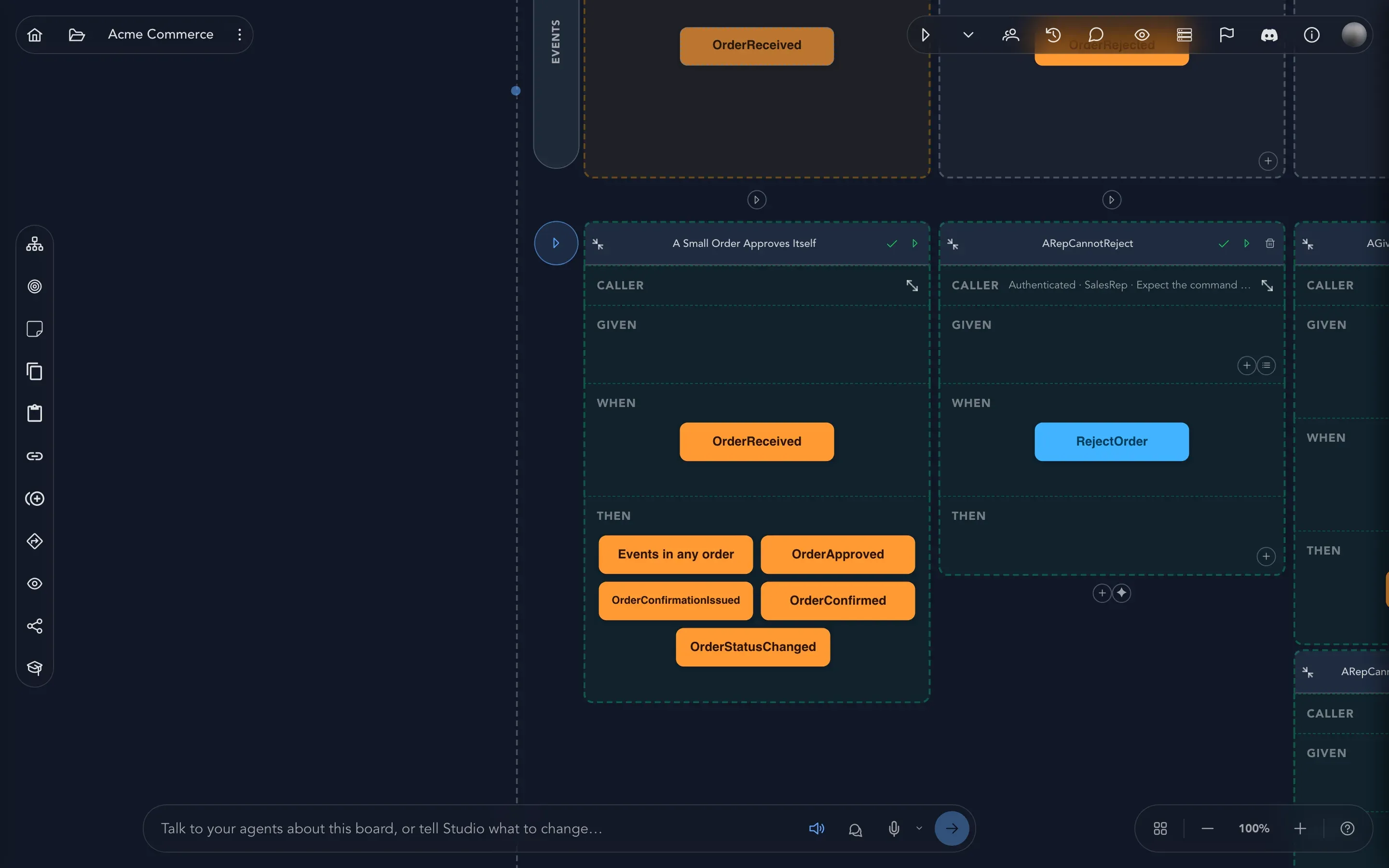
Its first example reads A Small Order Approves Itself: given nothing, when OrderReceived, then OrderApproved, OrderConfirmationIssued, OrderConfirmed and OrderStatusChanged follow. Next to it, an example for RejectOrder says who is asking (Authenticated, as a SalesRep) and expects the command to be denied. Examples can say who may do what, too.
Look at where it began
Section titled “Look at where it began”Models do not start as neat columns. Open Acme Shop > Domains > Storefront > Brainstormings > Acme big picture.
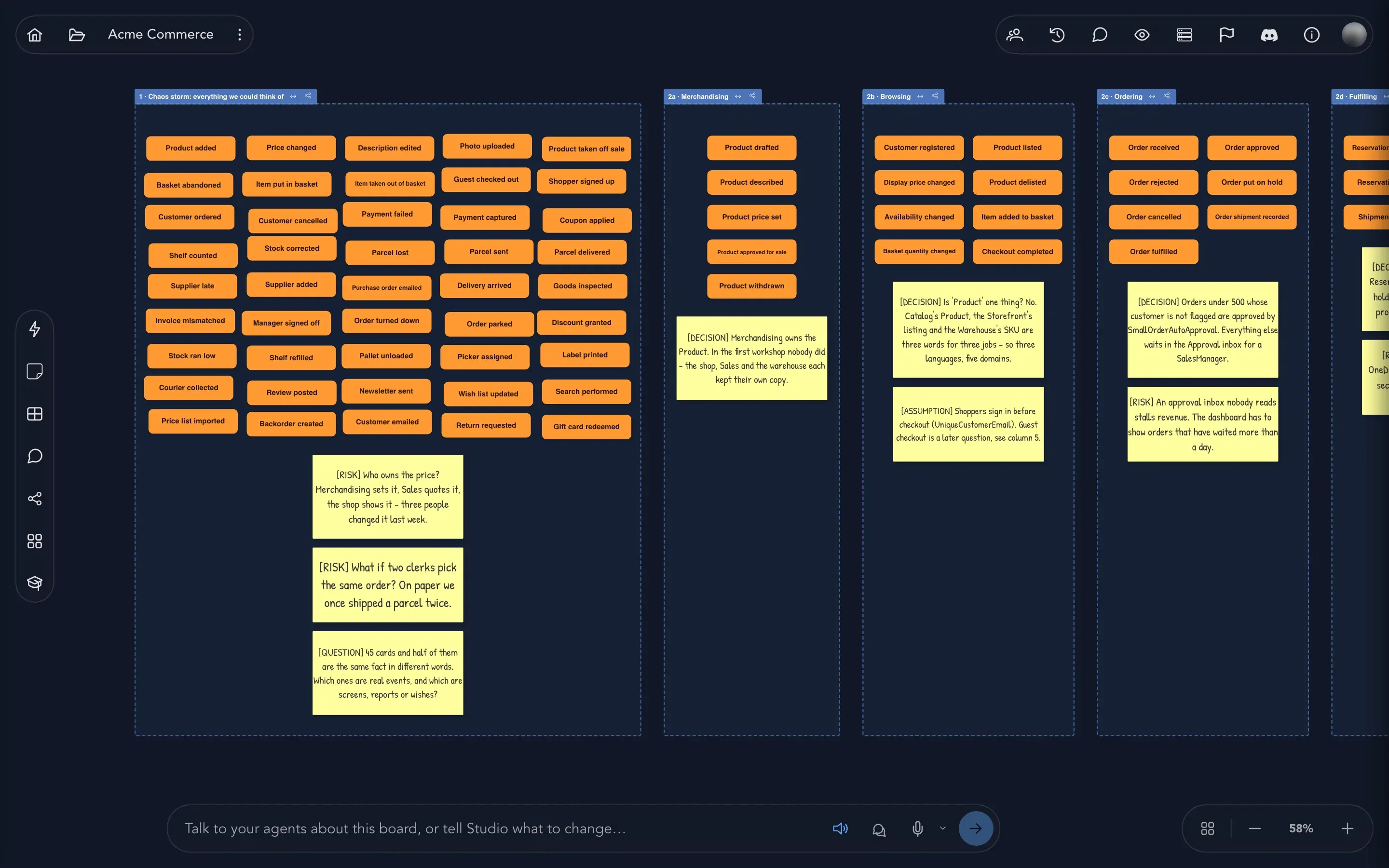
The first region is the chaos storm: every event the team could think of, in no order. The regions beside it are what they sorted it into: Merchandising, Browsing, Ordering. Sticky notes record the questions, risks, decisions and assumptions that came up along the way. In this sample, each note’s text begins with its kind, such as [DECISION] or [RISK]. A board like this is where an event model starts.
See the same ideas in your own project
Section titled “See the same ideas in your own project”You cannot open Acme Commerce from another organization, but you can see everything above for yourself.
- Build the same shape. Model your first behavior builds a small basket the way the Storefront does it: a state change slice with a screen, a command and an event, a view that counts what happened, and an example that checks it.
- Read the sample’s source. The whole of Acme Commerce is written as Screenplay files in the public Cratis Screenplay repository, with a walkthrough that follows a product from the catalog to dispatch. You do not need a Studio account to read them. To see a Screenplay file drawn as a board, see Screenplay files.
- Start from your own brainstorm. Brainstorm the way the Acme big picture board did, then turn the regions into slices.
What happens next
Section titled “What happens next”- Model your first behavior: your turn.
- Event modeling in Studio: why the board is shaped this way.
- Take the guided tours: Studio can walk you through boards like these.