

Generate specifications with AI
Writing the first few specifications for a slice is mostly typing out what the slice already says. Studio can do that for you: an AI agent reads the slice and drafts scenarios, which you then review like any other specification.
Before you start
Section titled “Before you start”- Your organization has connected an AI provider and an agent can use it. Generation is the agent’s job, so without one the action is not there at all. A maintainer sets this up under Your organization.
- The slice has a command or events to write scenarios from. A slice with neither is refused with The slice has no command and no events to write specifications from.
- You are on an editable board.
Generate
Section titled “Generate”- Open the specifications area under the slice.
- Select Generate specifications with AI. It is the ✦ action beside the plus, Add Specification, under the specification. Point at it to see its tooltip. While it works, it reads Generating specifications….
- Wait for the new specifications to appear under the slice, the normal case first.
- Read each one. Check the values, and that the Then row says what you want.
- Select Run this slice’s specifications.
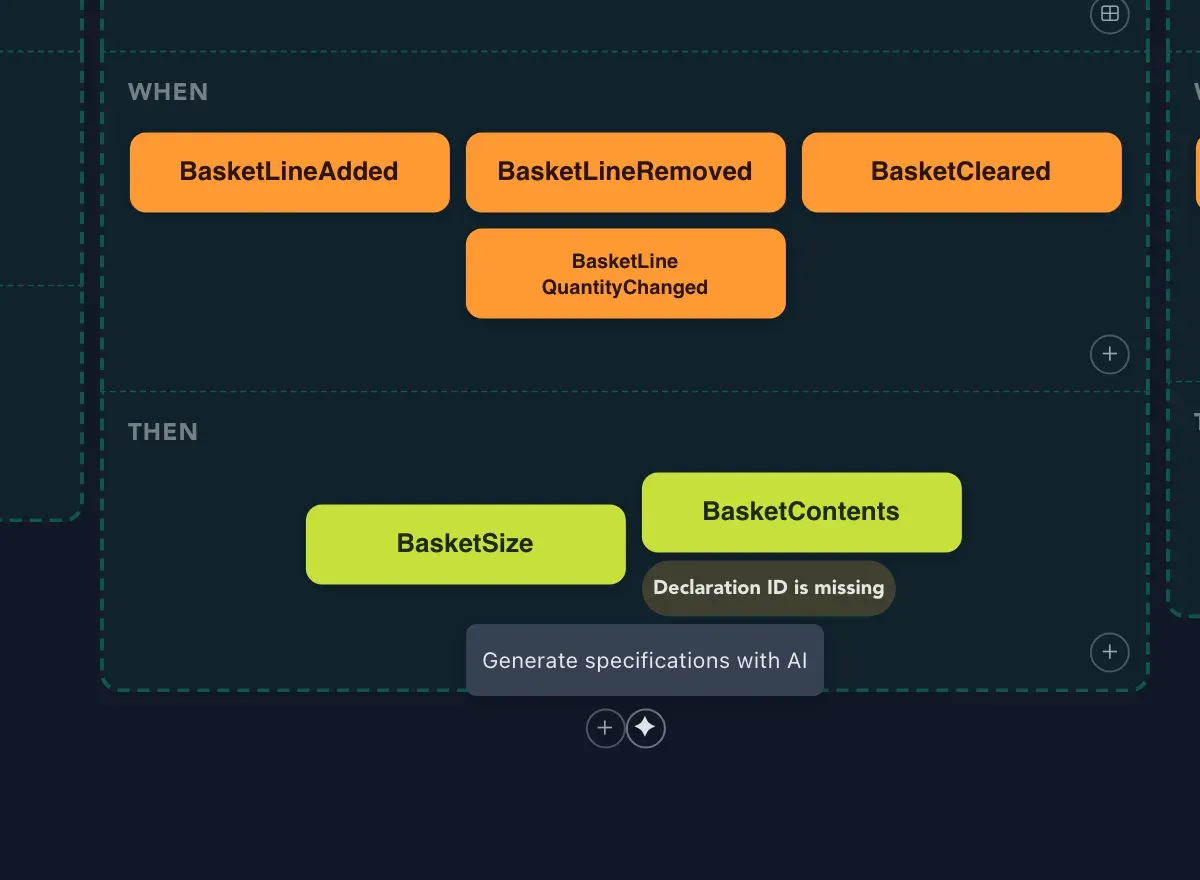
There is nothing to type. You do not describe the slice to the agent, because the slice is the description: its command and rules, its events and their fields are already on the board, and a description typed again could only disagree with them.
If it fails, the action says Could not generate specifications. Make sure an AI provider is configured in the AI settings. Check the provider, and try again.
What you get
Section titled “What you get”Each generated specification has a short name for its scenario, the events that already happened, the values the command is called with, and the events or validation messages that must follow. They are ordinary specifications: edit them, rename them, delete the ones you do not want, and add your own.
- Names that clash with existing specifications, or with each other, are skipped. See names.
- Only the scenarios that Studio can match to the slice are recorded, so a draft can contain fewer than the agent wrote.
- Values are converted to the types of the fields, so a number stays a number.
Check that it worked
Section titled “Check that it worked”The new specifications are on the slice, each with a result after you run them. A failing one is useful: either the model or the example needs a fix. See Write specifications for what each row can hold.
Related
Section titled “Related”- Write specifications: every row a specification can hold.
- AI providers: connect the provider that generation needs.
- Explain and generate with AI: other things an agent can draft for you.