

Copy, paste and duplicate
Reuse beats redrawing. You can copy a slice, a feature, a module or an event, paste it where you need it, or duplicate it in place. The tools are in the left toolbar, and each has a keyboard shortcut.
Copy and paste
Section titled “Copy and paste”-
Select what to copy: a slice, a feature, a module or an event. To select more than one, hold Shift, Ctrl or Cmd while you select.
-
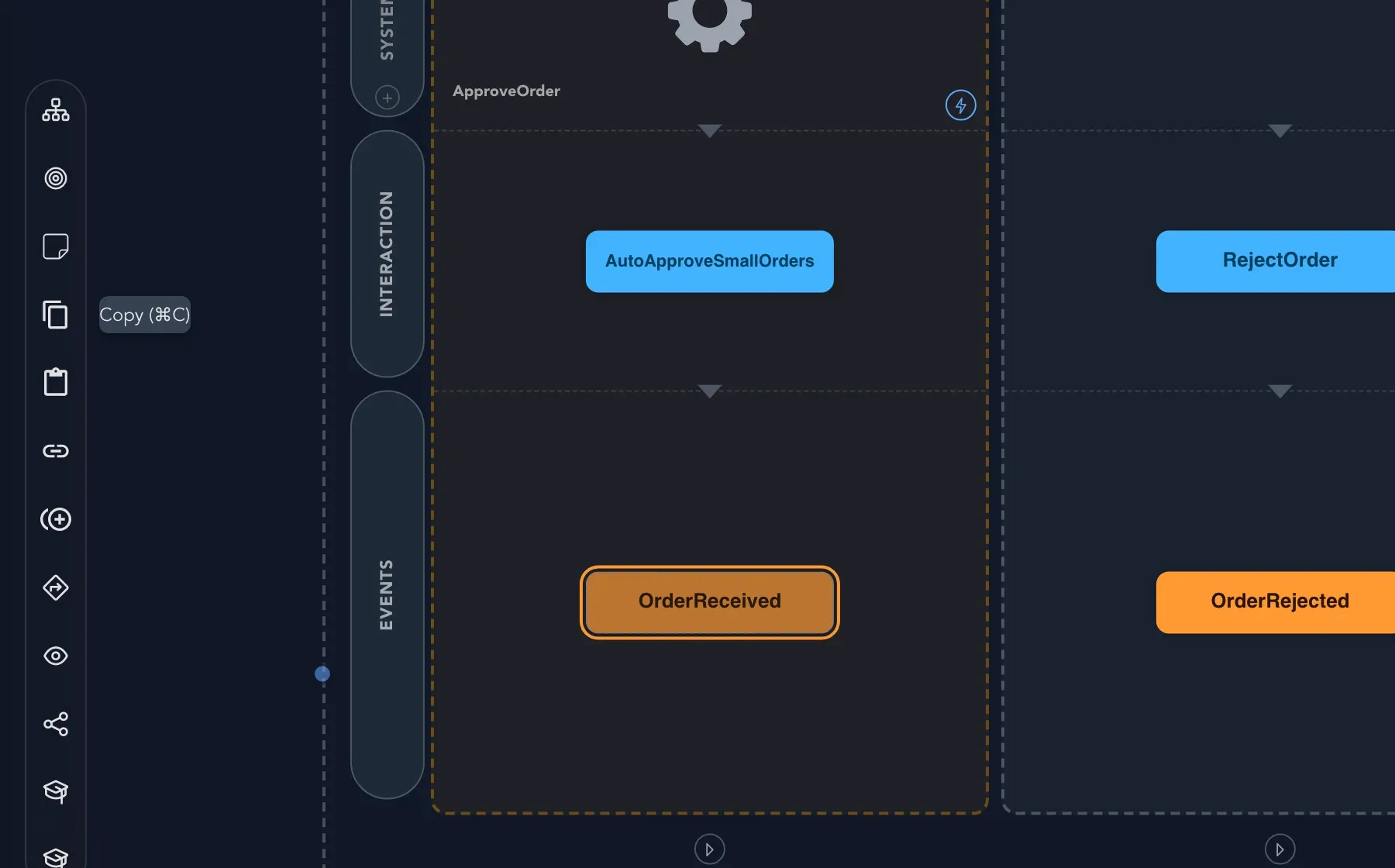
Select Copy in the toolbar, or press Cmd + C (Mac) or Ctrl + C. Studio confirms with a message such as Slice copied. Hover the button to see its tooltip, Copy with its shortcut.
-
Select where it goes (see the table), then select Paste, or press Cmd + V or Ctrl + V.
| You copied | Paste it into |
|---|---|
| Slices | A slice or a feature |
| Features | A module or a feature |
| An event | A slice |
If nothing is selected, Studio asks you to select a slice, feature, module or event to copy. If it cannot tell where to paste, it says where each kind can go.
Duplicate
Section titled “Duplicate”Select what you want and choose Duplicate in the toolbar, or press Cmd + D or Ctrl + D. To duplicate a single slice you can also choose Duplicate slice in its options menu.
Paste an event as a linked copy
Section titled “Paste an event as a linked copy”A linked copy shows the same fact in another place. It is not a second event; it refers to the first.
-
Select the event and copy it.
-
Select the slice that should show it.
-
Select Paste as linked copy, or press Cmd + Shift + V or Ctrl + Shift + V.
Only an event can be pasted as a linked copy. On a linked copy, Go to source takes you to the slice that produces the event. Deleting an event that other slices refer to warns you first.
Check that it worked
Section titled “Check that it worked”The pasted element is on the board where you put it. A linked copy shows the same event as the original.
Related pages
Section titled “Related pages”- Slices: move a slice to another feature instead of copying it.
- Events: add an existing event from another slice.
- Modules and features: where features and modules live.
- Keyboard shortcuts: every shortcut in one place.