

Sign up and start your trial
There are two ways in. Either you start a new organization for your team and get a 14-day free trial, or someone who already has an organization invites you to it. Find the one that matches you below.
Start a new organization
Section titled “Start a new organization”You need:
- An account with one of the sign-in providers Studio supports, such as GitHub, Microsoft, Google or Apple. The sign-in page shows the ones that are available. You do not create a separate Studio password.
- A name for your organization. Organization names are unique across Studio, so a very common name may already be taken.
-
Open the sign-up page. It is headed Start your 14-day free trial.
-
Sign in with the account you want to use.
-
Read and accept the terms and conditions and the privacy policy.
-
Enter a name for your organization.
-
Wait while Studio sets the organization up. The page says Setting up your organization…, and then Signing you in….
If the sign-up page does not let you register, new organizations may not be accepted at the moment. Try again later, or ask someone who already uses Studio to invite you.
Check that it worked
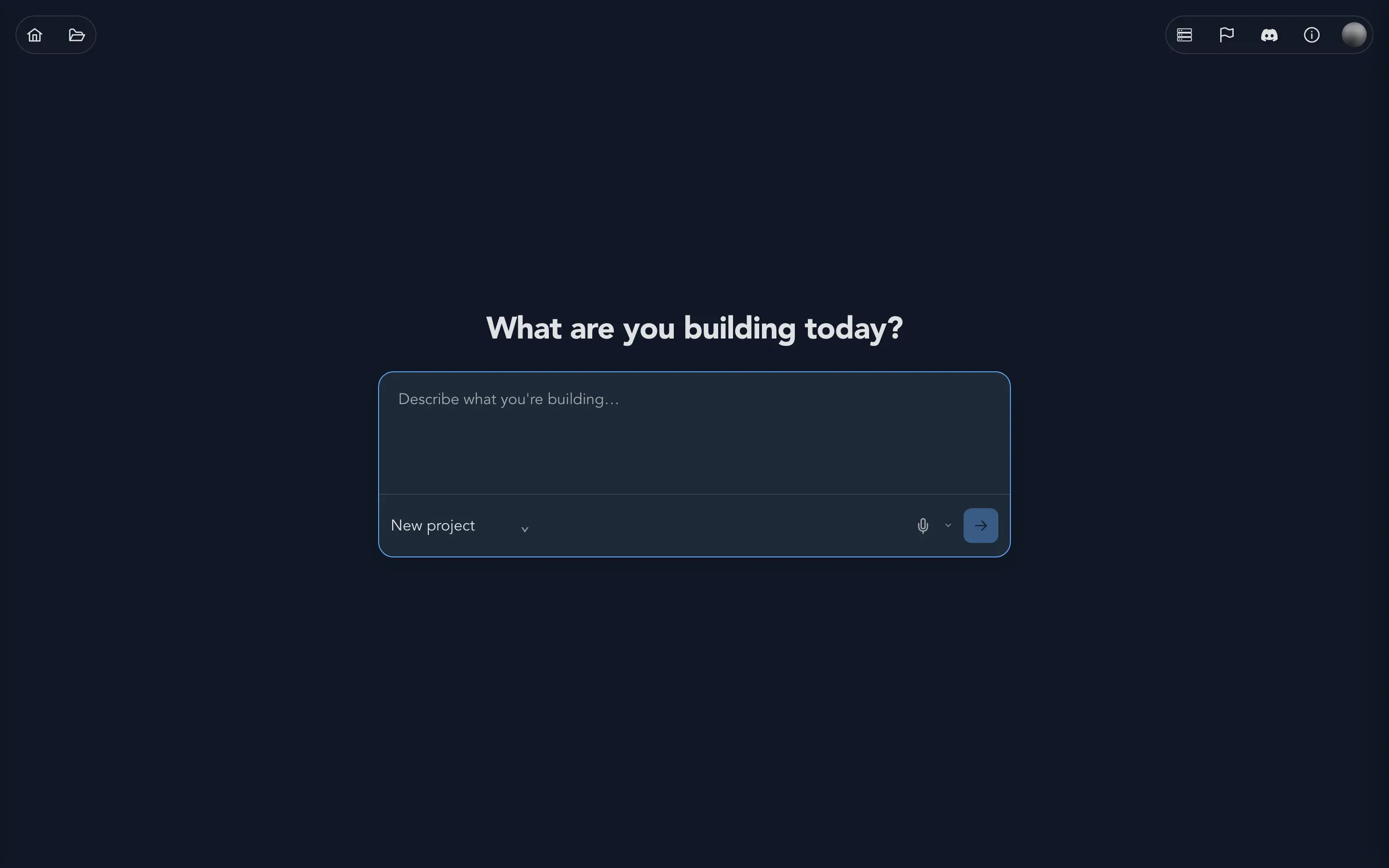
Section titled “Check that it worked”You land in Studio, on a home page that asks What are you building today?. The first time, a short welcome says that Studio is still in beta. Select Got it, let’s go to carry on.
You are your organization’s maintainer, and one of the trial seats is assigned to you, so you can start working straight away.
What the trial includes
Section titled “What the trial includes”- 14 days. The trial starts when your organization is created.
- No credit card. The sign-up page says so: you create your organization and use Studio free for 14 days.
- The full product for a small team. The sign-up page promises the full product for you and two colleagues. You invite them from Organization settings > Users; see Your organization.
- One free trial for each sign-in. If you register more organizations with the same sign-in, they are created without a trial.
Join with an invitation
Section titled “Join with an invitation”A maintainer of an organization can invite you by email. The email holds a link that is meant for you, so do not forward it.
-
Open the link in the invitation email.
-
Sign in with an account Studio supports.
-
Read and accept the terms and conditions and the privacy policy.
-
Studio adds you to the organization.
You join with the role the maintainer chose when they invited you: Maintainer or Member. You land in Studio and can open the organization’s projects.
If you cannot use Studio yet
Section titled “If you cannot use Studio yet”- There is no seat for you. Everyone who works in Studio needs a seat. If none was free when you were invited, you can sign in but cannot use Studio until a maintainer assigns you one or adds more seats. Ask a maintainer to open Organization settings > Users.
- The link has stopped working. Ask a maintainer to select Refresh invitation next to your name in Users. Studio sends you a new link.
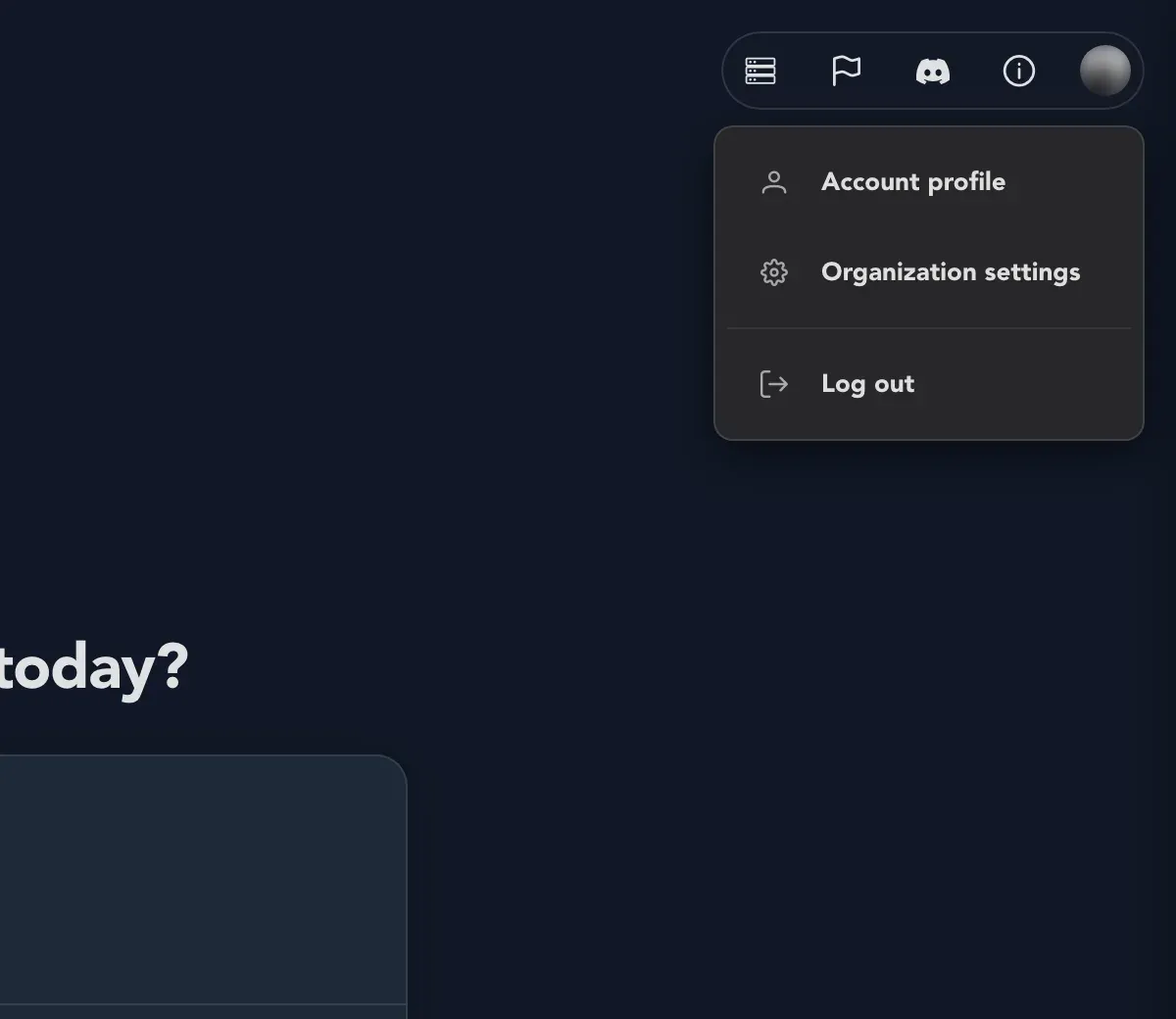
- You belong to more than one organization. Open the account menu and choose Switch organization. Each organization is separate: its projects, AI settings and billing never mix.
The trial banner, and when the trial ends
Section titled “The trial banner, and when the trial ends”While the trial runs, a banner counts it down: N days left of your free trial (ends date). On the last day it says Today is the last day of your free trial. Maintainers see a Choose a plan button. Members see Ask your organization’s maintainer to choose a plan.
When the trial ends, Studio says Your free trial has ended. Nothing is deleted: Your organization and its work are kept. A maintainer chooses a plan to continue. Studio charges per seat; see the pricing on cratis.studio, and Your organization for how seats and plans work.
What happens next
Section titled “What happens next”- Find your way around: a tour of the places you will spend your time.
- Explore the Acme Commerce sample: see what a finished model looks like.
- Model your first behavior: build one yourself.