

Connect Jira
Your organization sends the issues Studio creates for slices to Jira Cloud by letting Studio’s own Jira app work on your Jira sites. No personal API token is kept.
Before you start
Section titled “Before you start”- You are a maintainer of the organization.
- You can use or administer the Jira site you want to connect.
Connect a site
Section titled “Connect a site”-
Open Organization settings and select Integrations.
-
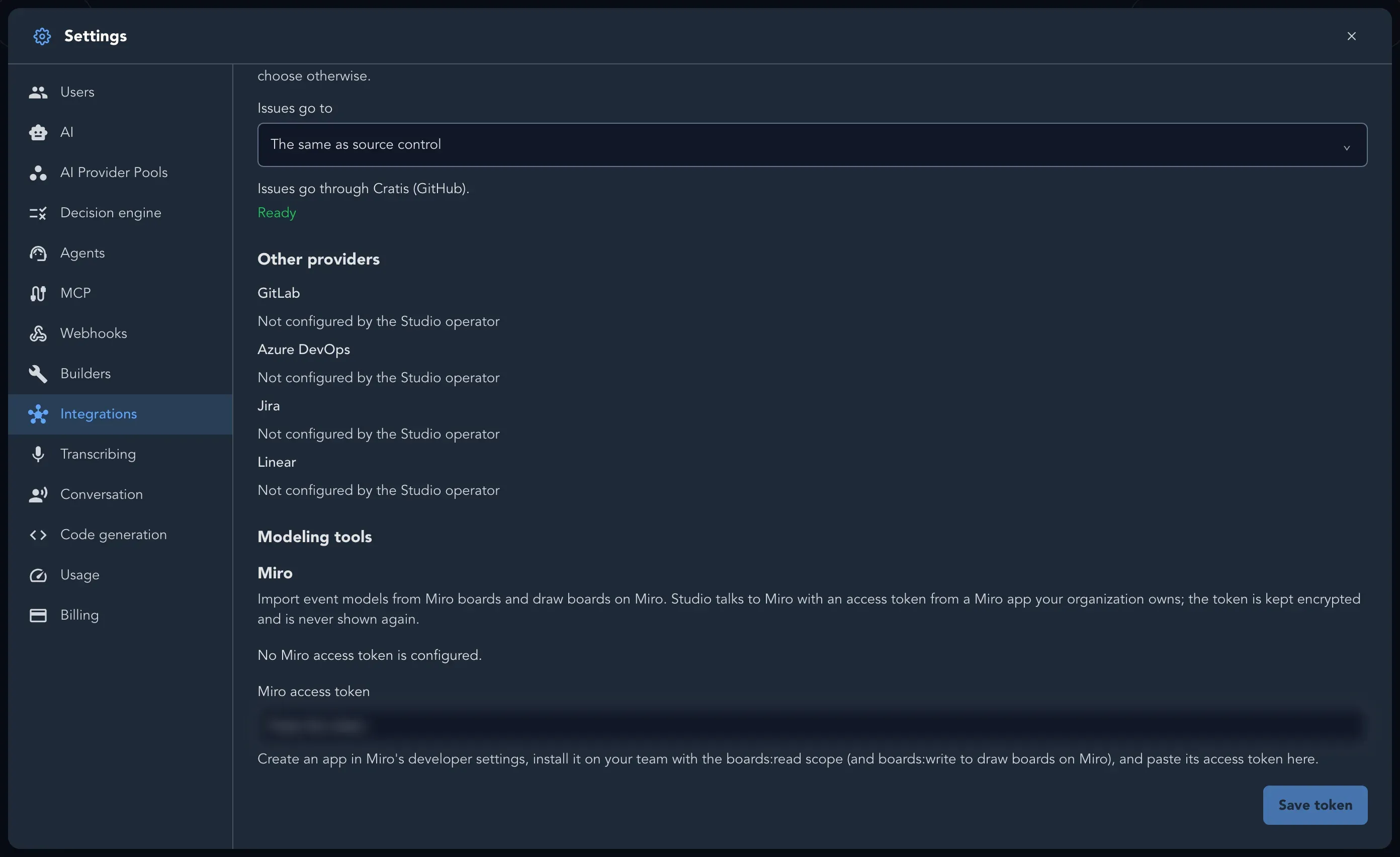
Under Other providers, select Connect Jira.
-
Atlassian asks you to allow Studio’s app on a Jira site. Allow it.
-
Atlassian sends you back to the Integrations page, which says Jira is connected.
Every Jira site the authorization reaches is connected and named by its address, such as acme.atlassian.net. Connect again, for example with another Atlassian account, to add the sites that account reaches.
If Jira shows Not configured by the Studio operator, Studio’s Jira app is not set up for this Studio and nothing can be connected yet. Contact support (see Get help).
Use it for issues
Section titled “Use it for issues”When your organization has never chosen where issues go, the first site you connect becomes the place. Otherwise Issues keeps its choice and the site is offered there. Choose it under Issues > Issues go to. See Connect integrations.
Each site shows whether it is ready. It is while the authorization still reaches it. A site Studio’s app can no longer reach, because the app was removed in Jira or your access ended, shows the reason and asks you to connect Jira again.
What Studio is allowed to do
Section titled “What Studio is allowed to do”Studio asks to read and write Jira work: to create issues, read their state and move them through the workflow. It also asks for a refresh token so it can keep working without you signing in again. Tokens are encrypted with your organization’s own key and are only decrypted at the moment they are handed to Atlassian.
Disconnect
Section titled “Disconnect”Select Remove next to the site. A site chosen for issues has to be replaced there first. Removing it does not take Studio’s app off the site; do that in Jira’s or your Atlassian account’s settings for connected apps.