

Invite people and manage members
You add people to your organization by inviting them by email. Everyone you invite signs in with the identity provider they prefer, so they do not need a new password.
Before you start
Section titled “Before you start”- You are a maintainer of the organization. See Roles and permissions.
- A free seat is helpful, but not required to send the invitation.
Invite someone
Section titled “Invite someone”-
Open Organization settings and select Users.
-
Select Invite. The Invite User dialog opens.
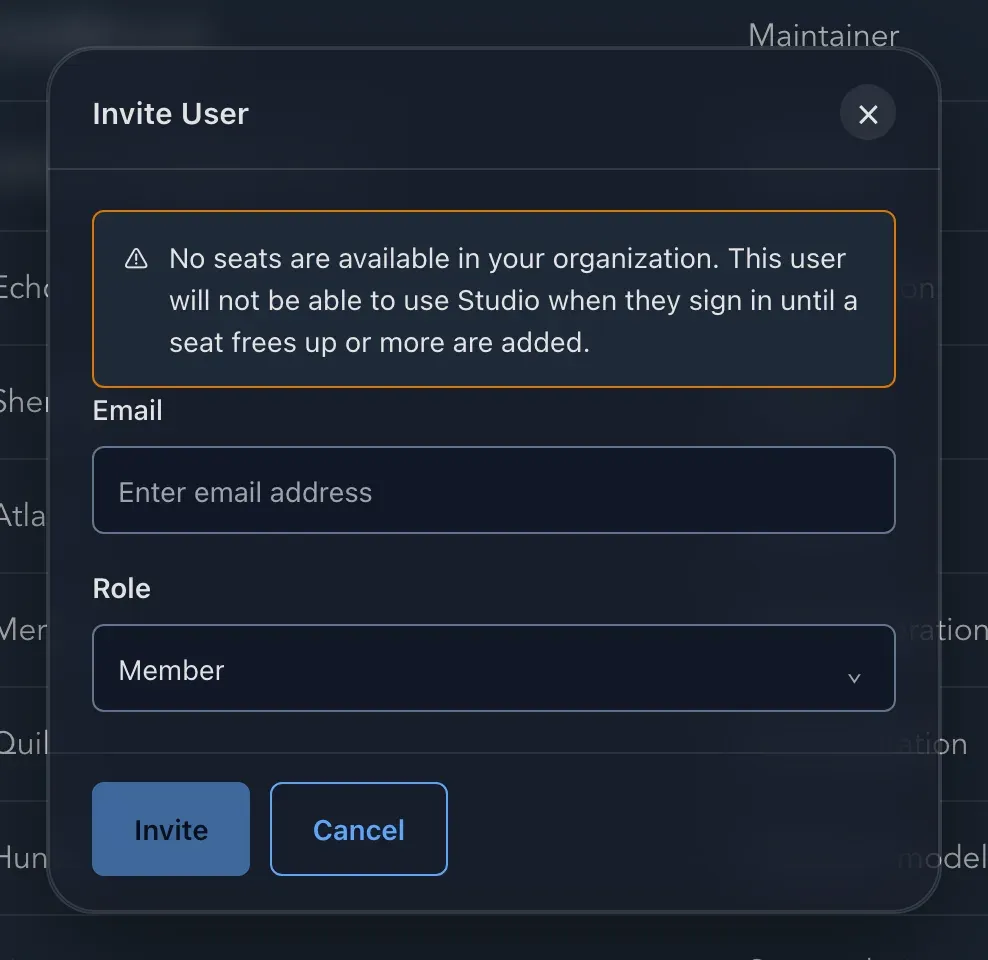
Enter the address and pick a role. -
Enter the person’s address under Email.
-
Choose a Role: Member or Maintainer. If you are unsure, start with Member; you can make them a maintainer later.
-
Select Invite. Studio emails the person a link.
If no seat is free, the dialog says so: No seats are available in your organization. This user will not be able to use Studio when they sign in until a seat frees up or more are added. You can still invite them; add seats or free one before they arrive.
What the invited person does
Section titled “What the invited person does”They follow the link in the email, sign in with any provider Studio offers, accept the terms and the privacy policy, and join your organization. The person can belong to several organizations and switches between them from the Account menu with Switch organization.
Follow up on invitations
Section titled “Follow up on invitations”Until an invitation is accepted, the person appears in the list with the status Invited, and under Pending invitations. In the person’s Actions:
- Refresh invitation sends them a fresh link, for when the first one expired or got lost.
- Revoke invitation takes the invitation back after you confirm.
Manage the people who have joined
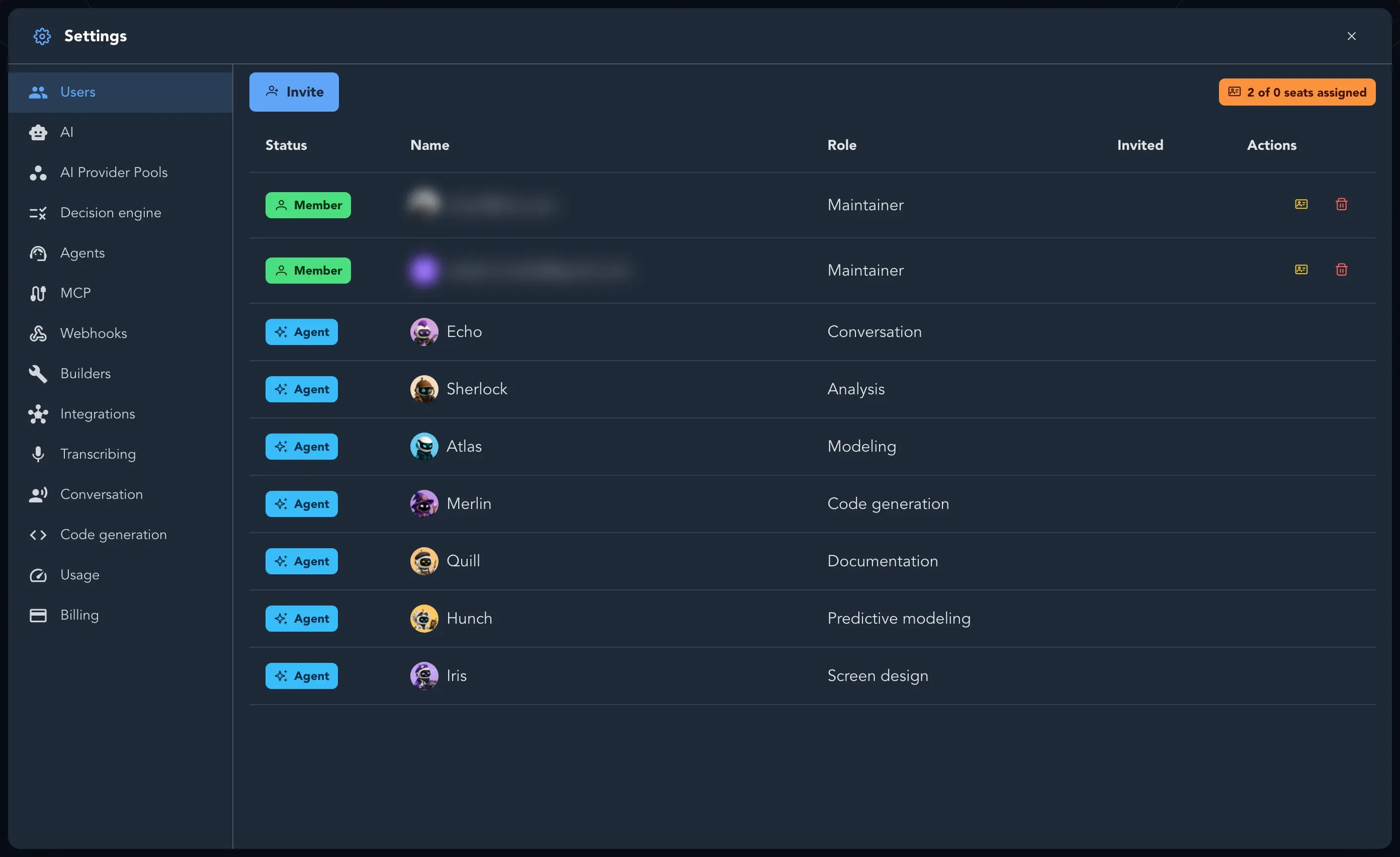
Section titled “Manage the people who have joined”Each row shows Email, Role, Name and Status. A person’s status is Member; Studio’s own AI agents are listed too, with the status Agent. In a person’s Actions you can:
- Make maintainer to give them the maintainer role.
- Assign seat or Unassign seat. See Seats.
- Project access to see which projects they can reach and Revoke access to one of them. The person can no longer open that project until access is granted again.
- Remove to take them out of the organization after you confirm.
Check that it worked
Section titled “Check that it worked”The person appears in the list with the status Invited, and turns into Member once they have accepted.