

Publish and collect feedback
Publishing runs an application for real, under an address of its own, so that people can use it and tell you what they think. The feedback they give shows up on the board, next to the slices it is about.
Before you start
Section titled “Before you start”- The application has a model that compiles. Publishing refuses to start otherwise and says what to fix in the event model.
- Sign-in for the published application is set up under Settings > Authentication in the application’s settings. Publishing refuses to start until it is.
Publish an application
Section titled “Publish an application”-
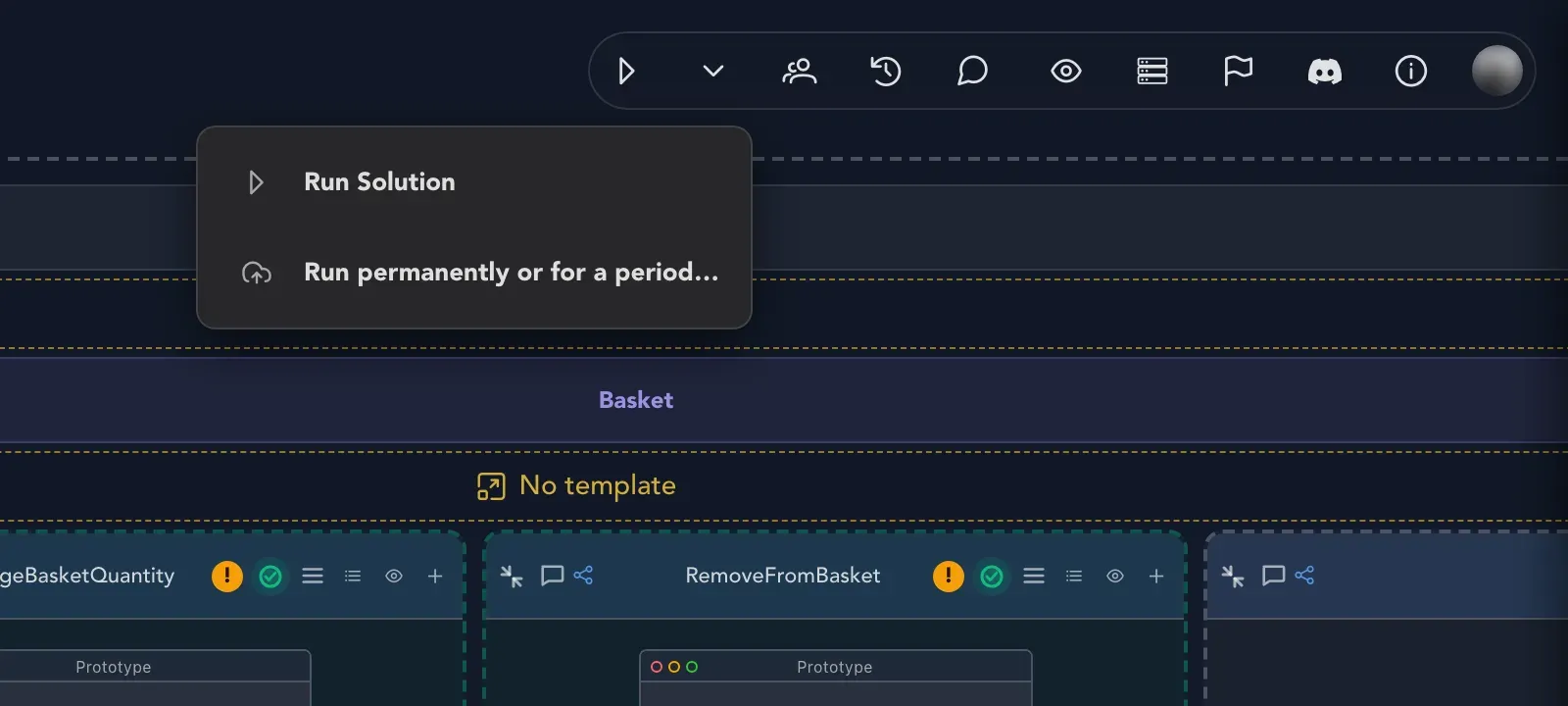
On the event model board, open Run options, the arrow next to Run Solution in the top bar, and choose Run permanently or for a period….
-
Enter a Published name. Use 3 to 40 lowercase letters, digits and dashes. Studio tells you whether This name is free. or whether it is reserved, taken or not valid.
-
Select Claim name. The name becomes the application’s address and the basis of its sign-in setup, and it is chosen once and never changed, so pick it with care.
-
In Publish the application, choose How long should it run?: Permanently, or For a period, as A duration in days, weeks or months, or Until a date. A period ends at the end of the chosen day, in UTC.
-
Under What happens with feedback from its users? choose Don’t collect feedback, Collect feedback for me to review, or Collect feedback and improve the application automatically. The dialog starts from how the application already handles feedback, which is Collect feedback for me to review until someone chooses otherwise. See Choose how feedback is handled.
-
Select Publish.
If publishing is not possible yet, the dialog says Publishing is not possible yet and lists what is missing, with where to fix it: sign-in under Settings > Authentication, or a problem in the event model.
Manage a publication
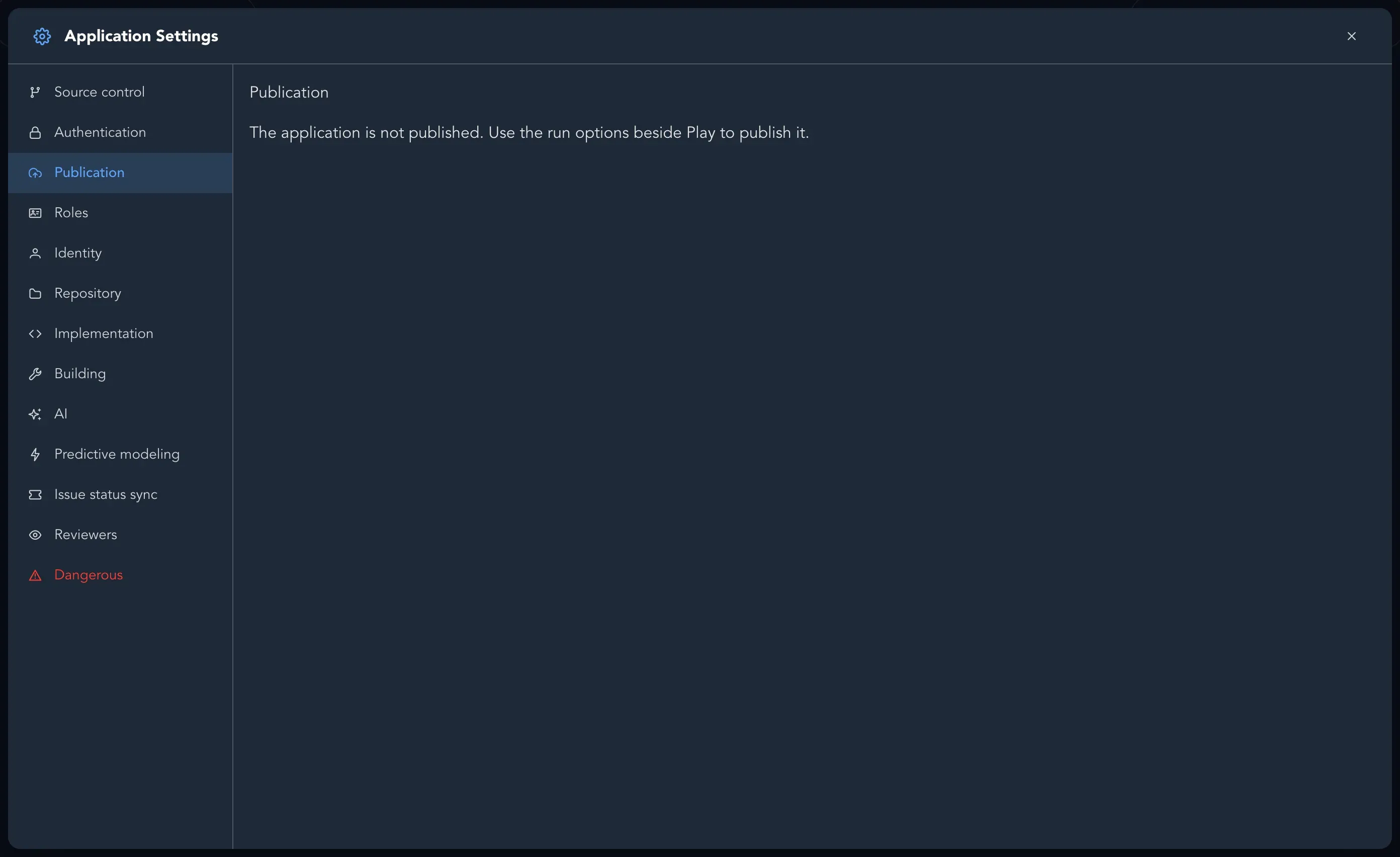
Section titled “Manage a publication”Once an application is published, manage it under Settings > Publication in the application’s settings. It shows the status (Rolling out, Running, The rollout failed, Expired or Unpublished), the Address, the Running version, when it Expires, and the feedback handling. You can:
- Extend the period to a new end date, or Make permanent.
- Change feedback handling.
- Publish new version to roll out the current model.
- Unpublish. The application stops and can no longer be reached. Its data is not deleted, so publishing it again picks up where it was.
The page also lists the versions that were rolled out and what the application used each day.
Choose how feedback is handled
Section titled “Choose how feedback is handled”Feedback is handled in one of three ways:
| Choice | What happens |
|---|---|
| Collect feedback for me to review | Feedback lands on the board and people decide what to do with it. This is where every application starts. |
| Collect feedback and improve the application automatically | Studio also turns feedback into changes to the model, checks them, and rolls them out. It suits prototypes. See Improve the application automatically. |
| Don’t collect feedback | The published application takes no feedback. |
You can choose before you ever publish. Under Settings > Publication in the application’s settings, an application that is not published shows Feedback before publishing. Pick a choice and select Save feedback handling; publishing then starts from it. Once the application is published, the publication decides, and you change it there with Change feedback handling. When a publication ends, the application keeps the handling it had. Applications published before this choice existed keep handling feedback exactly as they did.
Automatic improvement needs an AI provider for your organization, so Studio refuses it, and says why, until one is configured.
Who can give feedback
Section titled “Who can give feedback”Everyone who can sign in to the published application can give feedback on it, once feedback is collected. Feedback on an application you are still building, in Play or Preview, is not collected yet: it works for published applications.
Read the feedback
Section titled “Read the feedback”When feedback is collected, people using the published application can send you a Problem, a Suggestion, a Question or Praise. Each one carries what was on their screen when they wrote it.
-
Select Feedback from the published application in the top bar. The Feedback panel opens.
-
Narrow the list with the filters Kind, Status and On (a module, a feature or a slice).
-
Open an entry. It shows What was on screen and Where it shows, the slices it concerns.
Feedback can be about a whole module, a whole feature, one or more slices, a screen or a single component. Feedback about a module or a feature is shown on that module or feature. If what it names has since been renamed or removed, Studio shows it on the nearest module or feature that still exists, and on the event model itself when none does.
Each entry has a status: Open, Accepted, Declined, Addressed or Withdrawn. Choose what to do with it:
- Accept it, to say you will act on it.
- Decline it. Studio asks Why will you not act on this?, and the person who gave the feedback reads your answer.
- Mark it Addressed once it is fixed, and choose the version that addresses it.
A suggested change to a screen shows its Property, From and To. Change the property in the screen editor, then choose Mark as applied.
Improve the application automatically
Section titled “Improve the application automatically”If you chose Collect feedback and improve the application automatically, Studio turns feedback into changes to the event model, checks them against every specification, and rolls them out as a new version. Anything that touches sign-in, roles, policies, personal data or what the model contains is left to you. The Publication tab lists each improvement and what became of it, and lets you Pause and Resume the improving, or Revert a change. A reverted change rolls the application back as a new version.
Because it changes what runs, give your slices specifications before you turn this on. Studio only rolls out a change that passes all of them.
Related pages
Section titled “Related pages”- Track progress
- Check behavior
- Share a read-only snapshot link, for showing the model without publishing it
- Project and application settings