

Describe a command and its rules
A command is a request that can be refused. The command editor is where you say what it asks for, what must hold before it is accepted, and which events it leaves behind. Commands live on State Change slices. See Slices to add one, and Commands, events and read models for the idea.
Open the command editor
Section titled “Open the command editor”Select the command card on a State Change slice, for example AddToBasket. The editor opens as a dialog with the steps of the command down the left, tabs along the top (Design, Describe and Screenplay, plus C# once a handler is written) and a checks bar at the bottom.
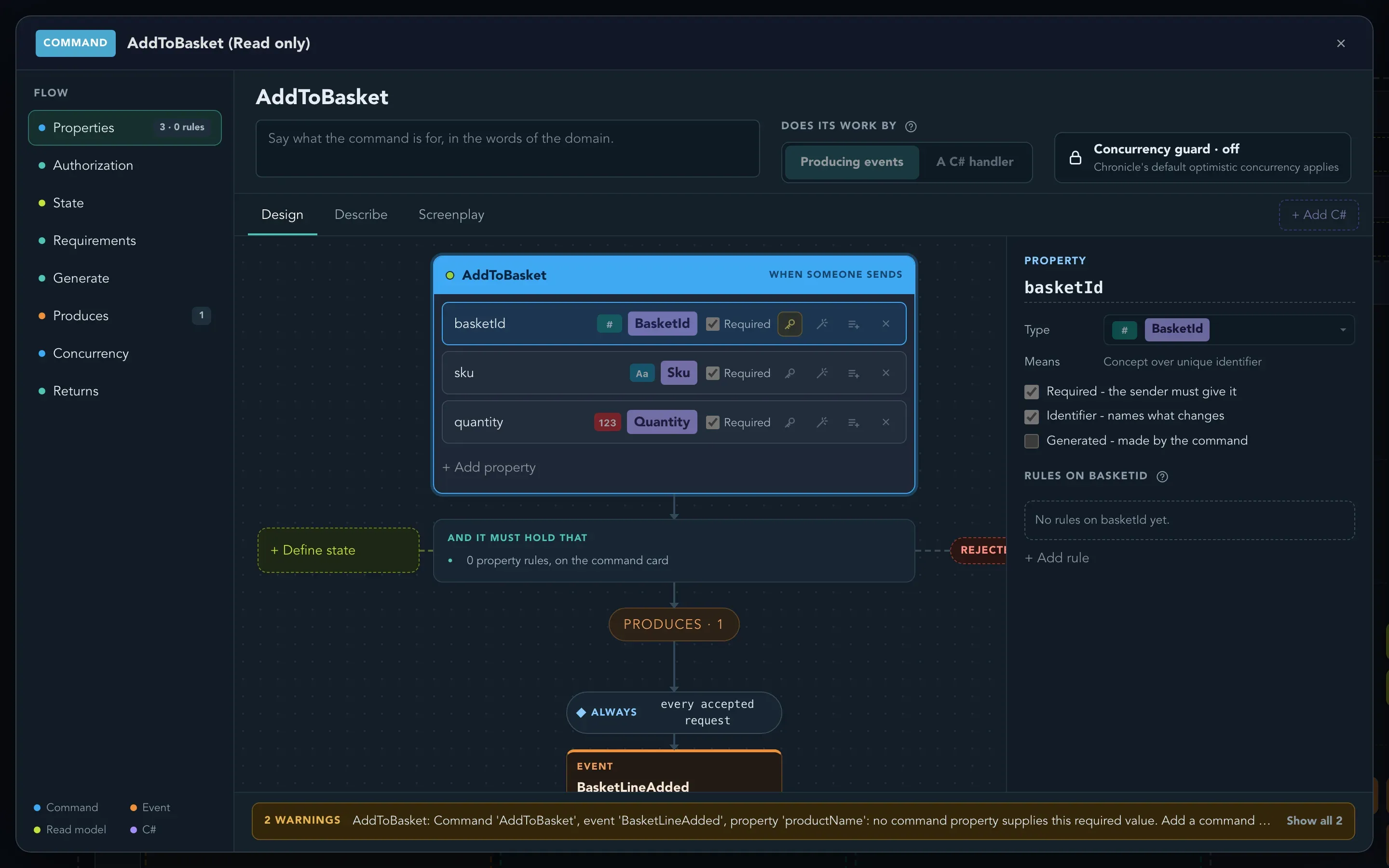
If the slice is done, or the board is read only, the editor still opens, and its title ends in (Read only).
Say what the command is for
Section titled “Say what the command is for”Under the command’s name, write a sentence in the domain’s words, such as what a shopper asks for when they add something to the basket. Beside it, Does its work by chooses whether the command works by Producing events or by A C# handler. Most commands produce events.
Add the fields the sender gives
Section titled “Add the fields the sender gives”-
In the Design tab, select + Add property on the command card.
-
Name the property and choose its type with Change the type. The type menu offers the domain’s concepts, such as Sku or Quantity, as well as plain types.
-
Tick what applies in the inspector on the right:
- Required: the sender must give it.
- Identifier: names what changes. A command has one identifier.
- Generated: the command makes the value itself.
-
To remove a property, select Remove the property.
Add a rule
Section titled “Add a rule”A command that breaks a rule never becomes an event. Nothing is recorded and the caller is told why.
-
Select the property in the command card.
-
In the inspector, under the rules of that property, select Add a rule.
-
Compare the property to a value you type, or to another property. For example, quantity must be greater than zero.
-
The rule shows as a chip on the property.
Some rules need history. A basket cannot be checked out when it is empty, and only earlier events know what the basket holds. To rule against recorded history, select + Define state. The state is built from earlier events the same way a read model is, in the projection designer described in Read models, projections and queries. The Requirements step then compares the command’s properties with that state, and a failed requirement leads to Rejected.
Say who may run the command
Section titled “Say who may run the command”Who may run a command is decided by the application’s policies.
-
Select Authorization in the steps on the left.
-
Under Only if the caller, tick the policies that must hold. Only callers admitted by all the selected policies may run the command. With nothing ticked, the step says No policy required.
-
If a policy takes values from the command it guards, the Policy inputs section lets you say which property fills each one. An input you leave alone is filled from the property of the same name.
If the application has no policies yet, the step says so. Policies are defined for the whole application, not in the command editor. See Policies and roles.
A command that reads recorded state, with nothing that authorizes it, is open to every caller. The board’s findings point this out. See Check the model.
The rest of the flow
Section titled “The rest of the flow”The steps down the left side follow the order in which the command runs.
| Step | What you do there |
|---|---|
| Properties | The fields and their rules. |
| Authorization | Choose the policies a caller must satisfy to run the command. |
| State | Define state projected from earlier events. |
| Requirements | Compare the command with that state. |
| Generate | See the values the command generates. |
| Produces | See the events the slice records. They are the events on the board. |
| Concurrency | Scope the append so two racing commands cannot both win. A command that loses leads to Lost the race. |
| Returns | Choose what the caller gets back: nothing, one value or a record. Then the command is Accepted. |
If you chose A C# handler, a Handler step takes the place of Produces. Select + Add C# to write one from the events the command produces. Code is only for what the visual design cannot say.
Describe and Screenplay
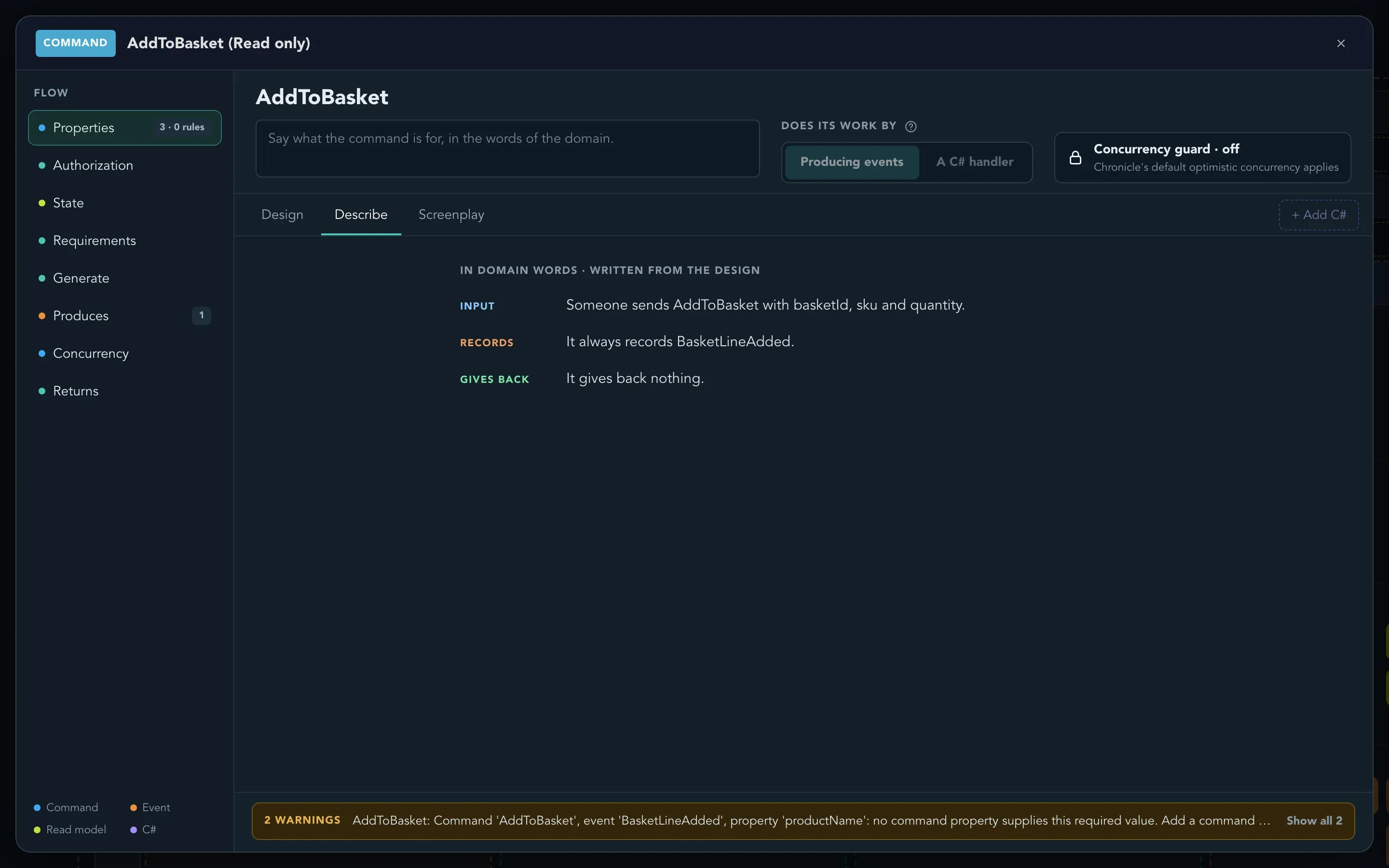
Section titled “Describe and Screenplay”The Describe tab tells the command in words, a paragraph for each part: what it is for, what goes in, which state it uses, its checks, what it generates, what it records and what it gives back.
The Screenplay tab shows the command, its state and the slice’s specifications as a Screenplay file would hold them. It only shows; you change the design on the other tabs.
Read the checks bar
Section titled “Read the checks bar”The bar at the bottom says how many problems and warnings there are, with the first of them. Select it to list them all. Select one to go to the step it is about. A command that records nothing, or a value an event needs that no command property provides, shows up here.
Check that it worked
Section titled “Check that it worked”The checks bar shows no errors, and the command card on the board lists the fields you added. What you edit in the dialog is saved when you close it.
Related pages
Section titled “Related pages”- Events: describe what the command leaves behind.
- Check the model: findings on the whole board.
- Check behavior: examples that prove the rules work.
- Screens on slices: design the screen that sends the command.