Conversation, dictation and code generation settings
Three small settings pages shape how people talk to Studio and what generated code looks like. Only a maintainer can change them.
Allow conversation mode
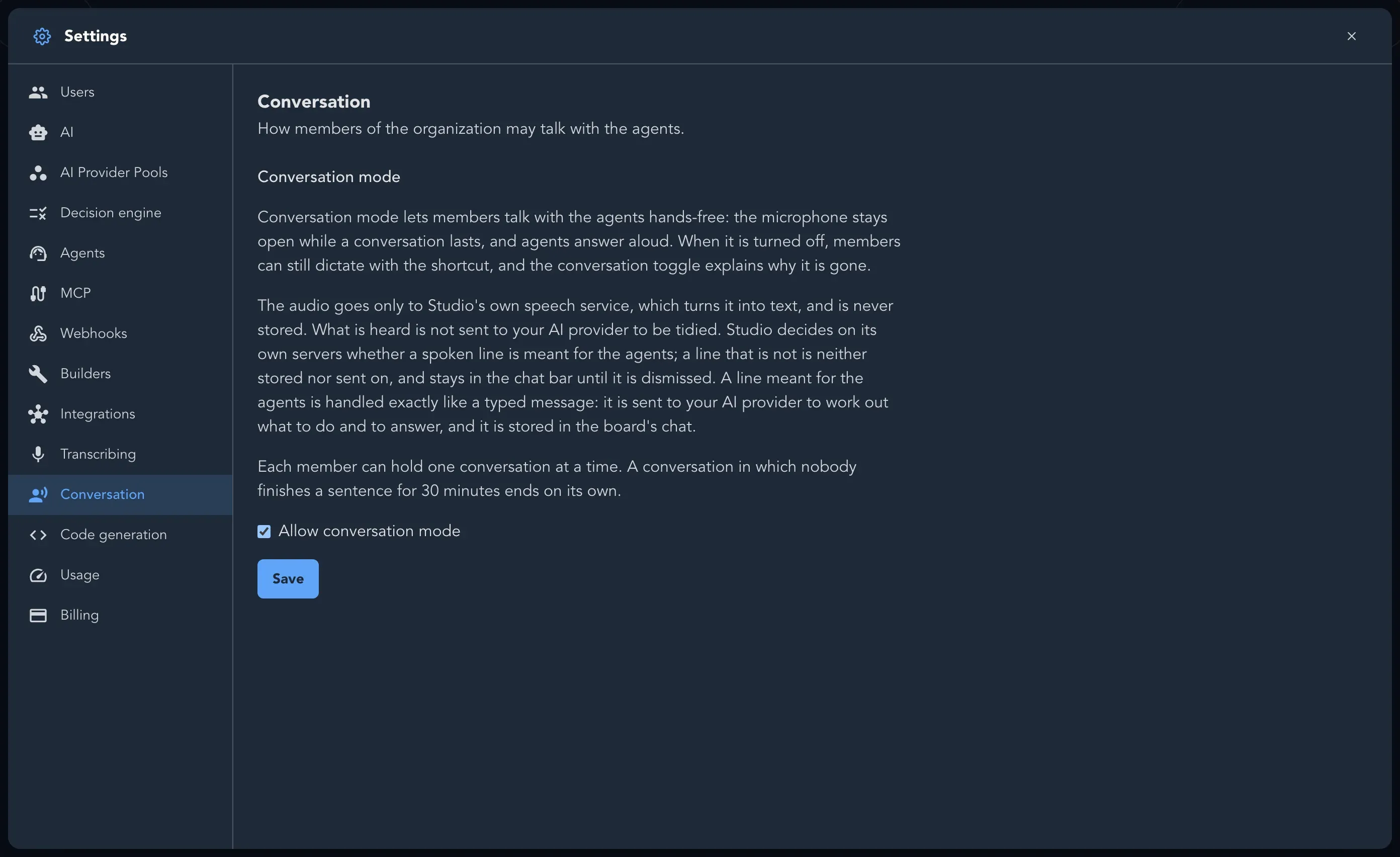
Section titled “Allow conversation mode”Conversation mode lets members talk with the agents hands-free: the microphone stays open while a conversation lasts, and agents answer aloud. Turn it off and members can still dictate with the shortcut, and the conversation toggle explains why it is gone.
-
Open Organization settings and select Conversation.
-
Tick or clear Allow conversation mode.
-
Select Save.
Good to know:
- Each member can hold one conversation at a time. A conversation in which nobody finishes a sentence for 30 minutes ends on its own.
- The audio goes only to Studio’s own speech service, which turns it into text, and is never stored. What is heard is not sent to your AI provider to be tidied.
- A spoken line that is meant for the agents is handled like a typed message. One that is not stays in the chat bar until dismissed and is neither stored nor sent on.
How members use it is in Conversation mode.
Tidy dictated text
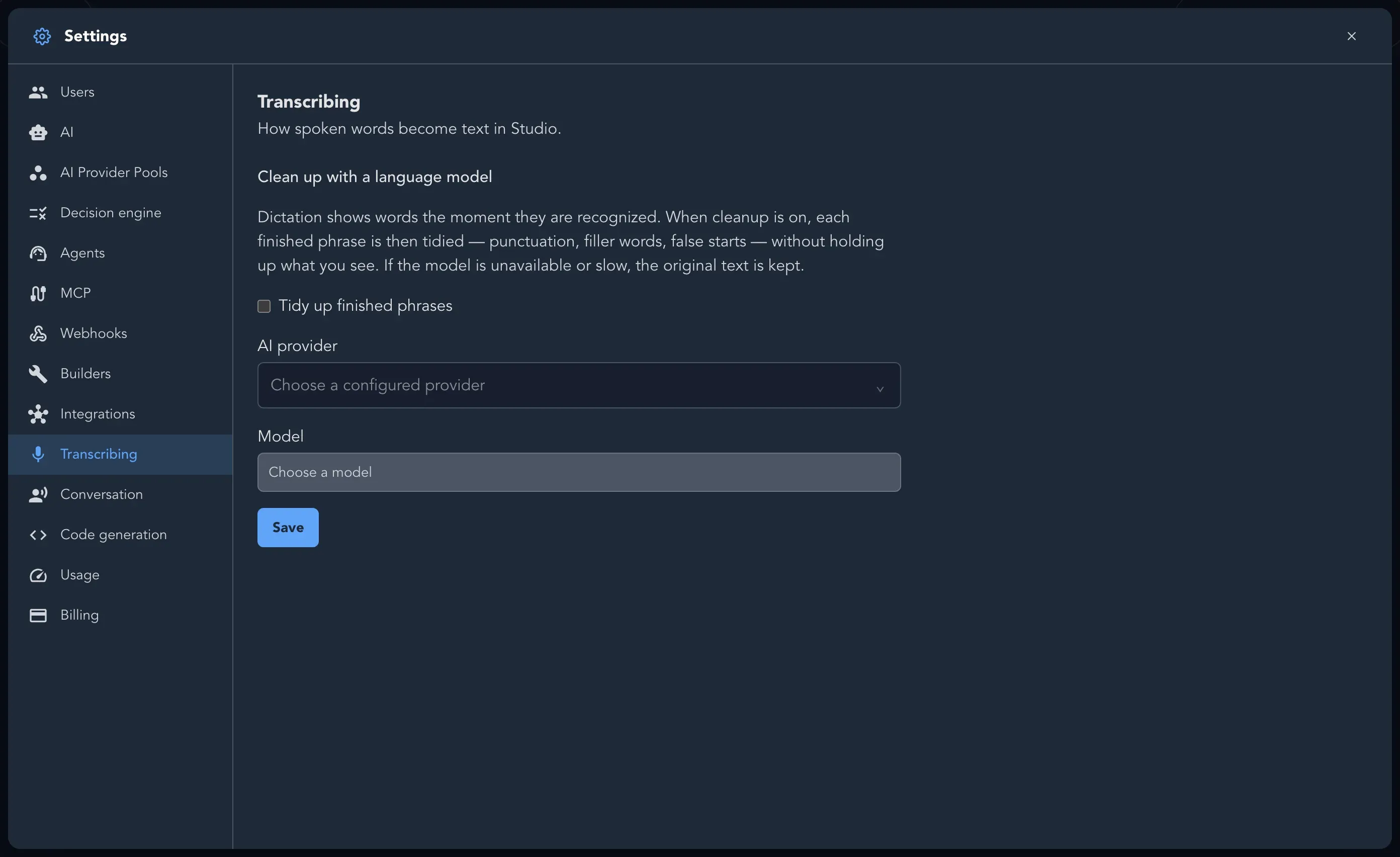
Section titled “Tidy dictated text”Dictation shows words the moment they are recognized. With cleanup on, each finished phrase is then tidied (punctuation, filler words, false starts) without holding up what you see. If the model is unavailable or slow, the original text is kept.
-
Select Transcribing.
-
Tick Tidy up finished phrases under Clean up with a language model.
-
Choose an AI provider from your configured providers, then a Model.
-
Select Save.
Cleanup sends the dictated text to the provider you choose. See Set up AI.
Set the copyright header for generated code
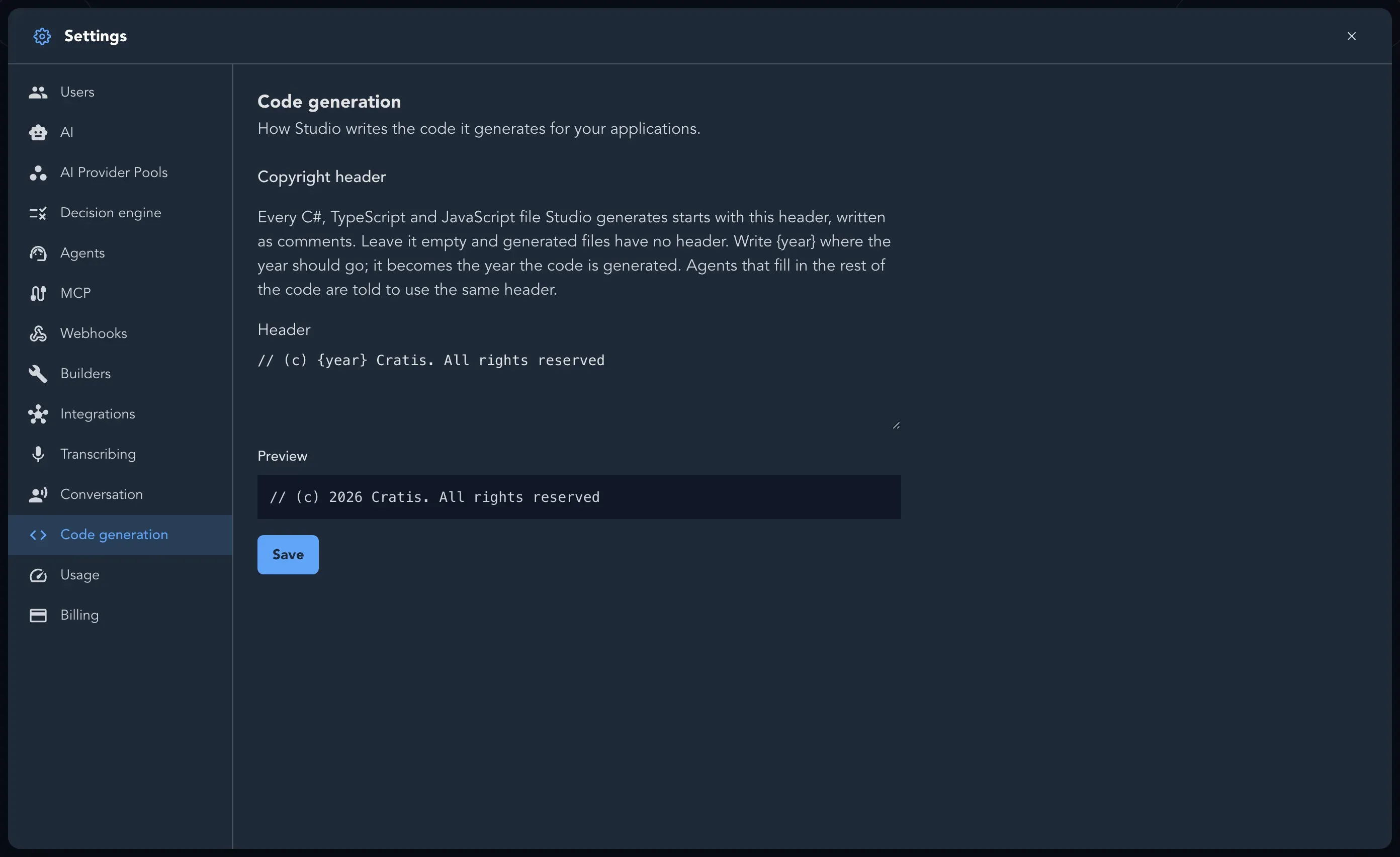
Section titled “Set the copyright header for generated code”Every C#, TypeScript and JavaScript file Studio generates can start with a header, written as comments. Leave it empty and generated files have no header.
-
Select Code generation.
-
Write the text under Header. Write
{year}where the year should go; it becomes the year the code is generated. -
Check the Preview, then select Save.