

Check the model
A model can look right and still have holes. Four tools in the board’s left toolbar help you find them before anything is built: findings, storylines, see as a caller and trace a value. To prove behavior with examples, use Check behavior.
Read the findings
Section titled “Read the findings”Studio checks the model as you work and lists what it found.
-
Select Show findings on this board (the warning triangle) in the toolbar. The number in brackets is how many there are. The button is there only while the model has findings.
-
Read Findings on this board. Each has a severity and a sentence about the problem.
-
Each finding says where it is, Why it matters and a Suggested fix. Select it to go to the slice it is about.
Examples of what is found: a read model with no identifier, a slice with no specifications, a field nothing fills, an event nothing reads, a view waiting for an event no slice produces, a command value no event records, a command that refers to something no earlier slice creates, a screen field missing from its read model, and a command that reads recorded state while nothing authorizes it. See finding in the glossary.
Walk through a storyline
Section titled “Walk through a storyline”A storyline names a path through the board, such as a user journey. It is a good way to tell the model to someone else, step by step.
-
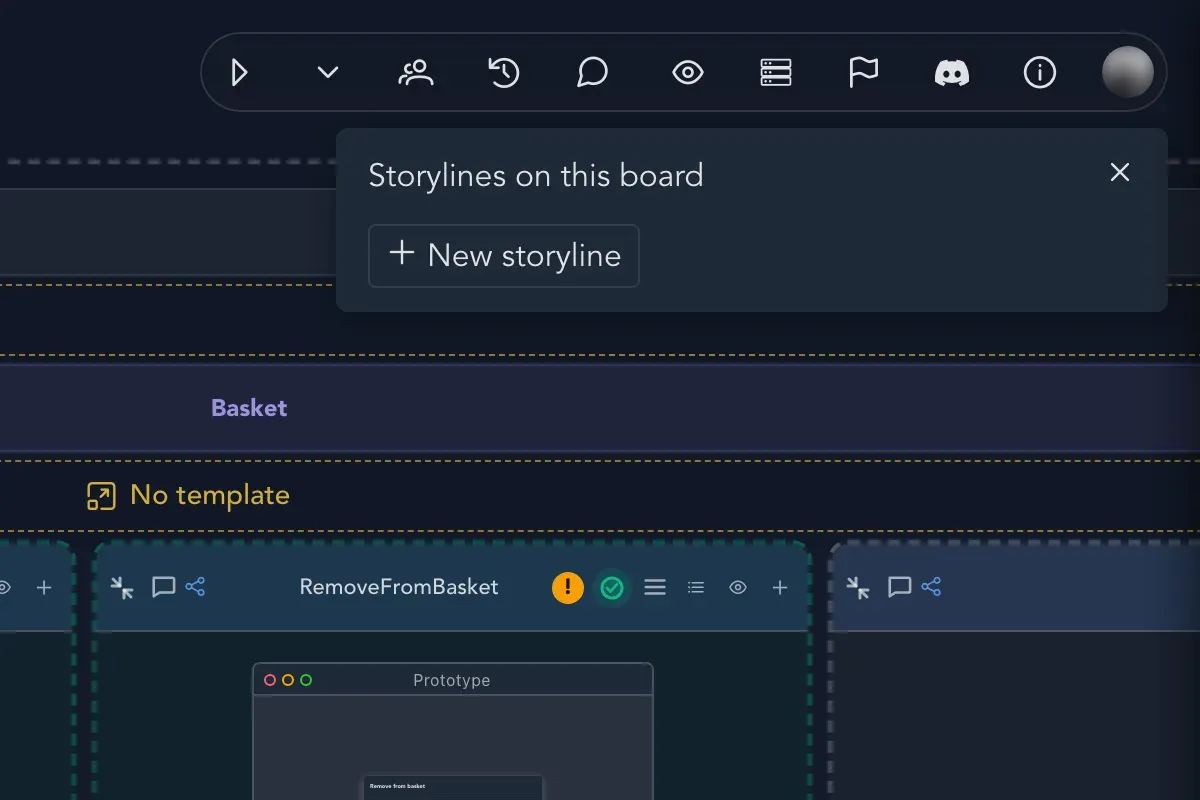
Select Storylines in the toolbar. The panel is called Storylines on this board.
-
Select New storyline. Fill in a name, a title and a description.
-
Select Add step, then Pick an element of the board…, and select an element. Write a note for the step. Repeat for every step.
-
Select Show on the board to see the path drawn.
-
Select Play to walk through it. Use Previous step to go back and Stop to end.
See the board as a caller
Section titled “See the board as a caller”This shows what each screen offers a particular kind of caller. Use it to check that the right people can do the right things.
-
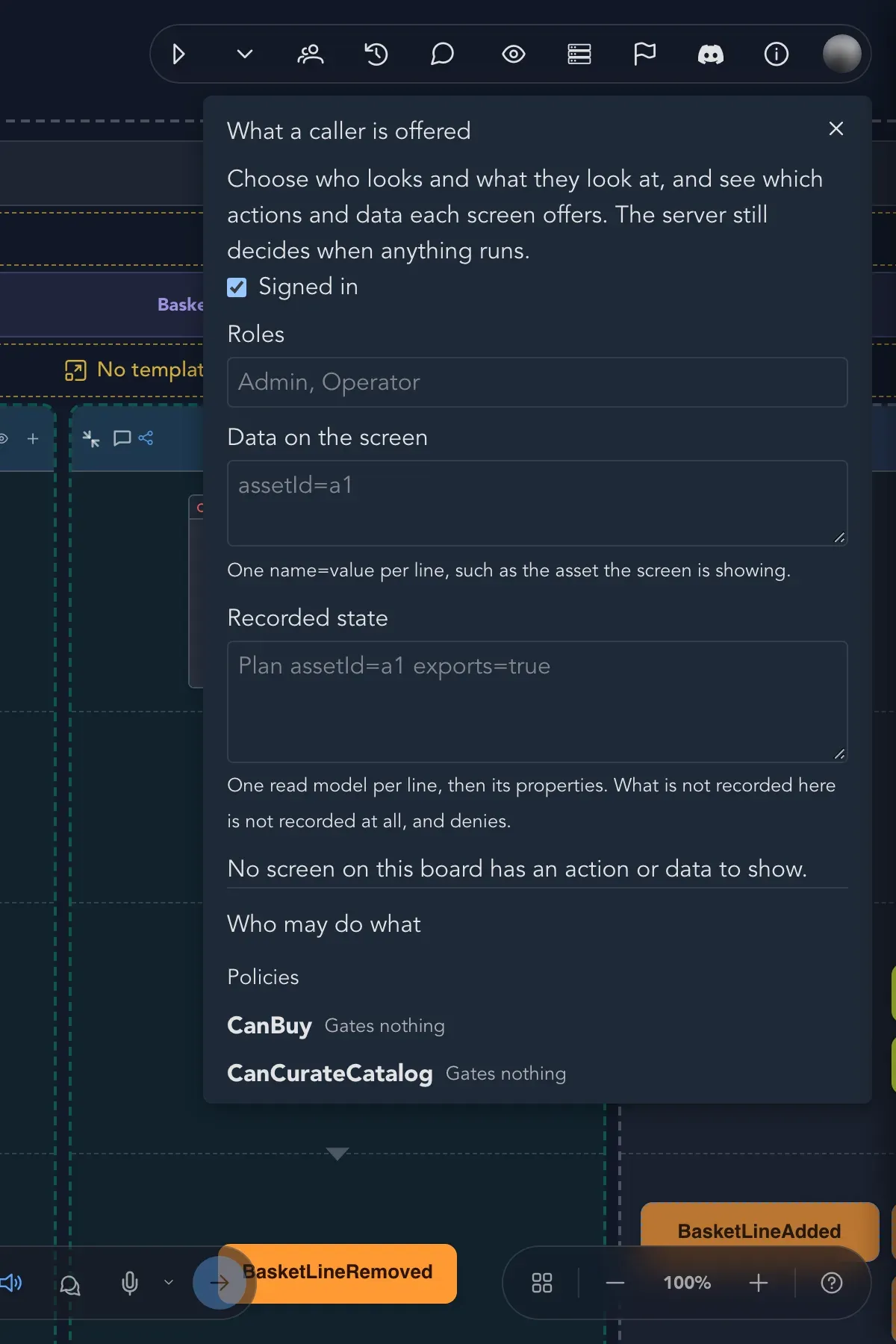
Select See as a caller in the toolbar. The panel is called What a caller is offered.
-
Tick Signed in if the caller is signed in.
-
Under Roles, enter the caller’s roles, separated by commas.
-
Under Data on the screen, enter one name=value per line, for the thing the screen is showing.
-
Under Recorded state, enter one read model per line followed by its properties. What is not recorded here is treated as not recorded at all, and it denies.
-
Read the result: which actions and which data each screen offers this caller. Who may do what lists the policies of the application.
Trace where a value comes from
Section titled “Trace where a value comes from”When you are unsure why a field has the value it has, ask the board.
-
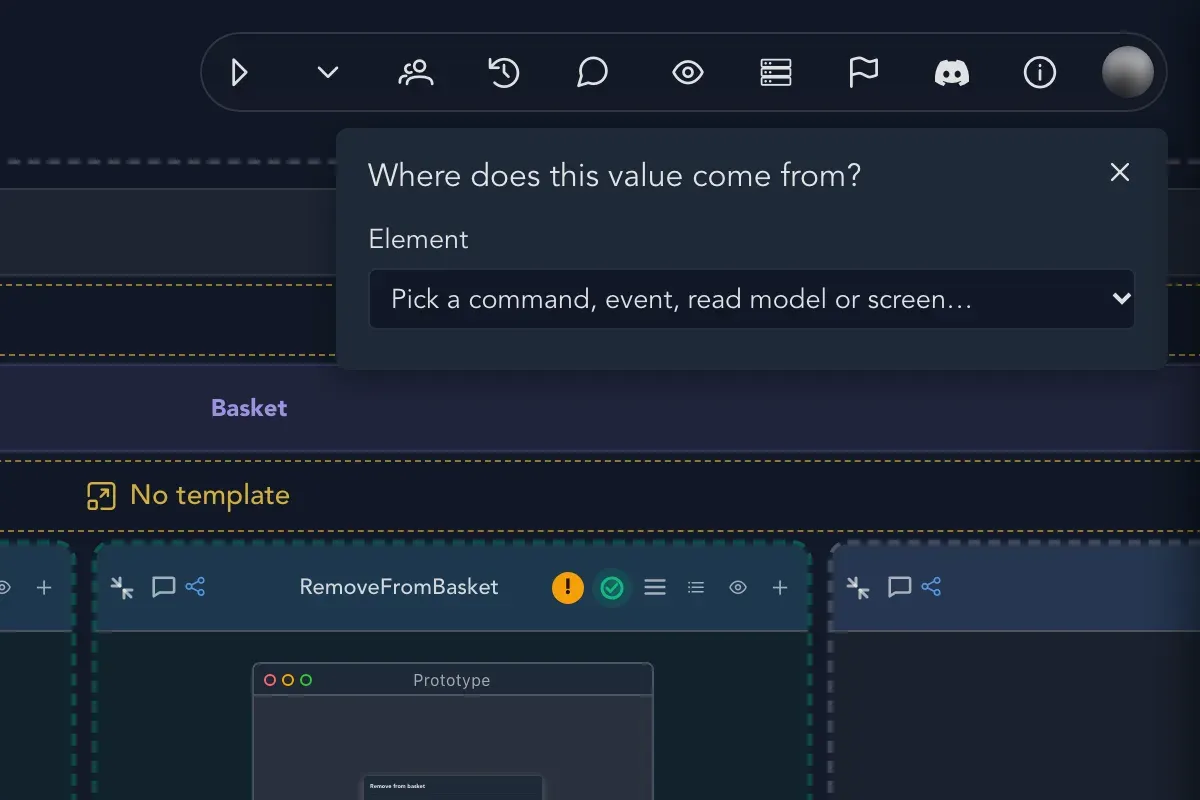
Select Trace a value in the toolbar.
-
Under Element, pick a command, event, read model or screen.
-
Studio answers Where does this value come from? by tracing it back through read models, events and commands. This is the value’s lineage.
Check that it worked
Section titled “Check that it worked”Findings are down to the ones you accept, a storyline plays through from start to end, and each caller sees only what they should.
Related pages
Section titled “Related pages”- Commands and rules: the checks bar of a command.
- Check behavior: specifications and Play.
- Notes, comments and topics: note down what you decide.
- Policies and roles: define who may do what.