

Concepts
A concept is a value the business names, such as an order number, a quantity or an email address, wrapped in a type of its own so that it can never be confused with any other text or number. You define it once on the Concepts canvas, and every command, event and read model in the domain can use it.
Naming and typing these values precisely is some of the most valuable modeling you do. Everything on the domain’s boards speaks this vocabulary.
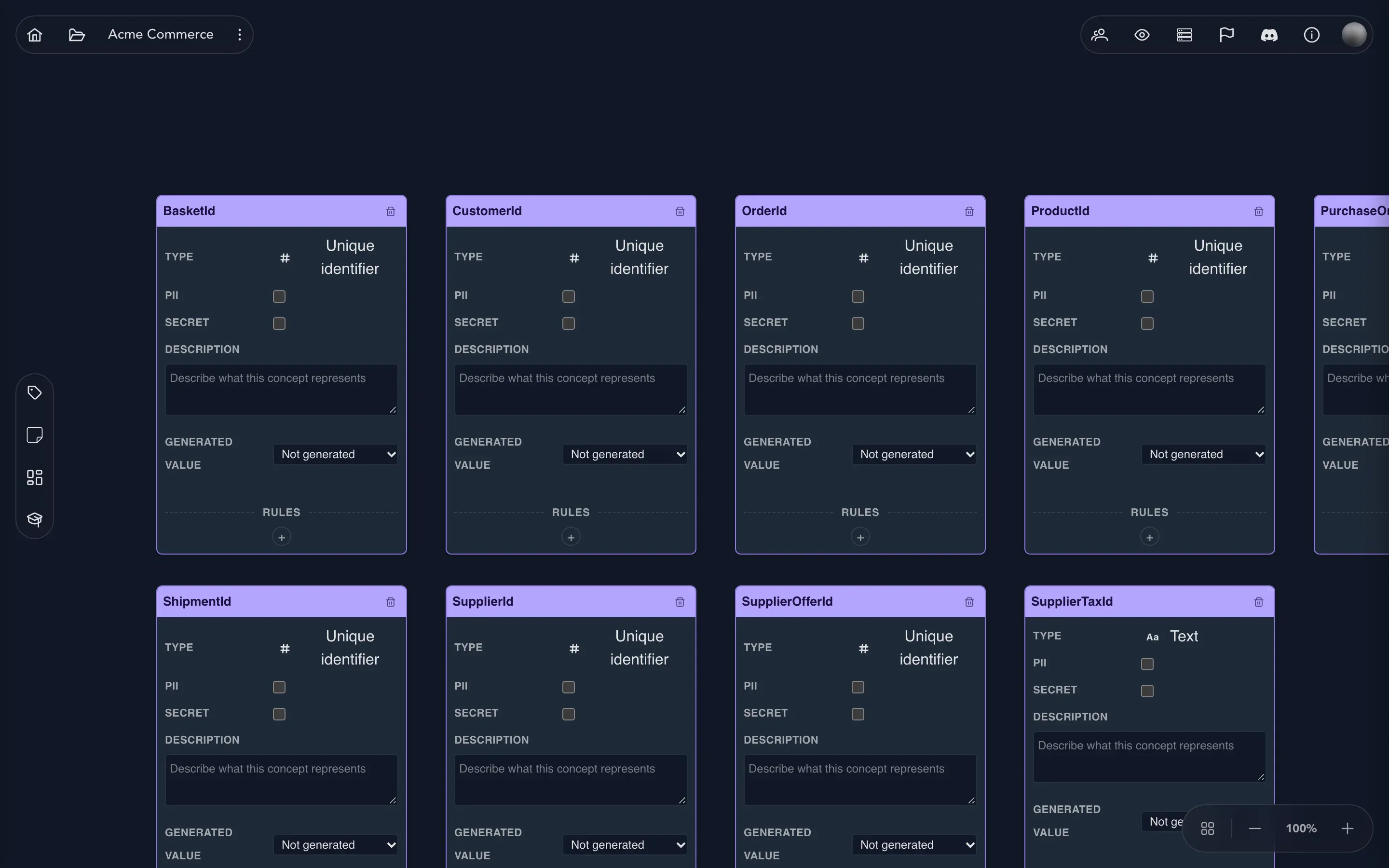
Add a concept
Section titled “Add a concept”- In the project drawer, expand your domain and select Concepts.
- Select Add Concept in the toolbar. A card named NewConcept appears in the middle of the view, typed as Text.
- Double-click the name and type what the domain calls the value, for example
OrderNumber. Press Enter. - Under Description, write a sentence about what it means.
- Set Type to what the value is underneath: Text, Number, Whole number, Boolean, Date, Timestamp, Unique identifier or Enumeration. An enumeration lets you list its members.
The type says what the value is; the concept says what it means. A Quantity is a number: how many of a product a basket line holds. A BasketId is a unique identifier, and the concept is what keeps it from being mistaken for any other identifier in the system.
The Generated value row says whether the code should create values of this concept itself, for example as a UUID. Not generated is where every concept starts. A concept that holds personal data cannot have generated values.
Mark personal data
Section titled “Mark personal data”Some values belong to a person. Tick the PII box on the card to mark the concept as personally identifiable information. Wherever the value appears from then on, it is treated as protected data, so you decide this once on the concept instead of on every property that carries the value. An email address is personal whether it sits on a command, an event or a read model.
Secret is for a different kind of value: not about a person, but never to be shown, such as a password, a token or a card number. Tick the Secret box and the concept is marked as a secret. The box is not offered for an enumeration.
Add rules
Section titled “Add rules”At the foot of every card is Rules: what the value must satisfy wherever it turns up.
- Select the + (Add rule) under Rules. A rule row appears.
- Choose the operator, such as required, equal, contains, starts with, min length, max length or matches pattern, and give it a value if it needs one. The operators on offer follow the concept’s type: a number offers comparisons such as greater than or at most instead.
- Optionally select the warning sign beside the rule and write the message people see when they break it, for example Order numbers look like ORD-123456.
There is no save button: a card saves as you change it.
Use a concept on the board
Section titled “Use a concept on the board”Open the properties of a command, an event or a read model on an event model and select + Add property. When you choose the property’s type, your concepts are listed under Concepts. Use the same OrderNumber on the command, on the event and in the read model, and it carries the same rules and the same protection everywhere.
Arrange and discuss
Section titled “Arrange and discuss”- Drag a card by its header to place it. The canvas remembers where it is.
- Use Arrange at the foot of the toolbar to lay the cards out clear of one another.
- Use Add Sticky Note for thoughts that surround the concepts without being one: Is ProductCode ours, or does it belong to Catalog?
- Select the speech bubble in a card’s header to discuss a concept. Mention a teammate or an agent to bring them in.
- To remove a concept, use the trash can in its header. You are asked to confirm, because the model may be using it.