

Add a screen to a slice
A screen shows what one person sees while a slice happens. A Shopper browsing the catalog sees the product list; the same Shopper sees the basket when they add an item. Adding a screen to the slice puts that picture next to the commands and read models it uses.
You can add a screen to a State Change slice, where the screen takes the fields of the command, and to a State View slice, where the screen shows what a read model holds. For the four kinds of slice, see Slices.
Before you start
Section titled “Before you start”- You need a board with a slice that has a command or a read model. See The event model board.
- A screen belongs to the person it is for. Put the screen in that person’s row, such as the Shopper row of the Storefront.
- A slice that is marked done or is under review cannot be changed. Its screen can be looked at, and the editor says so with Read only.
Add a screen
Section titled “Add a screen”-
On the slice, in the row of the person it is for, select Add UI prototype.
-
Choose how to start:
- From scratch starts with an empty prototype.
- From template starts from a copy of an existing screen template. Pick one from the list. Templates are described in Screen templates.
-
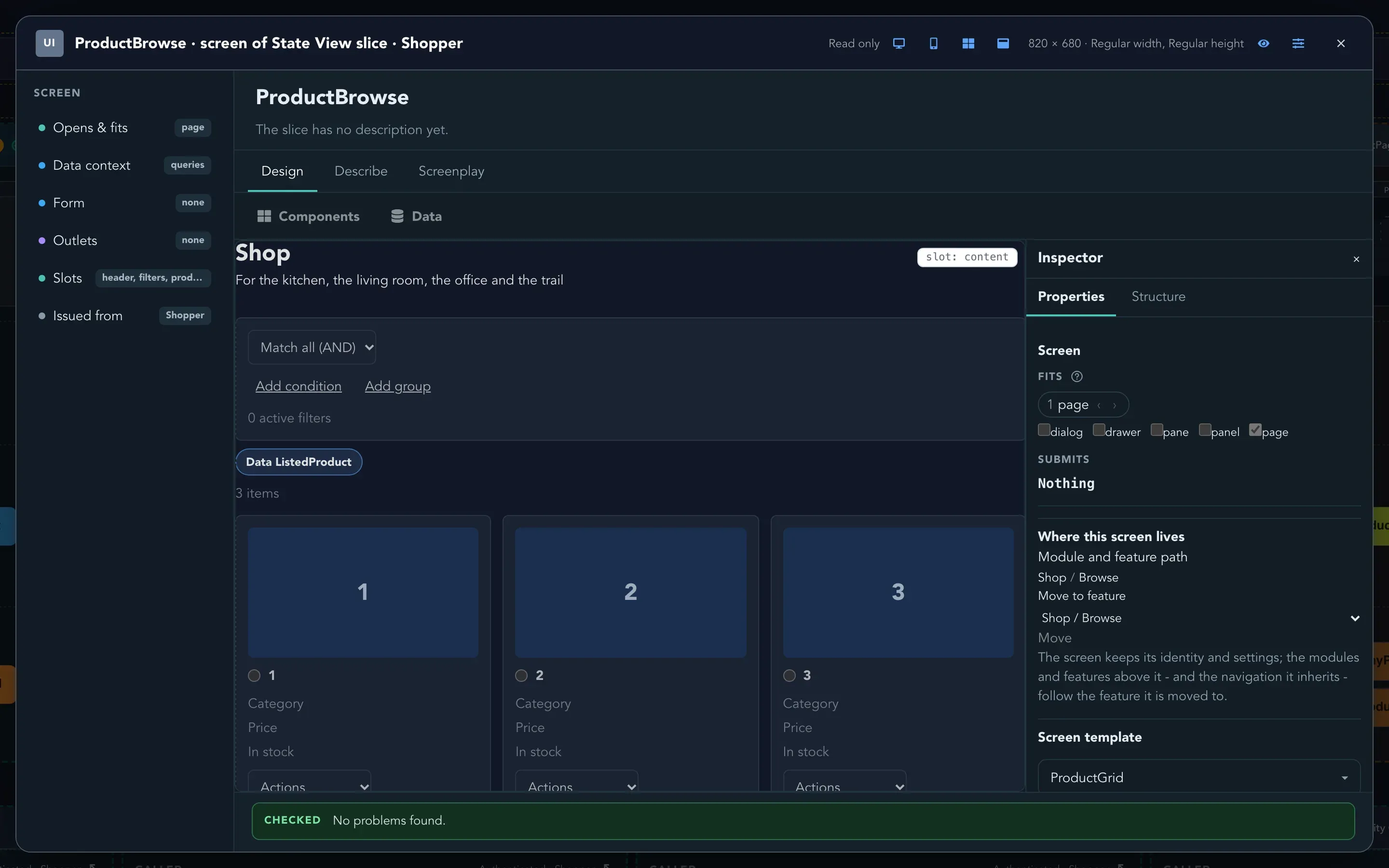
The screen appears on the slice as a small thumbnail. Select the wireframe icon, Open prototype editor, to work on it in the screen editor.
See how a screen is reached
Section titled “See how a screen is reached”A screen is only useful if someone can get to it. The slice shows where it comes from:
| What the slice says | What it means |
|---|---|
| own screen | The slice has a screen of its own. When the screen opens in a dialog or a drawer, the slice says which. |
| no screen | The slice has no screen. A command can still be run from a button on another screen. |
| issued from | A button on another screen runs this command. It shows the screen, the place on it and the button, for example Product browse ▸ actions ▸ Add to basket. |
| issued nowhere | No screen has a button that runs this command. The slice reads: “No screen and no hook. Add a button that issues it, or delete the slice.” |
When a slice has a screen but no button anywhere opens it, the slice reads “Nothing opens this screen yet”. Select the hint to go to a screen where a button can be added.
Check that it worked
Section titled “Check that it worked”The slice now shows a thumbnail of its screen. The editor lists the parts of the screen on the left: Opens & fits, Data context, Form, Outlets, Slots and Issued from.
What happens next
Section titled “What happens next”- Place components and bind them in the screen editor.
- Try the screen the way the Shopper sees it with Preview.
- Read about the idea in Screens and personas.