

Set up AI - providers, pools and the decision engine
Studio does not come with a language model. To use its AI agents you connect an AI provider that your organization pays for, with your own API key, and then point the agents at it. Until at least one agent has both a provider and a model, every AI feature stays switched off.
You need to be a maintainer. The steps in order are: add a provider, choose its models, then give an agent that provider.
Add a provider
Section titled “Add a provider”-
Open Organization settings and select AI.
-
Select Add provider. The Add AI provider dialog opens.
-
Choose the Type: OpenAI, Anthropic, OpenAI compatible or Azure OpenAI. These are the types you can add here; a provider of another type that your organization already has still appears in the list with its type.
-
Enter a Name you will recognize, such as Fast drafting.
-
Enter the API Key. Azure OpenAI and OpenAI compatible services also ask for an Endpoint. For OpenAI, Anthropic and Azure OpenAI, a link under the key, How do I get an API key?, opens the provider’s own instructions. For OpenAI compatible, a hint explains that the operator of the endpoint provides the key.
-
Select Add.
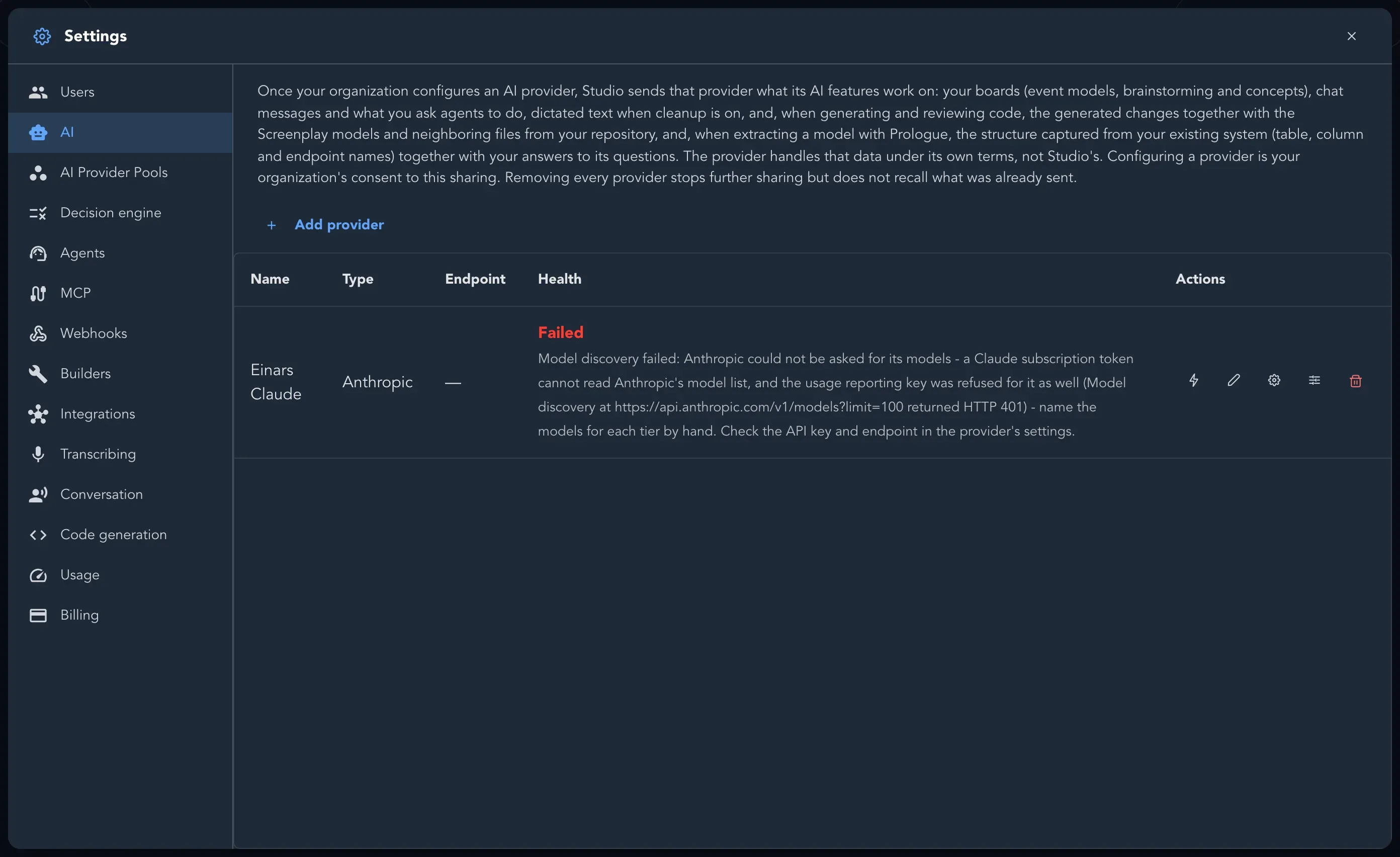
Keys are encrypted at rest and never shown again. When you Reconfigure a provider, leave the API Key blank to keep the current one.
Test it and choose its models
Section titled “Test it and choose its models”Select Test provider to check that Studio can reach it; the Health column shows the result. If the test fails, check the key and try again.
Then select Reconfigure on the provider and set Capability tiers: choose a model for each of Fast, Balanced, Powerful and Premier, or type the model’s identifier if the list cannot be loaded. Refresh available models asks the provider again. An agent asks for a tier rather than a specific model, so you can change the model behind a tier without touching the agents.
Anthropic and OpenAI providers can also keep a Usage reporting key: a separate admin-scoped key those vendors require for usage and cost reports. The key used for completions is refused there. It is optional.
Spread work across several providers with a pool
Section titled “Spread work across several providers with a pool”A provider pool is a named group of providers that work is spread across, so a burst of work does not all land on one account. An agent can run on a pool instead of a single provider.
-
Select AI Provider Pools, then Create pool.
-
Enter a Name, such as Reasoning pool, and select Create.
-
Select Add provider on the pool and choose a Provider. Repeat for each provider.
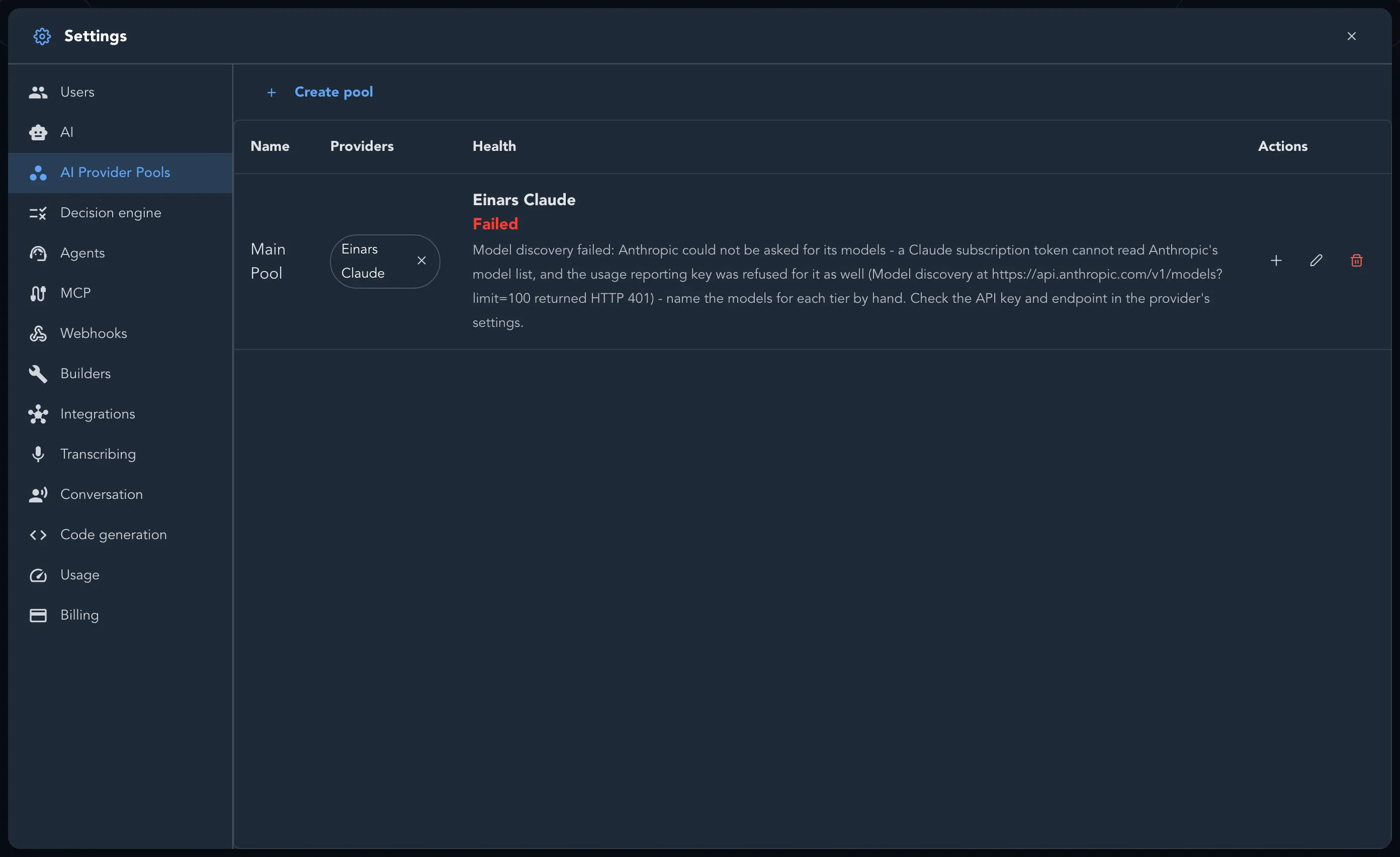
Remove from pool takes one provider out. Removing a pool stops every agent that draws from it until you point it somewhere else.
Choose the decision engine
Section titled “Choose the decision engine”Studio also asks a decision engine bounded questions with a fixed set of answers, such as which of a few options fits best. It never writes text, and when it cannot answer, Studio falls back to its normal behavior. It is separate from your AI providers.
-
Select Decision engine.
-
Choose the Engine: Built-in Decision Engine needs no setup and is the default; Jev (TypeSafe AI) needs a TypeSafe API key.
-
Select Save.
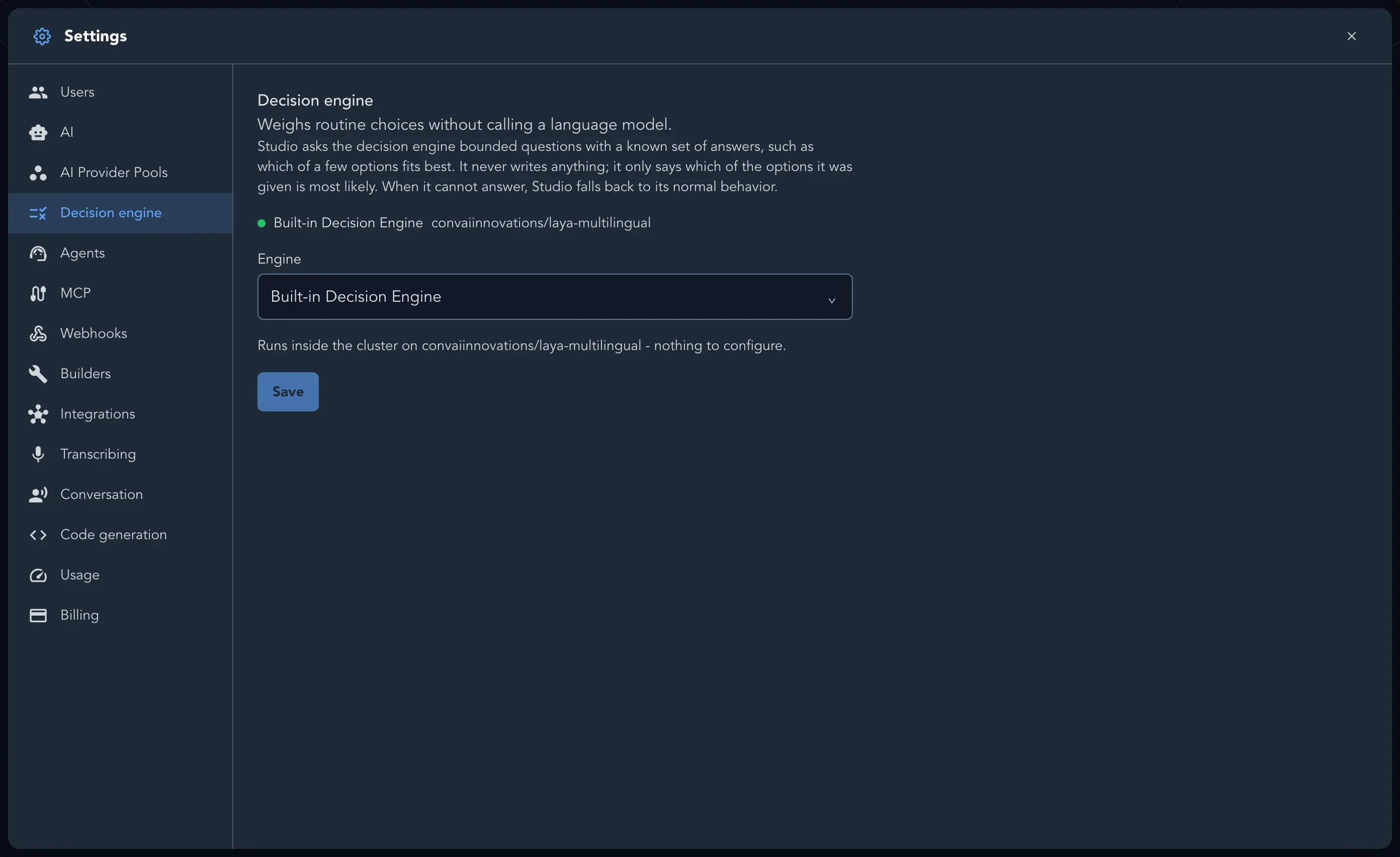
For Jev, leave Model and Endpoint blank unless TypeSafe told you otherwise. Leave the key field blank to keep the key already recorded.
Check that it worked
Section titled “Check that it worked”On Settings > Agents, an agent shows the status Ready once it has a usable provider and model.