

Connect a builder and approve it
A builder connects from the machine that should build, and builds nothing until a maintainer of the organization approves it with a short code. Connect one when you want slices built on your own machine or build server, on another stack, or with your own coding agent.
Before you start
Section titled “Before you start”- Approving a builder needs a maintainer of the organization. Anyone who can change the application can choose among the builders that are approved. A member who is not a maintainer sees Only organization maintainers can see and approve builders. Connect yours, then ask a maintainer to approve it.
- The machine must reach Studio over HTTPS. Builders only dial out, so it needs no inbound port.
- Until you choose another builder, an application builds with Studio’s own generation. Connecting a builder changes nothing by itself.
Connect the builder
Section titled “Connect the builder”-
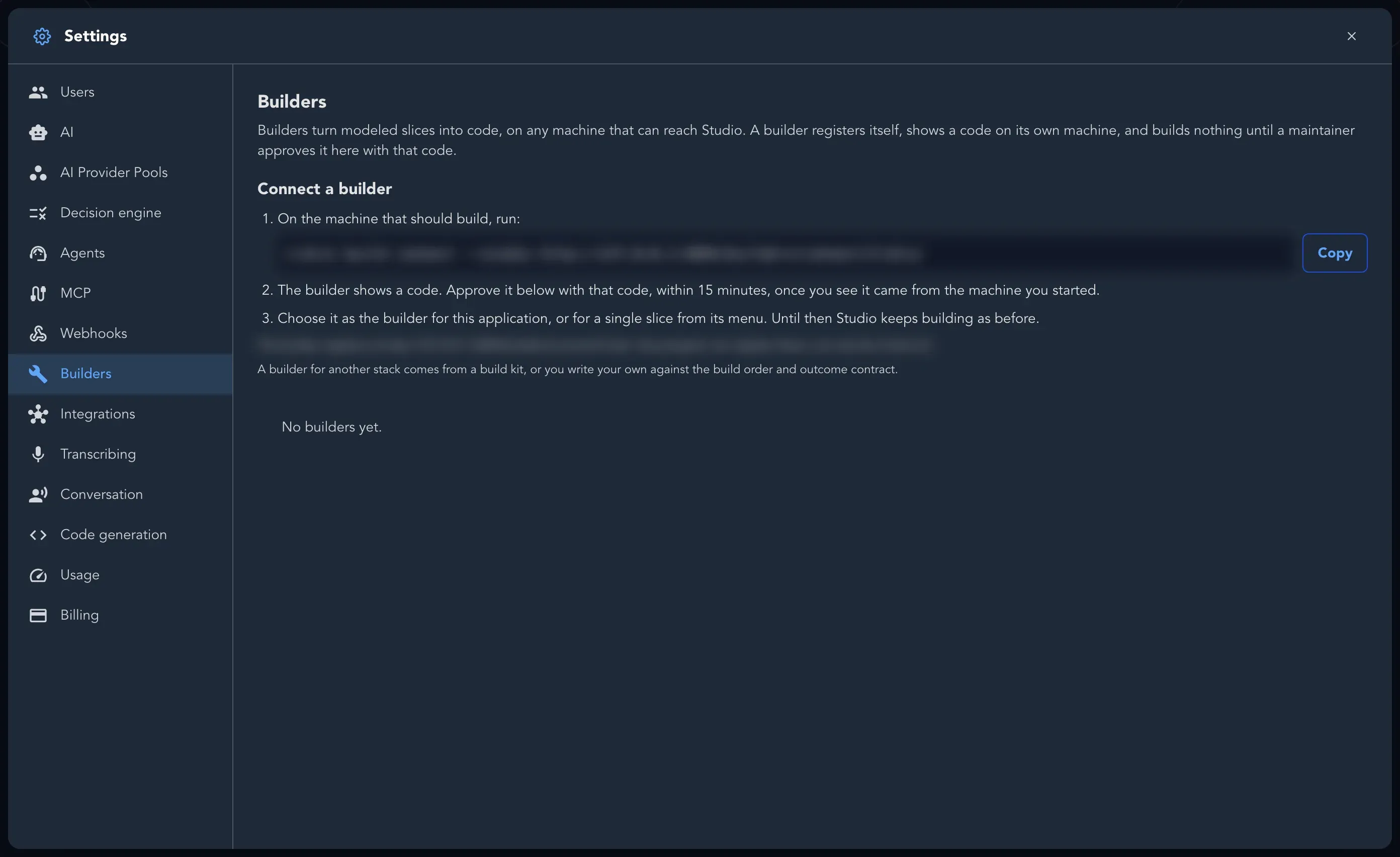
Open the application, then Settings > Building. Under Connected builders, the Connect a builder panel shows the command for your organization. A maintainer finds the same panel in Organization settings > Builders. It looks like this:
Terminal window cratis build connect --studio --organization <organization>--studioalone means the hosted Studio. On another Studio the command names its address:--studio https://<studio host>. -
Select Copy, and run the command on the machine that should build. The Cratis CLI is the builder: it runs your coding agent or your own generator. A builder you wrote against the builder protocol registers at the same address, which the panel also shows.
-
The builder creates its own credential, registers, and shows a short code such as
K7QF-2M9Don its own machine. In Studio it appears in the list as Waiting for approval, with the address and machine it asked from.
Approve it
Section titled “Approve it”-
Open Organization settings > Builders and find the builder marked Waiting for approval.
-
Select Approve. In Approve this builder?, enter the code the builder showed in Code, and approve it. The code is good for 15 minutes. After that the builder registers again for a new one.
Check that it worked
Section titled “Check that it worked”The builder is now listed as Online while it is running, and Offline when it is not. Beside it you see what it Builds (its stacks, slice types and kit), the protocol version it speaks, when it was last seen, and what it is doing: Idle, building a slice, or removing what it built for one.
| Status | What it means |
|---|---|
| Waiting for approval | Registered, with a code, and not approved yet |
| Online | Approved and running. It takes work as soon as it asks for it |
| Offline | Approved, but not running right now. It can still be chosen, and its slices wait for it |
| Registration expired | The code was not approved within 15 minutes. Run the command again for a new one |
| Declined | A maintainer declined it. Register again to ask once more |
| Not connected yet | The builder has not connected to Studio yet |
A builder that speaks an older protocol is marked This builder speaks an older protocol. Upgrade it. It needs upgrading before it can take work.
Approving does not change who builds. Next, choose who builds for the application or for a slice.
Related
Section titled “Related”- Choose who builds
- Follow a build and troubleshoot
- Build a builder: the Cratis CLI with a generator of your own, in any language.