

Get help
Studio is in beta, so you will sometimes meet a rough edge. Here is how to reach the team, and how to hear back.
Report an issue
Section titled “Report an issue”Use this when something does not work, looks wrong or confuses you.
- Select the flag button in the top bar on the right. Its tooltip is Report Issue.
- Choose Report an issue. The Report a problem dialog opens.
- Enter a Summary, then describe it under What happened?
- Select Send report.
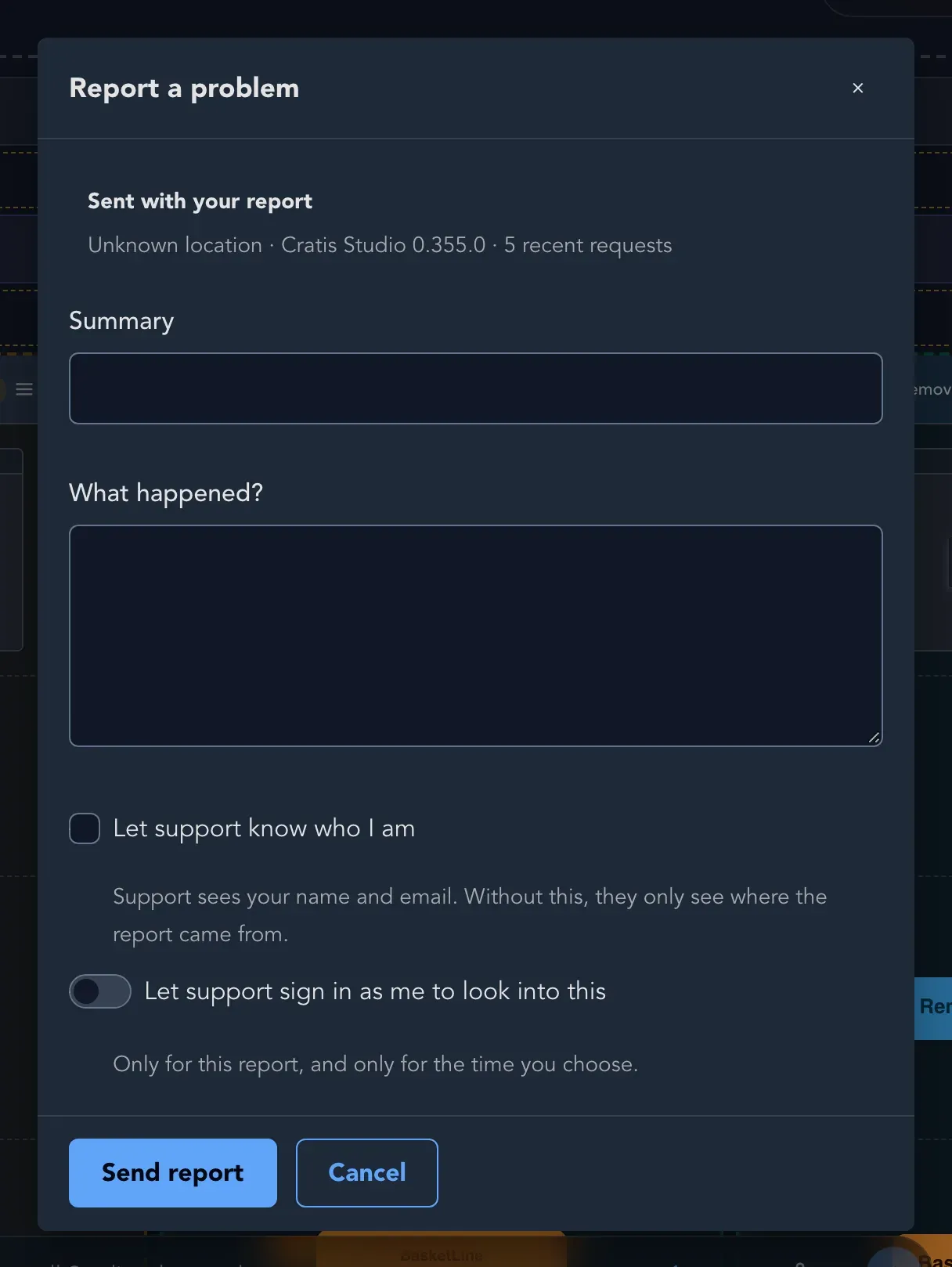
The dialog lists what is sent along: where you are, your Studio version and your recent requests.
Studio attaches where you are in the product, the version of Studio and your last few requests, so you only need to describe what happened. Do not include passwords or other secrets.
Two options let you decide how much the team may do. Both are off until you turn them on:
- Let support know who I am: support sees your name and email. Without it, they only see where the report came from.
- Let support sign in as me to look into this: only for this report, and only for the time you choose.
When an error message appears anywhere in Studio, it can offer Report this problem, which starts the same report with the details filled in.
Follow your reports
Section titled “Follow your reports”Open the same flag menu and choose My issues. It lists what you have reported, each with its State and its Last activity; updates appear there as support works on them. Turn on Show closed to include finished reports, or select Report a problem to send another. The states are explained in Statuses and colors.
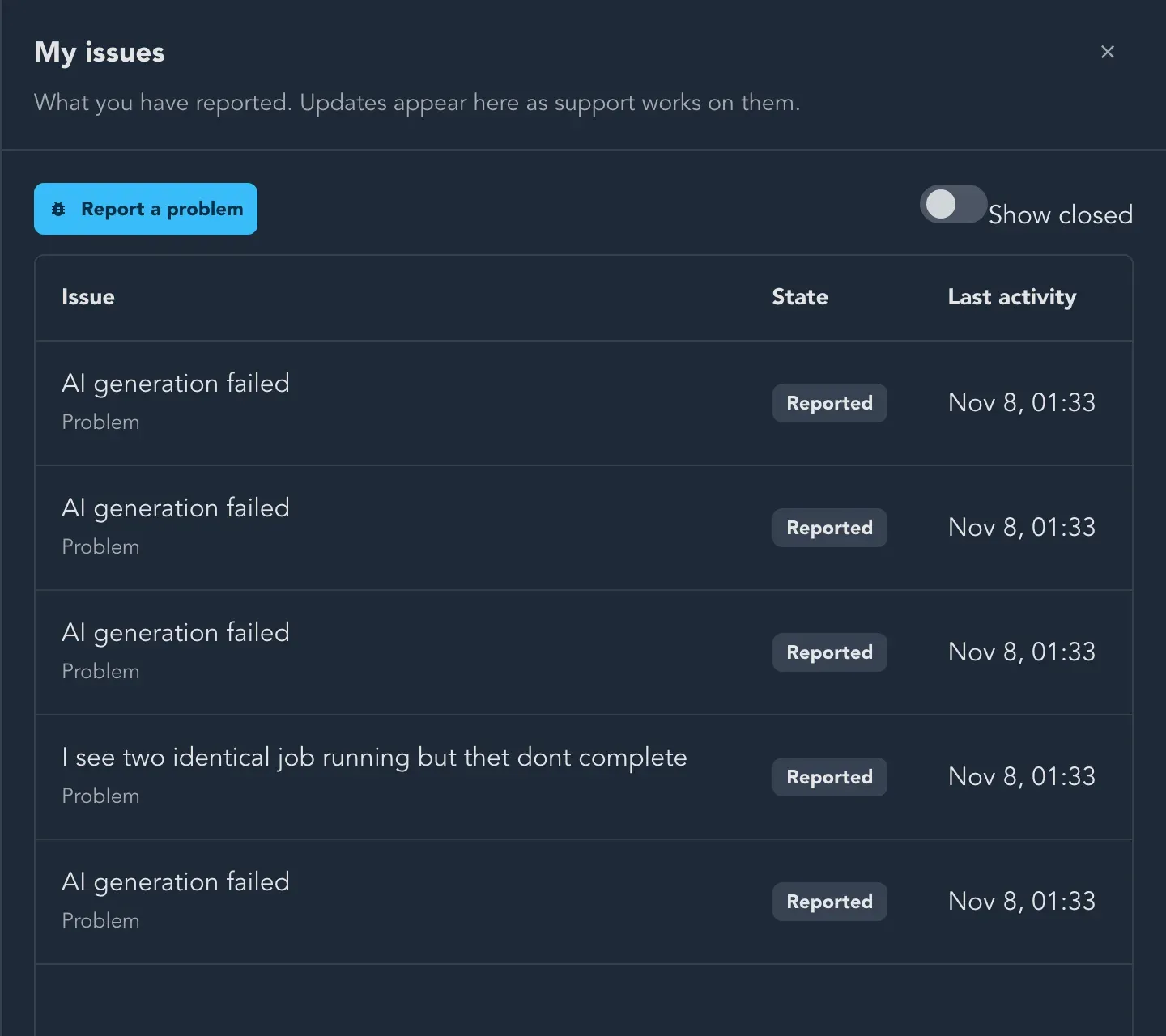
A report you have just sent shows as Reported. The State changes as support works on it.
Ask on Discord
Section titled “Ask on Discord”Select the Discord button in the top bar, whose tooltip reads Join our Discord to ask questions and get help from the Cratis team and other developers. The Cratis community is there for questions, ideas and design discussions. Use Discord to ask how something works, and use Report an issue when something is broken.
What’s new and announcements
Section titled “What’s new and announcements”- What’s new opens by itself the first time you sign in after a release, so you can read what changed. Use the arrows to page back through earlier releases, or choose Show all releases. See Release notes.
- Announcements are messages that the Cratis team publishes to organizations. They appear in Studio, and you dismiss each with Got it or move on with Next.
Select the information button in the top bar to open About. It shows the Version and Build of Studio you are using, which helps when you report an issue, and a link to the Release notes.
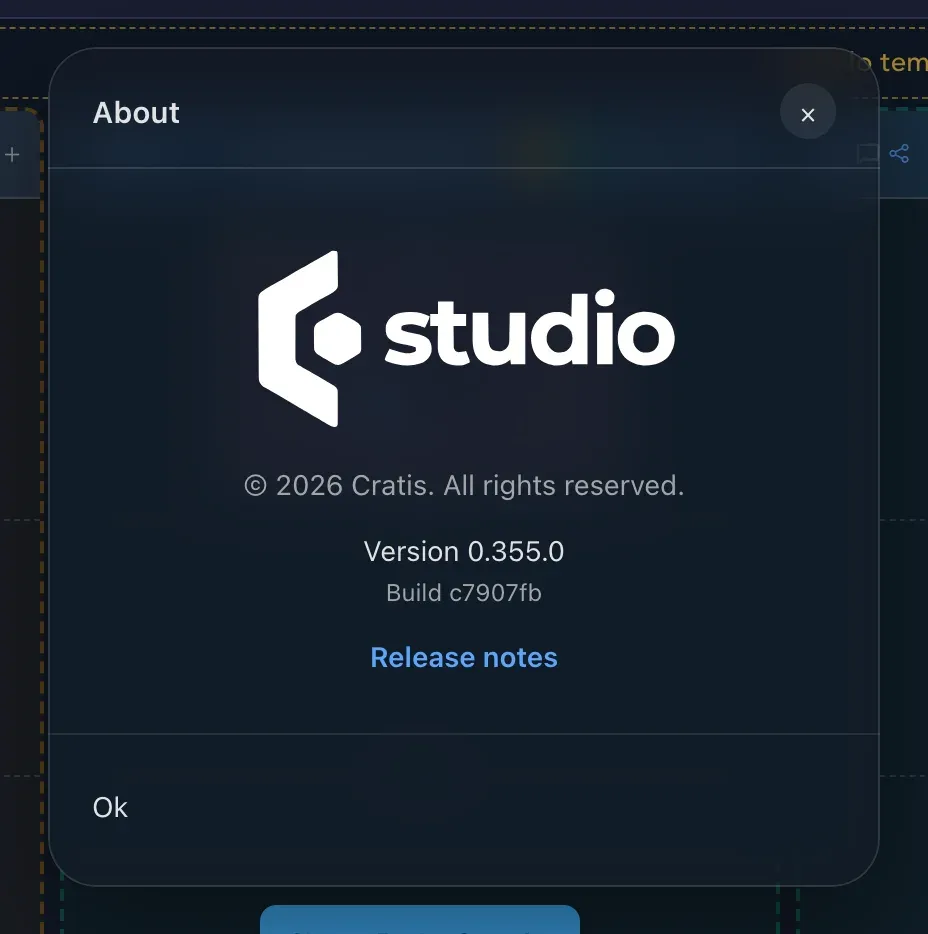
Quote the version and build when you report an issue.
Things only Cratis can do
Section titled “Things only Cratis can do”A few things are handled by the Cratis team rather than in Studio: granting seats, extending or ending a trial, and deleting an organization. For these, report an issue or contact Cratis.
Related
Section titled “Related”- Get started for a first tour of Studio.
- Keyboard shortcuts and the glossary for quick lookups.
- Your organization for questions about people, seats and billing.