

See what changed and restore an earlier version
Every change to a board is remembered. Use the History panel to catch up on what your team did, and to put things back when a change was a mistake.
Open the History panel
Section titled “Open the History panel”Select See what has happened on this board in the top bar. The panel opens on the right with two tabs:
- Since I was here: what changed since you last looked. When nothing did, it says Nothing has changed since you were last here.
- All time: everything that ever happened on the board.
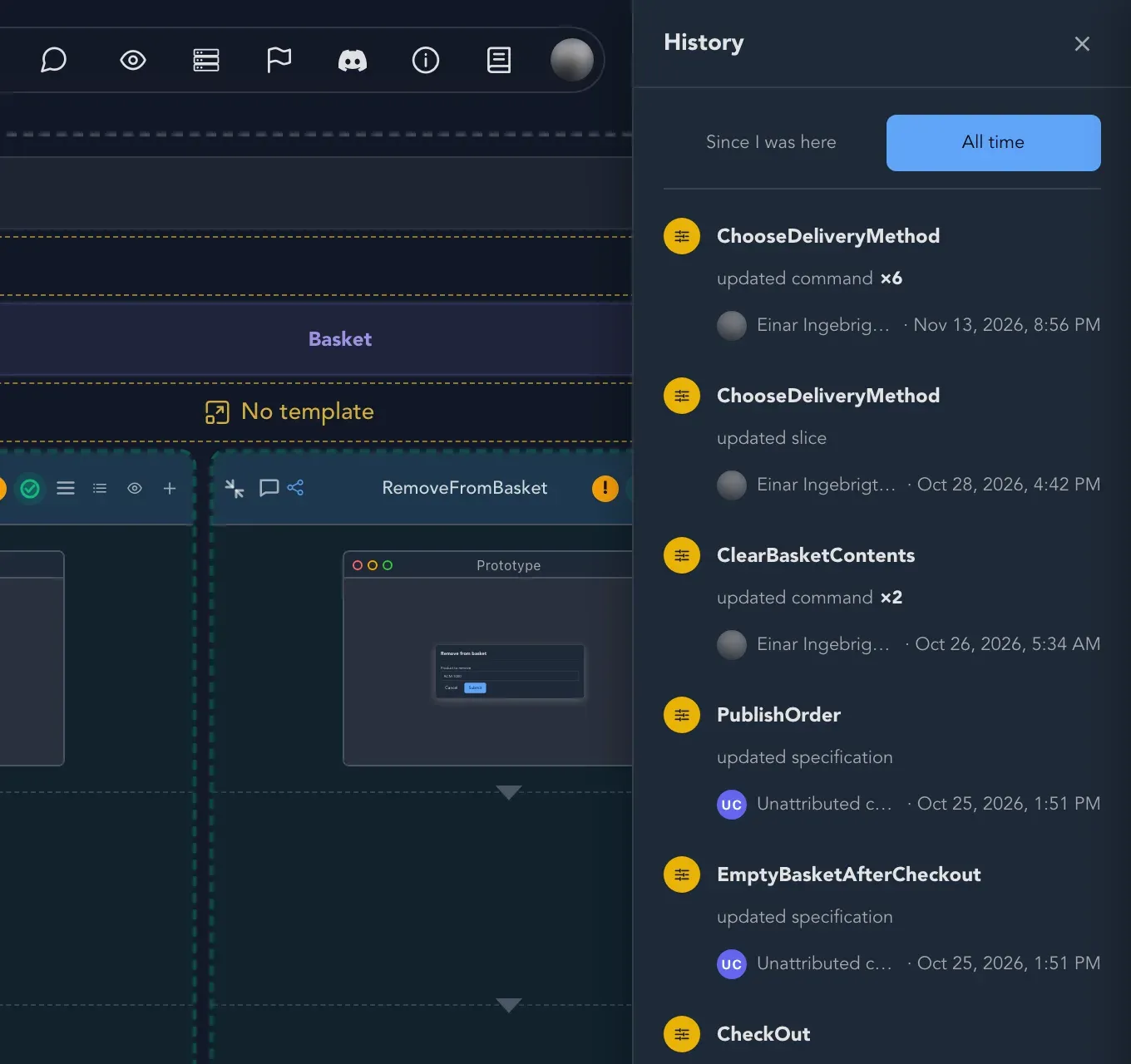
Each entry says what someone did: added, renamed, removed, moved, updated, changed the status of, commented on or restored a board, module, feature, slice, command, event, read model, actor, specification, sticky note, comment, chat or region.
Restore an earlier version
Section titled “Restore an earlier version”-
In the History panel, find the entry for the point you want to go back to.
-
Choose Restore to this point. Studio opens Restore an earlier version.
-
Under Restore, choose The whole board, or choose the single item you want back (the second choice names it, for example Only slice “AddToBasket”).
-
Read As it was then and What restoring does. It lists what will be removed, brought back, put back, renamed back or moved back.
-
Select Restore.
Restoring puts that part of the board back as it was just after the change you picked. It is recorded as new changes, so nothing in the history is lost and a restore can itself be restored. If the board is already as it was then, the dialog says Nothing to restore.
Check that it worked
Section titled “Check that it worked”The board shows the earlier version, and All time has an entry saying it was restored.
Related pages
Section titled “Related pages”- Collaborate on a board: see who is making the changes right now.
- Find your way around a board: the rest of the top bar.
- Sticky notes, comments and topics: the conversation behind the changes.