

Use sticky notes, comments and topics
A model is never only boxes. Teams also need a place for the question nobody has answered, the risk someone spotted and the decision that was made. Studio has three: sticky notes next to the model, comments on a slice, feature or module, and topics for conversations about the whole board.
Add a sticky note
Section titled “Add a sticky note”-
Select Add Sticky Note in the toolbar on the left edge. The note appears on the board.
-
Type your text in it.
-
Drag the note next to the part of the model it is about. Resize it if you need more room.
-
To delete a note, select it and press Delete or Backspace.
Sticky notes work the same on the brainstorming board and the other canvases of a domain.
Choose a color
Section titled “Choose a color”A note is yellow until you change it. Select a note and a palette of colors appears above it. Pick one.
| Color | Meaning |
|---|---|
| Yellow | A question. This is the default. |
| Pink | A risk. |
| Green | A decision. |
| Blue | An assumption. |
| Orange and purple | Free to use as your team likes. |
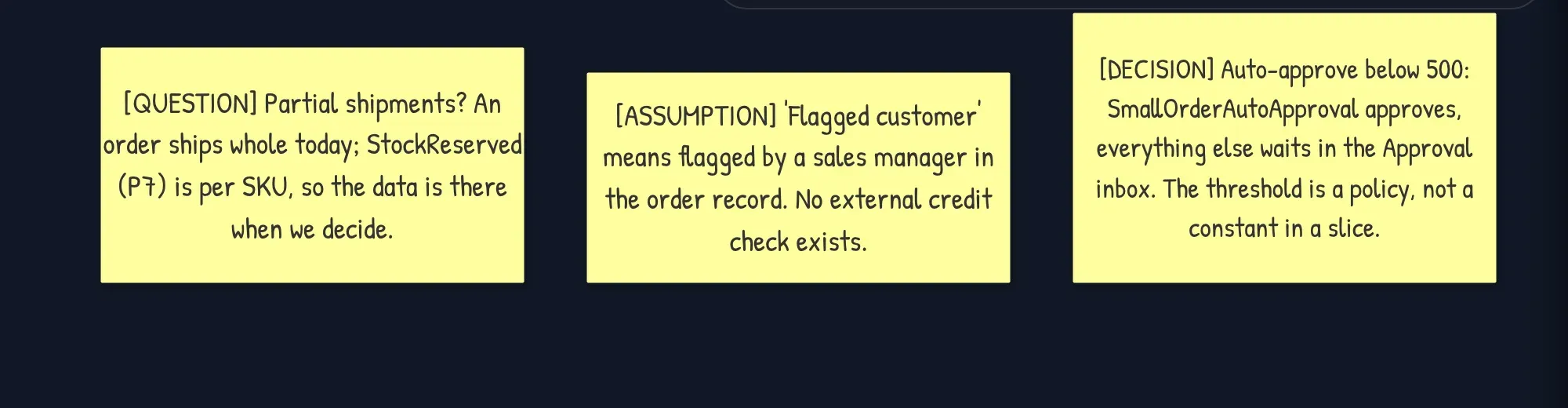
The colors are the same on every board. See Statuses and colors.
Comment on a slice, a feature or a module
Section titled “Comment on a slice, a feature or a module”Slices, features and modules each have a comments button in their header: Open slice comments, Open feature comments and Open module comments.
-
Select the comments button in the header.
-
Write in Write a comment… (Enter to send) and press Enter.
-
To react quickly, use Add a quick reaction on a comment. Insert emoji adds an emoji while you write.
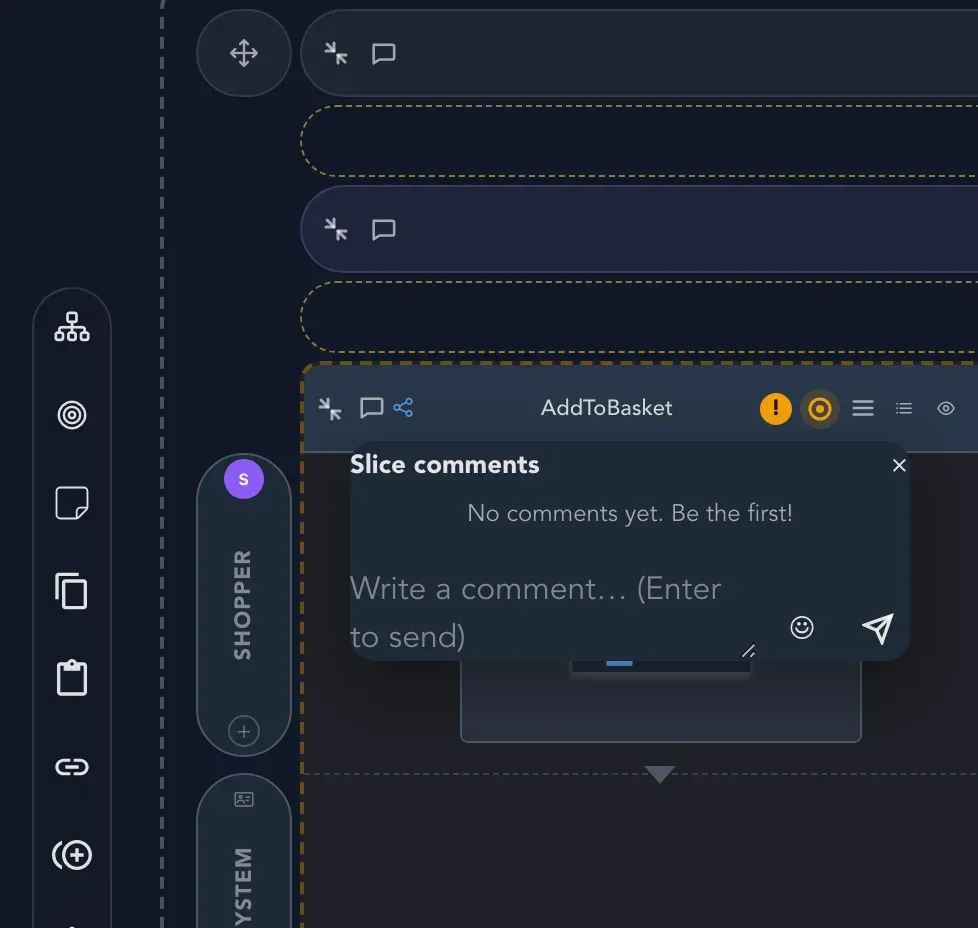
Until someone writes the first one, the panel says No comments yet. Be the first!
Start a topic
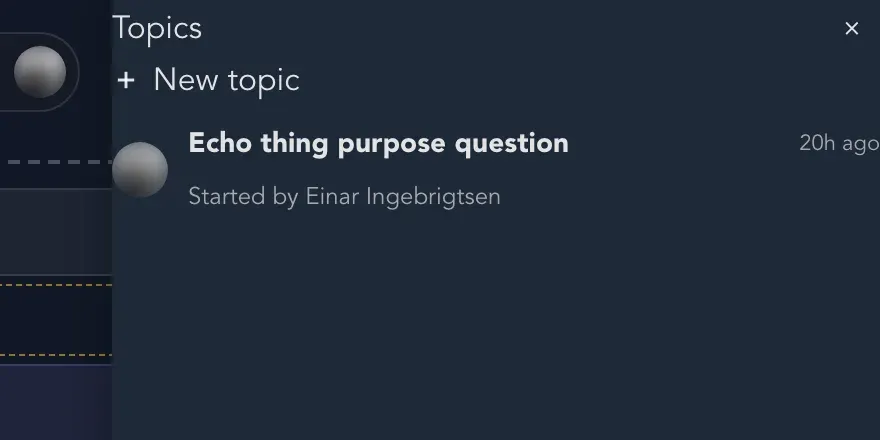
Section titled “Start a topic”A topic is a conversation about the board as a whole, or about something on it.
-
Select Topics on this event model in the top bar.
-
Select New topic and say what the topic is about.
-
Write your comments in it. The topic says who started it. Use Show what this conversation is about to see what it points at on the board.
Mention an agent
Section titled “Mention an agent”Mention an AI agent in a topic and it answers. If nothing has come back after three minutes, the topic says No answer yet; the answer may still arrive, and if it does not, you can report it. Agents are set up for your organization. See Work with AI.
Coding agents on the board
Section titled “Coding agents on the board”A coding agent you connect can propose changes to the board. The board lists Coding agents connected to this board, and a proposed change waits for a yes before the board changes. Choose Go ahead or Don’t. See For developers.
Related pages
Section titled “Related pages”- Check the model: the board’s own findings.
- Collaborate on a board: see who else is there.
- Brainstorming: start with sticky notes and events.
- Talk to your board: ask an agent about the model.