

Conversation mode
When you want to discuss a flow without typing every request, start a conversation from the chat bar. The microphone stays open while you work. Studio decides when you have finished a thought and whether you meant it for an agent, and the agent answers in its own voice.
Typed and spoken lines are the same dialog. They are routed in the same way, whichever way you send them.
Before you start
Section titled “Before you start”- AI must be set up. See Work with AI.
- A maintainer can turn conversation mode off for the organization under Settings > Conversation. If you cannot find the conversation button, the chat bar explains why.
- Your browser needs a microphone it may use.
Start and end a conversation
Section titled “Start and end a conversation”- Select the conversation button next to the microphone in the chat bar, or press ⌘⇧. (Ctrl+Shift+. on Windows and Linux).
- Talk. A caption above the bar shows what an agent says.
- To stop listening without ending, select the mute button. Select it again to continue.
- To end, select the conversation button again.
Studio pauses the conversation when you switch tabs, and resumes when you come back. It ends the conversation when you leave the board, or after the silence you set in your preferences. The bar always says why it stopped. Only one tab can hold a conversation at a time.
Without a conversation running, hold Shift+Option to say a single line.
How Studio decides what to do
Section titled “How Studio decides what to do”Studio waits for a short silence and for the sentence to sound finished. A longer silence ends the turn anyway. Say “go ahead” to hand over at once, or “scratch that” to drop what you were saying.
| You say | What happens |
|---|---|
| An instruction (“Add an event called Author Registered”) | Studio changes the board and says briefly what it did. |
| An agent’s name first (“Merlin, can you…”) | That agent takes the line. |
| A thought (“Maybe we need something for cancellations”) | Studio offers to do it and waits for your yes or no. |
| “Yes” or “no” while an offer is shown | The offer is carried out or dropped. |
| “Undo that”, or a correction | Studio reverts or corrects the last change. |
| A question about the board | The agent answers in a sentence or two, out loud. |
| A request for a review (“Is anything missing here?”) | Sherlock gives the few findings that matter most and offers to make the change. |
| Something not meant for Studio | Nothing happens. The line shows faintly above the bar, and you can send it anyway or dismiss it. |
Each line goes to the agent whose work it is: modeling to Atlas, code to Merlin, documentation to Quill, reviews to Sherlock, and conversation to Echo. While you are in an exchange with an agent, your next line stays with it unless you name another agent.
When an agent cannot make a change without guessing something about your business, it asks one short question and waits. Say “never mind” to drop it.
Large or destructive changes are never made from speech alone. Studio asks first, and you confirm by selecting Yes or typing yes.
Replies and interruptions
Section titled “Replies and interruptions”Replies are short. An agent speaks the short form and the full answer stays in the chat. Start talking to interrupt it, or say “stop” to silence it without asking for anything new. Select Speak replies next to the microphone to turn spoken replies on or off.
Voices and your preferences
Section titled “Voices and your preferences”Each agent has its own voice. A maintainer changes it under Settings > Agents: edit the agent, choose a voice under Voice and select play to hear it.
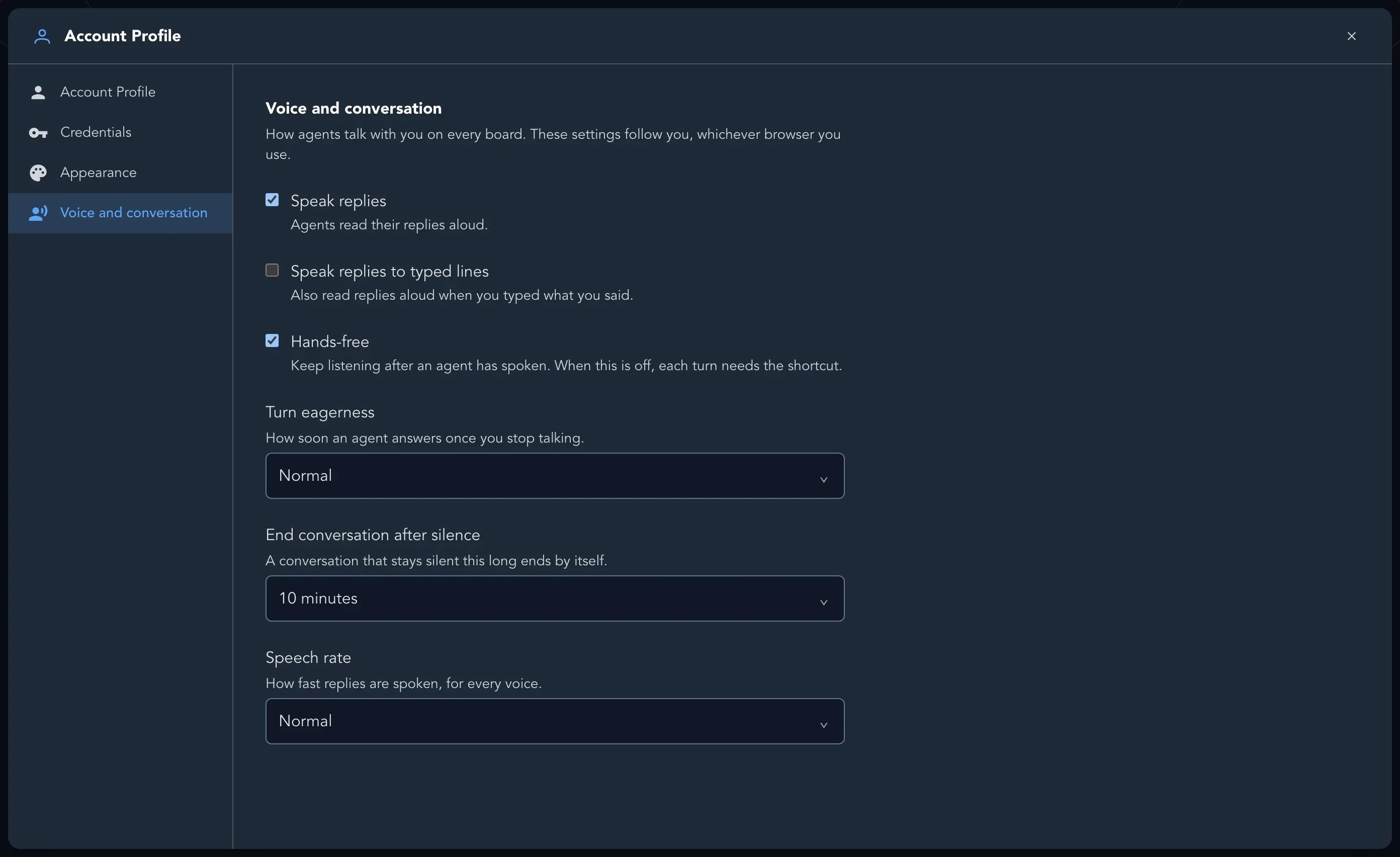
Under your profile, Voice and conversation holds your own settings (see Your profile and appearance): whether replies are spoken (also for typed lines), how quickly Studio treats a pause as the end of your turn, whether it keeps listening after your turn (with hands-free off, the microphone mutes after each turn), when a silent conversation ends, and how fast agents speak.
Dictation and transcription
Section titled “Dictation and transcription”Dictation is a single line: hold Shift+Option, or select the microphone, and speak. A maintainer can also turn on Clean up with a language model under Settings > Transcribing, which tidies finished phrases with the provider and model they choose. When it is on, those phrases go to that AI provider.
Your data
Section titled “Your data”- Your speech goes to Studio’s own speech service, which turns it into text and produces the spoken replies. It does not go to your organization’s AI provider.
- The words that Studio sends on to an agent, and the parts of the board the agent needs, go to your organization’s AI provider, as when you type.
- A spoken line that reaches the chat is stored like a typed line. Lines Studio ignores are not stored.
- While the microphone is open, the indicator above the bar shows it.
- A member holds one conversation at a time, and a conversation in which nobody finishes a sentence for 30 minutes ends on its own.