

Find your way around
Studio has few places to be. A top bar that stays with you everywhere, a drawer that lists your work, and the boards where you do it. This page shows each one, using the Acme Commerce sample.
How your work is organized
Section titled “How your work is organized”Everything you build lives in a project, usually one for each team. A project holds one or more applications, the systems you are building. Each application holds domains, the areas of the business it covers. And each domain holds the boards where you do the work, the event model first among them.
You rarely need to think about this structure once you are in a board, but it explains where everything is kept, and the drawer shows it as a tree.
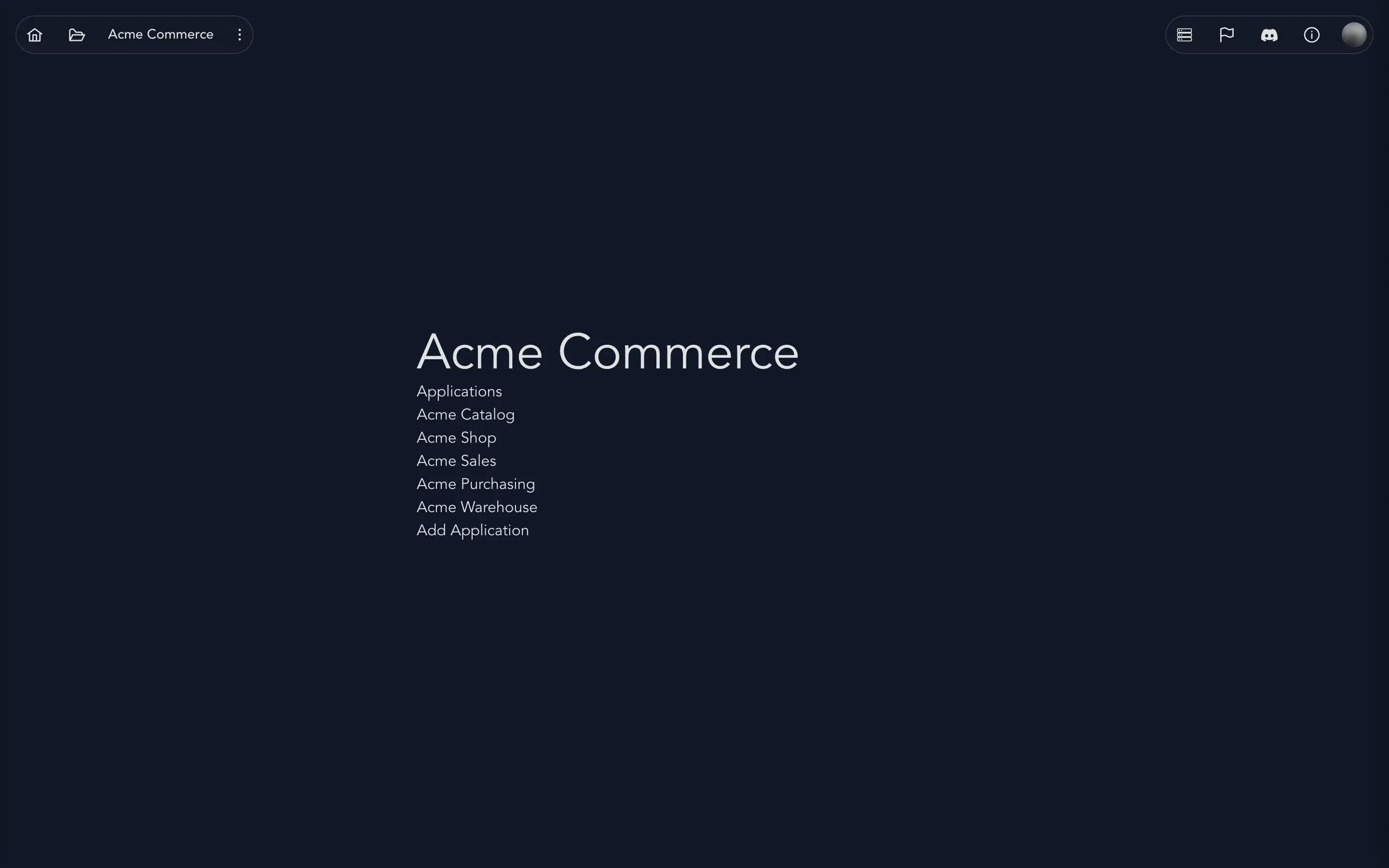
The top bar
Section titled “The top bar”The top bar sits across the top of every page. It has two groups of buttons.
On the left:
| Button | What it does |
|---|---|
| Home | Goes back to the home page. |
| Projects | Opens and closes the project drawer. |
| The project name | Shows which project you are in. |
| Project options (the three dots) | Opens a menu with Project Settings, Progress board, Diagrams, Export and Import. |
On the right:
| Button | What it does |
|---|---|
| See what Studio is working on | Opens the jobs panel. See Jobs. |
| Give feedback | Appears only when the Studio team has given you the right to give feedback on Studio. Opens a menu to give feedback on what is on your screen. See Give feedback on Studio. |
| Report Issue | Opens a menu to report a problem or follow your reports. |
| Questions? Ask on Discord | Opens the Cratis community on Discord. |
| About | Shows the Studio version and its release notes. |
| Account (your avatar) | Opens your account menu. |
On a board, a few more buttons join the right-hand group: the play button that runs your model, who else is on the board, the board’s history, its topics, and a View menu. They are described below.
The project drawer
Section titled “The project drawer”Select Projects to slide the drawer in from the left. It lists every project you can open as a tree, and it is how you move around.
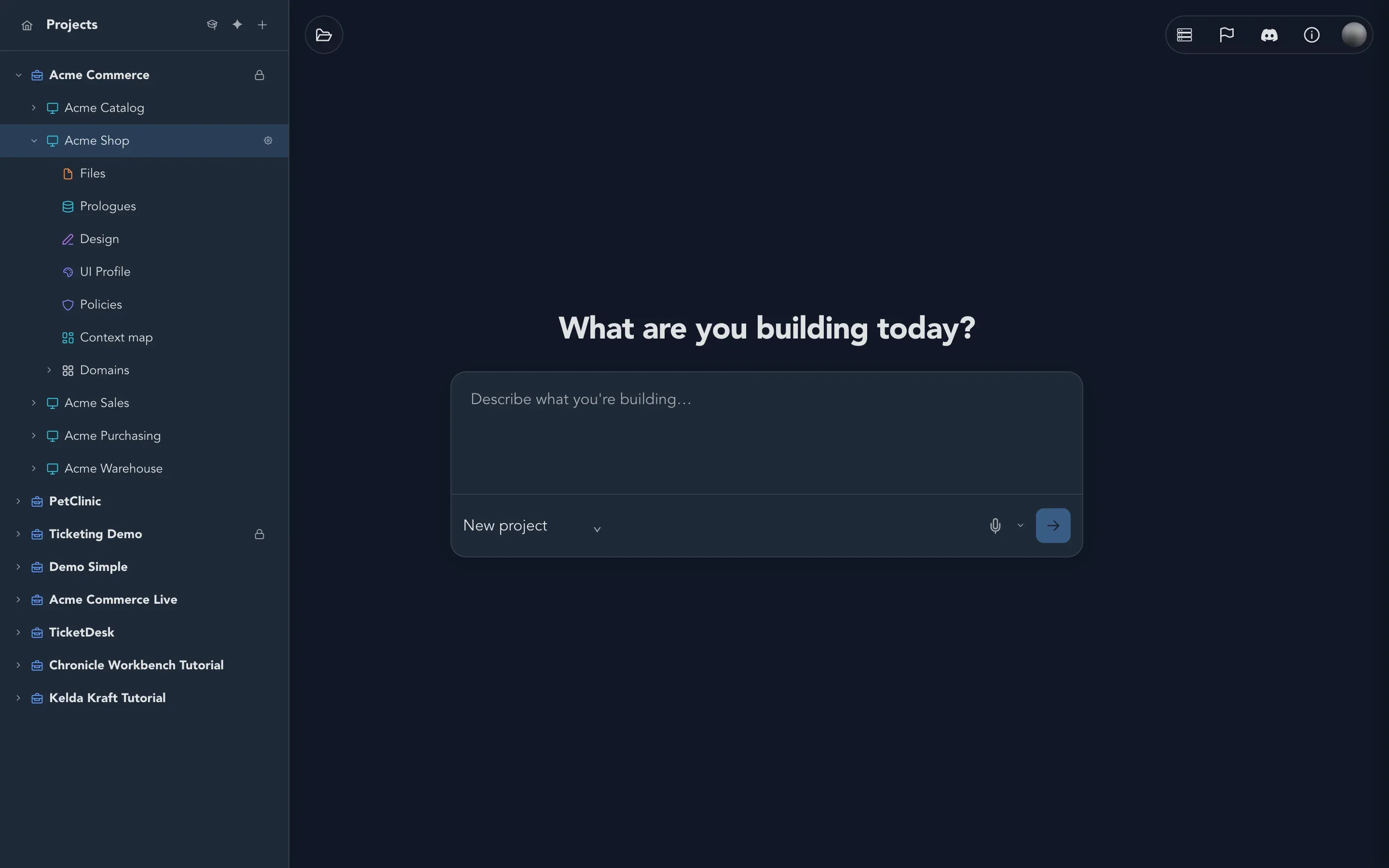
At the top of the drawer are three buttons: Take the guided tour, Generate Project with AI and Add Project. Hover over any row and a + appears for adding what belongs under it, for example an application under a project. Rows that have settings show a gear.
An application holds these rows:
| Row | What it is for |
|---|---|
| Domains | The areas of the business, each with its own boards. |
| Context map | How the application’s domains relate through the events they publish and consume. |
| Design | All the application’s screens on one canvas. |
| UI Profile | How the application looks and what its screens are built from. |
| Policies | The rules about who may do what. |
| Prologues | Capturing an existing system to understand it. |
| Files | The application’s source files and how they changed. |
A domain holds the boards and canvases of one area of the business:
| Row | What it is for |
|---|---|
| Event Models | The event model boards, where behavior is drawn. |
| Brainstormings | Brainstorming boards, where ideas are collected before they become a model. |
| Personas | The people the domain is for. |
| Concepts | The domain’s vocabulary: named values with their own rules. |
| Constraints | Rules such as “this value must be unique”. |
| State machines and Workflows | How something moves through states, and how a longer process runs. |
| Given contexts and Seed data | Reusable starting situations for examples, and starting events for a running model. |
| Event Sources | What the model’s events are about and how they are grouped. |
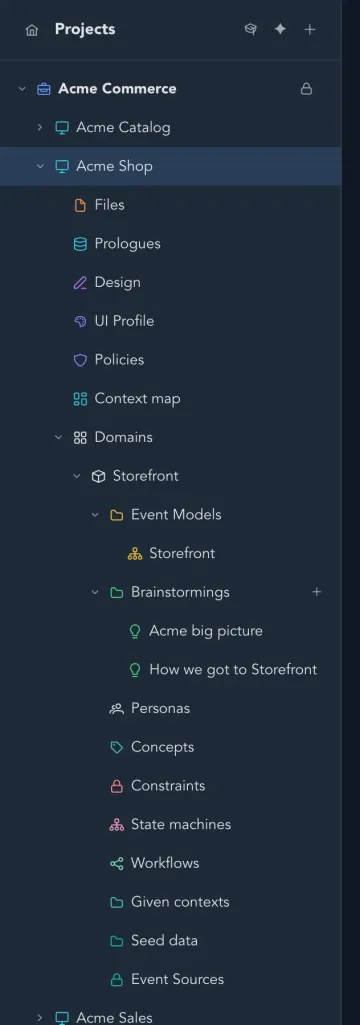
Studio remembers which parts of the tree you had open. Opening a board from the drawer takes you straight to it.
The board
Section titled “The board”The event model board is where you will spend most of your time. Here it is with its toolbars.
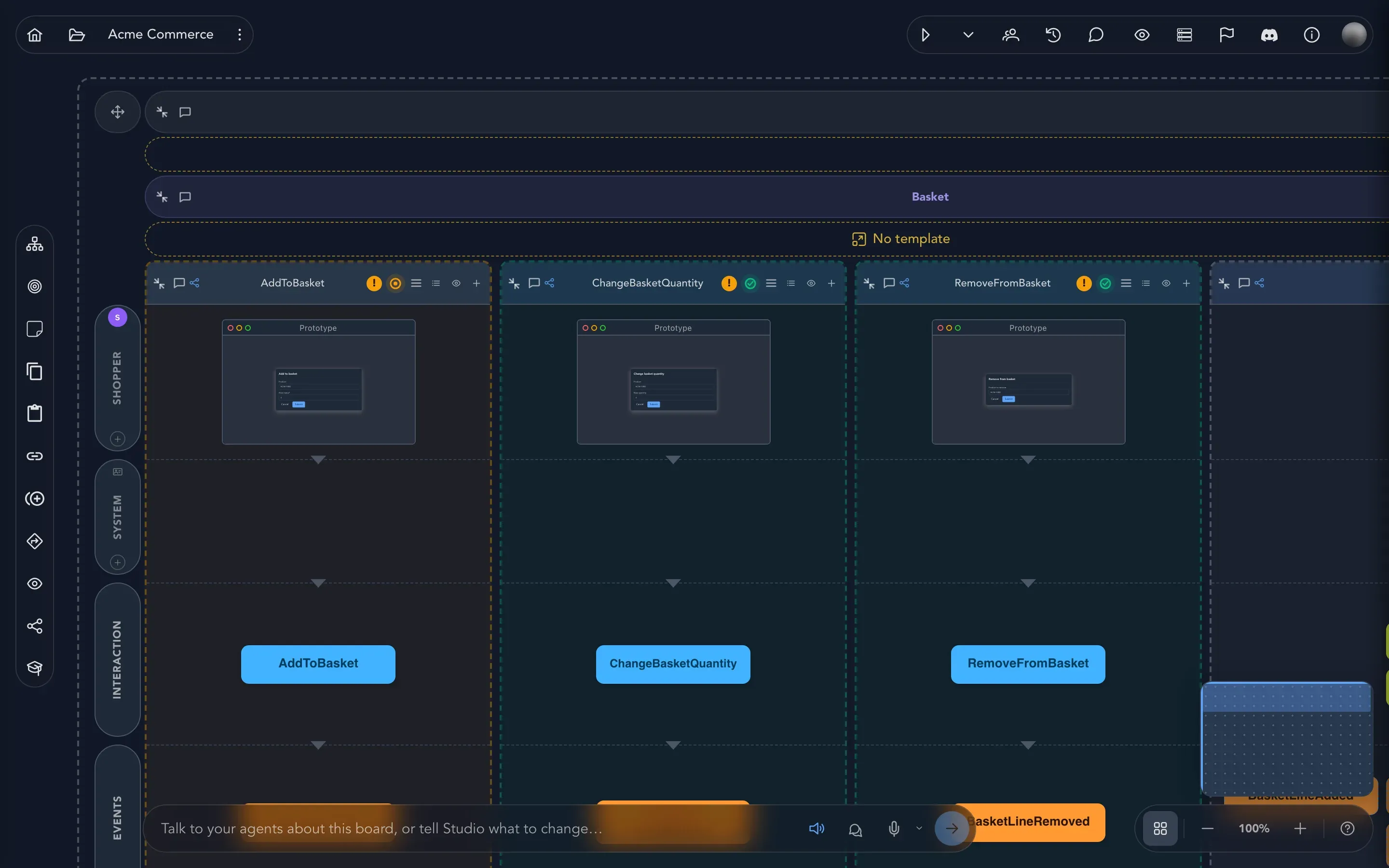
The toolbar on the left edge adds and works on things. From top to bottom: Add module, Focus on a feature, Add Sticky Note, the clipboard tools (Copy, Paste, Paste as linked copy, Duplicate), the board’s findings, Storylines, See as a caller, Trace a value, and Take the guided tour at the bottom.
The controls at the lower right move you around the canvas: Toggle minimap, Zoom Out, Reset Zoom and Zoom In.
The top bar gains five controls on the right, from left to right:
- Run Solution, the play button, runs the model as an application you can try. The arrow beside it opens Run options.
- Active collaborators shows who else is on the board right now. It says Only you when you are alone.
- See what has happened on this board opens the board’s history.
- Topics on this event model opens the conversations about the board.
- View changes how the board is drawn.
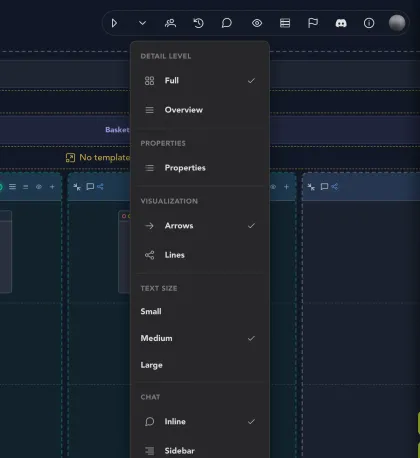
When AI is set up for your organization, a chat bar along the bottom of the board lets you talk to your agents about the board. See Work with AI. Each part of the board is covered in The event model board, starting with Board basics.
See what Studio is working on
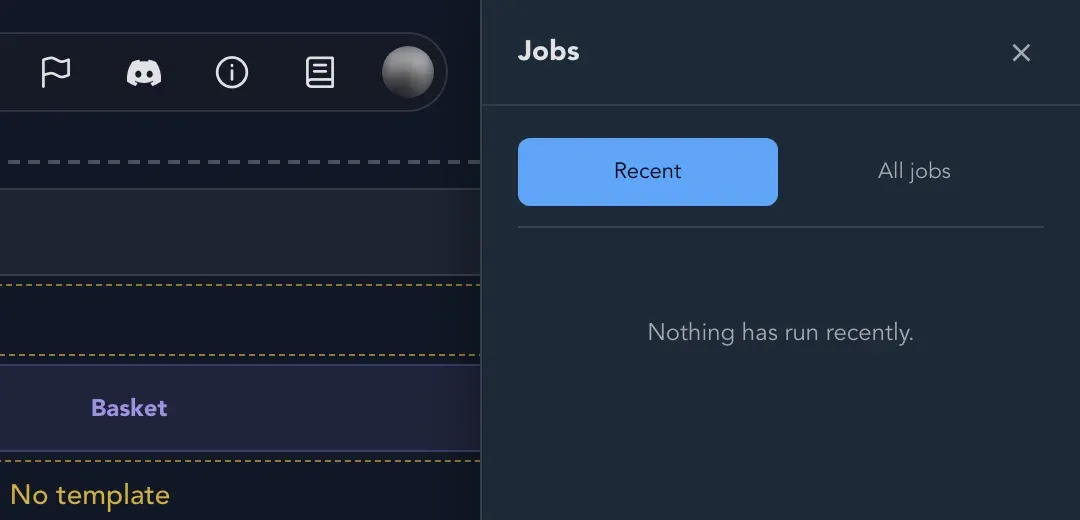
Section titled “See what Studio is working on”Some work takes a while: importing a model, generating from a description, building. Studio does it in the background and keeps a list. Select See what Studio is working on in the top bar to open the Jobs panel. Recent shows what ran lately, and All jobs shows everything. A job shows its steps and its state, such as Running, Done or Failed. When nothing has run, the panel says Nothing has run recently.
Get help
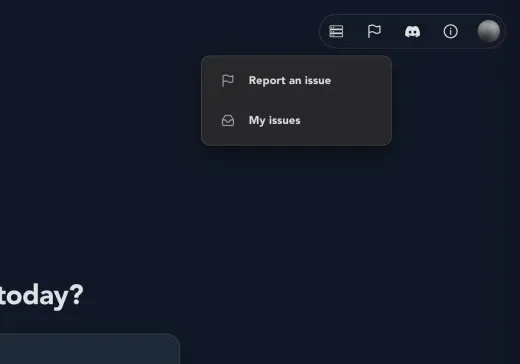
Section titled “Get help”The Report Issue button opens a menu with two items: Report an issue and My issues. Report a problem in a few sentences and Studio attaches where you were, so the team can find it. My issues follows your reports from Received to Done.
If the Studio team has given you the right to give feedback on Studio, a Give feedback button sits beside Report Issue. Choose Give feedback to say what you think of what is on your screen, and pick Problem, Suggestion, Question or Praise. Its menu also lets you give feedback About specific slices…, About this screen… or Point at something…, and My feedback shows what you gave and what became of it. You do not see the button until you have been given the right, and you lose it if the right is taken away. What you already gave stays yours.
About shows the version of Studio you are using and links to its release notes. For questions and conversation, use Questions? Ask on Discord. All the ways to get help are on Get help.
Your account and organization
Section titled “Your account and organization”Select your avatar to open the account menu.
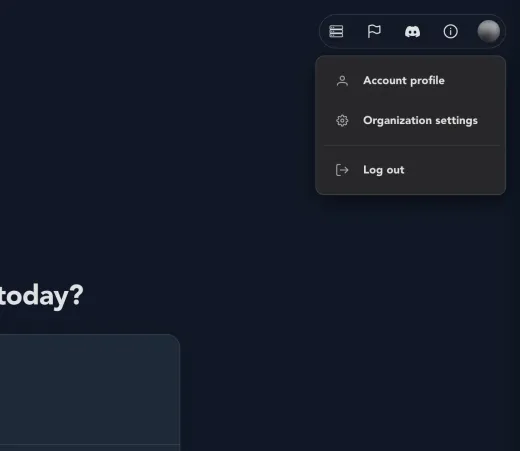
- Account profile is where you change your details, the sign-in providers you use, how Studio looks and how it talks. See Profile and appearance.
- Organization settings is where your organization’s people, AI, integrations and billing are managed. Everyone can look; changing things is for maintainers. See Your organization.
- Switch organization appears when you belong to more than one.
- Log out signs you out.
What happens next
Section titled “What happens next”- Explore the Acme Commerce sample: walk through a finished model.
- Take the guided tours: let Studio show you around its own boards.
- Model your first behavior: start your own.