

Project, application and domain settings
Organization settings cover the whole team. A project, an application and a domain each have settings of their own. They sit at the level they describe: a project’s repository on the project, whether AI is used on the application, a folder on the domain.
Open them from the gear next to the project, application or domain in the project drawer. Project settings are also under Project options > Project Settings.
Project settings
Section titled “Project settings”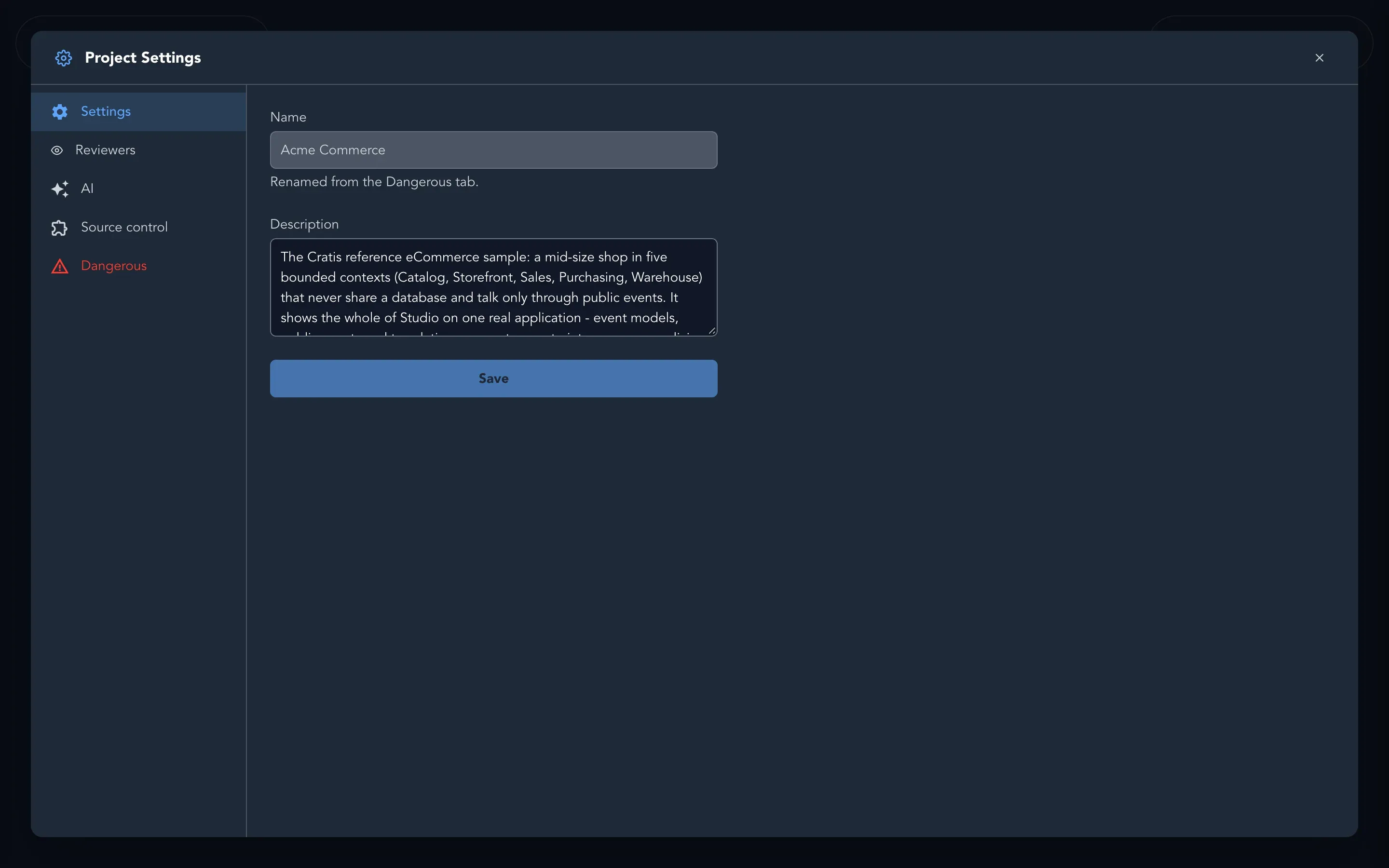
| Tab | What you set |
|---|---|
| Settings | The Description of the project. The name is read-only here; it is renamed on the Dangerous tab. |
| Reviewers | Who reviews slices across the whole project. See below. |
| AI | Run autonomously: Studio runs the workflow on its own. A slice whose analysis comes back sound, with nothing to improve, is assigned to the code generation agent and marked ready for implementation. It needs agents with the Code generation and Analysis specializations, each with a provider and model. |
| Source control | The Source control provider, GitHub or None (local repository only). With GitHub, choose the Installation and the Repository from what the organization connected, then Connect repository. The status says Ready to publish generated branches. or tells you what to approve on GitHub (Review on GitHub). You can also name a GitLab or Azure DevOps repository. |
| Issues | Where the project’s issues go: The same as source control, or A repository of its own (an Installation and a repository as owner/repository). |
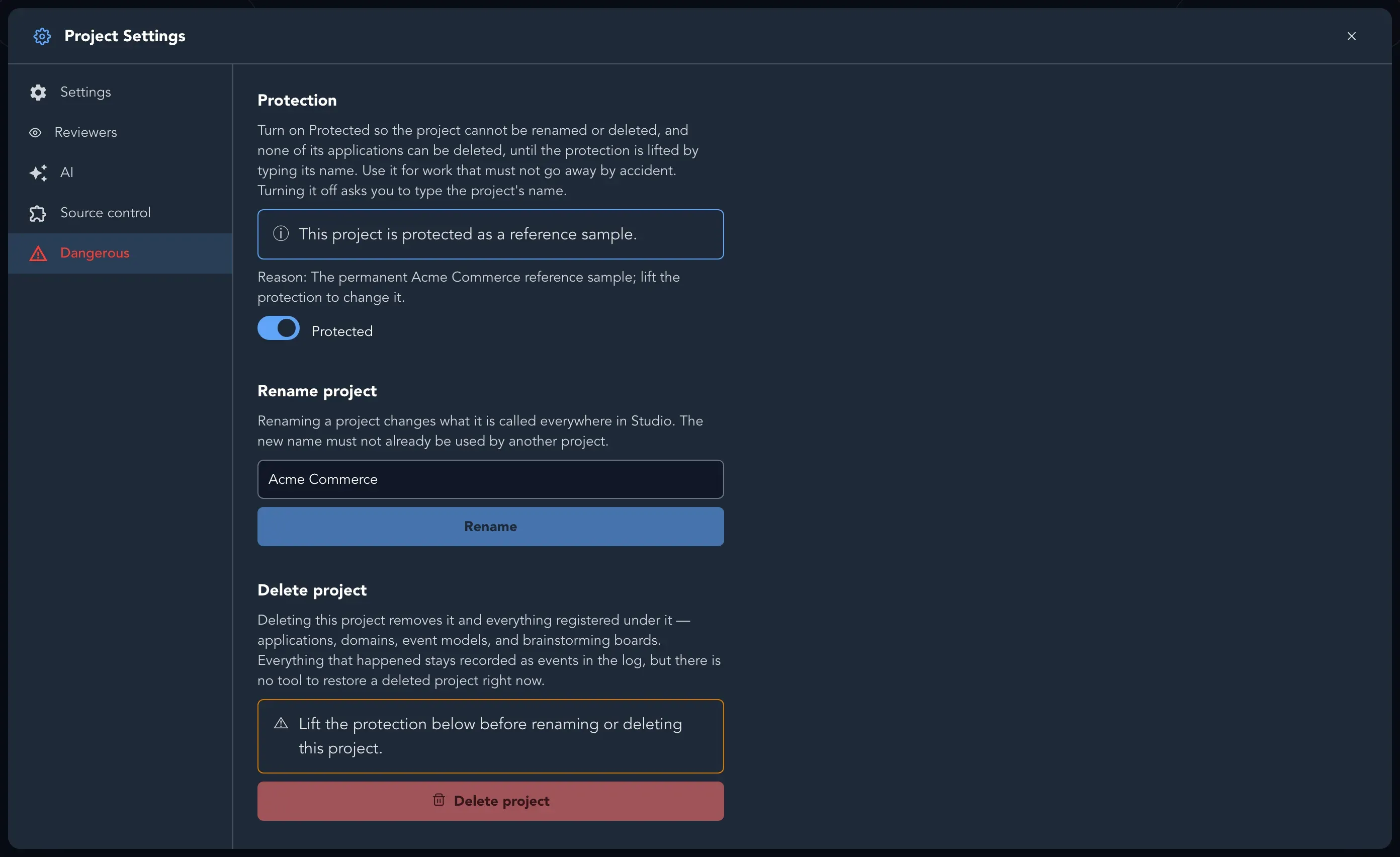
| Dangerous | Rename, delete and protect the project. |
Rename, delete and protect a project
Section titled “Rename, delete and protect a project”On Dangerous:
- Rename changes the name everywhere in Studio. It must not be used by another project.
- Delete project removes the project and everything under it: applications, domains, event models and brainstorming boards. There is no tool to restore it. You confirm by typing the project’s name.
- Protected stops the project being renamed or deleted, and stops any of its applications being deleted, until someone lifts the protection by typing the project’s name. Fill in Reason before turning it on; it is shown to whoever is refused. Only a maintainer can protect a project or lift it.
Choose reviewers
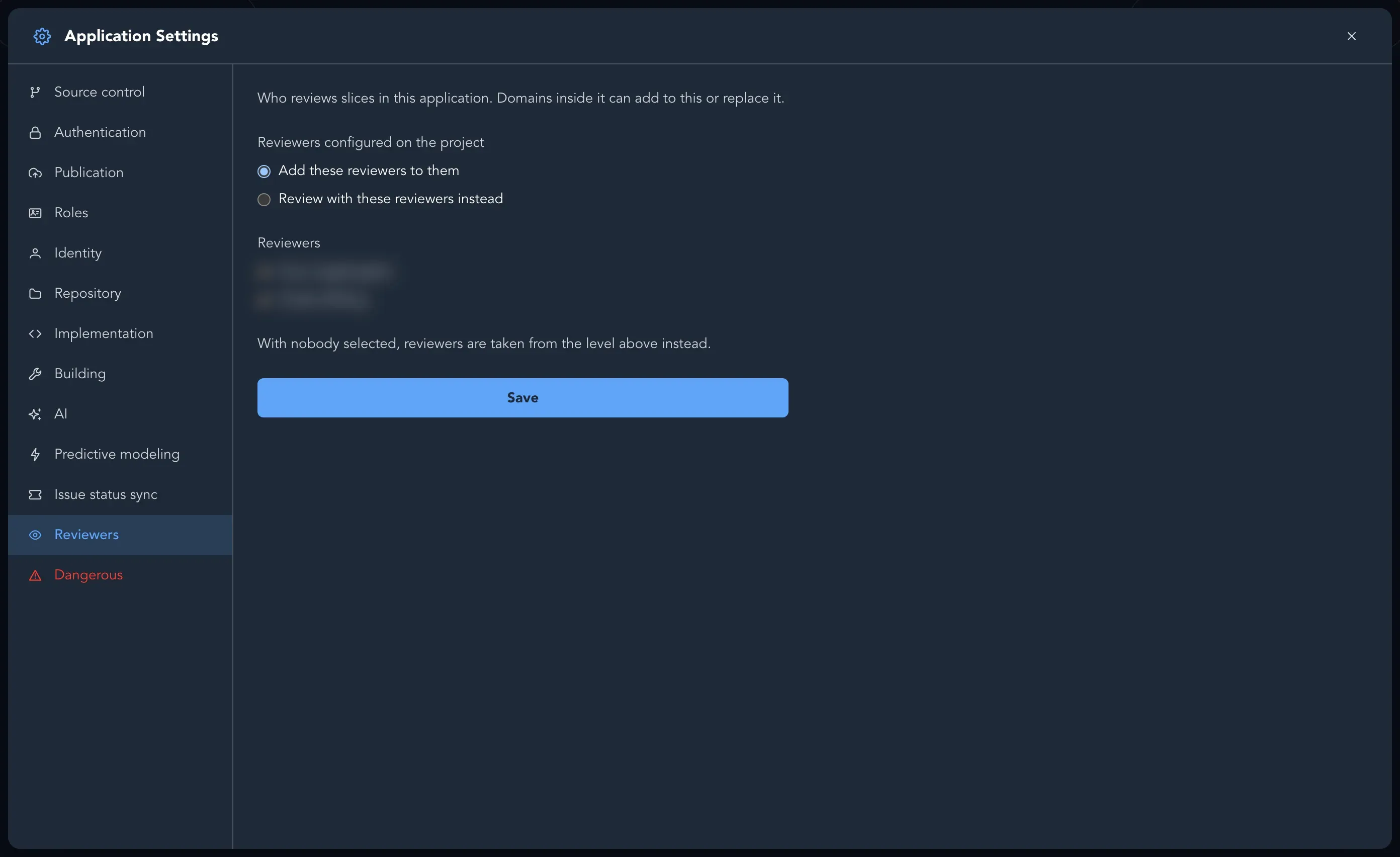
Section titled “Choose reviewers”On the Reviewers tab, select who reviews slices. A level can Add these reviewers to those configured above it, or Review with these reviewers instead. With nobody selected, reviewers are taken from the level above. The same tab exists on applications and domains.
Application settings
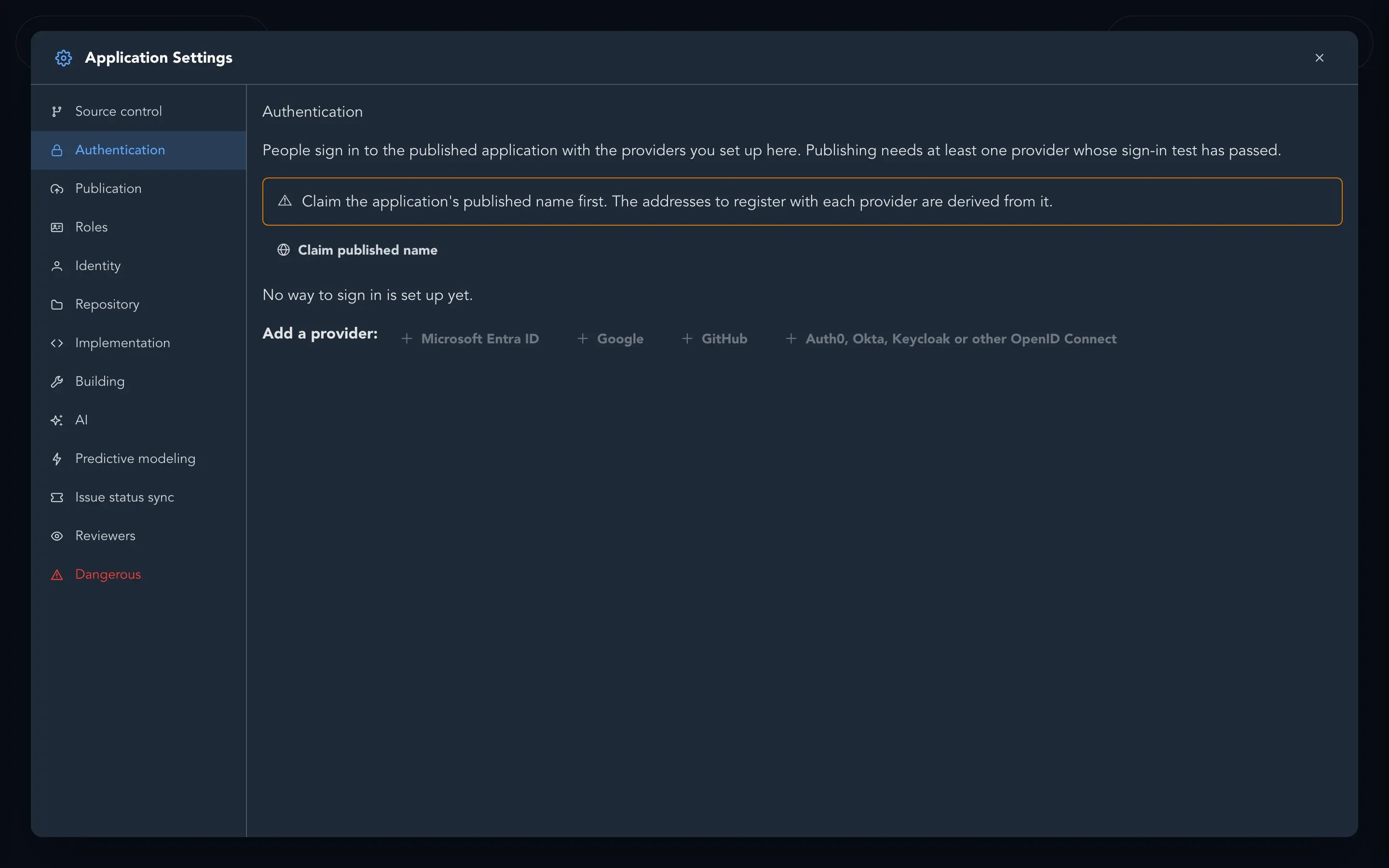
Section titled “Application settings”An application’s settings open as a full-screen Application Settings panel.
| Tab | What you set |
|---|---|
| Source control | Use the project’s repository or Use a separate repository for this application. |
| Authentication | How people sign in to the published application. Claim the published name first, then under Add a provider choose Microsoft Entra ID, Google, GitHub or Auth0, Okta, Keycloak or other OpenID Connect. Publishing needs a provider whose sign-in test has passed. |
| Publication | The published name and run options for publishing the application. |
| Roles | The application’s own roles, such as SalesManager, with Add Role. Personas, policies and specifications use them. These are not Studio organization roles. |
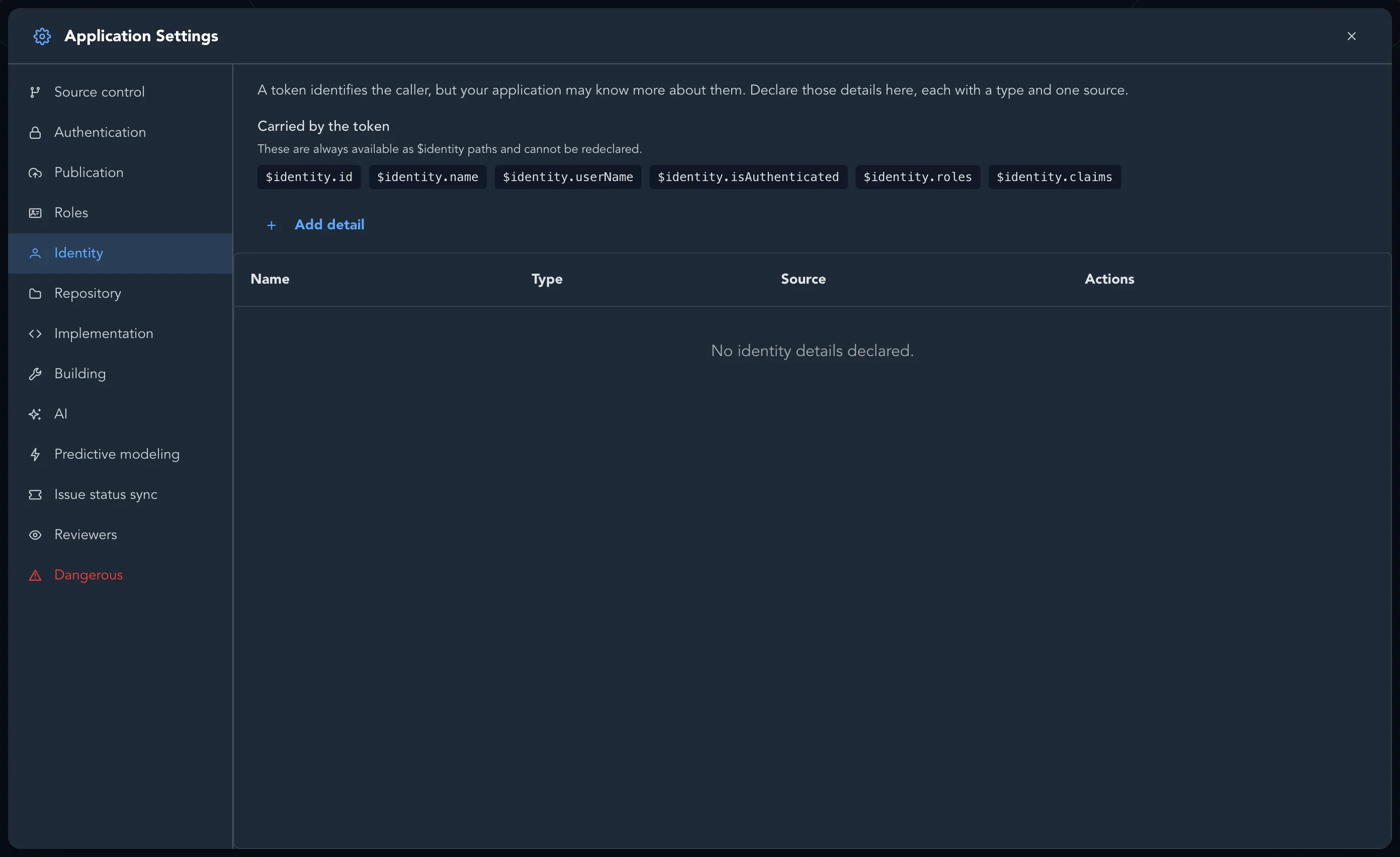
| Identity | What your application knows about a caller beyond the token: Add detail, each with a type and one source, a claim or a query. |
| Repository | The Base path: the folder of the application inside the project repository. The preview shows the resolved path. |
| Implementation | The Implementation mode: Screenplay only, Static code, Static code + AI or AI only; Reaction batches; and When a built slice changes. |
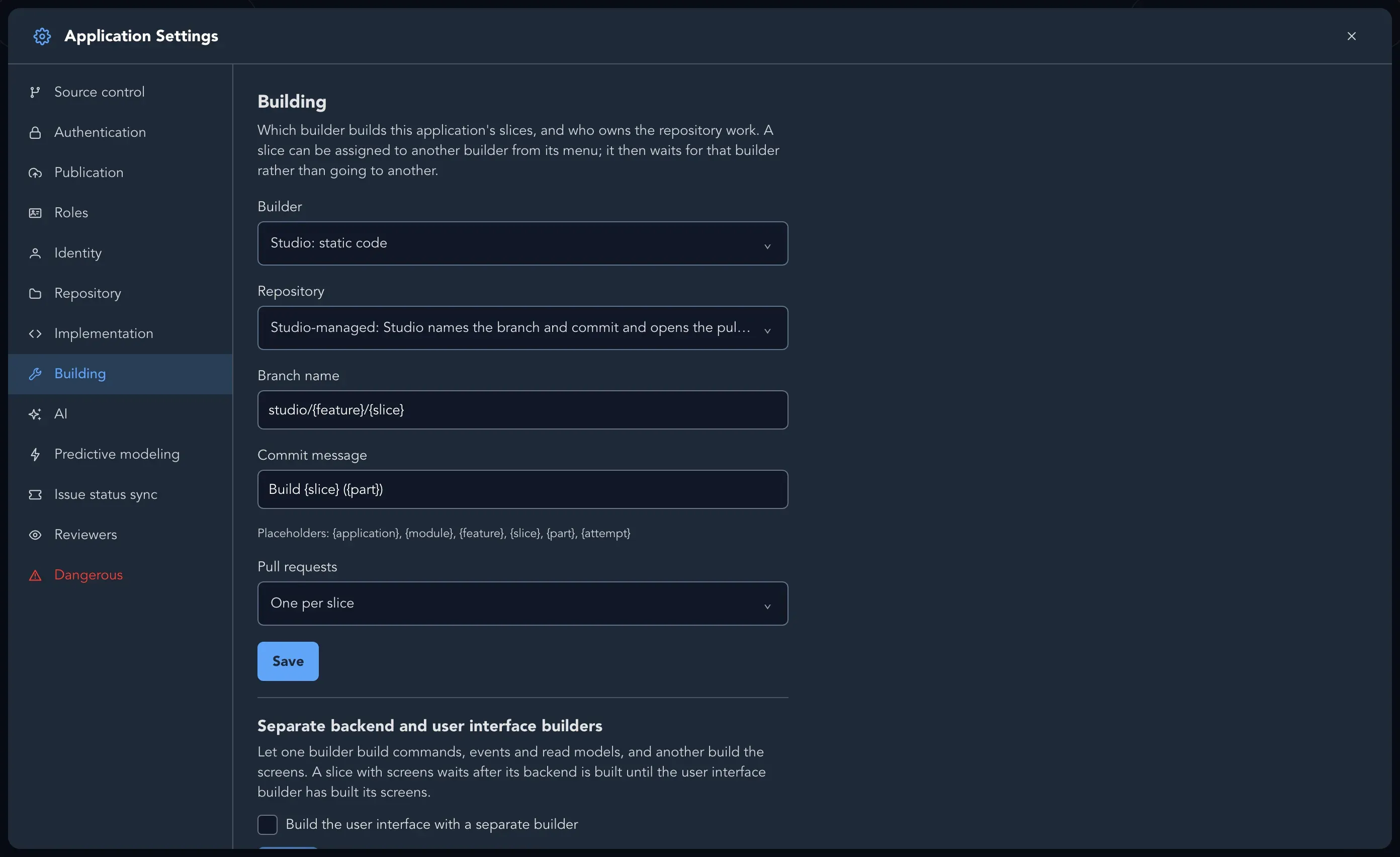
| Building | Which builder builds this application’s slices, and who owns the repository work. |
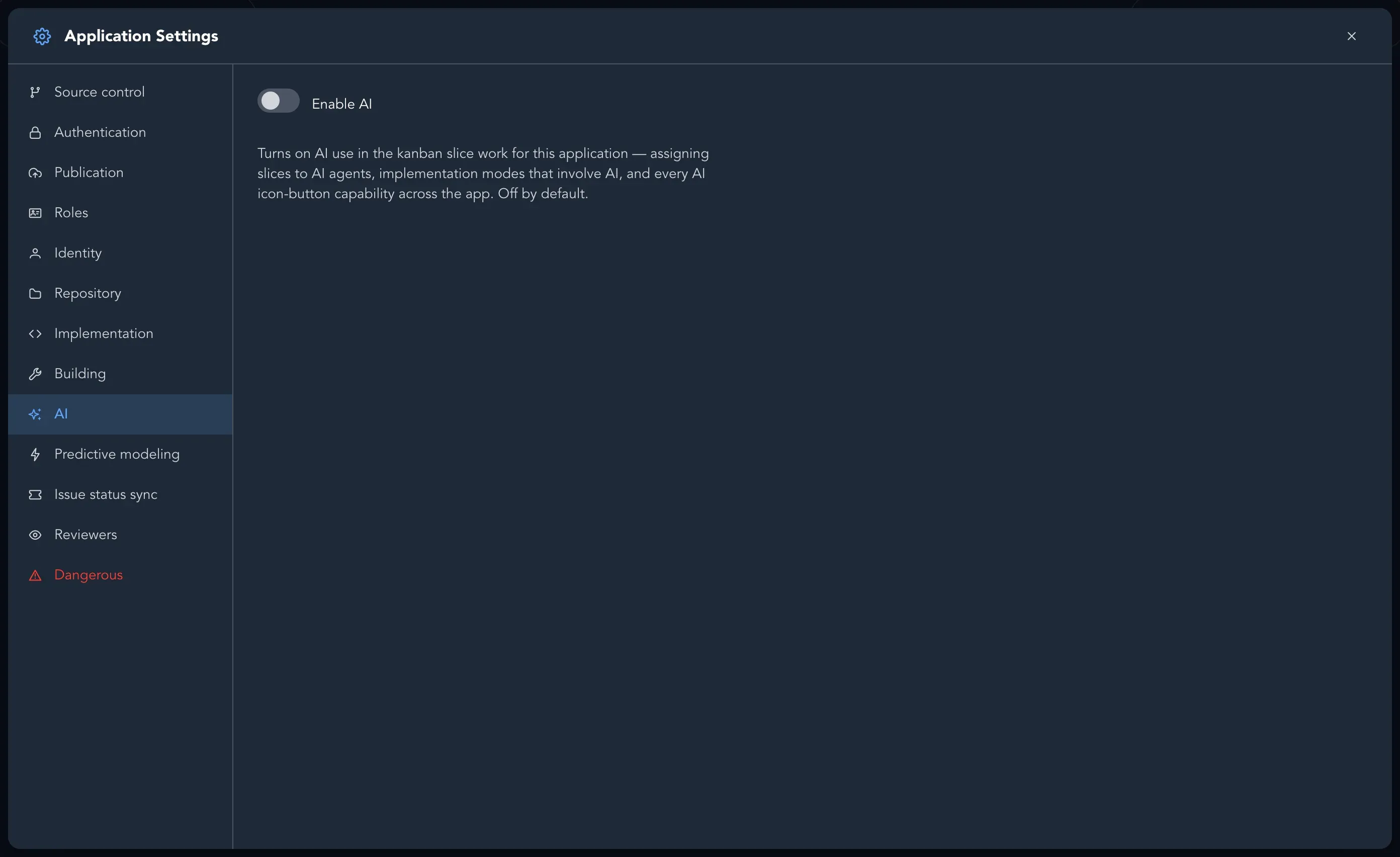
| AI | Enable AI. Off by default. |
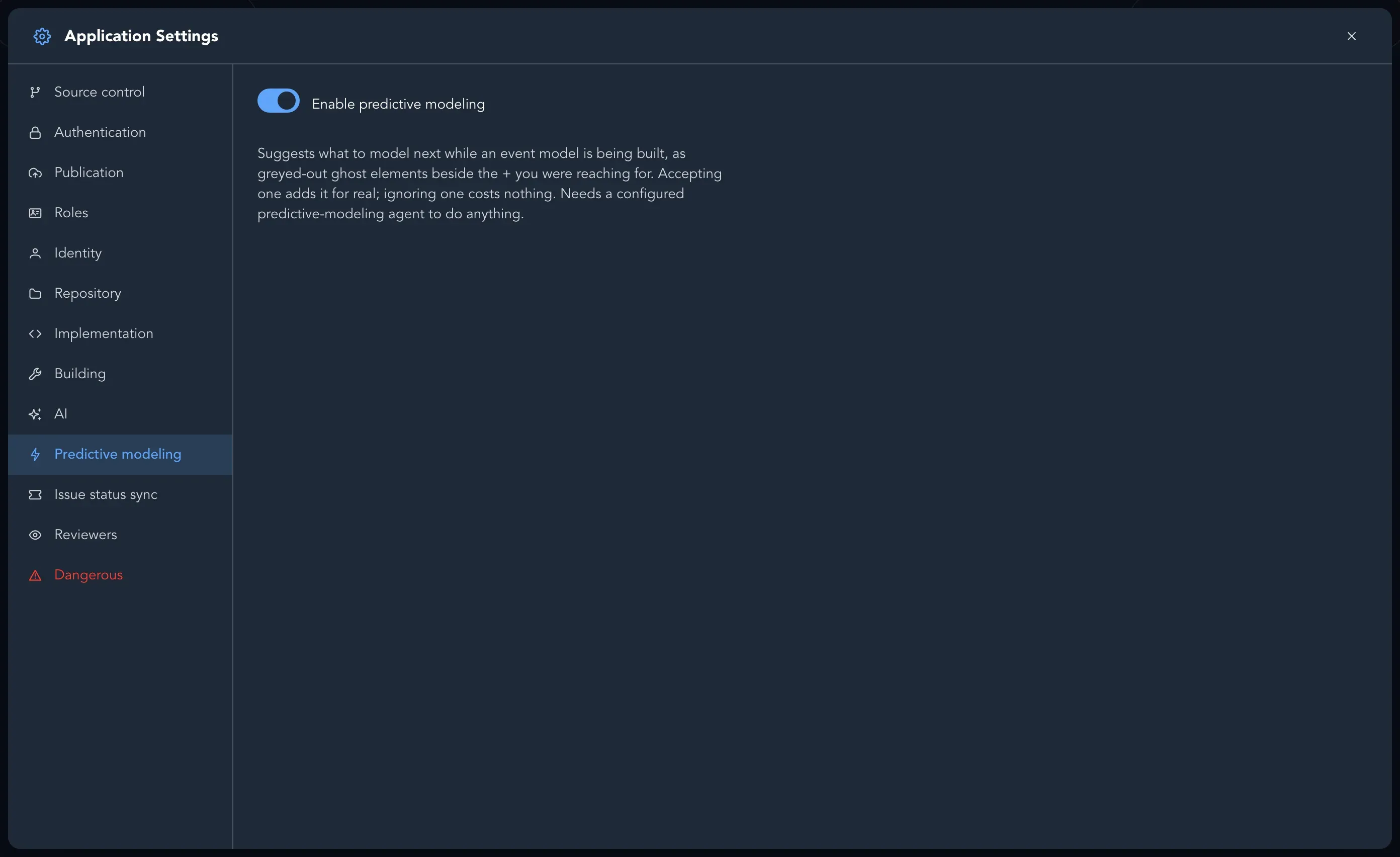
| Predictive modeling | Enable predictive modeling. Needs a configured predictive-modeling agent. |
| Issue status sync | Keep slices and their issues in step. |
| Reviewers | Who reviews slices in this application. |
| Dangerous | Rename or delete the application. |
Sign-in and identity
Section titled “Sign-in and identity”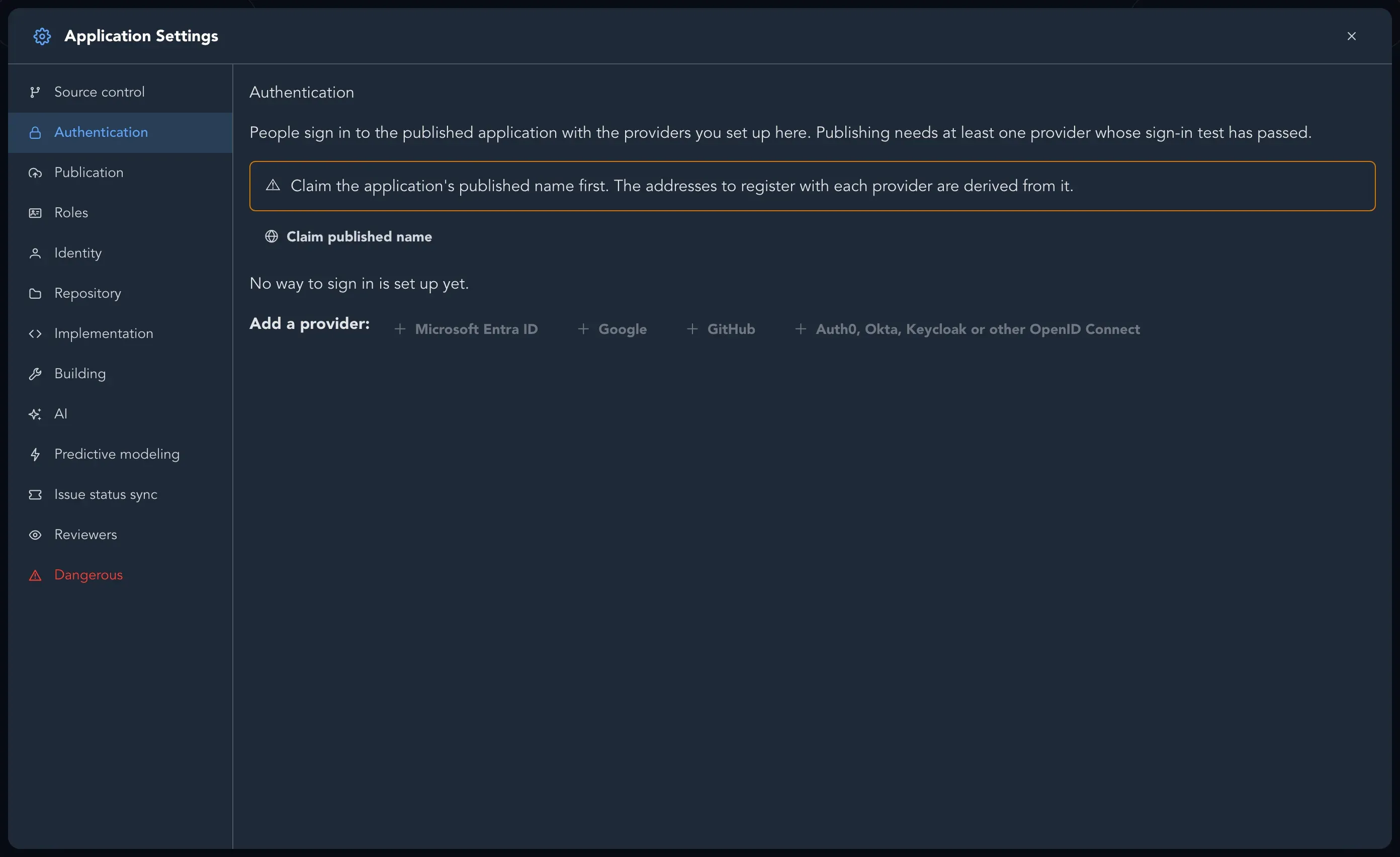
On Identity, Add detail to say what your application knows about a caller beyond the token. Each detail has a type and one source: a claim or a query.
Implementation modes
Section titled “Implementation modes”| Mode | What happens when a slice is marked ready for implementation |
|---|---|
| Screenplay only | The Screenplay is the deliverable. Studio exports and maintains it and generates no target code. |
| Static code | Studio renders the deterministic code. No AI agent takes part, and required gaps block instead of being filled in. |
| Static code + AI | Studio renders the code and the assigned AI agent refines it within the rendered shapes. Needs AI enabled. |
| AI only | The assigned AI agent implements from the Screenplay and model context alone. Not deterministic. Needs AI enabled. |
The mode is captured when a run starts, so changing it later does not reinterpret a run already under way. Under When a built slice changes, choose Mark it out of date or Rebuild it automatically.
Predictive modeling and issue status sync
Section titled “Predictive modeling and issue status sync”Enable predictive modeling suggests what to model next as greyed-out ghost elements beside the + you were reaching for. Accepting one adds it; ignoring one costs nothing.
Keep slices and their issues in step works every few minutes: a done slice closes the GitHub, Jira or Linear issues it is linked to, a closed issue marks its slice done, and reopening either reopens the other. When both changed, the slice wins. Only issues in trackers connected under Integrations are kept in step. Turning it on changes nothing by itself.
Choose the builder
Section titled “Choose the builder”On Building, choose which connected builder builds this application’s slices, or leave Studio to build. Builders belong to the organization: see Approve builders. You can also choose how pull requests are made (One per slice or One per feature) and whether Studio or the builder names the branch and commit.
Domain settings
Section titled “Domain settings”A domain has fewer settings.
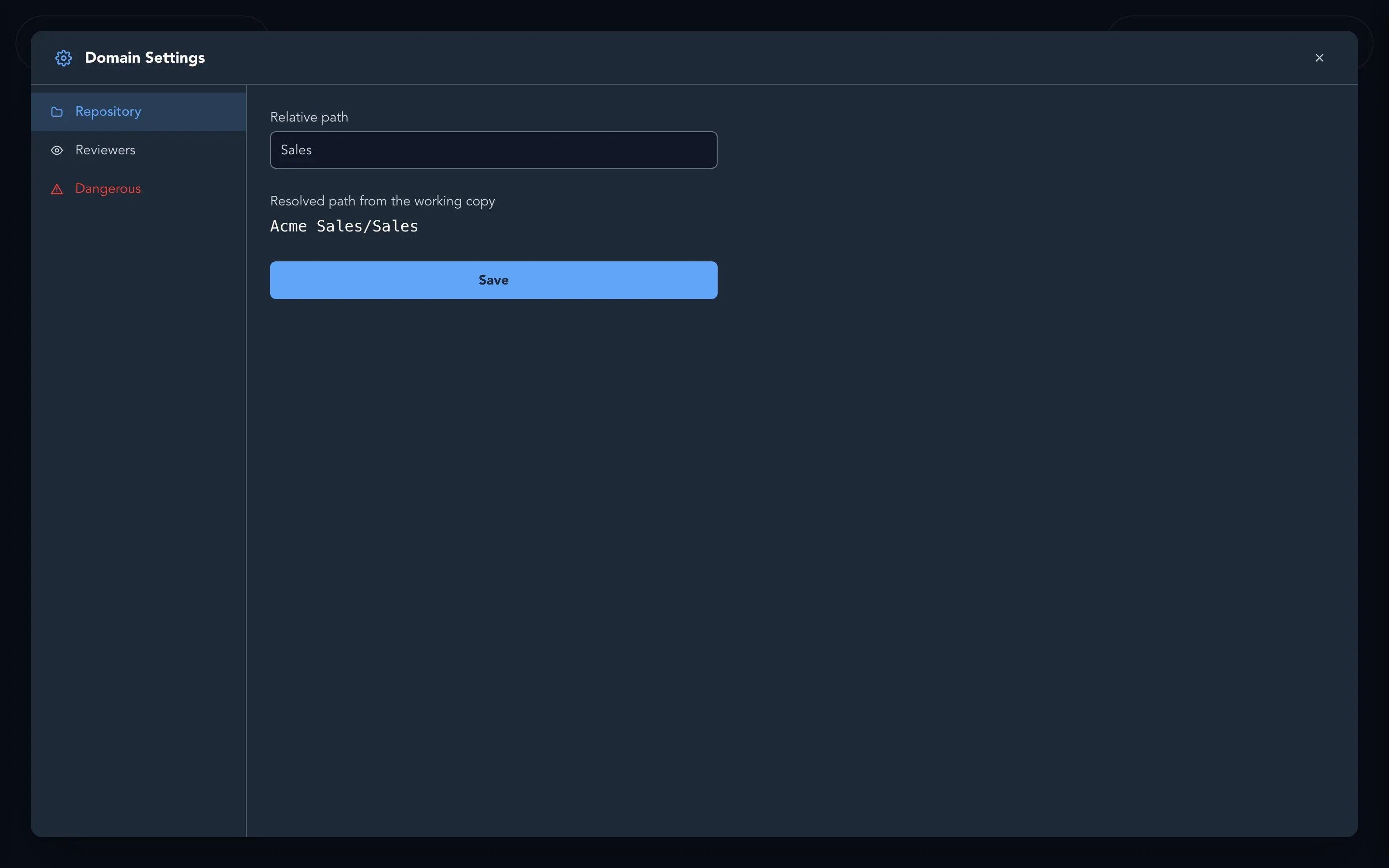
- Repository: the Relative path of the domain’s folder, and the resolved path from the working copy. Code generation refuses folders that overlap.
- Reviewers: who reviews slices in this domain.
- Dangerous: Rename domain or Delete domain. Deleting removes the domain itself; its event models, personas, concepts and brainstorming boards are not deleted but become unreachable. There is no tool to restore it.