

Find your way around a board
A board can grow to dozens of slices. Here you move around it, choose how much of it to look at and find the part you need.
Open a board
Section titled “Open a board”In the project drawer, open the application and its domain, then Event Models, and choose a board. To start a new one, use Add Event Model. The drawer is described in Find your way around Studio.
Pan and zoom
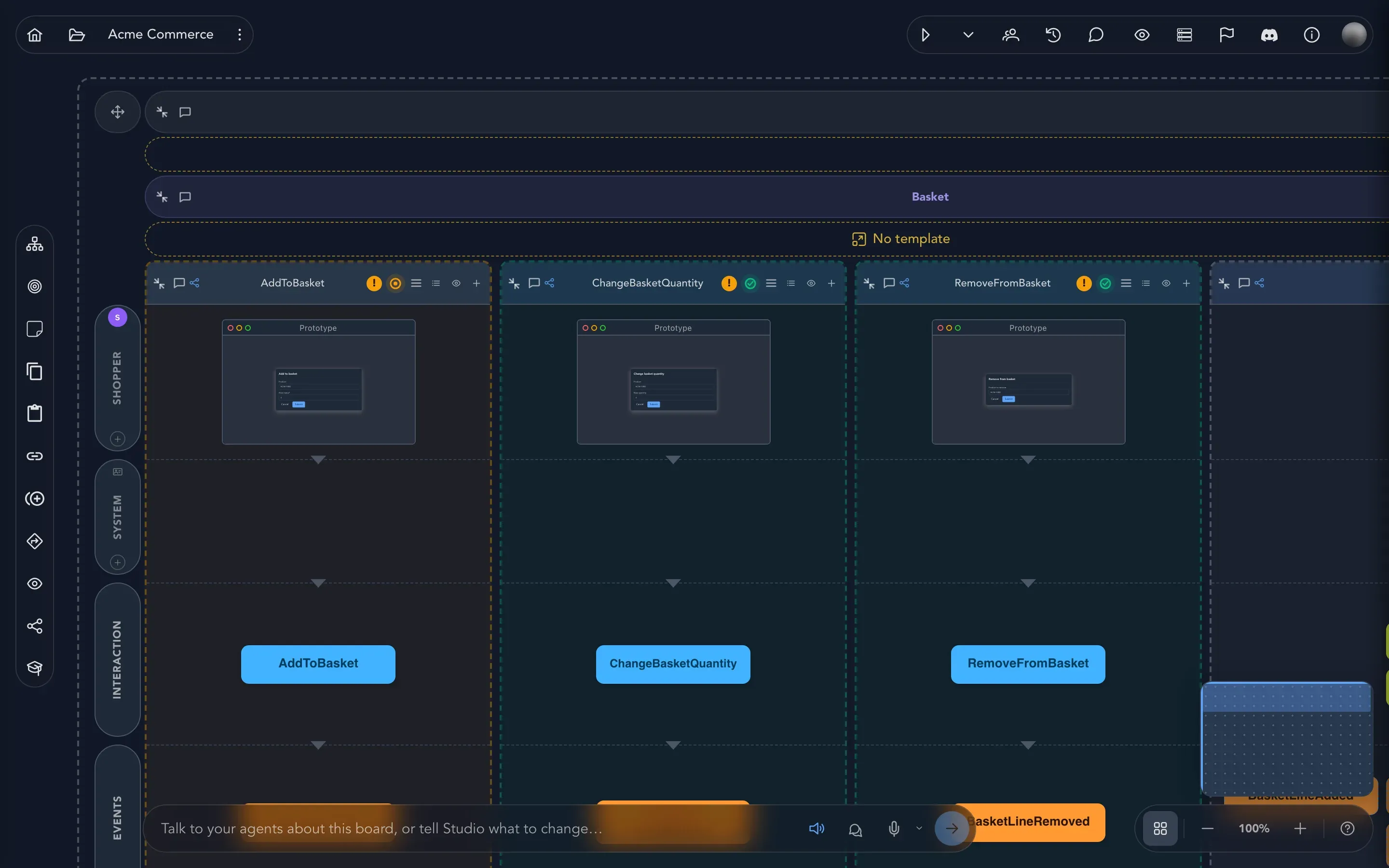
Section titled “Pan and zoom”Drag the empty canvas to pan. To zoom, hold Cmd (Mac) or Ctrl (Windows and Linux) and scroll, or pinch on a trackpad. The controls in the bottom right corner do the same:
- Zoom In and Zoom Out step the zoom.
- Reset Zoom returns to 100%.
- Toggle minimap shows or hides the minimap, a small map of the whole board.
Choose how much detail you see
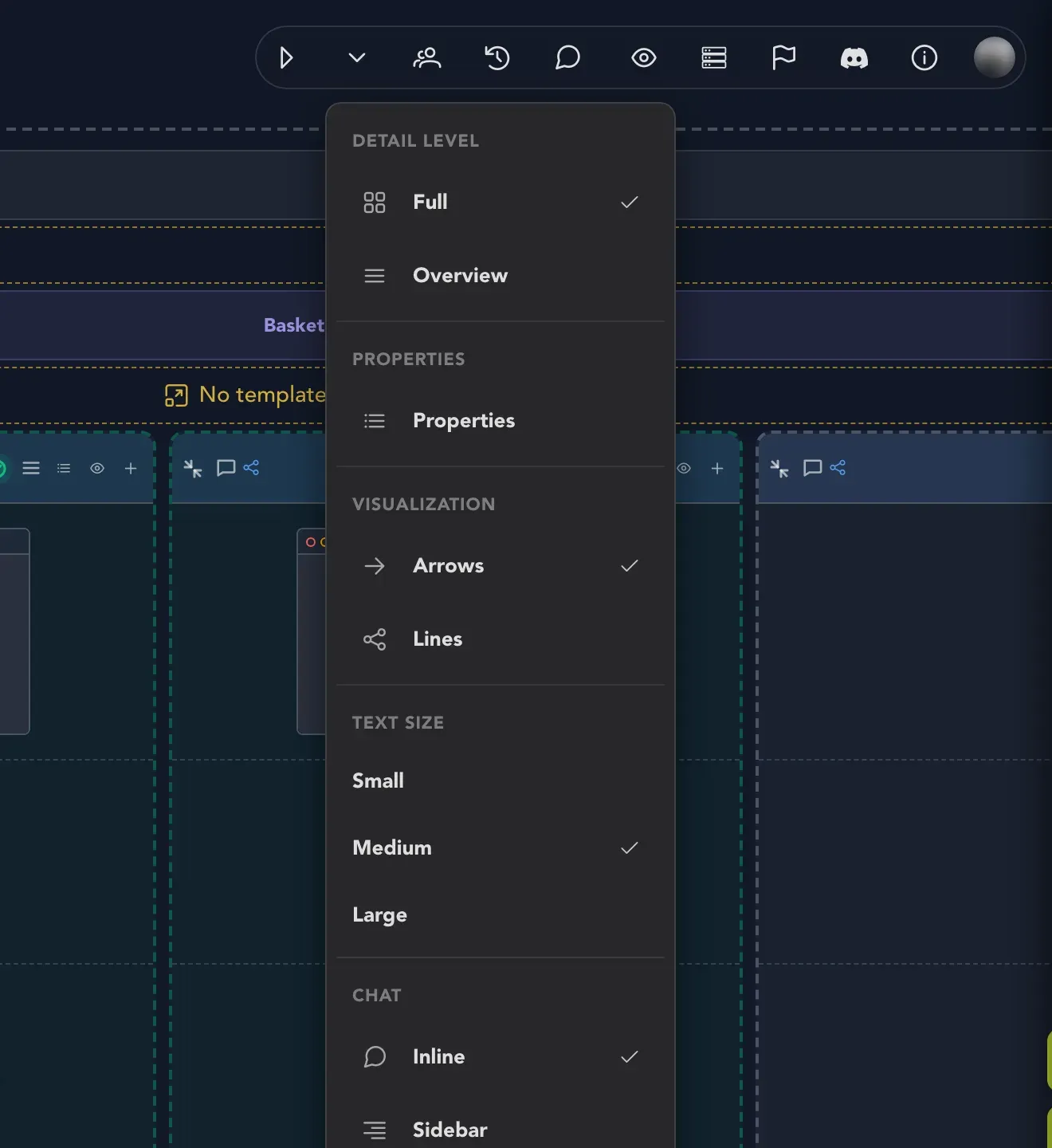
Section titled “Choose how much detail you see”Use the View menu in the top bar. The choices are remembered in your browser.
-
Select View in the top bar.
-
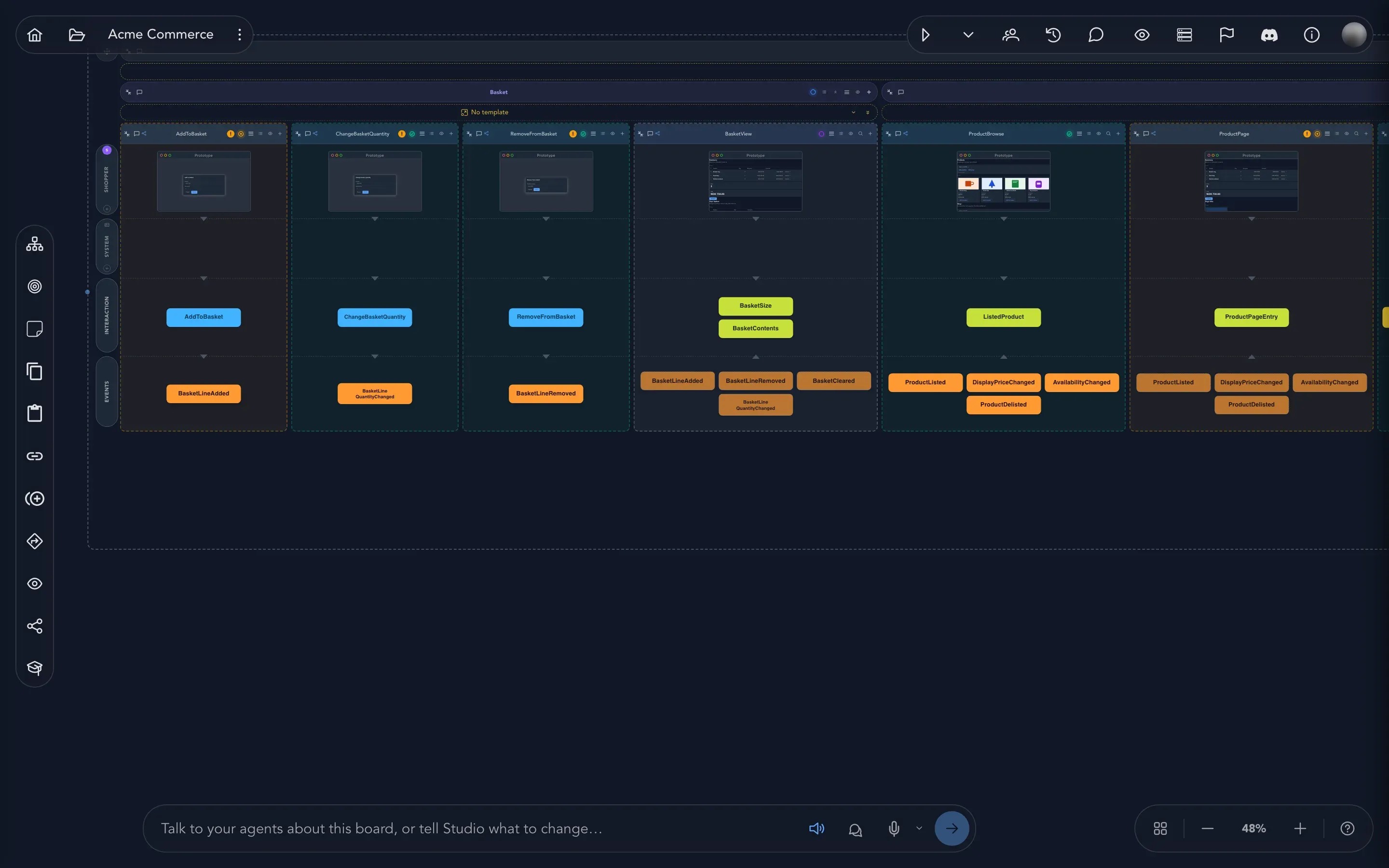
Under Detail level, choose Full to see every property on every card, or Overview to see only names. Overview is best for looking at the shape of a whole board.
-
Under Visualization, choose Arrows or Lines for how events and read models are connected.
-
Under Text size, choose Small, Medium or Large.
-
Under Chat, choose Inline or Sidebar for where the board chat sits.
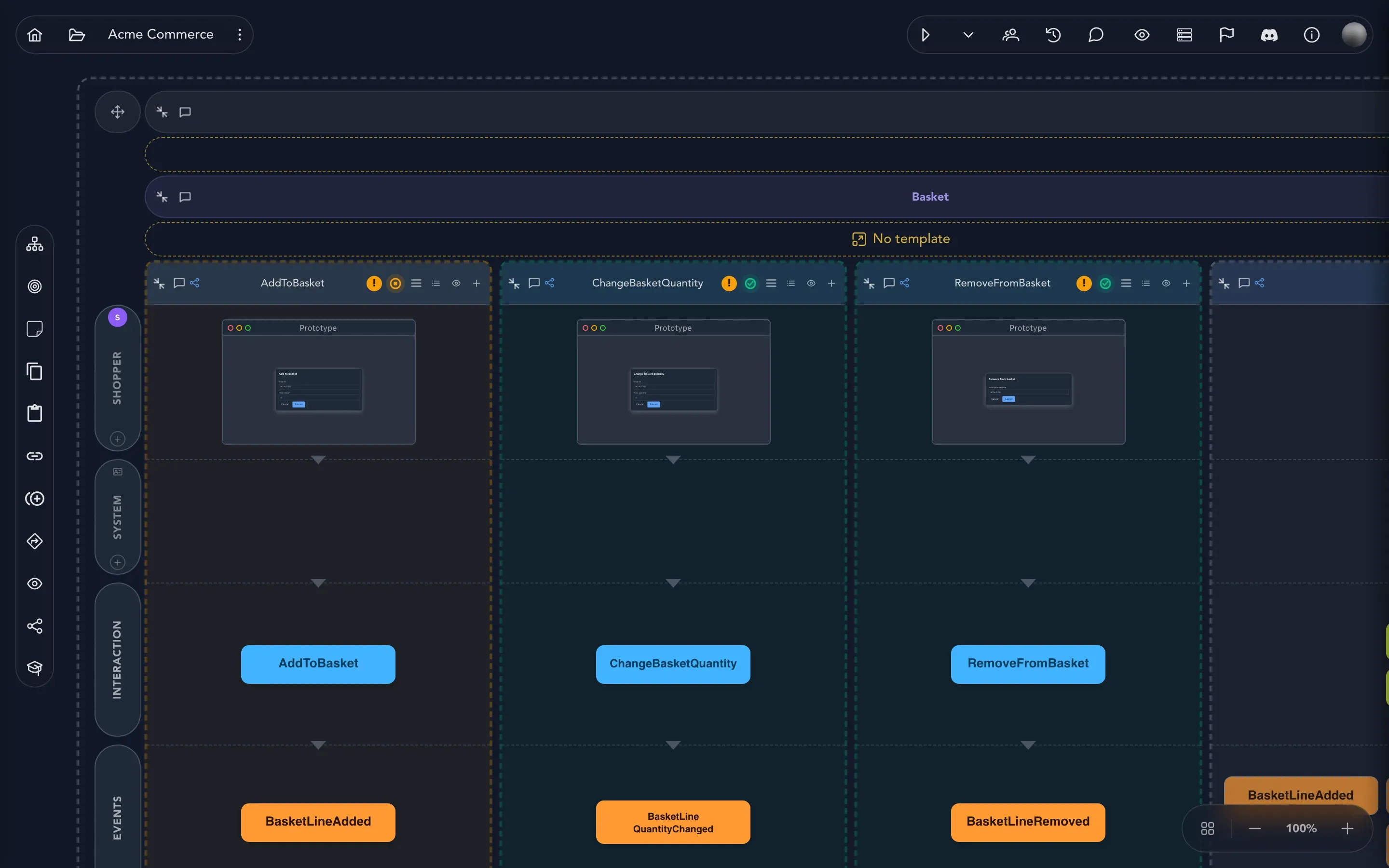
Properties in the same menu shows or hides the properties on all cards at once. To change it for one slice, select Show details or Hide details in that slice’s header.
Collapse a row
Section titled “Collapse a row”Each row of a module belongs to an actor. To save space, select Collapse row in a feature’s header, and Expand row to bring it back. A collapsed row says how many slices are hidden, with a Show button.
Focus on one feature
Section titled “Focus on one feature”When a board is big, show one feature and nothing else.
-
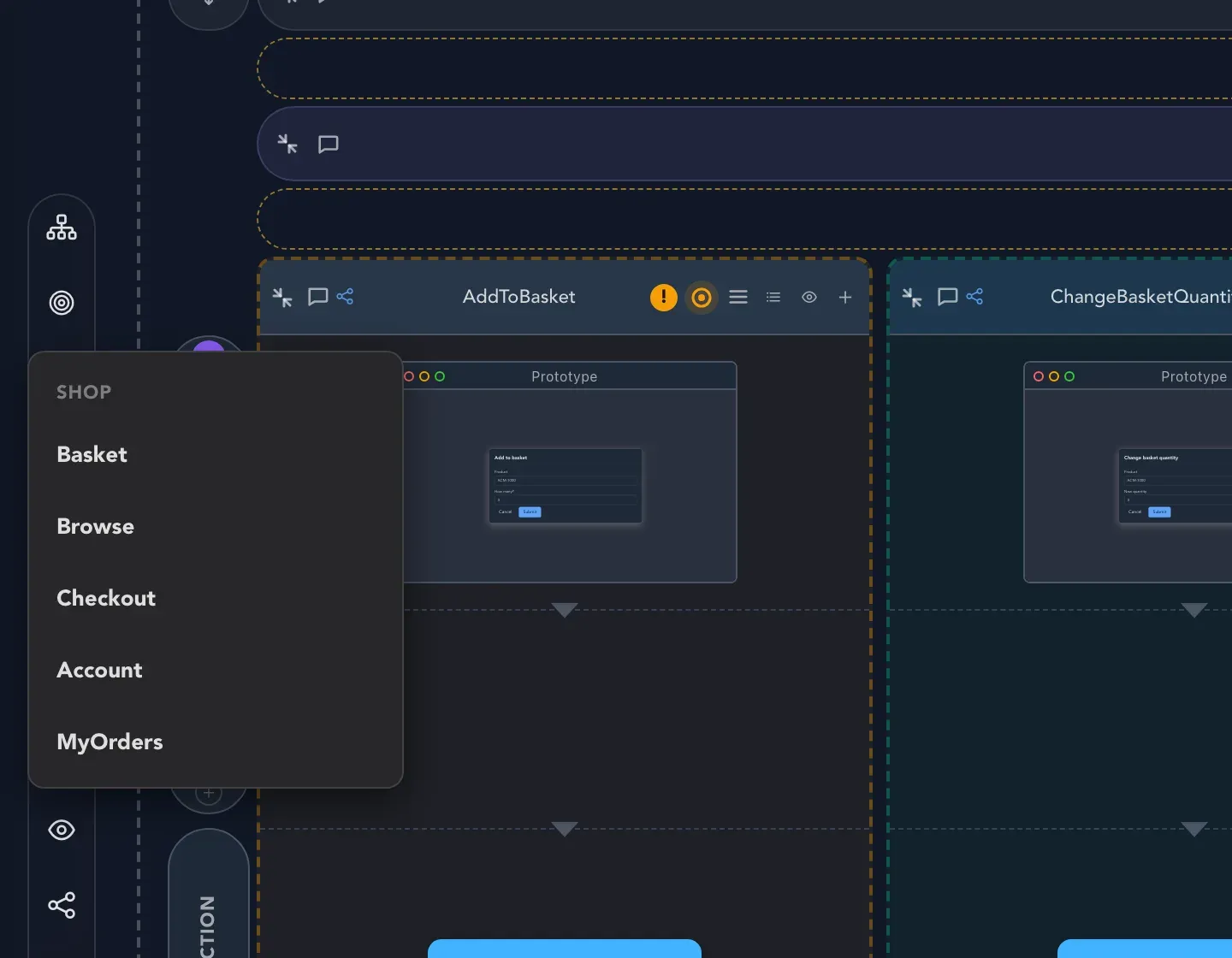
Select Focus on a feature in the toolbar on the left edge, and pick the feature. You can also open a feature’s options menu and choose Focus on this feature.
-
Studio draws only that feature and says Focused on and its name.
-
Select Show the whole board to leave.
Find something on the board
Section titled “Find something on the board”To find a particular thing, use one of these:
- Focus on a feature to show only its slices.
- Storylines, which jump to each step of a path through the board. See Check the model.
- The findings list from Check the model, which names the slice each problem is about.
- The board chat, which can answer questions about the model. See Work with AI.
- When you add an existing event to a slice, a search box (Search events…) finds events from the whole application.
Get help on the board
Section titled “Get help on the board”The help button in the bottom right corner (tooltip Explain how this event model works) asks an agent to explain the board. It appears only when an AI agent is available for your organization. To take a guided tour of the board, use Take the guided tour at the bottom of the left toolbar. See Guided tours.
Related pages
Section titled “Related pages”- Modules and features to build the structure of the board.
- Slices to add behavior.
- Statuses and colors for what the colors on the board mean.
- Copy, paste and duplicate to select several things and move them at once.