

Connect GitHub
GitHub is where Studio puts the code it generates and where it keeps your work in step with your team. Your organization connects GitHub once by installing the Studio GitHub App on the GitHub organizations or accounts your code lives in. After that, every project can choose a repository from those installations.
With GitHub connected, a project can:
- Publish generated code as branches and pull requests, instead of keeping it in Studio’s local repository. See Generate code.
- Let builders work in the repository, whether Studio handles the branches and pull requests or the builder does. See Builders.
- Keep a board in sync with Git, so the model lives beside the code. See Keep a board in sync with Git.
- Create issues from slices and follow their state, and keep slice status and issue state in step. See Link slices to issues.
No personal token is kept. Whenever Studio needs to work in a repository, it asks GitHub for a short-lived token for that one repository.
Before you start
Section titled “Before you start”- You are a maintainer of the organization.
- You can install GitHub Apps on the GitHub organization or account your code lives in, or you can ask its owner to approve the installation.
Connect GitHub
Section titled “Connect GitHub”-
Open Organization settings and select Integrations.
-
Under Source Control, select Connect GitHub.
-
On GitHub, choose the GitHub organization or account your code lives in, choose which repositories the app can reach (all of them, or only the ones you select), and install the app.
-
GitHub sends you back to Studio. The installation is listed under Source Control. If it is your organization’s first installation, it becomes the one Projects use by default.
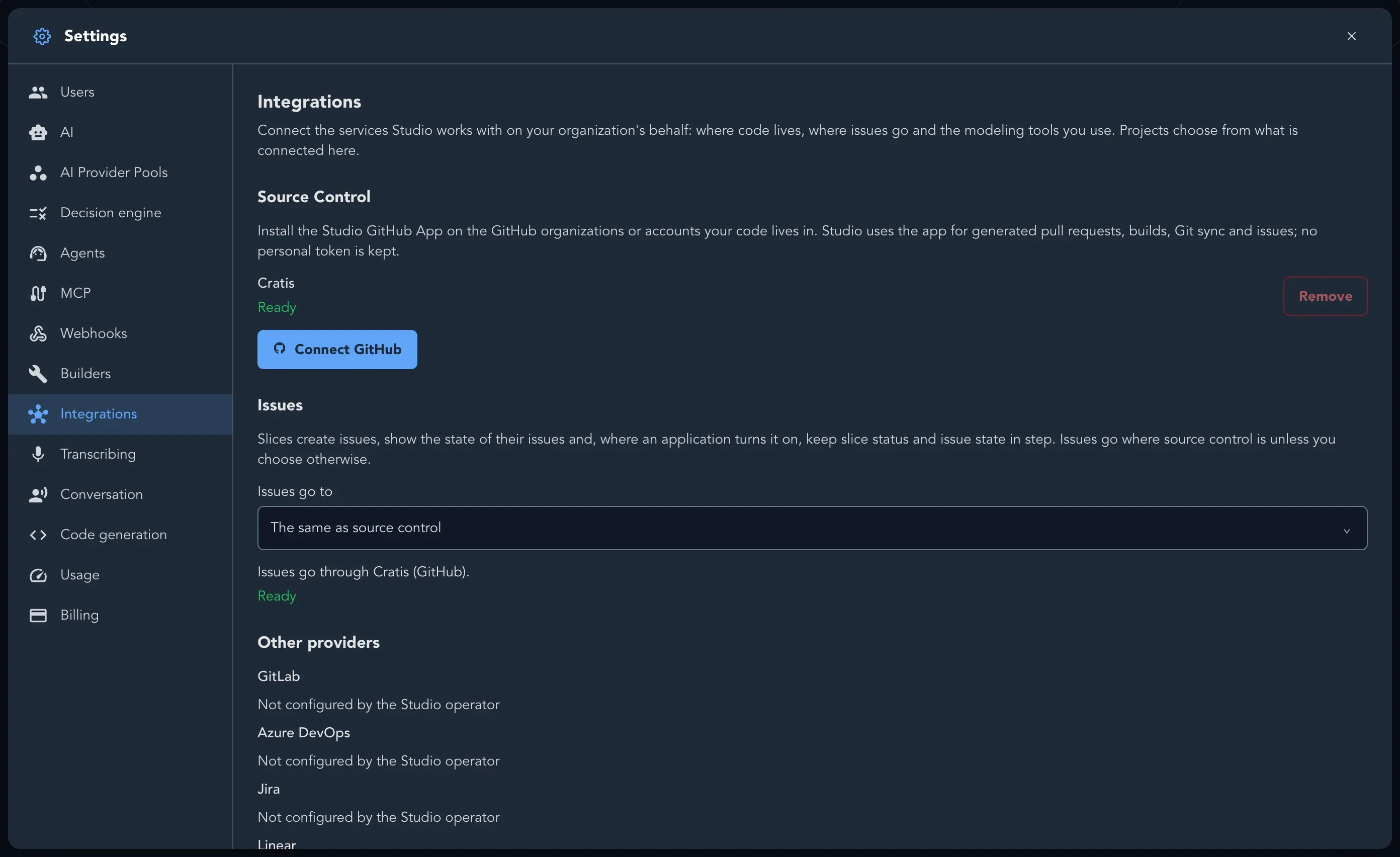
If Connect GitHub is not offered, the page says The Studio GitHub App is not configured for this Studio, so GitHub cannot be connected. Contact support (see Get help).
Several GitHub organizations
Section titled “Several GitHub organizations”Connect GitHub again for each GitHub organization or account your code lives in. Each installation is listed on its own. Projects use by default says which one a new project starts with; a project can choose any of them.
Which repositories an installation can reach is decided on GitHub. To give Studio another repository, change the installation’s repository access on GitHub.
Check that an installation is ready
Section titled “Check that an installation is ready”Each installation shows whether Studio can use it:
| Status | What it means |
|---|---|
| Ready | Studio can use it for everything. |
| Waiting for approval on GitHub | The app asks for a permission, such as Issues, that the owner has not accepted yet. It keeps working for source control. Select Review and approve on GitHub to send the owner there. |
| Unavailable | Studio cannot reach it, for example because the app was suspended or uninstalled on GitHub. |
| The provider could not be asked just now | GitHub did not answer. Studio asks again later. |
Give a project its repository
Section titled “Give a project its repository”An installation only makes repositories available. Each project chooses its own on Project Settings > Source control: pick the Installation, then Choose the repository, then Connect repository. An application can use a different repository from the rest of its project.
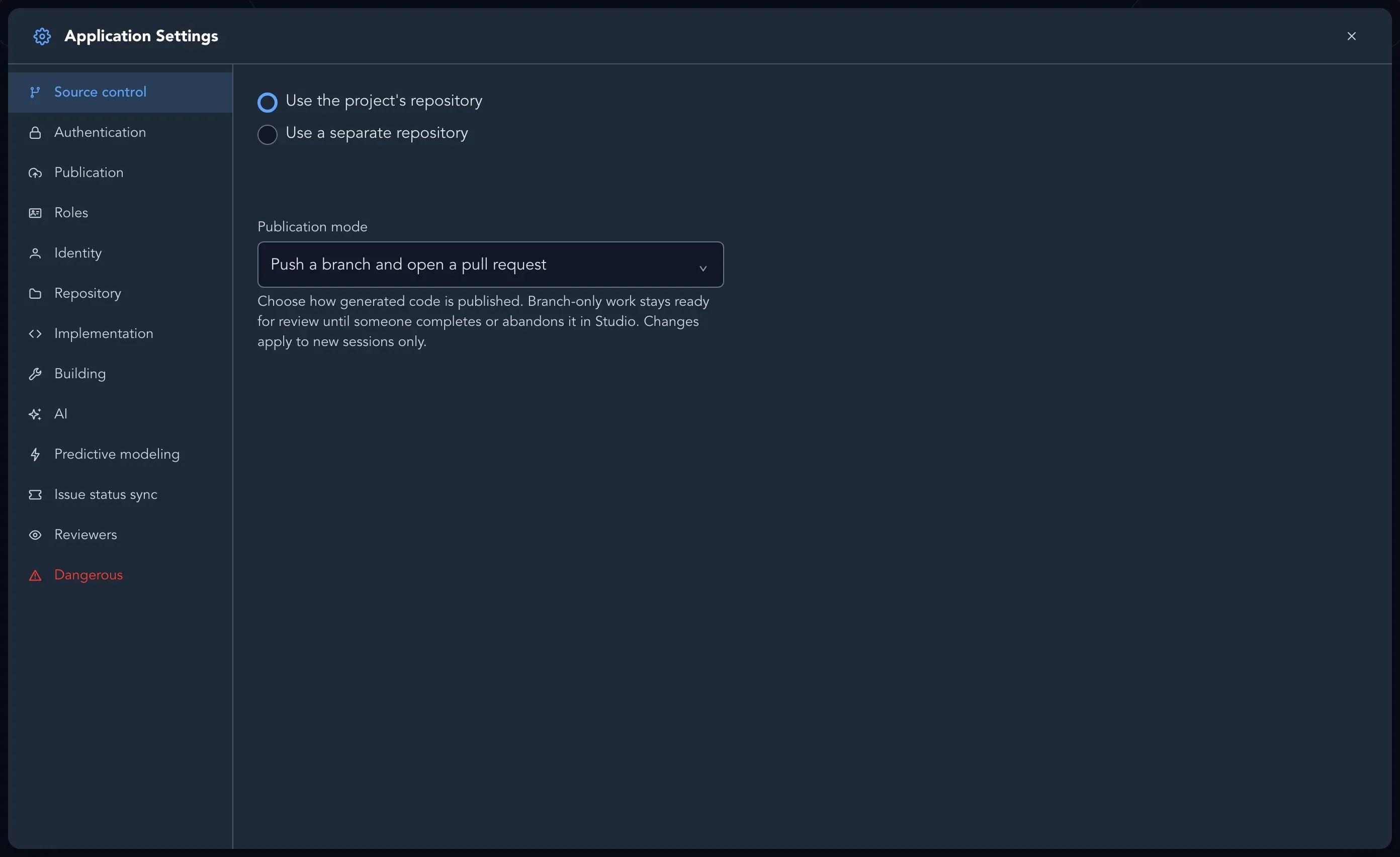
The project’s source control also says whether the repository is ready:
- Ready to publish generated branches. Everything works.
- This installation needs to be reapproved on GitHub before Studio can publish generated branches. The app asks for more permissions than the owner has granted. An owner of the GitHub organization approves them on GitHub; select Review on GitHub.
- Studio cannot read this installation’s settings on GitHub, so it cannot tell whether the installation grants what code generation needs.
- The installation cannot reach any repository. Choose which repositories the app can reach on GitHub.
- This installation is no longer available on GitHub. Connect the repository again.
The steps are in Connect a repository.
Send issues to GitHub
Section titled “Send issues to GitHub”Issues go to the same place as source control unless you choose otherwise. Under Issues, Issues go to is The same as source control by default, which sends slice issues to the project’s GitHub repository. You can pick another GitHub installation, or another issue tracker such as Jira or Linear.
To create issues, the installation needs the Issues permission. An installation that shows Waiting for approval on GitHub can’t create issues until the owner approves it.
Remove an installation
Section titled “Remove an installation”Select Remove next to the installation. An installation chosen for source control or issues has to be replaced there first: Studio says Choose another installation for source control or issues first.
Removing it means projects can no longer choose its repositories. Repositories projects already use keep working, and issues already linked stay linked. Removing it in Studio does not uninstall the app. To take its access away, uninstall the Studio GitHub App in the GitHub organization’s or account’s settings.