

Link slices to issues
A slice can be linked to one or more issues, so the work for the slice and the ticket for it are one click apart. Studio shows whether a linked issue is open or closed, and can keep the slice’s status and the issue’s in step.
Link a slice to an existing issue
Section titled “Link a slice to an existing issue”-
Open the slice’s menu with Slice options and choose Link the slice to an issue. The Issues for dialog opens. It lists the slice’s issues, or says The slice is not linked to any issue.
-
In Issue, paste the issue’s address or key. Studio shows what it understood, for example GitHub issue owner/repository#12.
-
If Studio asks which Tracker the issue is in, choose it.
-
Select Link.
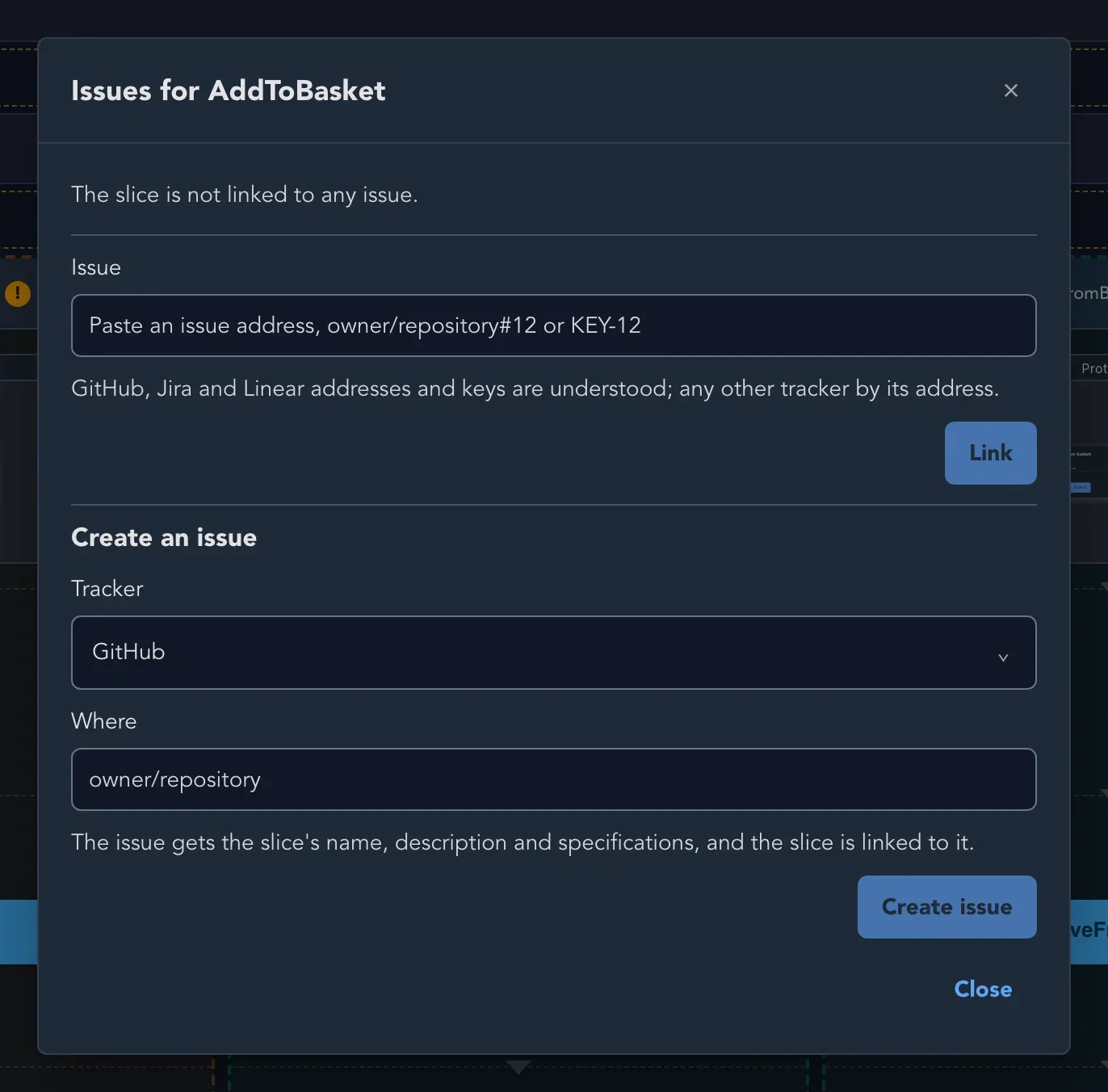
What you can paste:
- A GitHub issue as
owner/repository#12. - A Jira issue as its key, such as
SHOP-77. - A Linear issue as its identifier, such as
ENG-4. - Any other tracker’s issue by its address.
The trackers Studio knows are GitHub, Jira, Linear, GitLab, Azure DevOps and Other.
Once a slice has links, its header shows a Linked issues chip with the number of issues. The dialog lists every issue with its status: Open, Closed or Unknown. When the organization is not connected to the tracker, Studio shows the state of a public GitHub issue and otherwise shows the issue by its key alone. Select Unlink to remove a link. That does not change the issue.
Create an issue from a slice
Section titled “Create an issue from a slice”In the Issues for dialog, use Create an issue.
-
Under Where, enter where the issue goes:
owner/repositoryfor GitHub, a project key such asSHOPfor Jira, or a team key such asENGfor Linear. -
Select Create issue.
The issue gets the slice’s name as its title, with the slice’s description and specifications and a link back to the board. The slice is linked to the new issue. If no tracker is connected yet, the dialog says to connect GitHub under Settings > Integrations.
Connect your trackers
Section titled “Connect your trackers”Issues go through your organization’s integrations, which a maintainer sets up once under Settings > Integrations: GitHub, Jira and Linear each have an app to connect. See Connect GitHub and Organization integrations.
By default a project’s issues go where its source control is. A project can send them to a repository of its own on the Source control tab of Project Settings, in the Issues section. See Connect a repository.
Keep slices and issues in step
Section titled “Keep slices and issues in step”An application can keep a slice’s status and its issues’ state in step. It is off until you turn it on, because it changes issues in another system.
-
Open the application’s Application Settings and select the Issue status sync tab.
-
Turn on Keep slices and their issues in step.
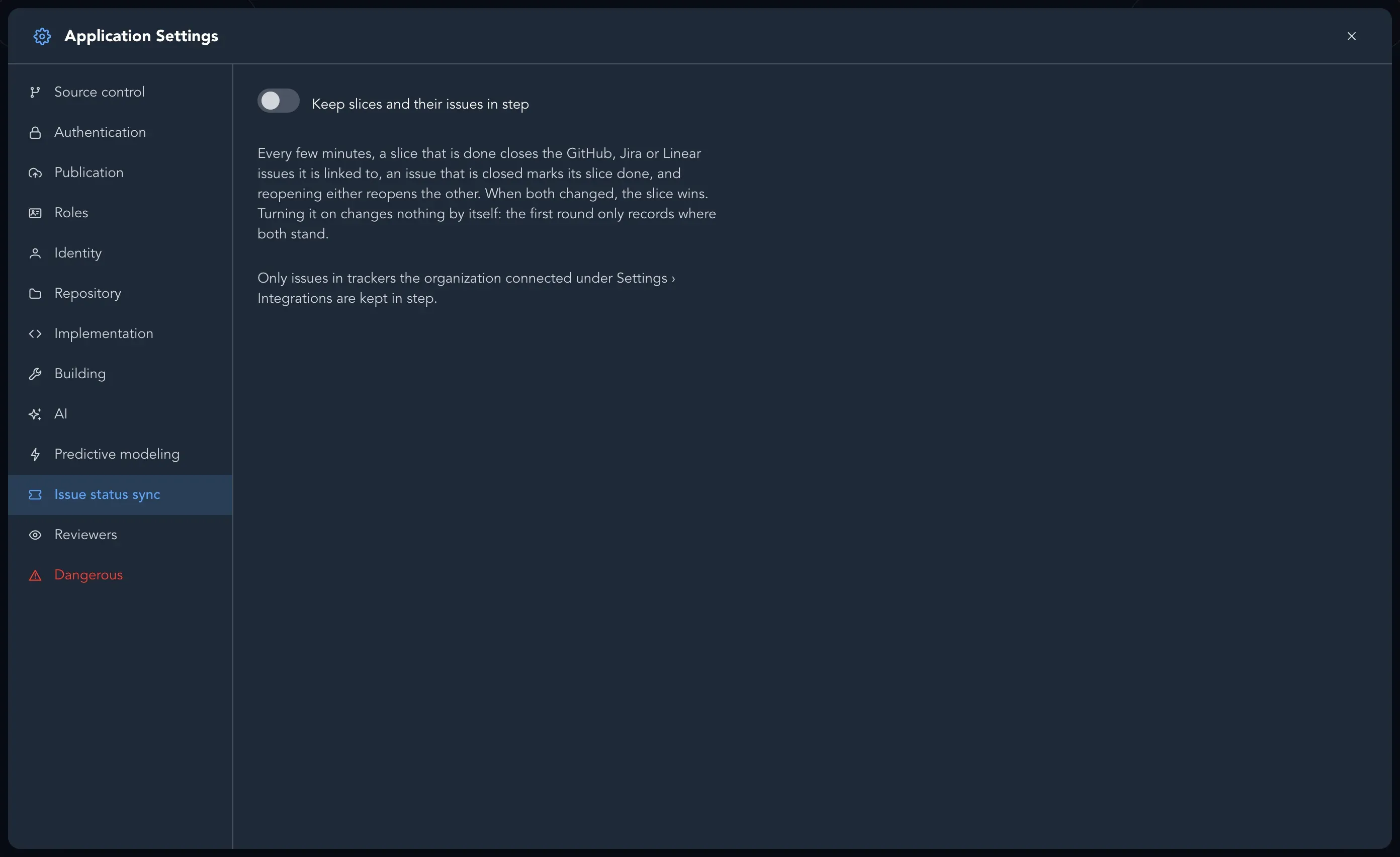
Every few minutes:
- A slice that is done closes the issues it is linked to, and a closed issue marks its slice done.
- Reopening either one reopens the other.
- When both changed since the last round and disagree, the slice wins, because the model is what Studio keeps.
Turning it on changes nothing by itself: the first round only records where the slice and its issue stand. Only issues in trackers your organization has connected are kept in step. Through the GitHub App, only a person’s own request can change an issue, so an issue reached only through the app is followed but not changed, and the slice records why. When a tracker refuses a change, for example because a token has expired or a Jira workflow has no way to finish the issue, Studio records it on the link and tries again in the next round.
Issue links in the model
Section titled “Issue links in the model”Issue links travel with the model. They are exported with the Screenplay files, so Git sync commits them, and they are linked again when the model is imported, even into another application. Importing the same model twice does not link an issue twice. An issue link whose slice is not in the imported model is reported.