

Play your model
Play runs the event model you have open as a real application, so you can use it before anything is built: fill in a form, run a command, and see the events and read-model state it produces. It is the quickest way to find out whether the model does what you meant.
Before you start
Section titled “Before you start”- Open an event model on its board. Play starts this event model, not every one in the application.
- Pick a small path through the model: one command, the event it produces, and a read model that shows that event as state. The command and event belong in a state-change slice, the read model in a state-view slice.
- Decide what state you expect after the command. That gives you something to check.
- Give the command exactly one Key property, in the command’s property editor. It must be a single value, not an object or a list. The key says which thing the command acts on.
- Supply the values that the command’s events require, and resolve the board’s warnings about missing event values. Play checks the model before it starts, and refuses a model that has them. Generate code explains those warnings.
Start, try and inspect
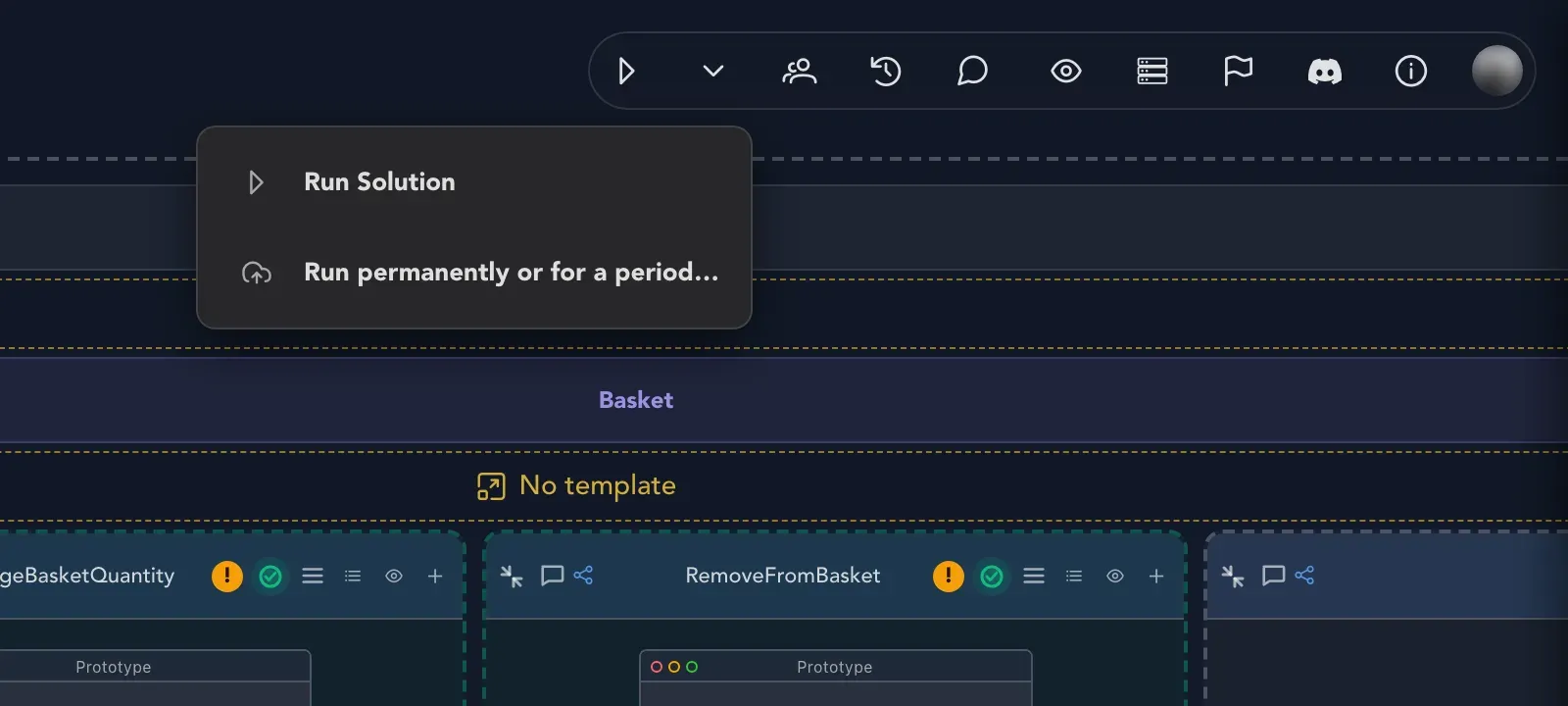
Section titled “Start, try and inspect”- On the board, select the play icon Run Solution in the top bar.
- Wait while it reads Starting stage…. The application’s frontend then appears in place of the board.
- In the application, run the command you modeled, with its required values.
- Select Read models in the Play toolbar and open the read model that shows the event. Compare its current instances with the state you expected.
- Select Chronicle Workbench to see the events the session recorded.
- Select the stop icon Stop Solution when you are finished. Studio returns to the board and stops the session in the background.
What you will see: the board is replaced by a full-size view of your application, with a small toolbar at its top right. Stop Solution comes first in that toolbar, followed by the four surfaces below.
The four surfaces
Section titled “The four surfaces”Play shows one surface at a time. Use the toolbar to move between them.
| Surface | What it shows |
|---|---|
| Frontend | The application’s screens, drawn from your model. |
| Backend API | The reference of the API the session hosts. |
| Chronicle Workbench | The events the session recorded, in a browser of its own. |
| Read models | The read models of the session and their current instances. |
Switching surface reloads the view while a loading indicator shows. The session, and what you created in it, stays.
The Runtime engine is shown with its status. Refusals while you try things are named: Denied (403) when the caller is not allowed, Validation refused (400) when a rule refused the input, and Not admitted (501) when the session does not run that part of the model.
Check that it worked
Section titled “Check that it worked”If the frontend loaded, the session started. The read model shows what your command did. If it differs from what you meant, return to the board and write a specification that states the behavior you expect, then run it until it passes.
If Play does not start
Section titled “If Play does not start”- Studio refuses the model. It returns you to the board with a reason, such as a duplicate slice name inside a feature or a missing key. Fix what it names and start again; starting with the same problem fails the same way.
- The stage did not start. Stop and try again. Select Stop Solution, then Run Solution again, which creates a new session. Switching surface only changes the view of the session you have, so it does not help. If a new session also fails, ask your Studio operator to look into it.
Related
Section titled “Related”- Specifications and Play: why Play and specifications complement each other.
- Generate code: the board warnings Play refuses to start with.
- Publish and collect feedback: keep an application running at its own address.