

Personas
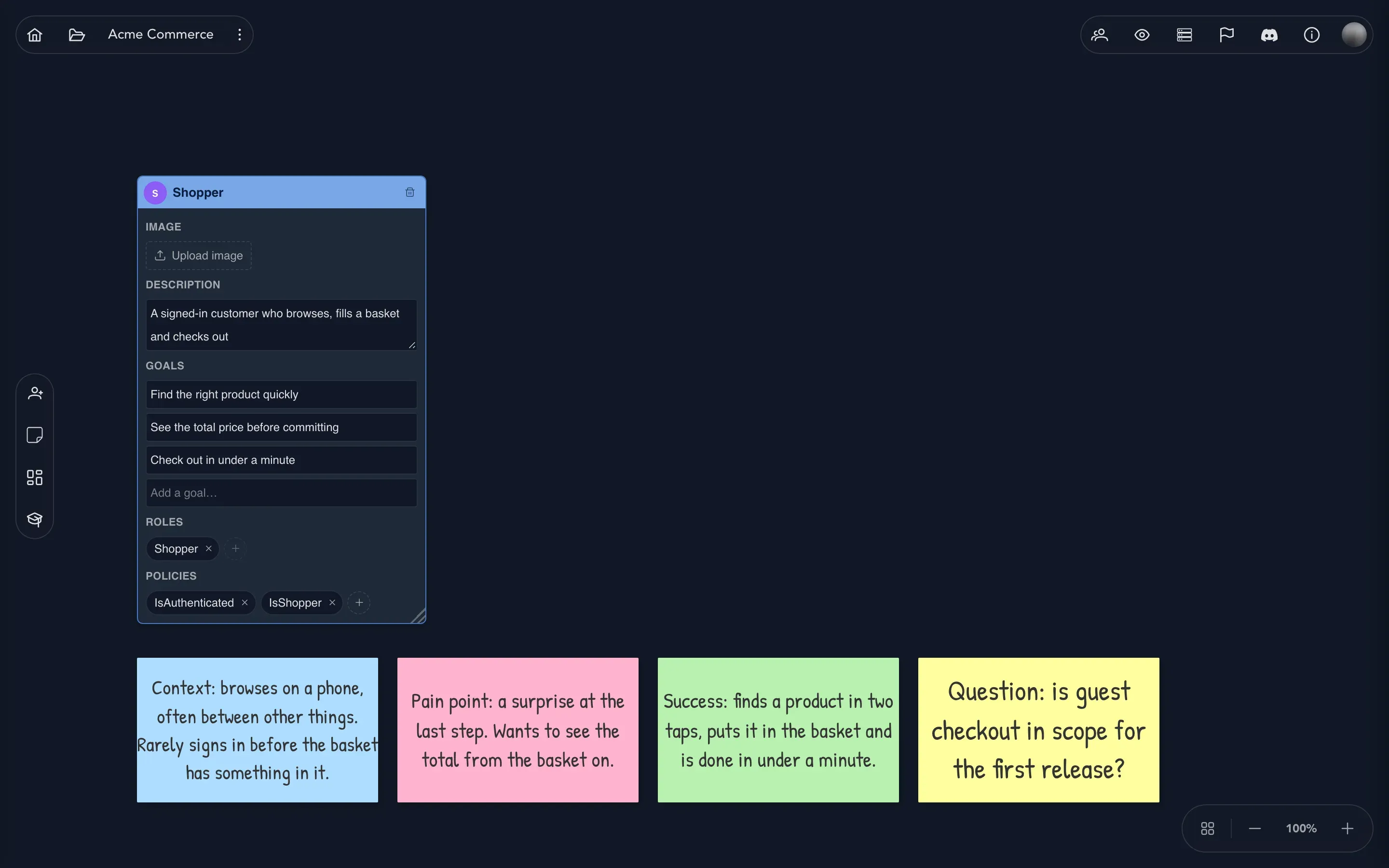
A persona is a kind of person who uses the system: a shopper who browses and orders, a warehouse clerk who ships. It is not an account and not one individual. It is the part someone plays, described once for the whole domain.
Add a persona
Section titled “Add a persona”- In the project drawer, expand your domain and select Personas.
- Select Add persona in the toolbar. A card named New persona appears.
- Double-click the name and type what the domain calls them, for example
Shopper. Press Enter. - Under Description, write who they are in a sentence: A shopper who browses the catalog and places orders.
Changes on a card are saved when you leave the field. There is no save button.
Add goals
Section titled “Add goals”Under the description is Goals: what the persona is trying to achieve. They are why the persona exists, and the commands and read models on the domain’s boards are there to serve them.
Type a goal into the empty Add a goal… field and click away. A fresh empty field appears for the next one. To change a goal, edit its wording. To remove one, empty its field. Goals keep the order you stated them in.
Add an image
Section titled “Add an image”Until you upload one, a persona has a colored circle with its initials. Select Upload image, pick a picture and drag the crop over the part you want. The image is saved as a square and appears wherever the persona does, on its card and on the event model board.
Say what they may do
Section titled “Say what they may do”A persona states what its people are allowed to do with two groups on its card. Neither is created here; both belong to the application, so the card only chooses among them.
- Roles lists the application’s roles that the persona holds, as chips. Select Add role and choose one. Take it away with the cross on its chip.
- Policies works the same way, with Add policy. A policy is a named rule of the application, such as
IsShopper.
Granting or withdrawing a role or a policy here never changes the role or policy itself. Together they answer: what may this person do?
Use a persona elsewhere
Section titled “Use a persona elsewhere”- On the board. An actor row shows who each slice is for. Open the actor’s badge and choose Choose persona. The actor takes the persona’s name and avatar. Choosing Custom… goes back to describing the actor by hand.
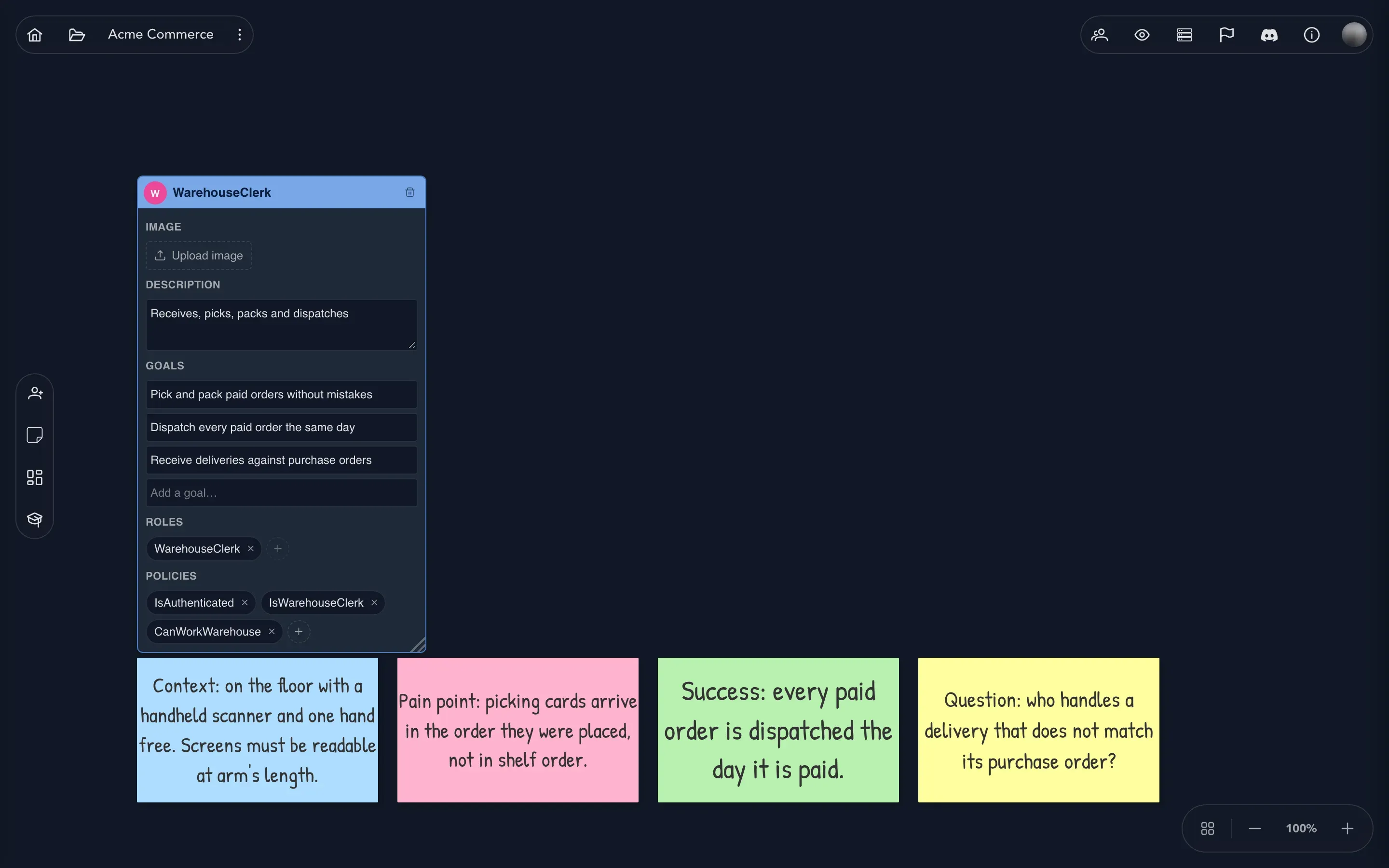
- In specifications. A specification can name a persona as its caller instead of listing roles by hand. A specification can also expect a command to be denied, which is how the model says that a warehouse clerk may not place an order.
- In previews and chat. A screen preview can be shown As persona, and a chat bubble on a brainstorming board can speak as one.
- In an exported model. The domain’s personas travel with the exported Screenplay file, and importing a model brings its personas onto this canvas.
Arrange and remove
Section titled “Arrange and remove”Drag a card by its header to move it, or drag its lower right corner to resize it. Arrange, the last tool on the toolbar, lays out every card and note in tidy rows. Sticky notes are for what is not settled: Does a guest checkout count as a customer?
To remove a persona, use the trash can in its header. You are asked to confirm. The actors that pointed at it stay on the event model but show no persona, and the application’s roles and policies are not changed.