

Profile and appearance
Your account profile holds everything that is about you rather than about an organization. Open the account menu in the top bar and choose Account profile. The Account Profile window has four pages in a list on the left.
| Page | What it is for |
|---|---|
| Account Profile | Your name, email address, bio and photo. |
| Credentials | The ways you can sign in. |
| Appearance | The background behind your boards. |
| Voice and conversation | How agents speak to you and how conversations behave. |
Account Profile
Section titled “Account Profile”Under Personal Information you can set your First Name, Middle Name, Last Name and Display Name, and write a short Bio. Select Save to keep your changes. The display name is how you appear to other people.
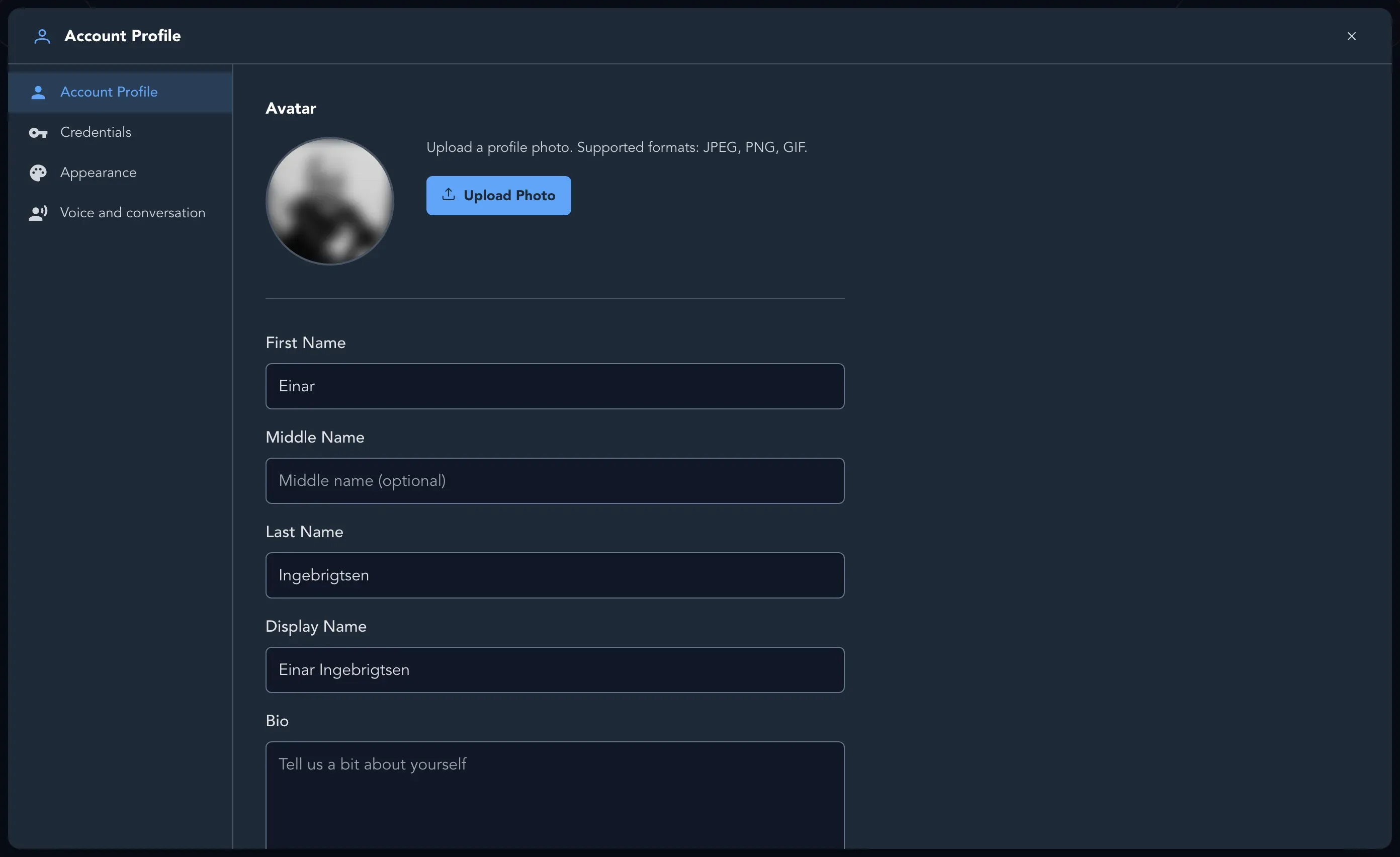
To change your Email, select Update Email. Studio sends invitations and a few notices, such as changes to the terms, to this address. There are no notification settings to adjust.
Your photo
Section titled “Your photo”Under Avatar, select Upload Photo and choose a JPEG, PNG or GIF file. Drag the circle in the Crop Photo window to choose the area to use, then confirm. Select Remove Photo to go back to your initials.
Credentials
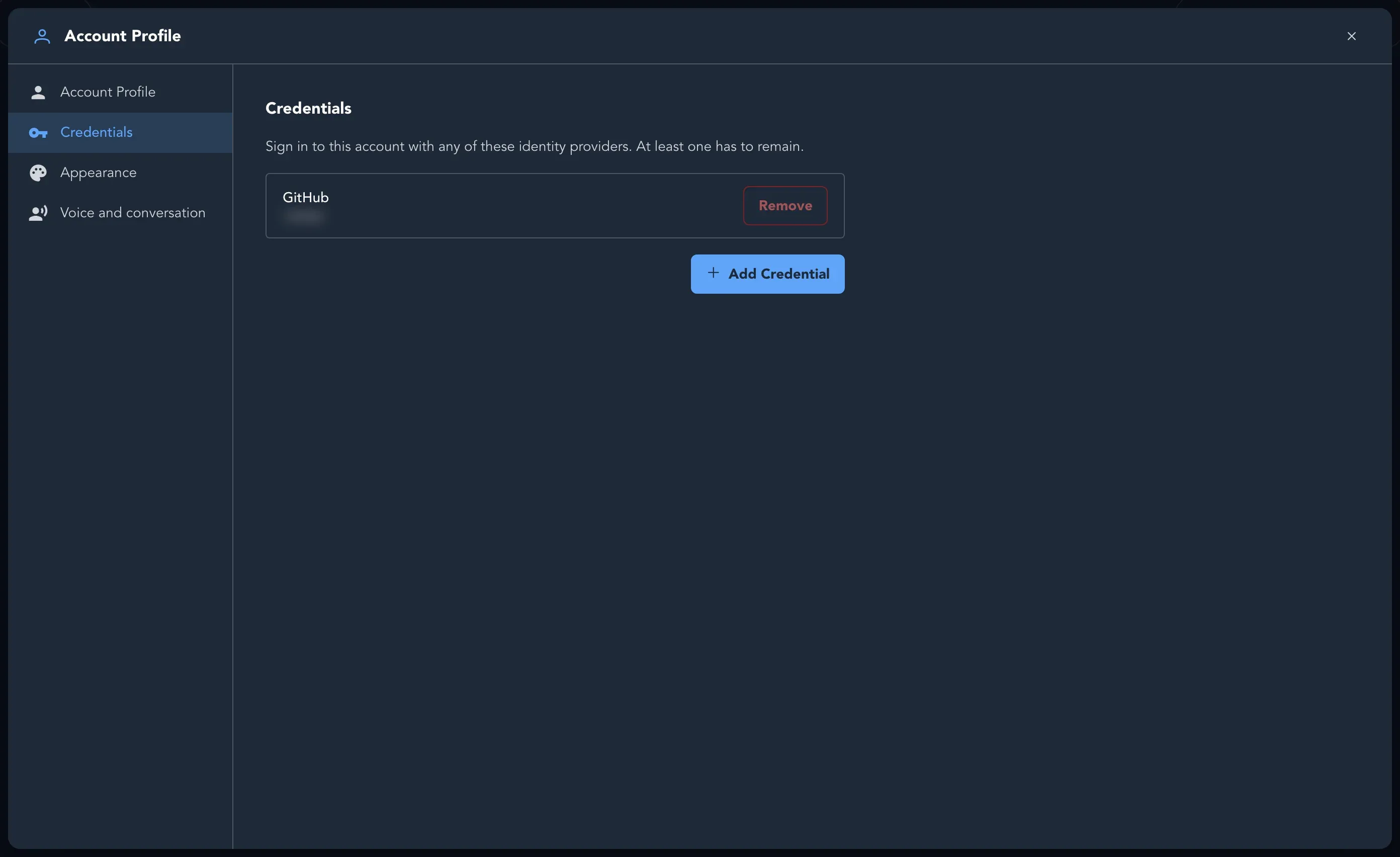
Section titled “Credentials”You can sign in to your account with any of the identity providers listed here. The providers on offer include GitHub, Microsoft, Google and Apple.
- Select Add Credential, then choose a provider, to add another way to sign in.
- Select Remove next to a credential to take it away. You can no longer sign in with it.
- You cannot remove your only credential. At least one has to remain.
Appearance
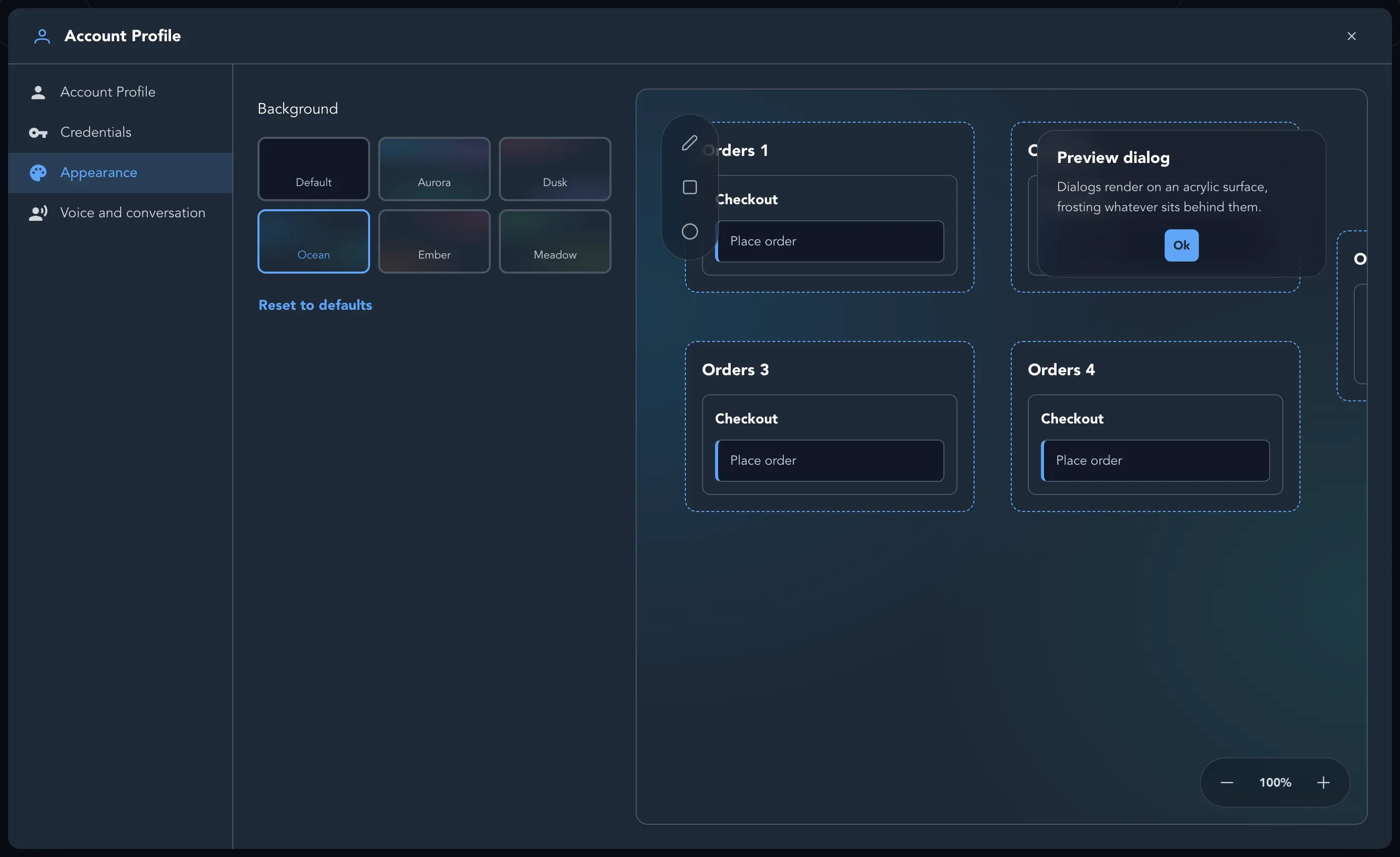
Section titled “Appearance”Choose a Background for the canvas behind your boards: Default, Aurora, Dusk, Ocean, Ember or Meadow. A live preview shows a board and a dialog on the background you point at, so you can see how it looks before you keep it. Reset to defaults takes you back to where you started.
New users start on Ocean. Your choice is remembered in the browser you are using, so on a second browser you choose again.
Voice and conversation
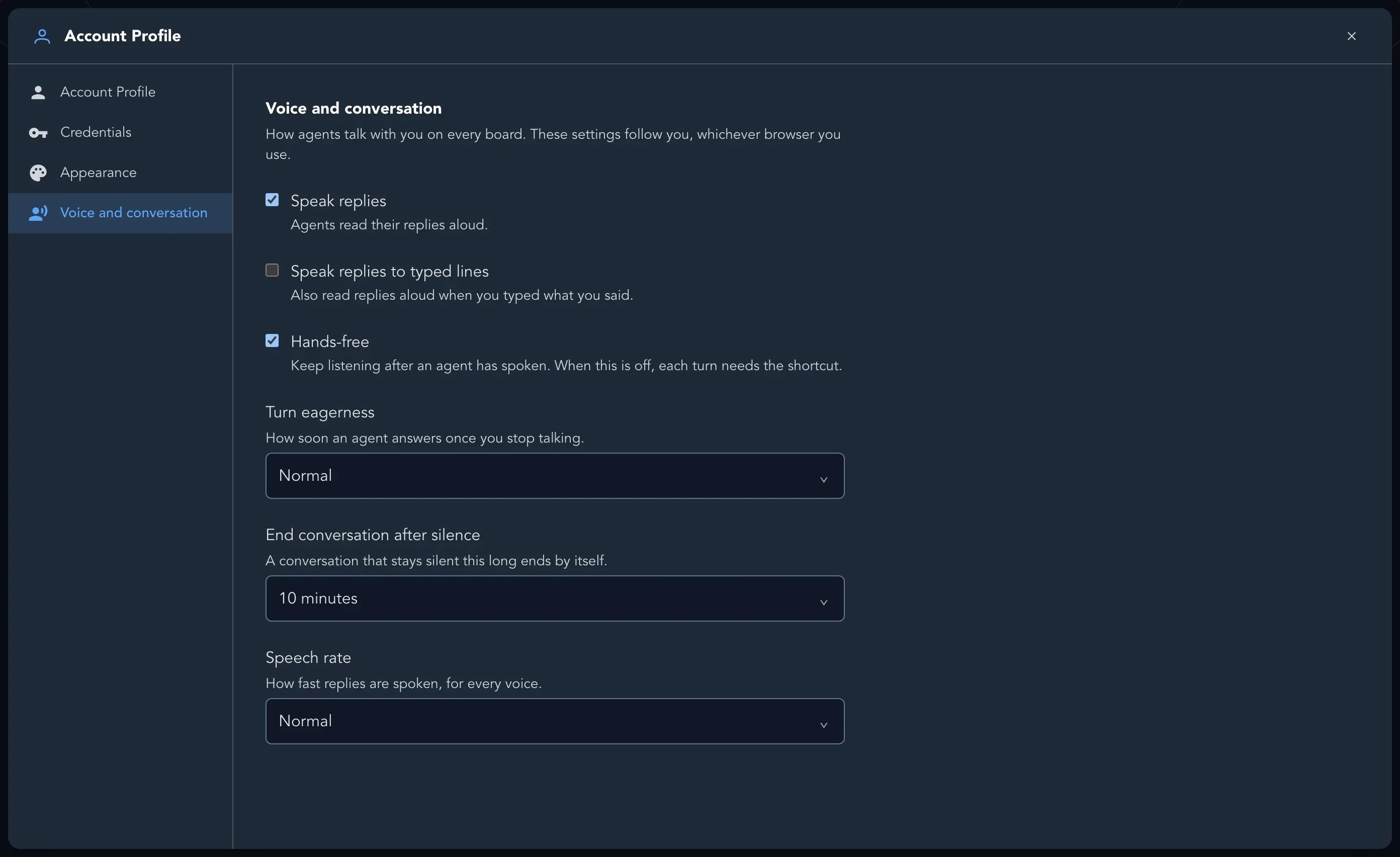
Section titled “Voice and conversation”Studio’s agents can talk. These settings decide how, on every board, and they follow you whichever browser you use. Changes are saved as you make them.
| Setting | What it does |
|---|---|
| Speak replies | Agents read their replies aloud. |
| Speak replies to typed lines | Also reads replies aloud when you typed what you said. |
| Hands-free | Keeps listening after an agent has spoken. When this is off, each turn needs the shortcut. |
| Turn eagerness | How soon an agent answers once you stop talking: Relaxed, Normal or Quick. |
| End conversation after silence | A conversation that stays silent this long ends by itself: 5 minutes, 10 minutes, 30 minutes or Never. |
| Speech rate | How fast replies are spoken, for every voice: Slower, Normal or Faster. |
Conversation mode itself is switched on for the organization by a maintainer. See Work with AI, and Keyboard shortcuts for how to start and end a conversation.
Related
Section titled “Related”- Keyboard shortcuts
- Conversation mode
- Your organization, for members, seats and billing
- Get help