

Design screens
A model that nobody can picture is hard to agree on. In Studio you can show the screens right next to the behavior they belong to: first as a rough sketch, then as a real screen that you can click through.
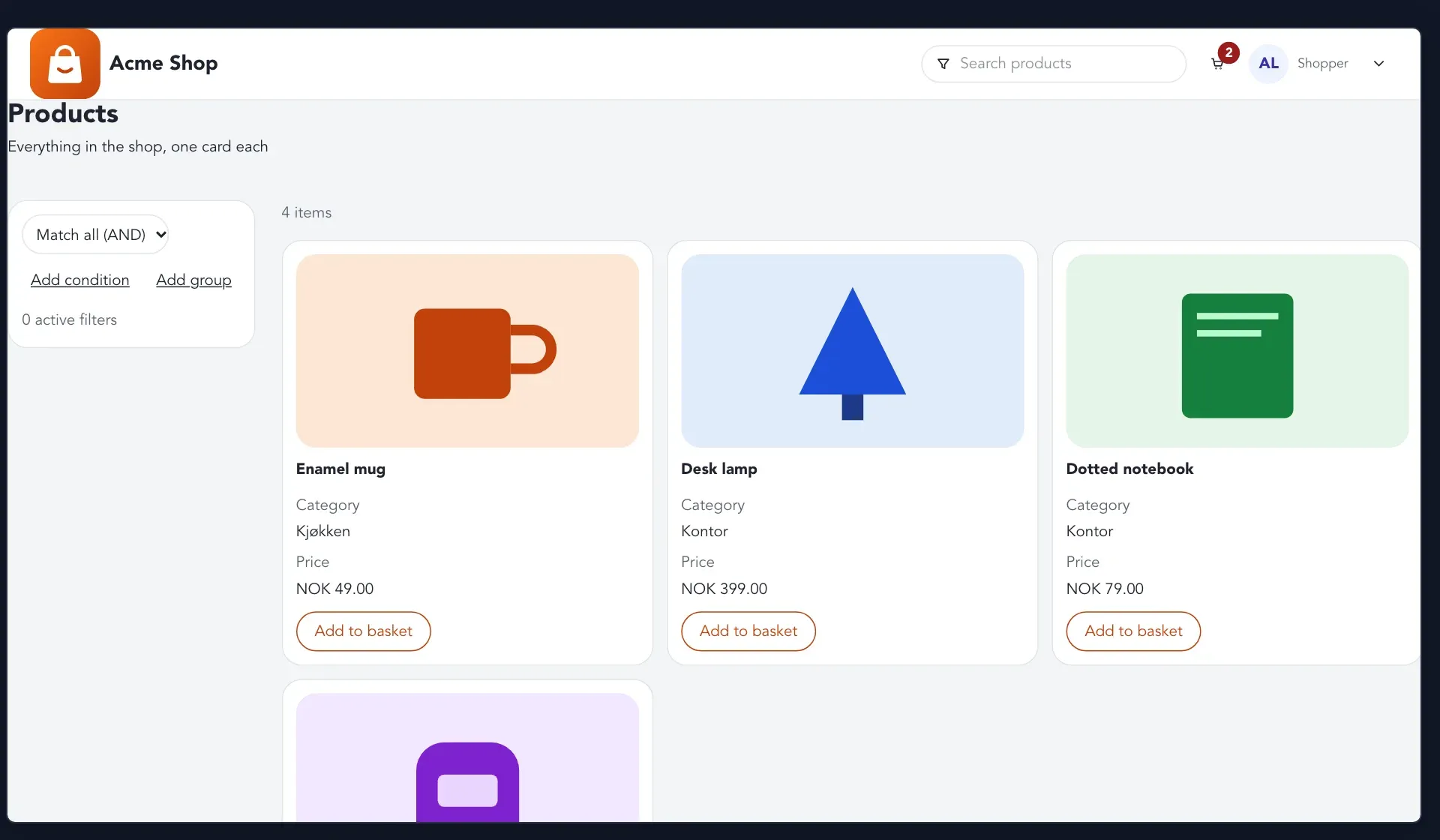
You do not need to write any code to do this. Designers, product owners and domain experts can all work here, and an AI agent can help when you describe what you want.
Two places to design
Section titled “Two places to design”Screens are designed in two places, and each answers a different question.
- On the event model board, a screen belongs to a slice. It shows what one person sees while one thing happens, such as the Shopper browsing products. This is where you add a screen, sketch it and edit its content.
- On the design canvas, you see the screens of the whole application side by side, and the UI profile decides how all of them look: the logo, the colors, the font and the menu.
What you can do here
Section titled “What you can do here” Screens on slices Add a screen to a slice, start empty or from a template, and see how it is opened.
The screen editor Place components, bind them to data and to commands, and check the screen on a phone.
Sketches, mockups and images Show a screen early with a drawing, a page of HTML and CSS, or a picture.
The design canvas Design all the screens of an application together, by hand or by asking agents.
UI profile, blueprints and themes Choose the shell, logo, colors, font and menu once for the whole application.
Screen templates Give a module or a feature a ready-made layout that its screens share.
Preview screens Click through screens with sample data, as the person who will use them.
Where this fits
Section titled “Where this fits”Screens are one of the building blocks of an event model. To read about the idea first, see Screens and personas. To add the slices that screens attach to, see The event model board. When the screens look right, you can check behavior and build and deliver the application.